Thank you @Jao vdL this is helpful.
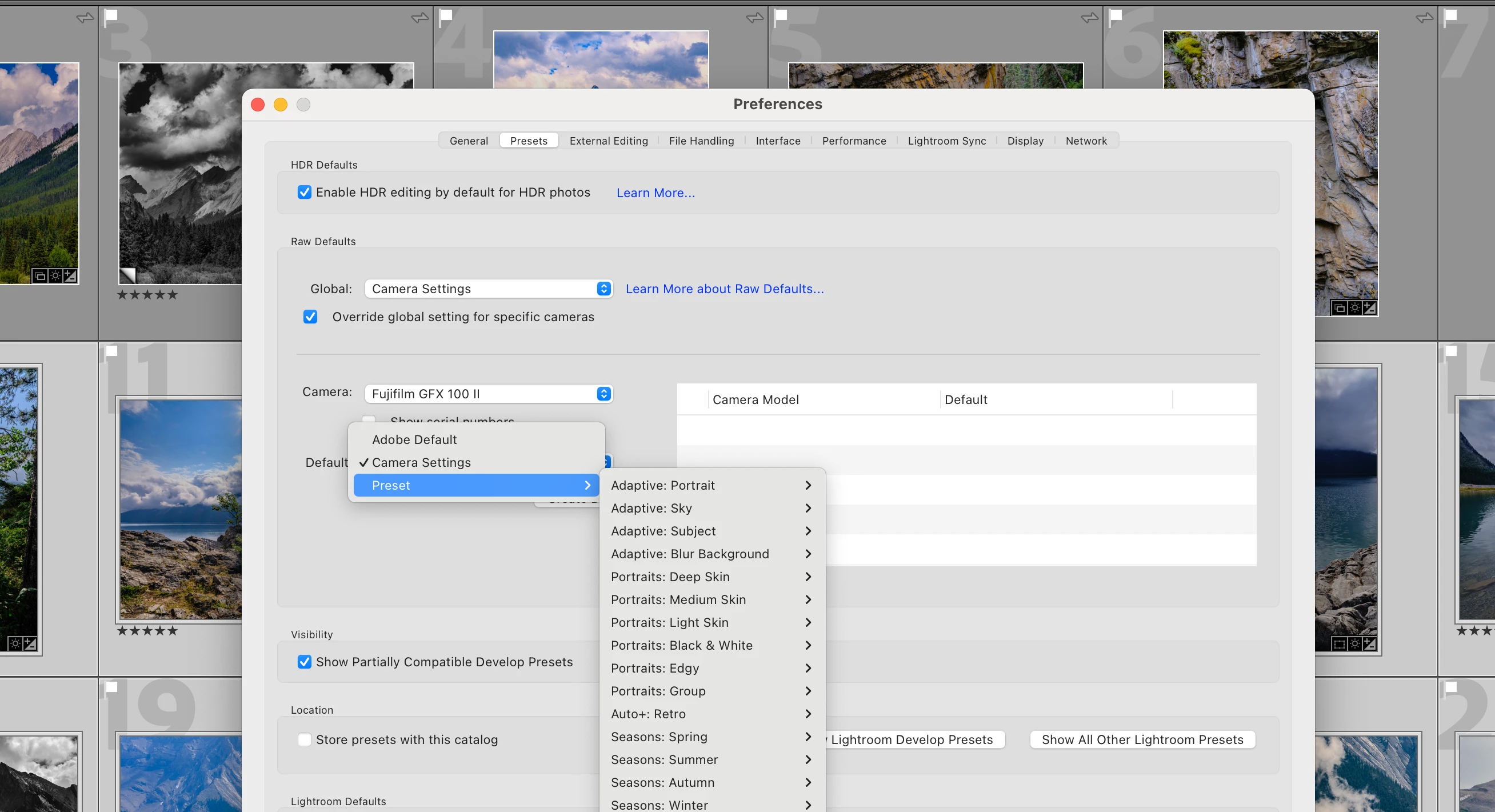
Which preset would you use that includes the HDR button turned on? It's not obvious to me from the list (see below).
By the way, I tested, and copying the "Treatment & Profile" from one HDR photo to another group in Library does NOT copy over the HDR button being turned on, which is annoying.
So I still can't figure out how to turn the HDR button "ON" for a group of 200 photos at a time for instance without having to do it one by one.
As far as sharing, I have found for now (and I just started exploring this) that creating a collection in LRC and then choosing "Make Public" on the top right creates a URL in Lightroom web that actually displays the HDR photos properly when viewed in Chrome on a Macbook or similar device. Kudos to Adobe!
(It does NOT work when published via Adobe Portfolio, as the photos are not HDR there -- boo!)
Any other ideas and suggestions are welcome, thanks.
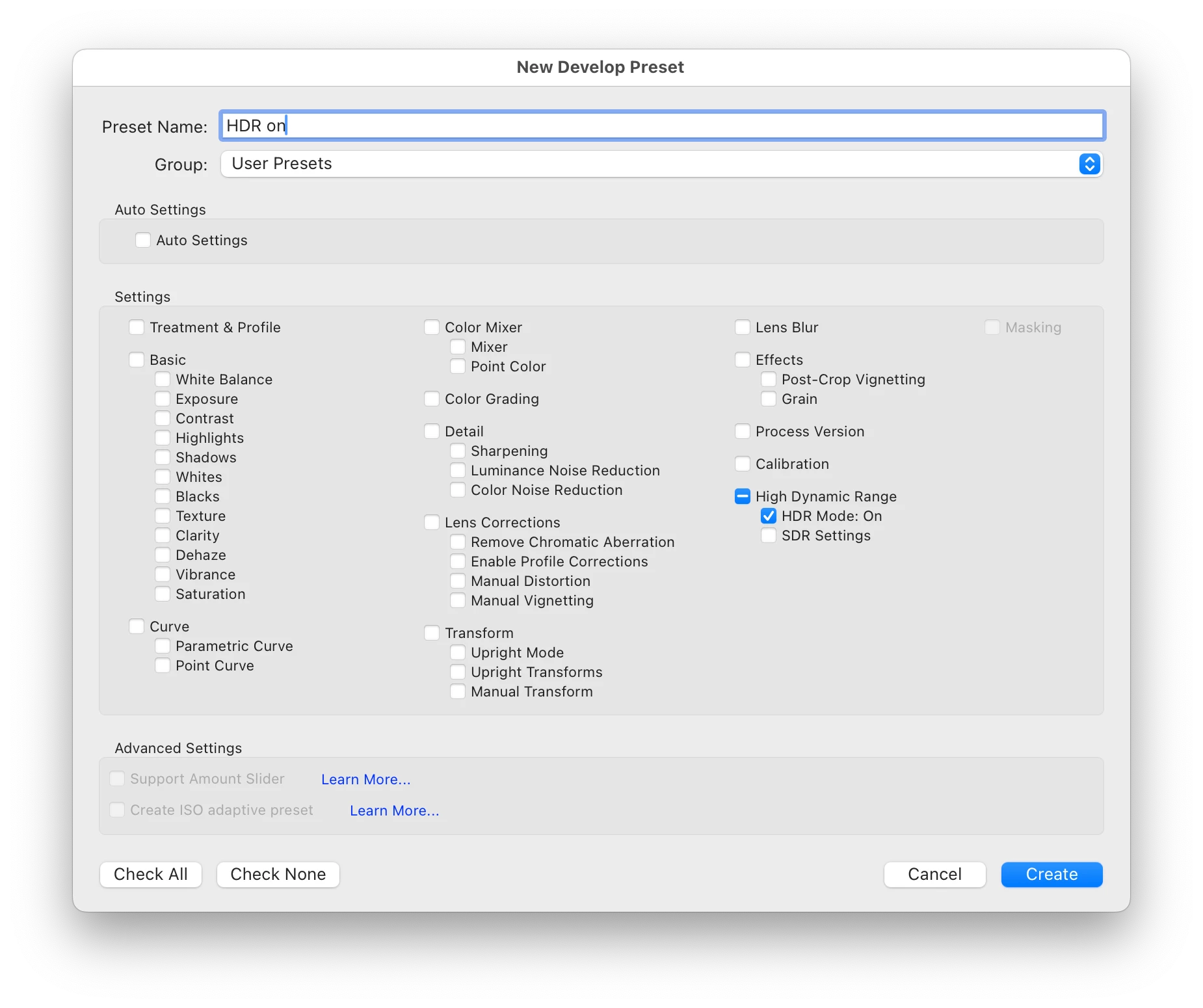
What you do is create your own preset that just sets the HDR toggle:
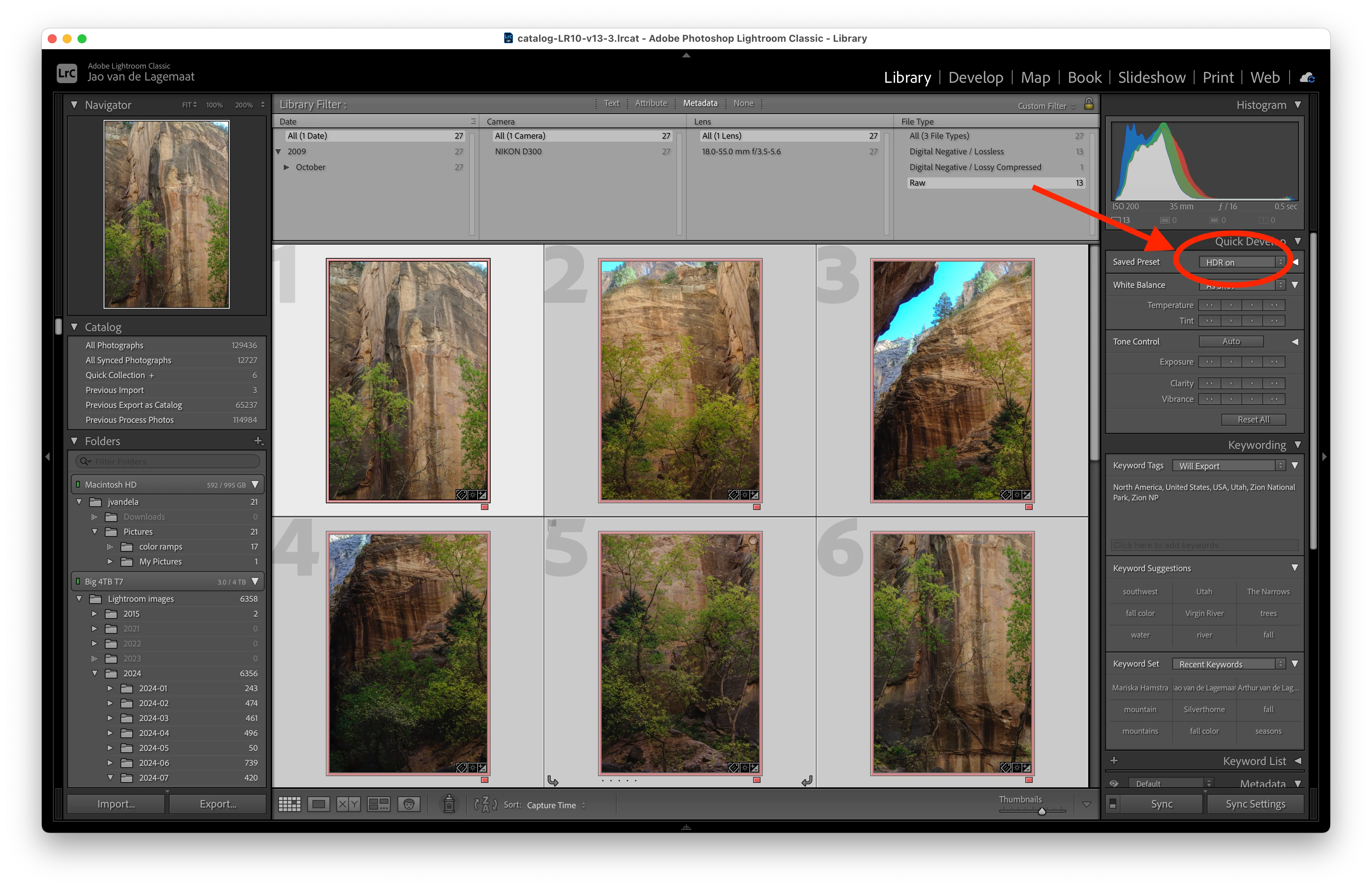
This preset will allow you to set the toggle over a range of images by for example using the quick develop preset panel:
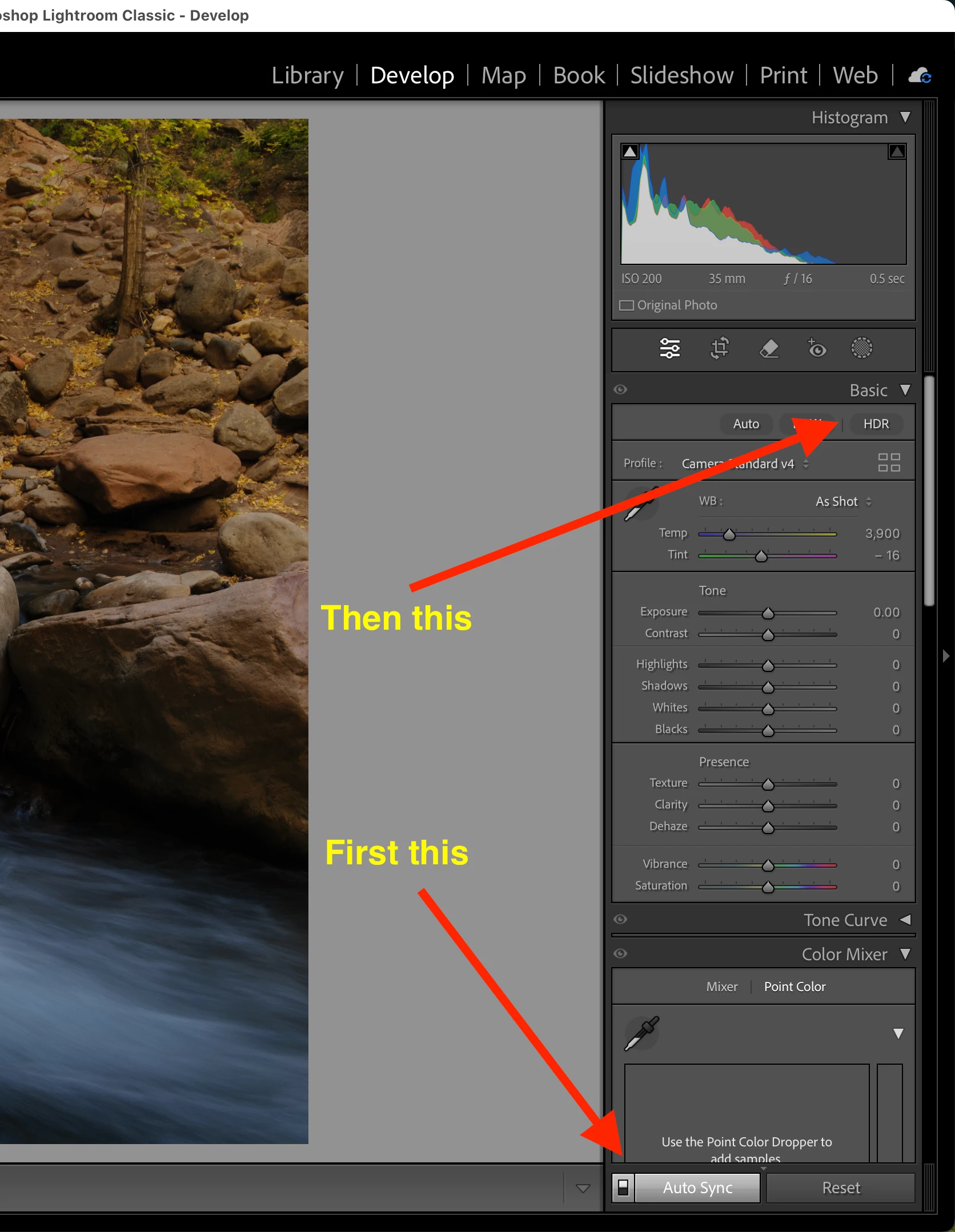
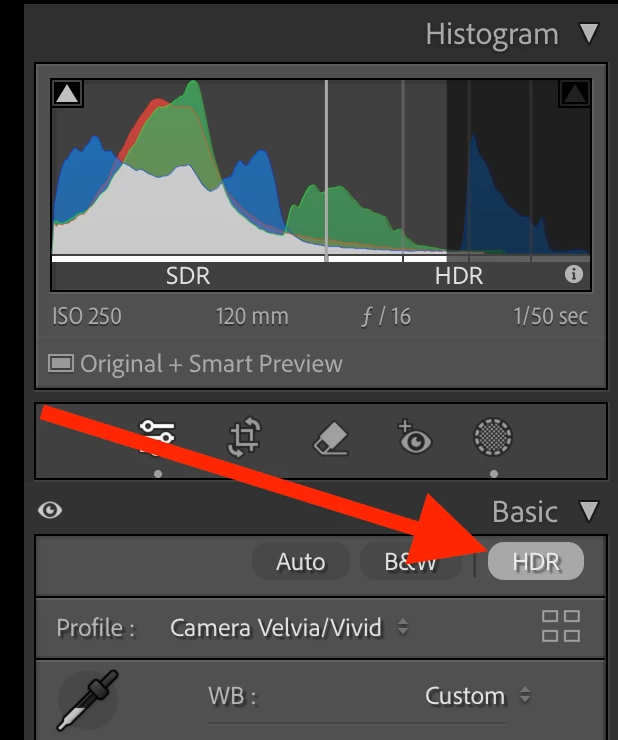
Another thing you can do is to select all images you want to be HDR, go into develop, hit the auto sync button and then hit the HDR button. Now all selected images will have the HDR button set:
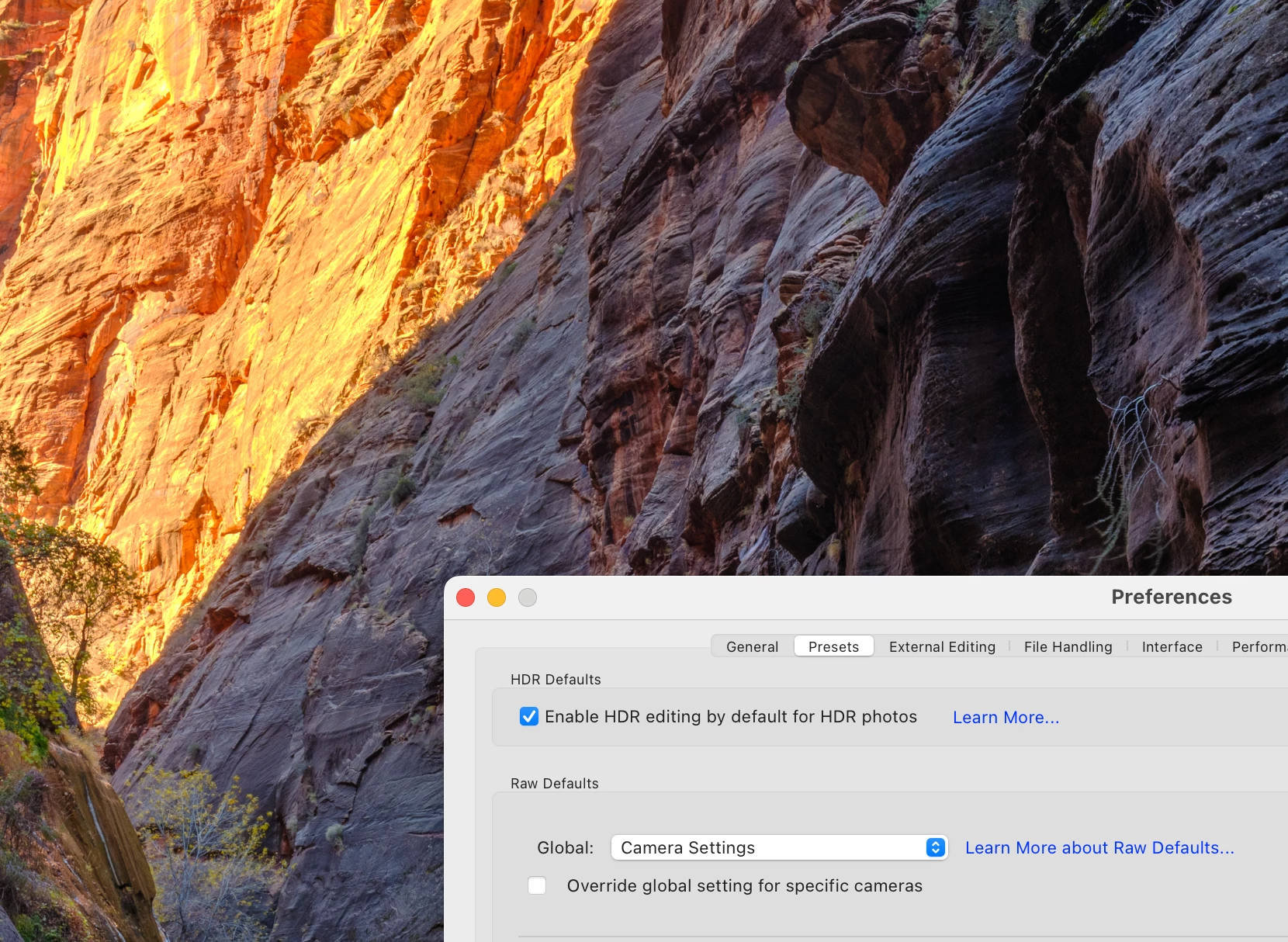
By the way it turns out that the HDR preset doesn't work in the raw defaults popup. Not sure why. But these methods should allow you to do this faster.

 AdChoices