
Participant
May 31, 2023
Answered

Exports have become poorer quality

  • May 31, 2023
  • 2 replies
  • 903 views

Hi Community, I am new to Lightroom Classic and have come to a sticking point. I have given a bunch of images a 1x1 crop and exported them at 1080x1080 and created a preset for my exports. Later I came back and wanted to make a small adjustment to one of the images and then export it again. Using the same preset I now get a larger file with a much inferior image when exporting. The image now appears pixelated. I can't work out if it's linking somehow incorrectly to the original image or if my exportsettings are just somehow wrong. Using the same preset I have test exported some other images and they come out just the same as they did before. It still takes me to the folder where the original image is correctly stored. I am baffled!
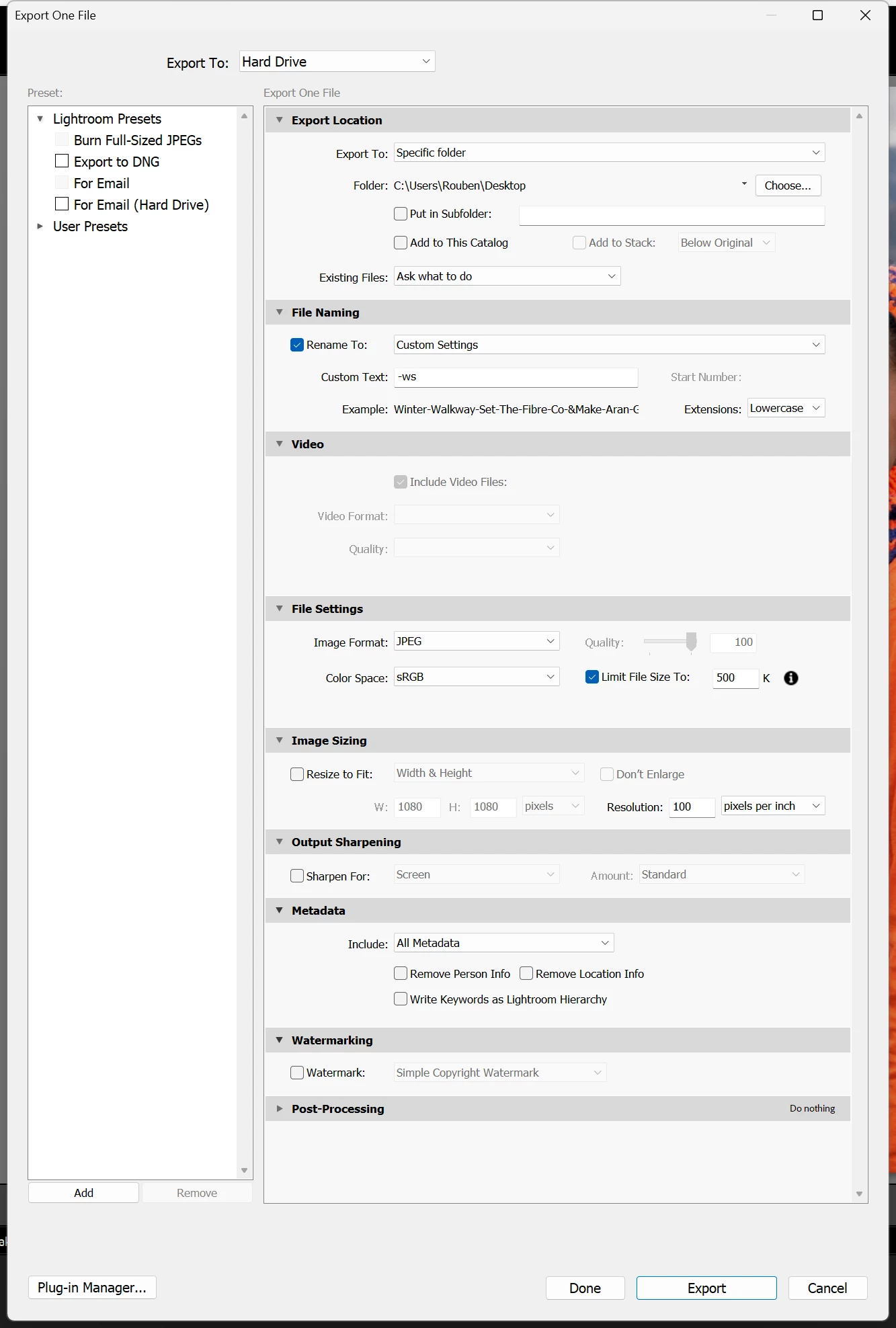
This topic has been closed for replies.
Correct answer FSt0p

Ah yeah as the image is destined to be used in an email I was requested that is be 500KB or less. In the first instance it was seemingly - but now it is not. I did wonder if my minor change was taking the dynamic rage further or somthing but I've exported again with saturation set to 20% and its still pixeliated in the same way. Intrestingly directly exporting from the untreated image comes out fine. I've messed it up somehow.


Your export preset is the issue.

You have file size limit enabled, and also enabled settings to include all metadata.

Applied edits are included as metadata in the exported file as built-in XMP, which could be big enough especially if you are using masking or cloning.

So if metadata if relatively big it leaves much less space for the actual image data which forces LrC to compress harder with bigger losses of quality.

Either remove file size limit, or change metadata settings to include less metadata or not include at all.

2 replies

GoldingD
Legend
June 4, 2023

I see that in your last screen capture, that you are not (in that case) trying to alter size by both File Settings and Image Sizing. In my past experience, doing so  (selecting a limit to file size, and selecting a resize to fit value) is sketchy, odd things happen.


So, the limiting File Sizing to 500 may be resulting in poor quality occurring, despite what quality you have set, it maybe out of your control. What happens if you turn the limit file size off, and instead turn image sizing back on, and testing, then altering the quality setting if required


P.S. A way to prevent this issue of e-mail attachment file size, consider not attaching a file at all. Instead, publish your photo to a service on the internet, on the cloud. Dropbox, Smugmug, Creative Cloud, etc. And providing a link to it in your e-mail.

TheDigitalDog
Inspiring
May 31, 2023

You're exporting the export? That might be the issue, especially if you're also saving out as JPEG. 

Author “Color Management for Photographers" & "Photoshop CC Color Management/pluralsight"
Participant
May 31, 2023

Ah no sorry I think I wasn't very clear in my writing. I made further adjustments to the origional within Lightroom (just adjusting a mask brightness) and then have tried to export out again.

TheDigitalDog
Inspiring
May 31, 2023

If you used the same export preset, aside from the new edits, they should appear the same. 

Maybe try recreating the export preset again from scratch, ensuring all is set as desired and running another test. 

Can you provide a screen capture of the export settings? 

Author “Color Management for Photographers" & "Photoshop CC Color Management/pluralsight"