Known Participant
October 24, 2019
Question

Folder locations after imports

  • October 24, 2019
  • 2 replies
  • 190 views

A little while ago I had a disk crash and had to re-install LR/PS, currently at LR 8.4.1, what the heck is happening with imports and folder locations.

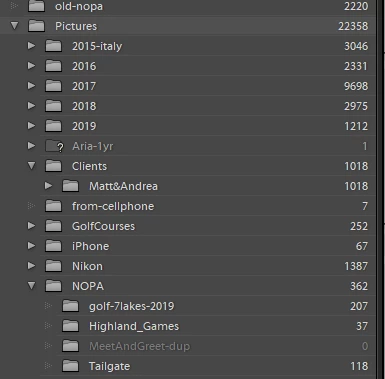
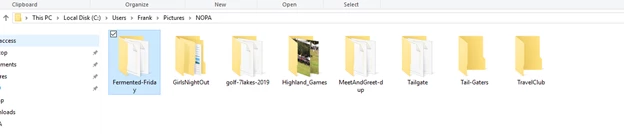
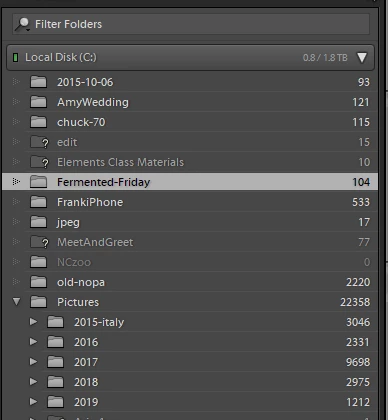
I am trying to keep folders organized, but the imports seem to want to keep at the top level.  See the Fermented-Friday folder under Local Disk.  I want in under the NOPA folder in my Pictures folder.   If I select the Fermented-Friday" folder and open in explorer, it shows it is in the correct location.   If I try to move the Fermented-Friday folder to within the NOPA folder it tells me a file already exists with that name.


Thanks in advance


    This topic has been closed for replies.

    2 replies

    Rob_Cullen
    Community Expert
    Community Expert
    October 24, 2019

    Although it may not be obvious, I suspect it is the "capitalisation" problem, caused by Lightroom being case-sensitive, and the OS generally being case-insensitive.

    Jim Wilde is great at suggesting the fix. Look at this link for an answer-

    https://community.adobe.com/t5/Lightroom-Classic/Lightroom-Import-ADD-folder-structure-issue/td-p/9438685

    Regards. My System: Windows-11, Lightroom-Classic 15.3, Photoshop 27.5, ACR 18.3, Lightroom 9.3, Lr-iOS 10.4.0, Bridge 16.0.3 .
    Community Expert
    October 24, 2019

    You might try right-clicking on the "Fermented Friday" folder and choosing Show Parent Folder. Often this will 'wake up' LR to the realisation that this is already showing, in which case it should move the child folder to nest correctly under its parent.


    One comment: if the "Pictures" location shown, is the one that is created for a given computer login (along with a Documents folder etc - the standard user files area) then there are arguments for using a different neutral location in the file system, that is not user-specific. This for example allows continuity in the event that making a new user profile becomes desirable to get around some problem with the current profile's configuration. If all your files are tied to the present user profile (and living nested under that profile's name, however capitalised etc, in the "users" area of file storage) then this brings some potential problems.


    The default "Pictures" (even the naming of this presents differently in some cntexts, e.g. it may appear as "My Pictures" or as "[User]'s Pictures") is a Library entity which in some ways behaves as non-localised - as a virtual place that can be reached without always having followed an explicit drive letter and folder path. But imports' real locations are what matter to LR... so there is a potential source of mismatch there including the issue of case sensitivity.


    "Pictures" is great for general purpose image files including as a destination for finished JPG output made from LR - but IMO it is wise to maintain (and backup) a quite separate folder structure for LR-imported and managed image source files specifically. To do so in a distinct, static, user-neutral location. One that may change in the future as storage needs change. One that is only ever interacted with, or its contents even viewed, by means of the LR application; otherwise, hands-off for the user. This avoids all kinds of problems.