
Participating Frequently
March 25, 2022
Question

Green shadows in Lightroom and Adobe Camera Raw

  • March 25, 2022
  • 5 replies
  • 2044 views

So I keep running into this issue of green shadows in the darker areas of the frame, 
I do a lot of HDRIs for CG work, so being able to capture braketed exposures is important to my work, however the lower brakets turn out green whenever i load them into lightroom or ACR, its not an issue with incorrect balance/tint as i can throw the tint all the way magenta, yet the shadows will remain unusibly green
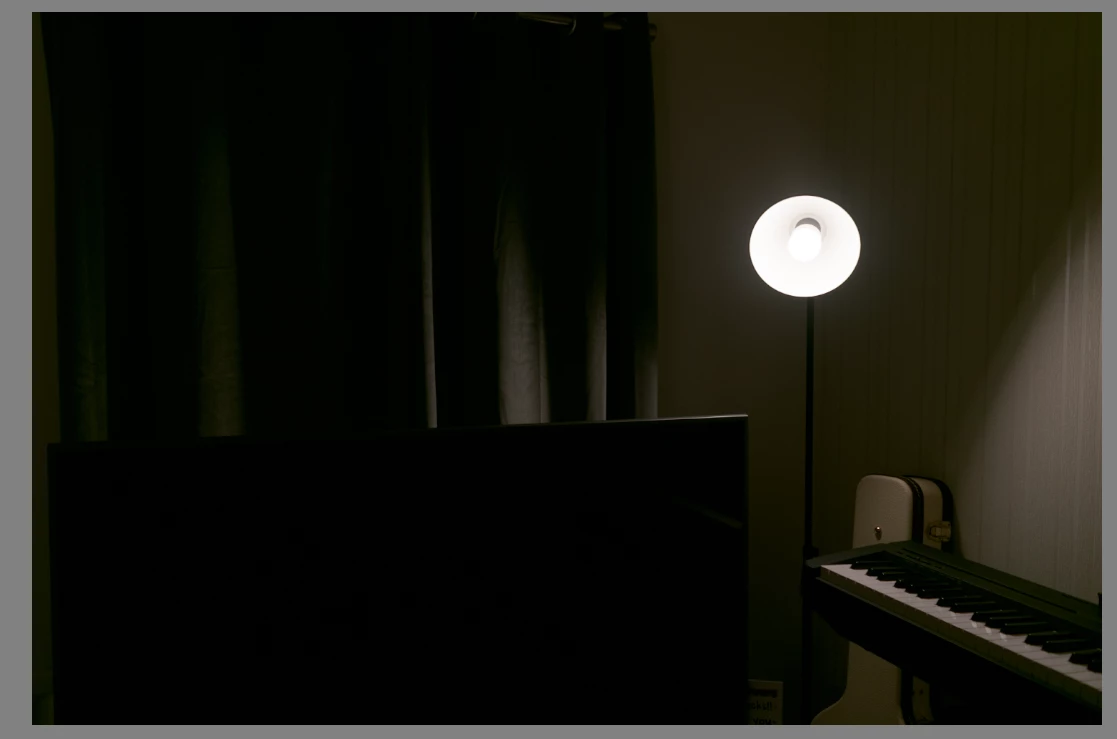
This isnt an issue if I load them into another program like Resolve.

i originally thought this was a colour management issue, since it's not an issue in non-adobe software, however i've not been able to rectify this issue

This topic has been closed for replies.

5 replies

TheDigitalDog
Inspiring
April 1, 2022

We really need to see a DNG, with all edits baked in to evaluate what's going on here. Can you do this and upload to something like Dropbox?

Author “Color Management for Photographers" & "Photoshop CC Color Management/pluralsight"
Participating Frequently
April 3, 2022

Here's the raw image im using above
https://we.tl/t-6QZSCXONJ0

I only shot the raw without jpeg for comparison


heres a refference image with both the raw and JPEG from the camera, as well as a Tiff export from lightroom.

the image was shot with the Camera Neutral profile,
https://we.tl/t-wg44GuUXTB

Community Expert
April 3, 2022

I get the green cast in both ACR and Lightroom. You will only see it when you raise the exposure. Happens both in current and prerelease. You will only see it if you raise the exposure as below. It is absolutely happening and likely indeed a bug in the profiles for this camera. Cast is also there if you select any other profile including Adobe's profiles. I don't get such a cast on any of my files and my display is very well calibrated. As you can see from the histogram the cast is indeed in the data and not a display artefact.

D Fosse
Community Expert
Community Expert
March 28, 2022

I think this looks like a less-than-perfect camera profile - but one that is easily corrected in Lightroom in the Color Grading panel. If this is consistent behavior it might be worth making a new default that corrects it.


All you need is to target the shadows and push it a little towards purple. Check the histogram for a neutral low end.


Color casts in the extreme shadows isn't uncommon. It could be the sensor properties, or it could be a faulty camera profile in Lr. It's just something to keep an eye on.

Participating Frequently
April 1, 2022

Unfortunately the solution is not that simple, its not a colour cast in the extreme shadows, its a significant cast across the entire image, as well as crushed shadows and highlights

The top is the file preview, the lower is the raw decoded through the exact colour profile from the camera that was used to create the Jpeg

Some people I have sent these files to had the same issue when opening them, and others were able to open them correctly

This was never a problem I ran into before a few months ago, I originally though it was an issue with the camera spitting out bad files, but i have tested this out with older files aswell, and they now get interpreted incorrectly aswell

Community Expert
March 27, 2022

What happens if you choose a different profile for the file? For example camera Standard instead of Adobe Color or vice versa. 

Participating Frequently
April 1, 2022

That gives me different profiles, all of which have the exact same issue, crushed contranst to the point of being unuseable, as well as a significant green cast

Theresa J
Community Expert
Community Expert
March 27, 2022

It's hard to tell for sure in the image you shared but I'm wondering if the green tint is coming from color noise. Have you tried adjusting the color noise setting?

Participating Frequently
April 1, 2022

Its unfortunately not a colour noise issue
The entire image is being crushed, and a significant green cast is washing over the whole image

Per Berntsen
Community Expert
Community Expert
March 27, 2022

What camera do you use?

Also, please go to Help > System Info (on a Mac: Lightroom > System Info) , press the Copy button, and paste in a new reply here. You can delete everything below Installed Plugins. See example below.


Lightroom Classic version: 11.2 [ 202201281441-a5b5f472 ]
License: Creative Cloud
Language setting: en
Operating system: Windows 10 - Business Edition
Version: 10.0.19043
Application architecture: x64
System architecture: x64
Logical processor count: 8
Processor speed: 3,0GHz
SqLite Version: 3.36.0
Built-in memory: 48964,7 MB
Real memory available to Lightroom: 48964,7 MB
Real memory used by Lightroom: 2829,7 MB (5,7%)
Virtual memory used by Lightroom: 4494,6 MB
GDI objects count: 986
USER objects count: 2527
Process handles count: 2149
Memory cache size: 191,7MB
Internal Camera Raw version: 14.2 [ 1028 ]
Maximum thread count used by Camera Raw: 5
Camera Raw SIMD optimization: SSE2,AVX,AVX2
Camera Raw virtual memory: 650MB / 24482MB (2%)
Camera Raw real memory: 750MB / 48964MB (1%)
System DPI setting: 96 DPI
Desktop composition enabled: Yes
Displays: 1) 1920x1200, 2) 1920x1200
Input types: Multitouch: No, Integrated touch: No, Integrated pen: No, External touch: No, External pen: No, Keyboard: No

Graphics Processor Info:
DirectX: NVIDIA Quadro P2000 (30.0.15.1179)


Application folder: C:\Program Files\Adobe\Adobe Lightroom Classic
Library Path: C:\Lightroom catalog\PB-v11.lrcat
Settings Folder: C:\Users\Home\AppData\Roaming\Adobe\Lightroom

Installed Plugins:
1) Helicon Focus Export
2) LensTagger Exif Tool


Participating Frequently
March 27, 2022

Hi there, I use a Nikon D5300

Lightroom Classic version: 11.2 [ 202201281441-a5b5f472 ]
License: Creative Cloud
Language setting: en
Operating system: Windows 10 - Business Edition
Version: 10.0.19041
Application architecture: x64
System architecture: x64
Logical processor count: 12
Processor speed: 3.3GHz
SqLite Version: 3.36.0
Built-in memory: 16279.2 MB
Real memory available to Lightroom: 16279.2 MB
Real memory used by Lightroom: 1605.5 MB (9.8%)
Virtual memory used by Lightroom: 4636.9 MB
GDI objects count: 701
USER objects count: 2112
Process handles count: 2177
Memory cache size: 39.4MB
Internal Camera Raw version: 14.2 [ 1028 ]
Maximum thread count used by Camera Raw: 5
Camera Raw SIMD optimization: SSE2,AVX,AVX2
Camera Raw virtual memory: 439MB / 8139MB (5%)
Camera Raw real memory: 440MB / 16279MB (2%)
System DPI setting: 96 DPI
Desktop composition enabled: Yes
Displays: 1) 1920x1080, 2) 1920x1080
Input types: Multitouch: No, Integrated touch: No, Integrated pen: No, External touch: No, External pen: No, Keyboard: No

Graphics Processor Info:
DirectX: NVIDIA GeForce GTX 1070 Ti (30.0.15.1215)


Application folder: C:\Program Files\Adobe\Adobe Lightroom Classic
Library Path: C:\Users\benev\Pictures\Lightroom\Lightroom Catalog-v11.lrcat
Settings Folder: C:\Users\benev\AppData\Roaming\Adobe\Lightroom

Installed Plugins:
1) AdobeStock
2) Facebook
3) Flickr
4) Nikon Tether Plugin

Per Berntsen
Community Expert
Community Expert
March 28, 2022

Does it make any difference if you turn off the GPU? Edit > Preferences > Performance > Set Use graphics processor to Off.

Your graphics driver is up to date, but if you have the Game ready driver, try installing the Studio driver instead.

https://www.nvidia.com/Download/driverResults.aspx/187302/en-us


To determine if this is a color management issue, try setting the monitor profile to sRGB (use Adobe RGB if you have a wide gamut monitor). If this fixes the issue, you have a defective monitor profile. Using sRGB as a monitor profile will not be entirely accurate, so for accurate colors it's recommended to calibrate the monitor with a hardware calibrator.

This will also create and install a custom monitor profile that describes the characteristics of your monitor accurately.


With Lightroom closed, press the Windows key + R, type colorcpl in the box and press Enter.

Add the sRGB profile, then set it as default.