
juliuss39453627
Participant
January 3, 2019
Answered

Grey boxes appearing in Lightroom

  • January 3, 2019
  • 1 reply
  • 2547 views

I have grey boxes appearing in my Lightroom as you can see in the picture below.
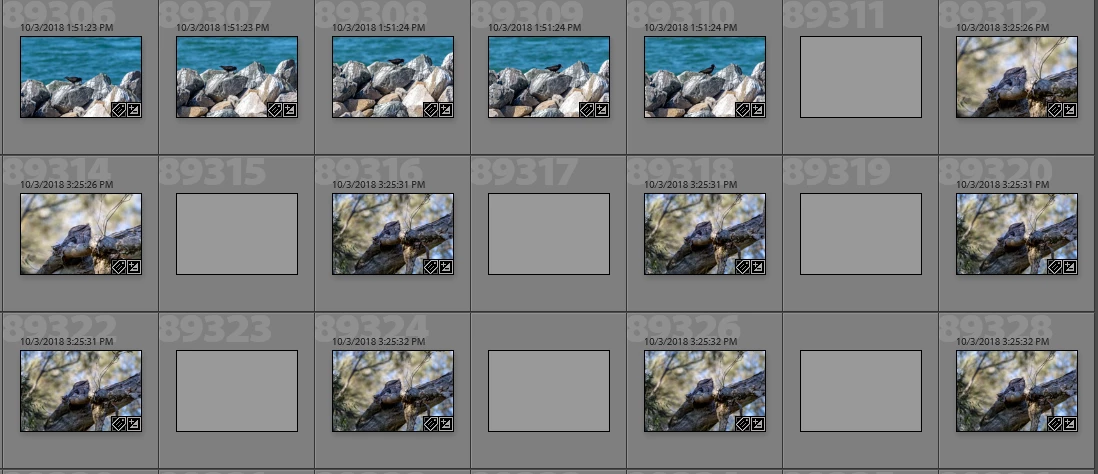
I saw lots of questions where every box was grey but for me out of thousands of pictures only a hundred or so are grey. I recently made a lot of changes in my catalog when I merged my backups and somehow this happened. I don't think any of my photos are missing (although I could be wrong), I just want these boxes to go away.

I can look at the grey boxes in either the loupe or grid view. I wanted to see what file they were associated with so I right-clicked on the box, but nothing happens. I'm not able to pull up a menu like I am when I right-click an image. I thought I should synchronize my folder to get rid of it, but I noticed they're not actually in any folder. When I click on my folder, they disappear. Then I noticed that there are more photographs in "All Photographs" under the Catalog section than in my folder in the folder section (see picture).
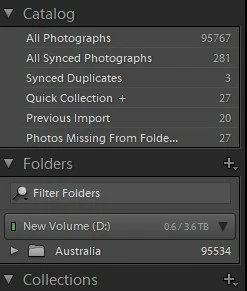
I also tried marked them all as rejected and then deleting them, but nothing happens when I do that. I don't know what else to try to get rid of them. Any ideas?

    This topic has been closed for replies.
    Correct answer JohanElzenga

    This looks like catalog corruption. The grey boxes do not show a capture date like your other images do, so it seems these are database records not associated with images somehow. The different image counts suggests that too.

    If you don’t have a backup catalog you can use to restore this catalog, then what you could try is the following. Select the top folder so you only see the real images. Select all images (expand all stacks if you use stacks), then export this selection as a new catalog. Don’t check the option to include the negatives.

    1 reply

    JohanElzenga
    Community Expert
    JohanElzengaCommunity ExpertCorrect answer
    Community Expert
    January 3, 2019

    This looks like catalog corruption. The grey boxes do not show a capture date like your other images do, so it seems these are database records not associated with images somehow. The different image counts suggests that too.

    If you don’t have a backup catalog you can use to restore this catalog, then what you could try is the following. Select the top folder so you only see the real images. Select all images (expand all stacks if you use stacks), then export this selection as a new catalog. Don’t check the option to include the negatives.

    -- Johan W. Elzenga
    juliuss39453627
    Participant
    January 3, 2019

    Brilliant! Thank you very much.