
Known Participant
May 6, 2019
Question

guided upright vs rotation

  • May 6, 2019
  • 2 replies
  • 3138 views

Hi there,

I'm writing because I have a question regarding the guided upright tool, maybe someone has an answer to this.

I'm often documenting in an art- and architectural context. many of my photos are taken without tripod, as quickly as possible. that's why often my images are not very straight, but for sure I want the result to be straight.

Usually I do that with the "guided upright"-tool, but there's something that's really bugging me: when i only use "guided upright" then the images often end up being distorted. the better way to do it is to first rotate the image, then export the image, then use the "guided upright"-tool.

To illustrate what I mean, here's some examples (sorry, not the best photo, but it illustrates the point):

1) original image
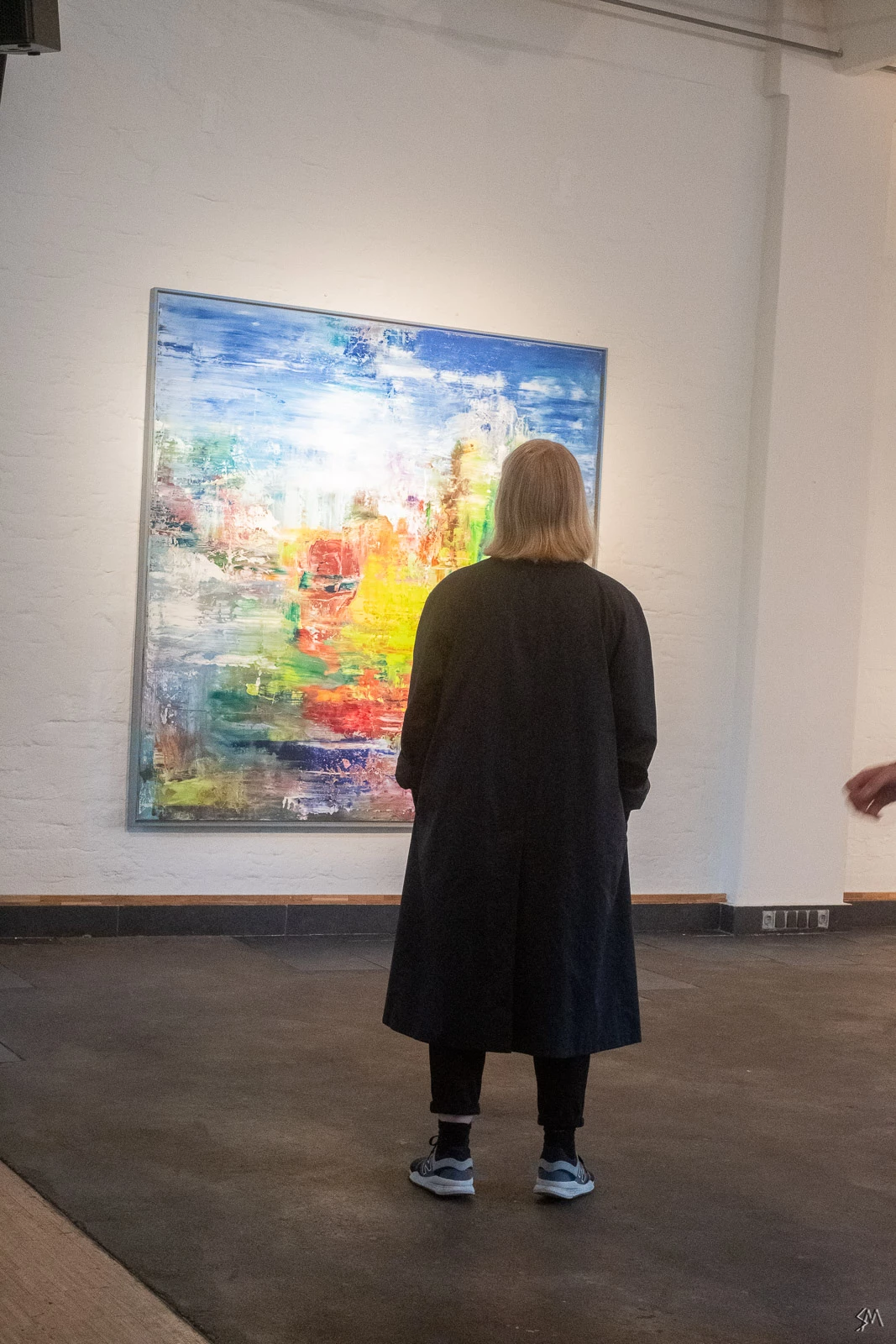
2) straightening using only "guided upright"-tool
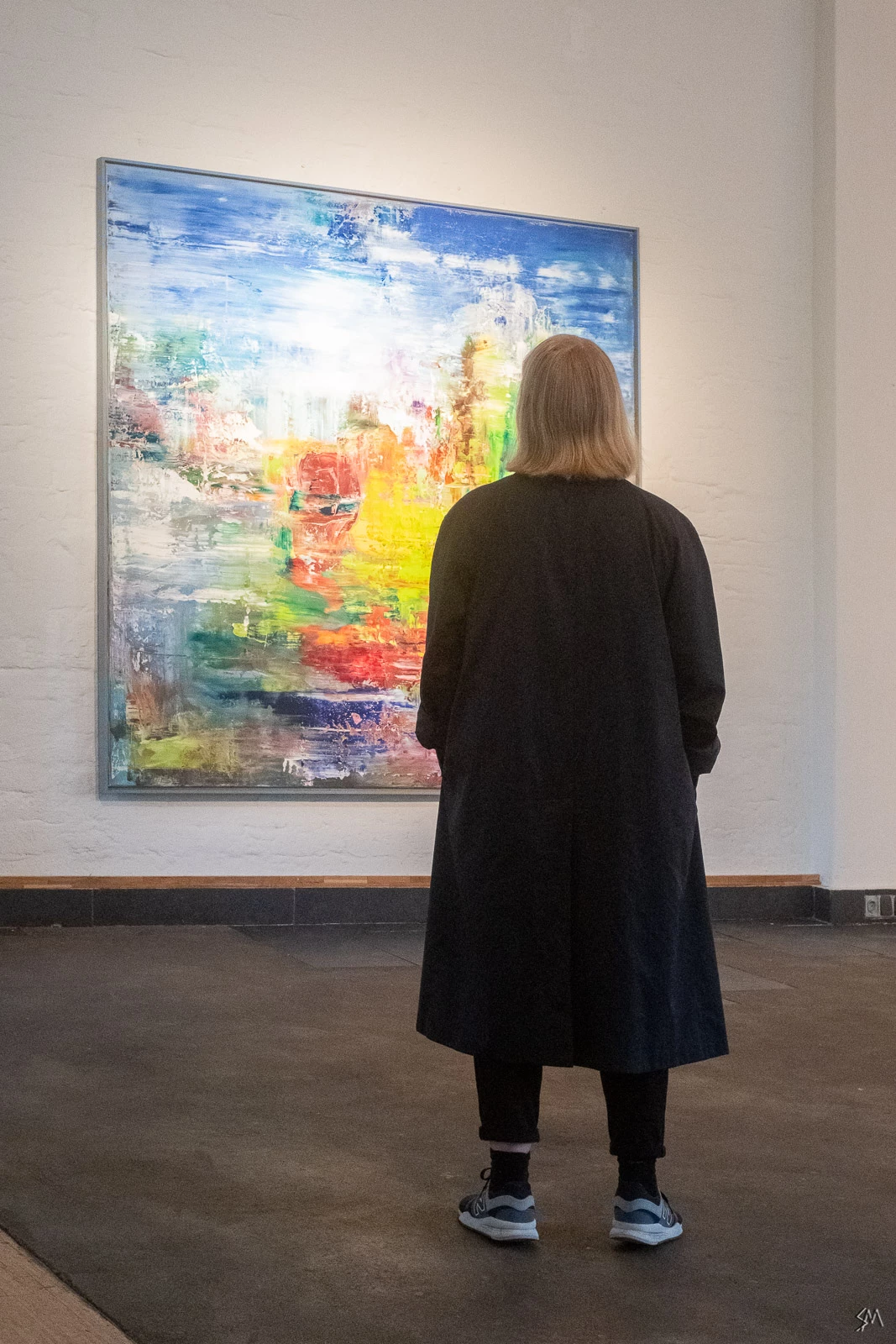
3) straightened by first rotating, then exporting and re-importing, then "guided upright"-tool
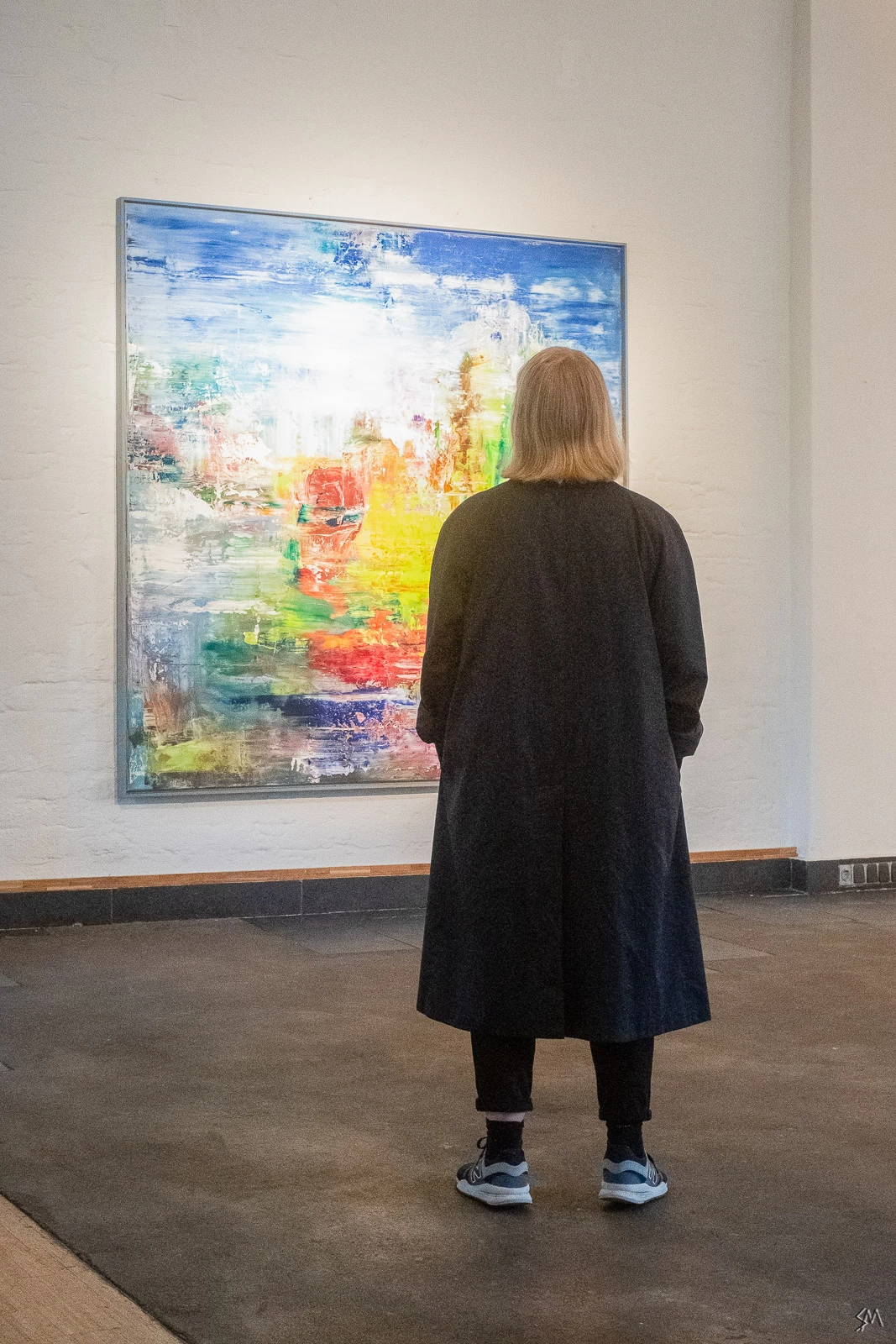
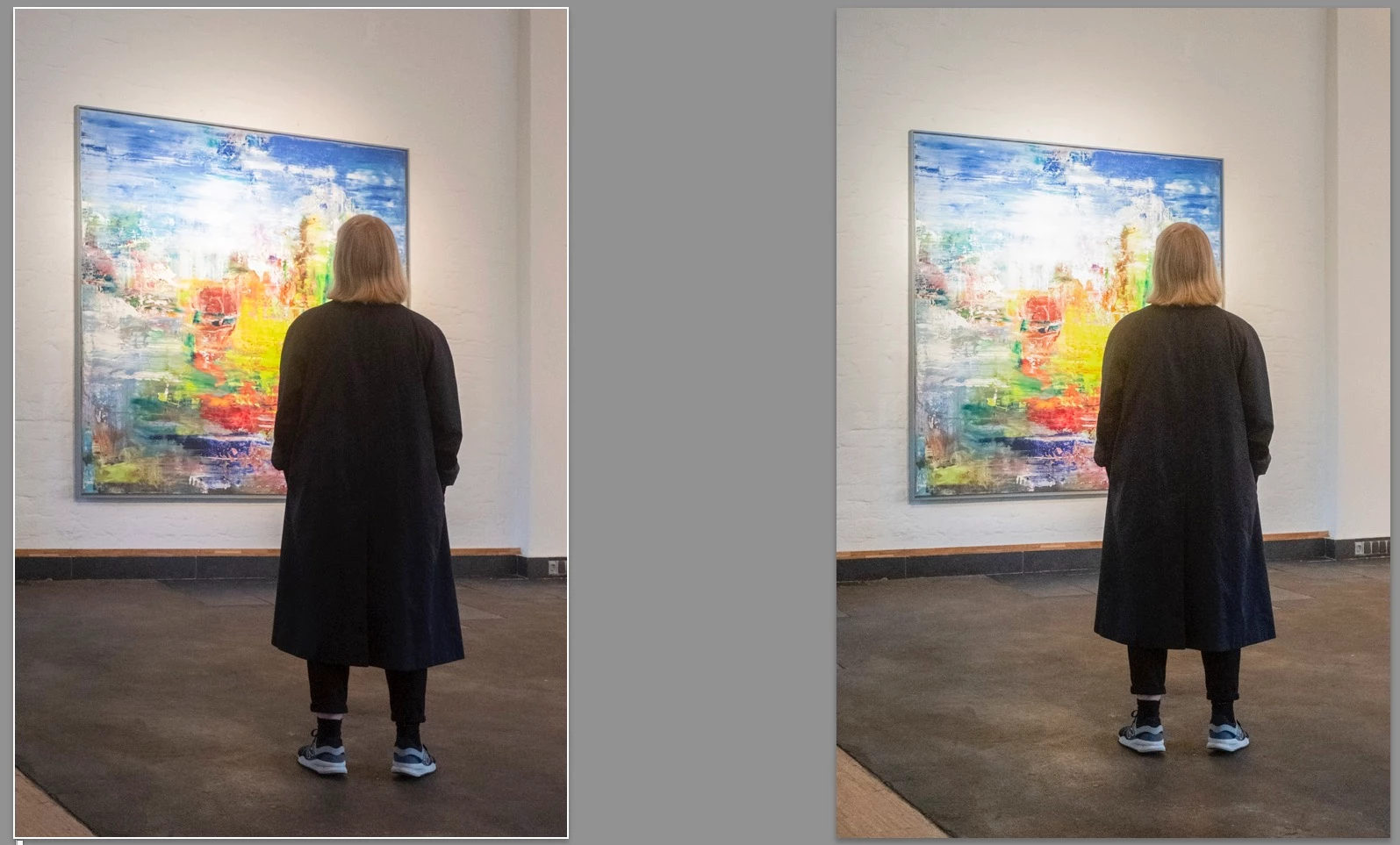
As one can see, there's a significant difference between the results. Here's the two last results again for easier comparison:
Usually the "guided upright"-tool is resetting any rotation of the image (resulting in a distorted image). There's also the option to press the "option-key" while using the "guided upright"-tool, so the rotation is not being reset. Problem is: that doesn't work at all, it gives me the same result as without resetting the rotation.

My only workaround is to first rotate the image, then export and re-import, then use the "guided upright"-tool.

My question is:

- is this a bug in the application? "Guided Upright" should work in the way that the image is being less distorted not more, shouldn't it? Is it maybe just sloppy programming?

- Why does the pressed "option-key" result in the same distorted image as when i don't press it?

Any feedback would be really helpful, because all that exporting, re-importing is just a waste of time and storage...

Thanks,

Sebastian

This topic has been closed for replies.

2 replies

Just Shoot Me
Legend
May 6, 2019

Maybe if you got permission from the art gallery, painter, artist, owner of the art you wouldn't need to be so quick with your shots and you could compose them better.

Known Participant
May 6, 2019

that's a very constructive response, thank you.

i am photographing with permission, not sure why that's a point here. as i said: on openings sometimes i have to shoot quickly, out of my hand, because some motives just disappear too quickly. it's better to get a good shot that's not straight than miss a shot but have straight lines.

Known Participant
May 6, 2019

I think programming-wise the "guided upright"-tool should not only be about the perspective correction, but rotate the image first by the median value between the two guidelines. Everything else leads to distorted results.

Example: if the left guideline is at an angle of let's say 10 degrees, and the right one is at 20 degrees, then it would make sense to first rotate the image by (10+20)/2=15 degrees, and then do the perspective correction as indicated by the guidelines.

Hope someone can follow me here...

Cheers, S

Known Participant
May 6, 2019

to illustrate my point once more i just made a black square that i rotated in photoshop:

I did not distort the square any further (to keep it as simple as possible), but if I'm using the "upright"-tool on the left and right sides then following thing happens:

I understand that the tool is for correcting perspective distortions, but the tool should incorporate an option to rotate the image first, before correcting the distortion, otherwise it's unusable because it's resulting in images that are MORE distorted than without the correction.

The only work-around is - as stated above - rotating the image first, exporting and re-importing, then use the guidelines.

Maybe the Adobe-team could find a solution for that? Would be really helpful.

Cheers, S

Todd Shaner
Legend
May 8, 2019

Any Auto perspective correction tool, is surely designed to be used with an out-of-camera image - ideally, working with the full frame data.

Supplying it with pre-distorted imagery which has undergone prior transforms, is IMO not a representative test for such a tool, nor is it the intended use case I'd have thought. I imagine the analysis looks for distinctive characteristics and relationships which can be compared against and fitted to the known perspective "world" seen in straight rectilinear projections. Such a pre-corrected image consists, instead, of an artificially constructed perspective such as no standard camera would take. It is no wonder if the tool may get confused - when it is encountering systematically "falsified" image geometry that its algorithm never had in mind.

I too have noticed some odd glitches with Auto otherwise - that is what Guided is there for probably. It's the same class of problem, as sometimes encountered in pano stitching. But Auto Upright gets there or thereabouts, a startling percentage of the time, as SOOC.

Of course, an image that is technically straight may still contain visual cues that make us psychologically experience it as not-straight, and vice versa. We may for example in a converging-verticals image, prefer a particular feature that is known to be vertical IRL, to be shown vertical in the frame - even though it is framed off-central - technically, strictly, only when central should it show vertical. Auto Upright seems to try to "understand" those more fuzzy pictorial requirements, to some extent - hence, it is more prone to misread what's needed in certain awkward cases. Also certain sorts of subject are simply more difficult,or arguable, as to which particular solution is the most desirable.


UPDATE: My apologies to the OP and everyone else here! I added a reply to Richard's May 6 post that for some reason has disappeared. Because of this my second post later that same day is going to be out of context. Specifically, "From the findings in my most recent post today I don't think Adobe will consider your suggestion (i.e. Idea post)." I've recreated that post below:

richardplondon  wrote

Any Auto perspective correction tool, is surely designed to be used with an out-of-camera image - ideally, working with the full frame data.

Richard I totally agree with the above statement and your observation that using the alt/opt key override is merely an "additive" function.

The four Upright modes use the full unedited raw data for calculating the transform BEFORE the Manual Transform settings are applied. Because of this adding the alt/opt key override capability to the Guided Upright mode is of no benefit in achieving the OP's request. I tested some of my own image files that were shot level and rotated slightly and could not find a single example where the level image produced better results than its slightly rotated image. This why I suggested the OP provide controlled sample pairs (shot at the same time) that provide some benefit. As Richard has suggested please also provide verbal annotations as to exactly why you think it is better.

SUGGESTED SOLUTION USING CURRENT GUIDED MODE

The best way to correct your image for both leveling and vertical perspective is to use the Guide upright tool with two vertical guides and one horizontal guide placed at the middle of the picture. Since there is no horizontal reference in the picture adjust one end of the horizontal guide until it provides the desired leveling in the image that you're trying to achieve. In the below example I applied two guides on a rotated export file copy and three guides on the original unrotated image file. I then moved the right end of the horizontal guide downward and was able to achieve the same correction with both files. The unrotated image has the added benefit of a larger image size.