


Eric Ahrendt
Participating Frequently
June 20, 2020
Question

Hard-to-Solve "Filter Failed" with Epson Printer

  • June 20, 2020
  • 8 replies
  • 23955 views

I've spent a few hours trying to troubleshoot this issue. I have a new Epson SureColor P700 printer, but can't get it to print from Lightroom Classic v9.3.  
Trying to isolate the problem, I spent an hour on the phone with Epson, who concluded it's a Mac problem, and then another hour with Apple, who concluded it's a Lightroom problem. I won't go through all the troubleshooting steps we took, but I did uninstall and reinstall the Epson driver three times, and checked virtually every setting on the Mac side. On the recommendation of the Epson rep, I've "reset the Mac printing system" several times by deleting the printer and all associated files and adding it back in. Didn't fix the problem.

After lots of experimentation, the Apple rep decided the problem lies with the Printer Settings that are available in the Print dialog box that you get when you hit Print in Lightroom. 
I'm able to print to the P700 from other applications, and also by selecting the Bonjour version of the printer instead of the TCPIP version, but then I get no Printer Settings choices—so that's not an acceptable workaround. According to Apple tech support, the Printer Settings in the dialog box are the 'filter' referred to in this "Filter failed" error message. 
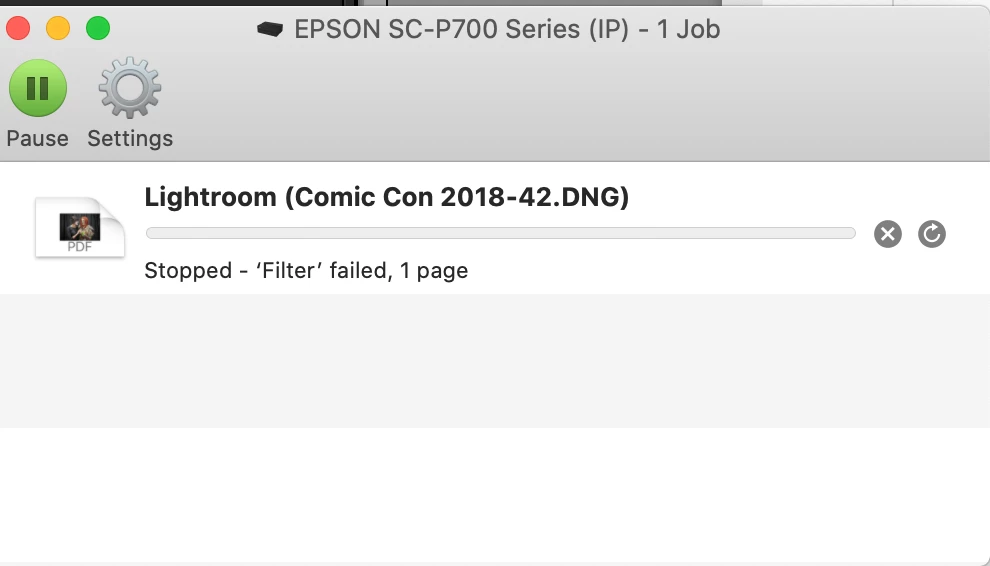
SO, I'm at a loss for how to solve this. I've also tried many different settings for the ICC profile in Lightroom, and for Media Type and Print Quality in the Print dialog box, but always get the 'Filter failed' message and the file doesn't print. 
Any suggestions would be appreciated.


8 replies

Participant
July 16, 2023

Darnit, I'm getting this 'Filter' failed error trying to print to my Epson 3880. I shall read on......


Participant
August 23, 2023

I found this video solved it for me. I'd not deleted all the cache or emptied my trash folder. Short vid, followed all the steps then downloaded correct driver from Epson (not Apple). 

https://www.youtube.com/watch?v=FzDaYVOGW3o

Inspiring
February 3, 2021

This link may give you some insight https://www.lightroomqueen.com/community/threads/filter-failed-and-epson-p700.40574/

What is the PDF icon shown in your screen shot?

matthewb21729677
Participant
November 24, 2020

I recently started running into this problem after installing the latest drivers on my system and found a work around that works at leas for me. Instead of printing directly through the Lightroom interface, I was able to set everything up normally like I would, but instead of the print button in Lightroom I have found if you click the Printer button (where you can choose between what network pritners you would like to use) and send the file to the printer via the system print button in this pop-up if worked fine for me every time. 


Shown below

Participant
December 1, 2020

I recently started having this Filter Failed issue issue on my trusty Epson Stylus Photo 2200, initially I removed all printers and reset the printer system. Also downloaded the latest updated drivers and nothing worked until....


I installed an old printer driver that I knew worked with Mavericks back whenever I installed that. I tend to keep a stash of old software just in case. This one is from 2013 but I just installed it on Mojave 10.14.6


epson13564.dmg


Here it is below:

https://gofile.io/d/kewiLL


Your mileage may vary but good luck.

Participant
August 8, 2020

I had the same issue with the new P700 on a Mac. I had printed about a dozen prints successfully. Then one day, I try to print and get the very helpful error "filter failed" error. I got it working by going into System Preferences->Printers & Scanners and right-clicking on the P700 printer in the list of printers and clicking on "Reset printing system." It removed both printers I had connected (wirelessly) to the Mac. I then added the P700 back, opened up LR again, and voila, back to normal. The equivalent of turning something on and off I guess in terms of resolving some issue with any gadget. Thanks again for posting the details of what you did here to get it working.

Participant
October 1, 2020

This worked for me, as well. It seemed like the quickest thing to try before jumping into deleting all my software. Thanks!

Participant
December 23, 2020

This was a new one for me and I was a bit discouraged reading the initial posts. This approach fixed the problem immediately. Your insight is very much appreciated.

Epson ET-2720

MacBookPro 2016

Big Sur

GoldingD
Legend
June 21, 2020

From last post

I re-downloaded and re-installed the Epson printer software, and it worked. 

Previously, were you reinstalling an existing download, or had you acquired a fresh new download?


Eric Ahrendt
Participating Frequently
June 20, 2020

Thank you. All those boxes in the Security and Privacy box were already checked.


Thank you also for passing along the two links. Unfortunately, I'd already read both of those posts (and quite a few more) after a Google search for Filter Failed. I've tried the things they recommend, without success. 


What I HAVE discovered since is that I can print to the AirPrint version of the printer, but not the TCPIP version. But that's not an ideal workaround, because it doesn't give me access to the same set of Printer Settings I want to take advantage of. 

Inspiring
January 13, 2021

Glad that worked out. Here's a more detailed way to do a fully clean install for Epson printers on Mac OS:

 
1.Delete all instances of Epson printers from System Preferences>Print & Fax.

2.Then go to /Library/Printers and toss the whole Epson folder.

3.Toss LFP Remote Panel (IF you are using this utility for your printer).

4.Then reinstall drivers from Epson and never Apple.

 
When you go back to Print & Fax to add the printer, on 10.X I had to wait almost a minute before the IP version of the printer showed up, whereas the Bonjour one shows up right away. Then add the IP instance of the printer. This is for printers on a network.
Then re-install LFP Remote Panel if you use it with this printer.
 
NOTE: IF you have more than one Epson printer, you need to install the driver in the order of their release! Older then newer or you run into issues (eg, install 4800 before you’d install 3880).


Can't believe  it! It worked. Thank you so much. Deleted and reinstalled as you suggested Printer driver v10.90 from the Epson site with OS 10.13.

Just Shoot Me
Legend
June 20, 2020

Try this.

Export the DNG file to a TIFF file and then try to print the TIFF.

If that fails then try it as a JPG.

Your screen shot show a PDF icon on the left side. What is that?

Eric Ahrendt
Participating Frequently
June 20, 2020

Thank you. I tried your suggestion for both file types and it made no difference. Still got the Filter Failed message.

The PDF is a thumbnail of the image being sent to the printer, generated, I suppose, either by Lightroom or the Epson driver. The format of the file being sent to the printer is not a PDF.  

Just Shoot Me
Legend
June 20, 2020

There is a section in the OS X sys preference that may be limiting your printing from LrC.

Not sure as I use a Mac rarely and only for testing purposes.

It is in the Security section.


Just Shoot Me
Legend
June 20, 2020

Please Edit your post to remove the Attached screen shot and Include it in the body of the text of your post.

You do that by Clicking the "More..." link at the bottom of your post, Selecting "Edit Message" and then use the "Insert Photos" icon in the tool bar at the top of the Post/Reply/Edit dialog box like this.

Eric Ahrendt
Participating Frequently
June 20, 2020

OK. Thanks. I inserted the screen shot in the body of the post.