

snsok
Known Participant
September 24, 2021
Answered

Help installing .DCPR camera profile in LR Classic 10.4

  • September 24, 2021
  • 4 replies
  • 1412 views

I created a DNG camera profile with DNG Profile Editor. I placed it in the CameraProfiles folder. When I exit LRCC and restart it, I am still not seeing those profiles.


The profile is called basic IR.dcpr


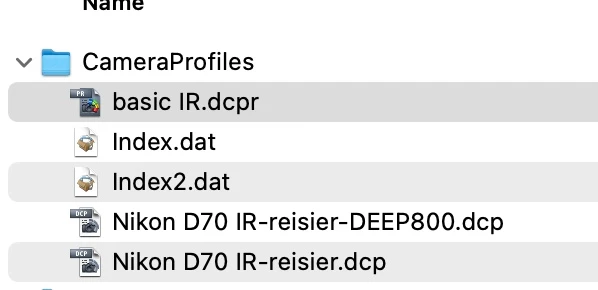
Here is the path and a screenshot. The camera is an Fujifilm X-T4 and the image I want to use the profile on was created by that X-T4.


/Users/<myname./Library/Application Support/Adobe/CameraRaw/CameraProfiles/basic IR.dcp
 

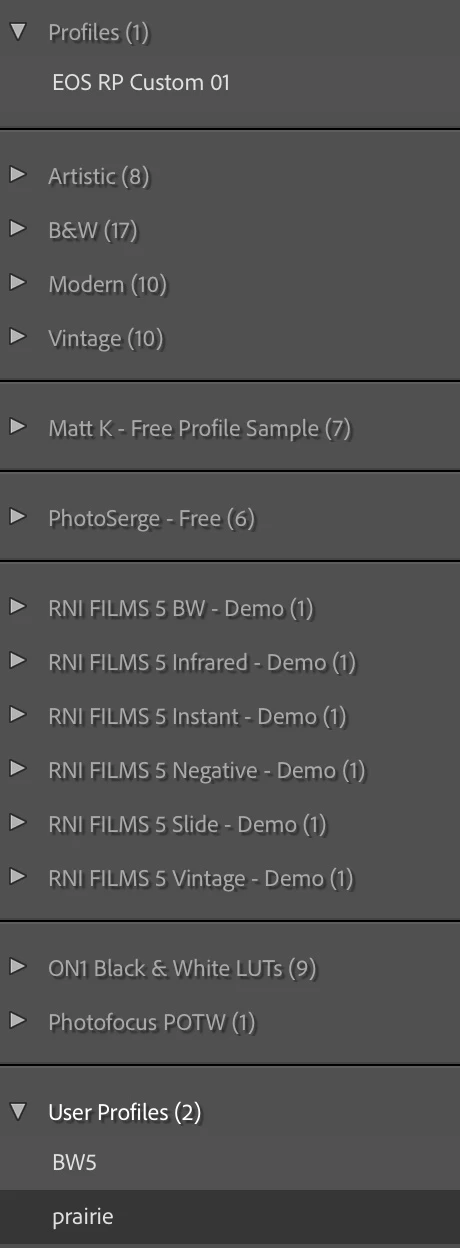
 Here is a screenshot ofmy Profile browser panel on the right side of LR Develop module. I see three user profiles that don't even show up in Finder when I right-click Show in Finder.


iMac BigSur 11.6   LR Classic 10.4  FujiFilm X-T4   .dcpr profile created by DNG Profile Editor 1.0.4

This topic has been closed for replies.
Correct answer johnrellis

"The profile is called basic IR.dcpr"


A .dcpr file is a "profile recipe", not a profile. Open the recipe in the DNG Profile Editor and export it as a .dcp file using File > Export Profile.  See the Proile Editor Tutorial for details:

https://wwwimages2.adobe.com/content/dam/acom/en/products/photoshop/pdfs/cs6/DNGProfile_EditorDocumentation.pdf 


Also, rather than manually placing the .dcp in the settings folder (which is error-prone), use LR's File > Import Develop Profiles And Presets.

4 replies

johnrellis
johnrellisCorrect answer
Legend
September 25, 2021

"The profile is called basic IR.dcpr"


A .dcpr file is a "profile recipe", not a profile. Open the recipe in the DNG Profile Editor and export it as a .dcp file using File > Export Profile.  See the Proile Editor Tutorial for details:

https://wwwimages2.adobe.com/content/dam/acom/en/products/photoshop/pdfs/cs6/DNGProfile_EditorDocumentation.pdf 


Also, rather than manually placing the .dcp in the settings folder (which is error-prone), use LR's File > Import Develop Profiles And Presets.

snsok
snsokAuthor
Known Participant
September 25, 2021

@johnrellis  Yes, that worked. I now see my new profile. Thanks.


This profile affects unaltered RAF raw files as weill as DNGs created from RAF files. Is that how it's intended to work?

johnrellis
Legend
September 25, 2021

"This profile affects unaltered RAF raw files as weill as DNGs created from RAF files. Is that how it's intended to work?"


Yes, the DNG is just an alternate representation of the camera raw data -- they're both raw images.

JohanElzenga
Community Expert
Community Expert
September 24, 2021

Your screenshot shows a "EOS RP Custom 01" profile. That suggests that you have a Canon EOS RP raw file selected. In that case you do not expect any Nikon canera profiles to show up and not any Fuji profiles either.


-- Johan W. Elzenga
snsok
snsokAuthor
Known Participant
September 24, 2021

@JohanElzenga  See reply to GoldingD. I have no idea why a Canon profile shows up other than maybe at one time I downloaded a test shot from a tutorial. Never owned a Canon camera.

GoldingD
Legend
September 24, 2021

That  view of the profile browser, you did select to browse as opposed to just looking at favorites, yes?

If so, why no camera matching ones. If a Fuji X-T4 RAF is selected, would expect Fuji X film simulations to show. If a Canon EOS RP, then due to Adobes horrible Canon support, not (not camera matching profiles)


snsok
snsokAuthor
Known Participant
September 24, 2021

@GoldingD  I do see all the Fujifilm profiles associated with my camera. This was just snip from the profiles panel. I ahve no idea why I am seeing a Canon EOS as I never owned one and there's no matching profile to be found in Finder. 


GoldingD
Legend
September 24, 2021

When you brought up that profile browser, was a RAF file selected? As opposed to a CR3 file? Heck, in fact a RAF from an X-T4, not just a RAF.


snsok
snsokAuthor
Known Participant
September 24, 2021

@GoldingD  yes, I was editing an RAF file taken by the Fujifilm X-T4