
Known Participant
January 2, 2017
Answered

How best to integrate LR with Google Photos?

  • January 2, 2017
  • 8 replies
  • 117556 views

I just downloaded the Google Photos desktop Auto-uploader to upload the entire contents of my Pictures folder (from which Lightroom also creates its catalogue).

I can go ahead and do this using the desktop app, but when opening Lightroom I noticed the following in the side bar:
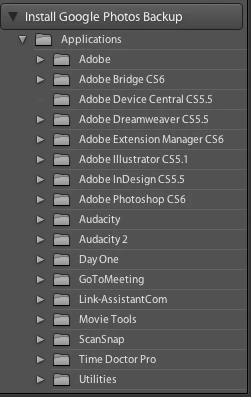
I'm not really sure a) Why it appeared, b) Why none of the subfolders seem to be relevant? I do have the Google Photos app now in my Applications folder, so I would expect it to perhaps show up there, but it doesn't.

In any case, I'm just wondering why this appeared and if it would preferable to integrate the two this way for some reason vs. just using the Google uploader app...

Thank you!

This topic has been closed for replies.
Correct answer Jao vdL

You can use Jeffrey fried's plugin: Jeffrey Friedl's Blog » Jeffrey’s “Export to PicasaWeb” Lightroom Plugin  to setup an export service that uploads your Lightroom images that you choose to Google Photos. That is the way to get your images to reflect how they look in Lightroom. As others have said. Lightroom is a nondestructive editor, so it won't overwrite your originals and so mirroring what you have on your hard drive won't do much good.

8 replies

Participant
October 9, 2017

Unfortunately Google has deprecated Picasa.

Zak833Author
Known Participant
January 3, 2017

That's great, thanks once again!

Zak833Author
Known Participant
January 3, 2017

Hi Jao​ thank you once again for the very informative response.

The only part that puzzles me is that you do not seem to consider Google Photos a viable online backup option, when that is exactly how Google touts it? Is that because, as you say, you think Google may at some point "can" it? Or is it because the backed up copies would be the Lightroom-adjusted versions rather than the originals? To me, this would be acceptable, since these are the versions I would ultimately prefer anyway!

Just curious as to why you described it like that, since the main purpose of it for me would be as a backup utility

Thanks again!

Community Expert
January 3, 2017

That is exactly what I mean indeed. if just having the adjusted copies is fine than it is probably a good solution for you indeed. I need my original raw images backed up and it won't do that so for me it doesn't work.

Zak833Author
Known Participant
January 3, 2017

Thank you Jao​, I appreciate the reference to that plugin. So if you are backing up your catalog to Google Photos, would that still include the full-sized images? Vs. just the adjustments, somehow?

JimHess​ thank you too. However, similarly, would this backup you are suggesting making (on an external hard drive, presumably) include the full images, or just the adjustments you have made in LR?

Community Expert
January 3, 2017

Zak, this would put jpeg copies with all changes baked in on your google photos. The image size will depend on your settings in the plugin. They can be full size to whatever reduced size you want. Google has no clue about any of the develop instructions or metadata that Lightroom uses so this is the only option that gives you fully developed images. It is NOT a backup solution therefore, just a way to have images somewhere. They can be a good last resort if you lose all your images in some catastrophe where you would still have all your pictures somewhere for posterity (At least until Google decides to can google photos - they have a habit of canning services that they no longer feel is making them money) If you actually want to backup your original images and Lightroom catalog somewhere offsite, you need to do something like amazon storage, google drive, Dropbox, or an automated backup software solution. Such solutions work well but are limited by your internet upload bandwidth and if you're in north America, that is usually really slow And Lightroom catalogs including images easily grow to many 100's of gigabytes. I have several terabytes of images for example. Also be wary of data limitations that are becoming the norm in the US too. This is why external hard disks are so convenient for backup as they are orders of magnitude faster. They have the disadvantage of being in the same house though and so get lost too if your main computer gets lost due to fire/water damage. You can always make a regular backup to a hard disk and store it offsite in a safe deposit box If you want to be sure. Some of the online backup solutions allow you to make the first backup by mailing them a hard disk Which might be a good solution.

Jao vdLCommunity ExpertCorrect answer
Community Expert
January 3, 2017

You can use Jeffrey fried's plugin: Jeffrey Friedl's Blog » Jeffrey’s “Export to PicasaWeb” Lightroom Plugin  to setup an export service that uploads your Lightroom images that you choose to Google Photos. That is the way to get your images to reflect how they look in Lightroom. As others have said. Lightroom is a nondestructive editor, so it won't overwrite your originals and so mirroring what you have on your hard drive won't do much good.

Participant
February 16, 2017

I have used the Jeffrey Friedl Lightroom to Picasaweb plugin for several years, but it no longer works. I now have to publish to Google Drive using Jeffrey's plugin, and, and then manually copy the photos into the relevant Google Photos Album. It is really a bad backward step and very clunky. I'd love a better solution as Google Photos is my preferred method of sharing photos with others.

Participant
April 5, 2017

I may be missing something but for whatever:

  • create a folder on desktop called Exports
  • configure G Photos to auto backup that folder
  • be sure you set G Photos to 2048 size so no backup limit
  • selectively (folder by folder or collection by collection) export photos to Exports folder as Jpegs
  • once uploaded create an album ... and what I do is add parenthesis and keywords like (keyword, keyword, keyword) ... it's really not keywords but adding 3-5 tags allows me to search album where a photo I want may be
  • each week I delete the exported images from folder since they are in G Photos
Zak833Author
Known Participant
January 2, 2017

It also just occurred to me that perhaps the integration suggested by that side bar dropdown I posted would result in the catalog being backed up vs. the original folder. But as I wrote, I'm not sure how to do it :/

JP Hess
Inspiring
January 3, 2017

There is an option in the Lightroom Catalog settings that you can choose that says, "Automatically write changes to XMP files". This will write many of your changes (but not all) to XMP files for your raw images and will write the changes to other file types as well. I have never done this. It is my understanding that doing so can affect the performance of Lightroom. Someone else may have a different view of this option.

You need to understand that the only file Lightroom opens is the catalog. The catalog is a database that is populated with image objects to show your images. It is essential that you backup that catalog on a regular basis. Look through your menu options and find the catalog settings and you can choose how often you want to backup your catalog. That backup DOES NOT back up your images. I suggest that you create some sort of plan for backing up your images. That does not involve Lightroom in any way. You can get software that will automate the backup process. Or you can have Lightroom created a second copy of your images as it imports them. Those backups should be on a different hard drive from where your working images are located.

dj_paige
Legend
January 3, 2017

JimHess wrote:

There is an option in the Lightroom Catalog settings that you can choose that says, "Automatically write changes to XMP files". This will write many of your changes (but not all) to XMP files for your raw images and will write the changes to other file types as well. I have never done this. It is my understanding that doing so can affect the performance of Lightroom. Someone else may have a different view of this option.

I don't see how this helps the OP at all, he wants to be able to view the edited photos, writing edits to XMP doesn't achieve this goal. Exporting the photos to Google Photos, or using a LR Publish Service that publishes to Google Photos does allow him to view the edited photos on Google Photos, but I have no idea if this is possible as I have never looked into it.

Way back in Lightroom 1 and 2, writing to XMP might have been a performance issue. The entire code for writing to XMP was re-written somewhere along the way so that this is not a performance issue now.

Zak833Author
Known Participant
January 2, 2017

Thanks, this was also helpful. Hmm, so any adjustments only apply to the photos being viewed within Lightroom itself? Is there no way to have them apply to the original in my Mac folder?

JP Hess
Inspiring
January 2, 2017

I have never used Google Photos. But are you aware that the photos that you have worked on in Lightroom will not reflect the changes made to them? Those changes only exist in the catalog.  You would probably be happier if you export copies and synchronize those copies with Google Photos.