

NiklasGemkow
Participant
January 26, 2020
Answered

How do I apply a preset without changing temperatur and color? (RAW)

  • January 26, 2020
  • 2 replies
  • 2159 views

I want to apply some presets but my RAW files are all yellowish because the light around me was very yellow - so I don't have a problem with that (I simply use the pipete to manualy adjust the temp and col)

BUT

When I apply a preset after this, the temperatur and color changes again!....

Can I lock the settings and then apply the preset?

How can I work around this??

Thanks 🙂
This topic has been closed for replies.
Correct answer Just Shoot Me

You can't IF that preset includes the Temp and Tint numbers. You can manually edit a preset as it is just a TEXT file (all XMP files are just text files).

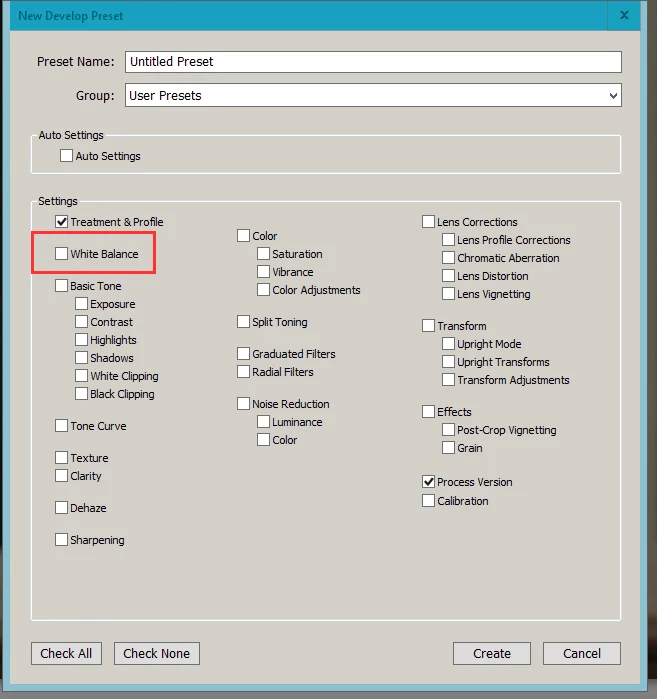
Or you can reset the Temp and Tint sliders to as shot then create a new Preset and uncheck the White Balance check box in the dialog below.


2 replies

Rob_Cullen
Community Expert
Community Expert
January 26, 2020

It sounds like the Preset is changing Color Balance.

For any 'User' presets you can change Develop settings and update the Preset.

So start with an un-developed file (or Reset one), apply the problematic preset, change the White Balance sliders back to "As Shot", then [Right-click] the preset and choose [update with current settings].

The preset now will now not change your WB.


The best presets are those that only modify specific development. eg. Exposure only, a Tone curve only.

The Adobe default installed presets cannot be updated but you can apply one (to a reset image) then save a new 'user' preset using the changed development applied by the Adobe preset.

Regards. My System: Windows-11, Lightroom-Classic 15.1.1, Photoshop 27.3.1, ACR 18.1.1, Lightroom 9.0, Lr-iOS 10.4.0, Bridge 16.0.2 .
Just Shoot Me
Just Shoot MeCorrect answer
Legend
January 26, 2020

You can't IF that preset includes the Temp and Tint numbers. You can manually edit a preset as it is just a TEXT file (all XMP files are just text files).

Or you can reset the Temp and Tint sliders to as shot then create a new Preset and uncheck the White Balance check box in the dialog below.