nmclamb
Known Participant
May 7, 2024
Question

How do I change the default import location?

  • May 7, 2024
  • 4 replies
  • 4120 views

Every time I import photos it defaults to My Pictures on my C: drive. I can manually change it each time but I'd like to set a new default location.

 

4 replies

Conrad_C
Community Expert
Community Expert
May 7, 2024

I second those who recommend creating an import preset (at the bottom of the Import dialog box). I created one that not only saves my preferred location but lots of other settings, such as preview handling and metadata. In most cases, when I open the Import dialog box, the selected import preset is the same one I used last time so all I have to do is click Import.


The other major reason to use an import preset is because a quick glance lets you know right away if any import settings are wrong. When I open the Import dialog box, I take half a second to look at the Import Preset menu at the bottom. If it’s the name of my preset, I know everything is OK and I click Import. But if that menu says anything other than my preset name, I have to stop and take a closer look.


For example, if I accidentally clicked a different destination folder and didn’t notice, any settings change causes the Import Preset menu to say “[preset name] (edited)” which means it is now a deviation from the preset. So I know I must stop, and then fix it just by choosing my preset name, which in one quick step makes all settings correct and safe to continue.

GoldingD
Legend
May 7, 2024

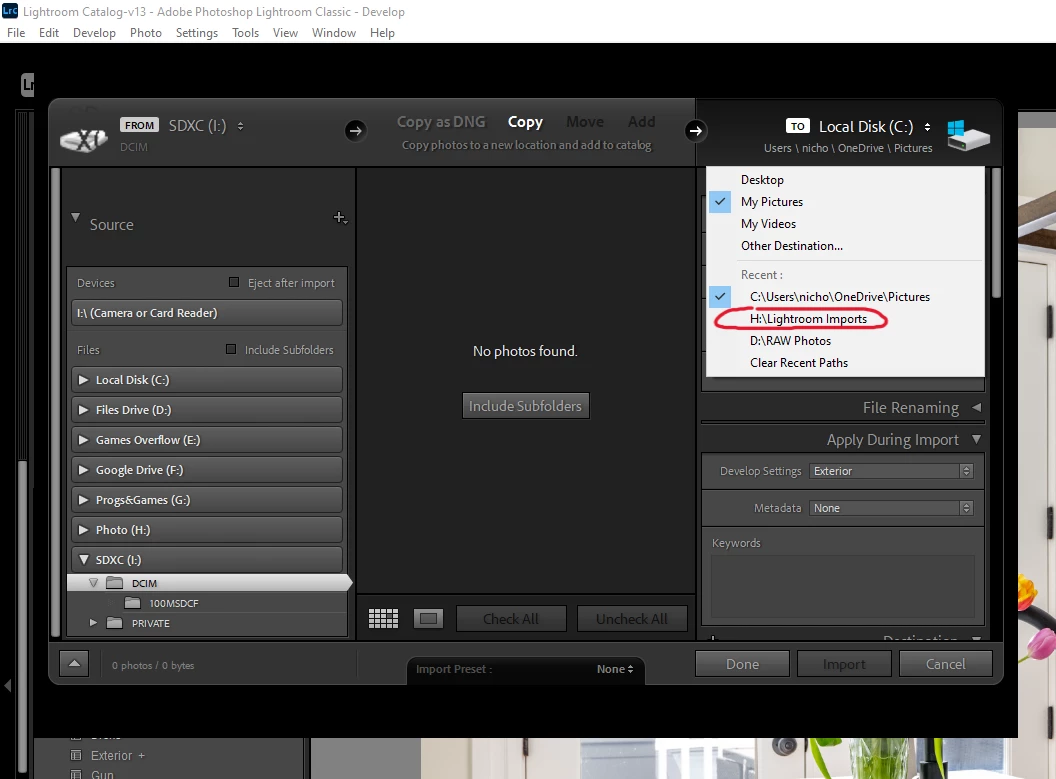
A followup observation. From your screenshot (that I have modified and annotated)


Are you automatically syncing your LrC catalog with OneDrive? If in LrC you click on Help, then System Info, does the Library  path include the word OneDrive?


If so, consider stopping that. THe use of OneDrive in LrC is an issue, especially if OneDrive is acting up. At the very least it slows LrC performance down.


If you are not syncing to OneDrive, but perhaps some photos were imported to OneDrive, consider changing that. Storing photos on OneDrive for use in LrC can fail.

Participant
October 21, 2025

I defaulted this way and I'd likentontrybtonfix it now, but can't figure out how to change the default path it will import to.  Advice?

Participant
October 21, 2025
quote

I defaulted this way and I'd likentontrybtonfix it now, but can't figure out how to change the default path it will import to.  Advice?


By @shy_4339


It's hard to know exactly what you mean with a gibberish word in your sentence. However ... have you tried the advice already given in this thread? I believe one of those suggestions would solve your problem.


I looked at the preset suggestion, but once I created the preset I didn't see how to alter this path, so that would be a new question I haven't had time to research.  I'm hoping just to change the path from what it defaults to as opposed to having to apply a preset to every import.

GoldingD
Legend
May 7, 2024

The destination should revert to the destination in the previous import. That is to say, if last time you imported you selected the H drive, then the H drive should show up as the destination. That is until you change it, then the next time the destination will be what ever you selected.


If the destination is not whatever it was on the previous import, then your preference file may be corrupt.


The preference file, and this is an actual file on your computer, can get corrupted leading to all sorts of odd behaviour. Following is a link on the why/how to reset the preference file:


Note that resetting the preference file will reset some of your actual preference settings to defaults

.

Note that I will make a followup reply separate from this one, as I see a potential issue not related to your initial problem


nmclamb
nmclambAuthor
Known Participant
May 15, 2024

I reset the preference file, it still doesn't follow the previous import.

Community Expert
May 7, 2024

Typically LrC will default to beginning with the last used import selections but sometimes this may not happen. For example, maybe last time you did an Add import but next time you are importing from a card reader (removable device) in which case LrC automatically switches to a Copy import instead. In my opinion it's not a great idea anyway to trust previous settings to repeat themselves: you can get unwanted surprises that way. Maybe you had set a develop preset or batch keywording specific to some prior import, and now without noticing, those have been inherited onto subsequent imports too. So it's a good idea IMO to re-initialise everything.


Best way I've found is to save a whole import setup as a named preset. That will include what type of import (such as Copy), the particular destination, scheme within that destination (such as, into auto-dated subfolders) and whatever else you want too - choice of metadata preset, emptied batch keywording panel to clear anything potentially persisting from before.


So re-selecting this import preset by name again every time (bottom of the import screen) guarantees predictable results each time without the need to re-check everything. Maybe differing import requirements occur:  if so you can reflect those repeatably via multiple (tried and tested) import presets.