
KlausKi
Inspiring
October 3, 2023
Answered

How do I remove all images from a catalog that don't exist in the local file system anymore?

  • October 3, 2023
  • 3 replies
  • 3704 views

I re-opened a catalog that I edited a few weeks ago. It seems that Lightroom Classic deleted unwanted pictures from my file system (Windows 10) but not from the catalog: Today, when I open the catalog, a number of images are shown to me that don't exist anymore in the file system.


Is there a menu item that I can use to remove all images from the catalog that don't exist anymore? I.e., a "purge" or "sync" command?
This topic has been closed for replies.
Correct answer Per Berntsen

LrC does not delete images from disk without also removing them from the catalog.

Did you perhaps delete them using the File explorer?

In any case, you can remove all missing images by going to Library > Find all missing photos.

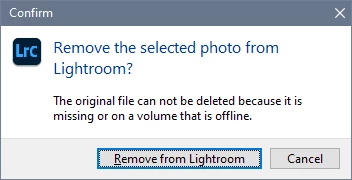
Press Ctrl + A to select all, then press Delete, and this dialog should come up, where you click Remove.


You should review the images before deleting. Some of the images might be missing for other reasons, and you may not want to remove them from the catalog. They could for instance be reported as missing because you moved or renamed them outside of LrC.

3 replies

Participating Frequently
October 4, 2023
I do not know the answer but would myself be very interested in finding the
solution.

Many thanks!!!

--
Leo de Groot

This email was created from recycled electrons.
Per Berntsen
Community Expert
Per BerntsenCommunity ExpertCorrect answer
Community Expert
October 3, 2023

LrC does not delete images from disk without also removing them from the catalog.

Did you perhaps delete them using the File explorer?

In any case, you can remove all missing images by going to Library > Find all missing photos.

Press Ctrl + A to select all, then press Delete, and this dialog should come up, where you click Remove.


You should review the images before deleting. Some of the images might be missing for other reasons, and you may not want to remove them from the catalog. They could for instance be reported as missing because you moved or renamed them outside of LrC.

KlausKi
KlausKiAuthor
Inspiring
October 6, 2023

Thanks a lot, mate!


Worked like a charm.


PS: I'm pretty sure I didn't delete the images using File Explorer. I copied a whole collection of image files to my project folder solely for using Lightroom Classic to compare them all and to delete all images that I don't need for my task. I certainly did all this from within Lightroom Classic. Maybe I shut down my machine while Lightroom Classic was still running. However, in that case LC should either have blocked Windows from shutting down my user session or it should have saved the current catalog state gracefully.

dj_paige
Legend
October 3, 2023

It seems that Lightroom Classic deleted unwanted pictures from my file system (Windows 10) but not from the catalog:


I'm pretty sure that Lightroom Classic does not do that. Are you sure the files were not moved (perhaps accidentally to somewhere else)? You should use your operating system's search feature to search all folders on all drives for at least one of these photos.


What do you see in the LrC catalog that indicates photo is no longer in the file system?


Is there a menu item that I can use to remove all images from the catalog that don't exist anymore? I.e., a "purge" or "sync" command?


Before you take this drastic step, you really really really really really need to confirm that the files don't exist any more. And by the way, don't you have backups of these  photos?