Participating Frequently
March 16, 2020
Question

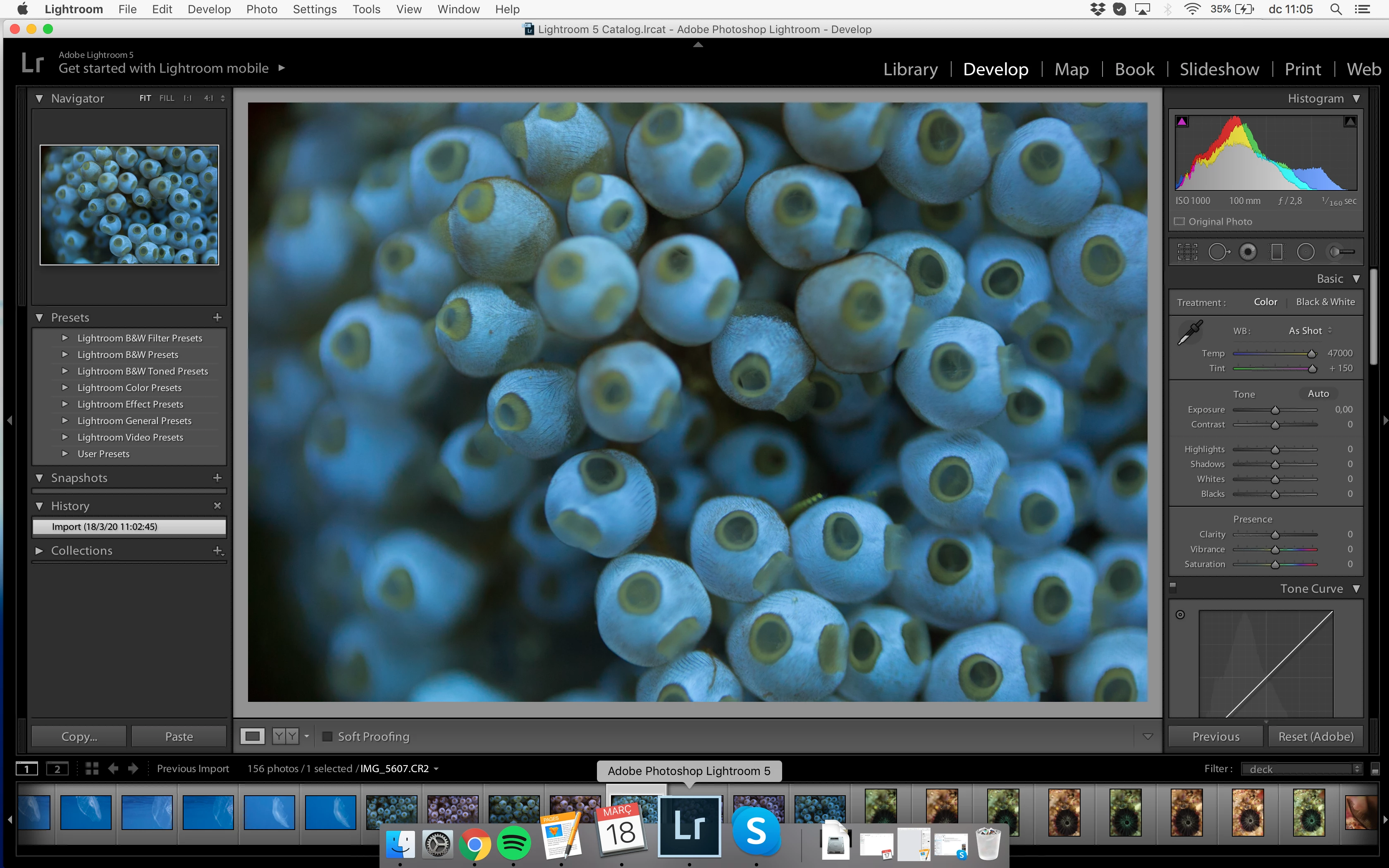
How to adjust custom white balance in underwater photographs when max tint is 150?
  • March 16, 2020
  • 17 replies
  • 4656 views

I am having trouble using the custom WB tool on my underwater photographs because Lightroom has a maximum for the red value of tint which is 150.


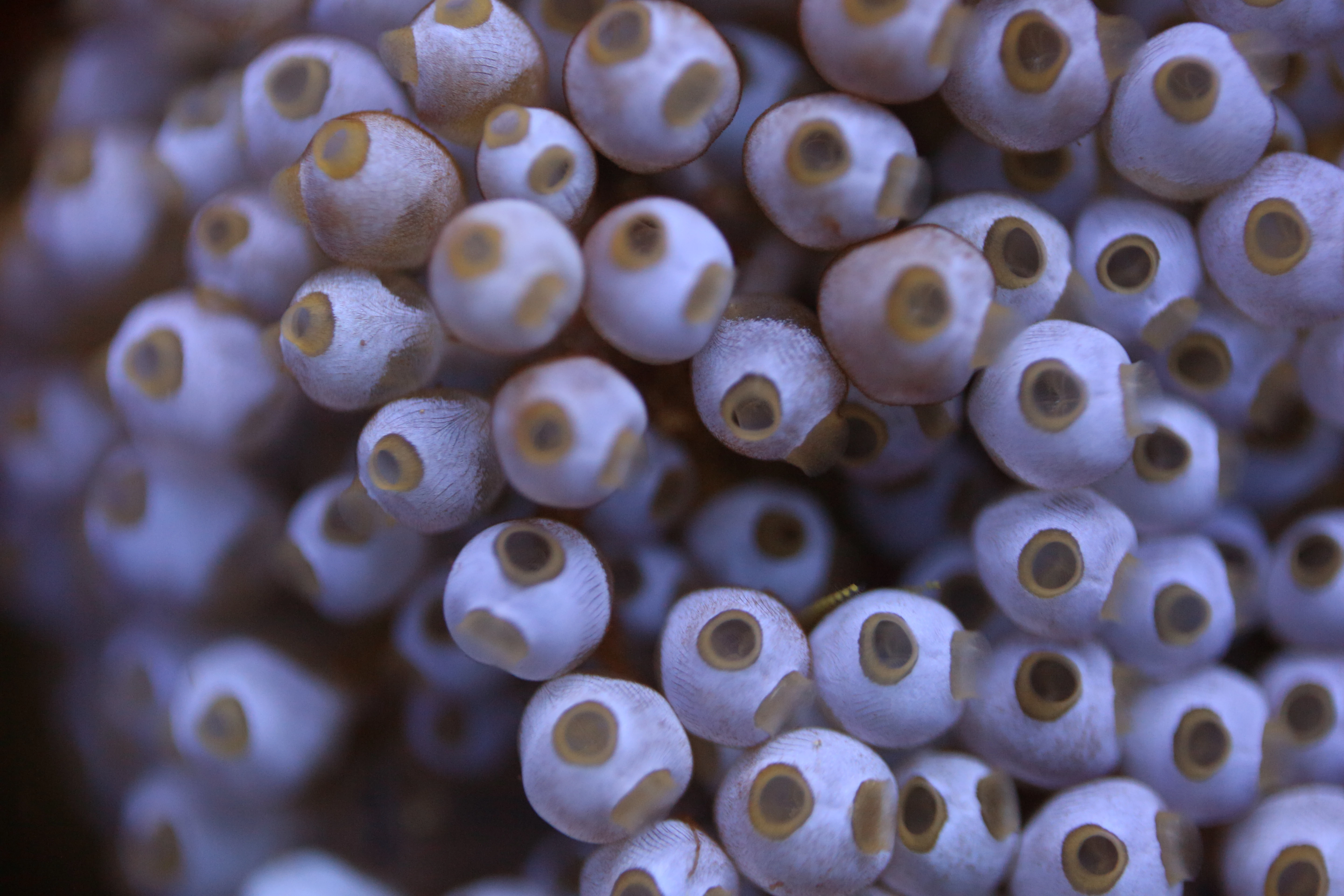
I know the WB is not correct because when I import my photos to Lightroom I can see how they should be for a few seconds, before Lightroom changes the colours to all of them. I am shooting in RAW. 


Why does Lightroom not keep the colours as I can see them just when I import the photos or in Finder? And how can I change the tint limitation? Or does anyone know any other program I could use better to work with my underwater photos?

This topic has been closed for replies.

17 replies

Todd Shaner
Legend
April 7, 2020

I've created an underwater white balance corrected Adobe Standard camera profile for the Nikon D7000. It should work with any underwater shot, but you will need to manually set the WB Temp and Tint settings, which can then be synced to similar shots in the same location shoot. Give it a try! Here's the Dropbox download link:

https://www.dropbox.com/s/0078538naou7zyy/Nikon%20D7000%20Underwater%20WB%20Correction.dcp?dl=0


Download the file and place it in the below folder location:

Windows—C: \ Users \ [your username] \ AppData \ Roaming \ Adobe \ CameraRaw \ CameraProfiles \

Mac—Macintosh HD / Users / [your username] / Library / Application Support / Adobe / CameraRaw / CameraProfiles /


You will need to close and then reopen LR, which will load the new camera profile. Next in the Develop module Basic panel click on the four squares icon next to 'Profile, which is at the top of the Basic panel. Then scroll down the list of camera profiles to the 'Profiles' tab. Click on the Nikon D7000 Underwater WB Correction profile and then on the star icon to set it as a Favorite so it will apear in the profile list.


Todd Shaner
Legend
April 6, 2020

Did you try my suggestion to create a custom camera profile at the below reply? I'll also be glad to create one for you, but I need to know your camera model. It works fine, extends the WB range, and the 'As Shot' settings should be pretty close.


https://community.adobe.com/t5/lightroom-classic/how-to-adjust-custom-white-balance-in-underwater-photographs-when-max-tint-is-150/m-p/10989099#M180203

Participating Frequently
April 7, 2020

I didn't, I don't really know how to do so. I would really appreciate your help on that. My camera is a Nikon D7000. Would this custom camera profile work for differents photos taken at different dephts and sea conditions? I could send you both real files discussed in this post by wetransfer if you give me your email address. 🙂

Participating Frequently
April 6, 2020

After a lot of wondering and experimenting and research, I have a conclusion. Lightroom is not capable to do it. You can, with a lot of effort and time on each photo, but it is not efficient. I discovered another raw editor, Capture One. Import the photographs, change the WB to 'as shot' and immediately have the photo I was supposed to have. On one click. Thank you all for the help 🙂

Todd Shaner
Legend
March 19, 2020

Yep, it appears only Highlights and Shadows can have their range expanded using a creative LUT based profile.


What's also interesting is that the raw test image file I used needed Temp 19000 and Tint maxed out at +150. However, when modifying the camera profile with Adobe DNG Profile Editor (DPE) the best results were with WB Calibration Temp control set to +50 and Temp left at 0. This produces WB settings in LR of Temp 6300 and Tint -21, which is very close to the 'As Shot' settings. So the DPE WB Calibration controls are not a 1 for 1 linear function. Anyhow it works well for the purpose of correcting raw files shot with UV or IR lighting. It would be even better with a ColorChecker shot on location and then using DPE's ColorChecker chart utility to create a full custom camera profile.

Todd Shaner
Legend
March 19, 2020

"The profile editor is the right answer. You can also do this using the new creative profiles you can generate in camera raw nowadays. Slightly easier to use than profile editor."


Jao, I made a creative profile using Camera Raw with WB set using the eydropper. When used with the underwater sample raw file I posted it looks the same with 'As Shot' WB settings as with Adobe Standard profile with the WB eydropper settings (18000 Temp, +150 Tint). Increasing the WB Tint slider made no difference in the image probably because it was already at the maximum +150 setting in the Creative camera profile. Increasing the WB Temp slider made a very slight difference, but not as much as expected. Decreasing the WB Tint and Tint sliders had the expected much larger affect on the image WB.


So in short it appears you can NOT "extend" the WB Temp and Tint range using a Creative camera profile. ananasnas if you can tell me the make and model of your camera I'll edit the Adobe Color camera profile for you using Adobe DNG Profile Editor and upload it to Dropbox.

Community Expert
March 19, 2020
Todd Shaner
Legend
March 18, 2020

"In that case try to use a color overlay instead of the Tint slider:"

John, the overlay effect is non-linear with exposure so not a good solution for correcting WB. The proper solution is as I have outlined using the DNG Profile Editor. This allows extending the range of the Basic panel WB controls so proper WB can be established using the designated controls for that purpose. I've been doing this for years to allow processing of color film, which has a very dense orange mask. It works the same for underwater photography as I demonstrated in my last post.


Better yest as Andrew Rodney sugested shoot a ColorChecker and use the DNG Profile Editor to create a fully custom camera profile that corrects for both WB and color shifts.


Community Expert
March 18, 2020

The profile editor is the right answer. You can also do this using the new creative profiles you can generate in camera raw nowadays. Slightly easier to use than profile editor.

Todd Shaner
Legend
March 18, 2020

"Point of using an adjustment brush, including the graduation brush, is you can make adjustments past what general edit sliders provide."

David, unfortunately this does not work for the Temp and Tint controls. When the Basic panel WB sliders are pushed to the maximum 50,000 and +150 settings or minimum 2000 and -150 settings the Local controls do not extend their range. Give it a try.

JohanElzenga
Community Expert
Community Expert
March 18, 2020

You are probably right, I did not test it with maxed out settings. In that case try to use a color overlay instead of the Tint slider:


-- Johan W. Elzenga
Todd Shaner
Legend
March 18, 2020

Please try the Adobe DNG Profile Editor as suggested in my previous post. Follow Step 1, 2, & 3 in that order as shown below to create and save the new custom camera profile. Restart LR to load the new camera profile and go to the profile selector (four squares icon). Select the new custom profile and adjust WB as required.


Here's an example:

Participating Frequently
March 18, 2020

GoldingD
Legend
March 17, 2020

Did you try the graduated brush reccomendation?


Point of using an adjustment brush, including the graduation brush, is you can make adjustments past what general edit sliders provide.


The graduated brush is very helpfull in this


Thing is, to apply the graduated brush in a different manner than normal. Start the brush very near a corner and drag out of frame right thru the corner. This creates a so.id mask in frame (graduation occurs out if frame). tyen use the filters sliders.