
Known Participant
July 5, 2020
Answered

How to delete extra custom watermark presets in Lightroom Classic

  • July 5, 2020
  • 6 replies
  • 22944 views


I'm two weeks into learning Lightroom Classic (Version 9.3) and I've created a few custom watermark presets. It appears LRC doesn't "allow" you to delete these presets. I had to create a new one in place of the one I ended up not wanting. Anyhow, I looked up how to delete watermark presets that I've created and I cannot find a solution that works. The last info I found on this was from 2014. Can someone help! Thank you very much.


Correct answer Rob_Cullen

how to delete watermark presets-

In LrC-

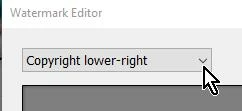
1) Open the Watermark Editor

2) Open the drop-down menu at the top of the Editor

3) Select the Watermark that you want to delete

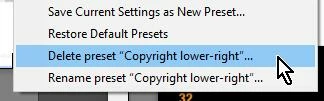
4) Open the drop-down menu at the top of the Editor

5) Click on the option to [Delete Preset.....]


Or look in the system folders for the {Watermarks} folder and delete them with the OS.

(eg. in Windows-  C:\Users\YourName\AppData\Roaming\Adobe\Lightroom\Watermarks)


6 replies

Participant
October 17, 2024

Would someone PLEASE give me guidance on how to get rid of WMs?! I have tried many times and followed the diorections given in this blog, but no luck; and I don't see how to update the WM. I have a preset named and I do get the option in the pulldown to delete that preset, but it doesn't do it. I have a Macbook woth OS Monterey 12.7.5 Please help. 

Thanks

Rob_Cullen
Community Expert
Community Expert
October 17, 2024

Can you explain how you exactly "followed the directions"? Make some screen-clips as you step through your steps so we can see what you have done. ([Insert photos] from the icon above your post window.).

The easiest method to delete presets is that given by the post above from @Just Shoot Me  -

https://community.adobe.com/t5/lightroom-classic-discussions/how-to-delete-extra-custom-watermark-presets-in-lightroom-classic/m-p/11265566#M192896


'Updating a Watermark' can only be done in the Watermark Editor-

1) Select the Watermark to edit

2) Make changes

3) Click on the Preset name drop-down menu in the WM Editor

4) Click on [Update current Preset]


Regards. My System: Windows-11, Lightroom-Classic 15.1.1, Photoshop 27.3.1, ACR 18.1.1, Lightroom 9.0, Lr-iOS 10.4.0, Bridge 16.0.2 .
Participant
June 6, 2025

Hi, I successfully deleted watermarks a couple of years ago using  the instructions from "Just Shoot Me".  Now I don't seem to have a Watermarks folder on my C:\ drive.   After C:\Users\MyName\, there is no AppData\RoaminAdobe\Lightroom\Watermarks.  I also searched for "watermarks" unsuccessfully.  


I also tried going through the Watermark Editor and was unable to delete that way.  Once again, I have many watermarks.  Why oh why doesn't Adobe fix this nightmare?!  Thanks for any help you can give me!!

Participant
November 21, 2021

Can you do a screen shot , to see where is the editor for watermark????to delete some of the preset watermarks...

Inspiring
May 13, 2023

I have the same issue - I have no option to delete in the bookmark editor.


Rob_Cullen
Community Expert
Community Expert
May 13, 2023

So what don't you understand in the answers given?

(I Presume you mean 'Watermark editor')

To do it in the LrC Waternark Editor- The option to Delete a Preset will only appear AFTER you have selected the Preset you want to delete.

1) Click the Dropdown menu-

2) Choose the Preset you want to delete

3) Click the Dropdown menu again and- Delete preset "xxxxx"..


Regards. My System: Windows-11, Lightroom-Classic 15.1.1, Photoshop 27.3.1, ACR 18.1.1, Lightroom 9.0, Lr-iOS 10.4.0, Bridge 16.0.2 .
Tony_See
Inspiring
July 6, 2020

Hows that!! Three different options!!

Just Shoot Me
Legend
July 6, 2020

Actually the simplest way to what you want is to go to the Watermarks folder on your hard drive, it is in your username folder, and Delete them there. You do that with LrC closed.


C:\Users\YourUserName\AppData\Roaming\Adobe\Lightroom\Watermarks


Rob_Cullen
Community Expert
Rob_CullenCommunity ExpertCorrect answer
Community Expert
July 6, 2020

how to delete watermark presets-

In LrC-

1) Open the Watermark Editor

2) Open the drop-down menu at the top of the Editor

3) Select the Watermark that you want to delete

4) Open the drop-down menu at the top of the Editor

5) Click on the option to [Delete Preset.....]


Or look in the system folders for the {Watermarks} folder and delete them with the OS.

(eg. in Windows-  C:\Users\YourName\AppData\Roaming\Adobe\Lightroom\Watermarks)


Regards. My System: Windows-11, Lightroom-Classic 15.1.1, Photoshop 27.3.1, ACR 18.1.1, Lightroom 9.0, Lr-iOS 10.4.0, Bridge 16.0.2 .
Participant
November 9, 2024

@Rob_Cullen you are using Windows. Your procedure does not seem to work on a Mac. Not on mine anyhow.

Mac OS 14 Sonoma, LC 14.0.1

Participant
November 9, 2024

Sorry, got it. The second time you have to scroll down all the watermarks presets.


DdeGannes
Community Expert
Community Expert
July 5, 2020

Right click on the preset and there should be an option displayed.


Regards, Denis: iMac 27” mid-2015, macOS 11.7.10 Big Sur; 2TB SSD, 24 GB Ram, GPU 2 GB; LrC 12.5,; Lr 6.5, PS 24.7,; ACR 15.5,; (also Laptop Win 11, ver 24H2, LrC 15.0.1, PS 27.0; ) Camera Oly OM-D E-M1.