
Participating Frequently
October 3, 2020
Answered

How to Install Preset in Lightroom Classic

  • October 3, 2020
  • 3 replies
  • 3765 views

Hi,

I've a preset from previus version of Lightroom, now in a new laptop is installed (fresh install) of Adobe CC the last version of Adobe Lightroom Classic (9.4 Release), the version of Lighroom where I feel most confortable using.

But when I go to preference and then preset secction now I have 2 options:
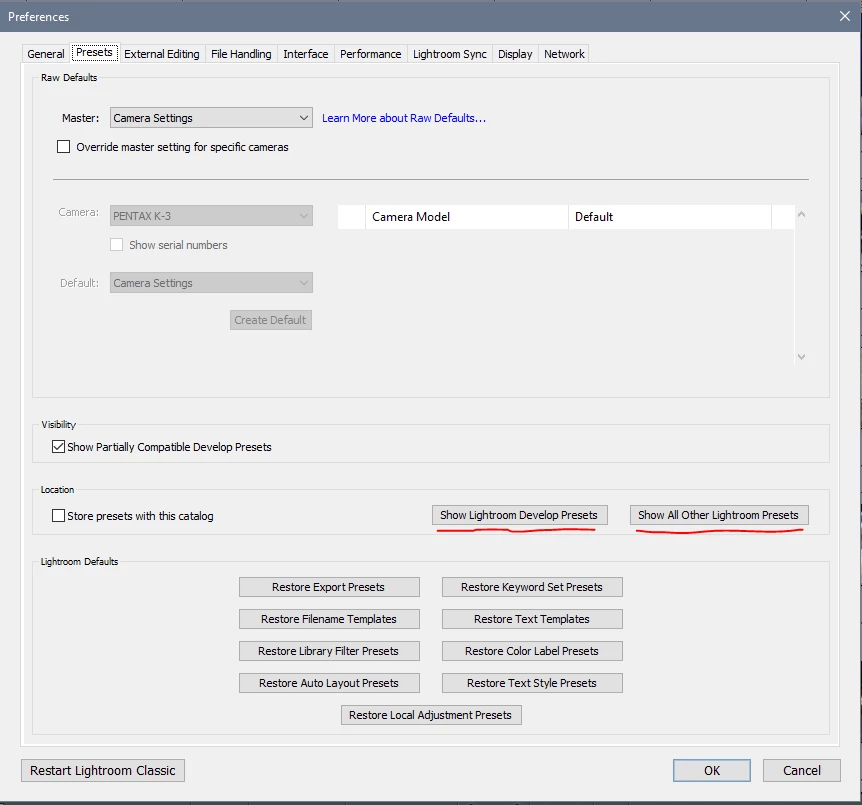
 

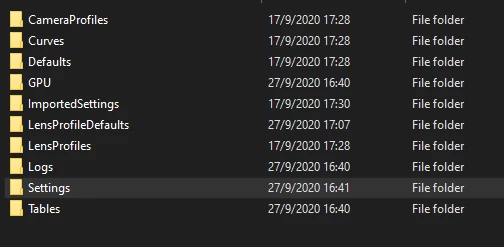
Show Lightroom Develop Preset go to: "C:\Users\XXXXX\AppData\Roaming\Adobe\CameraRaw"

inside I do not found directory to install the presets:
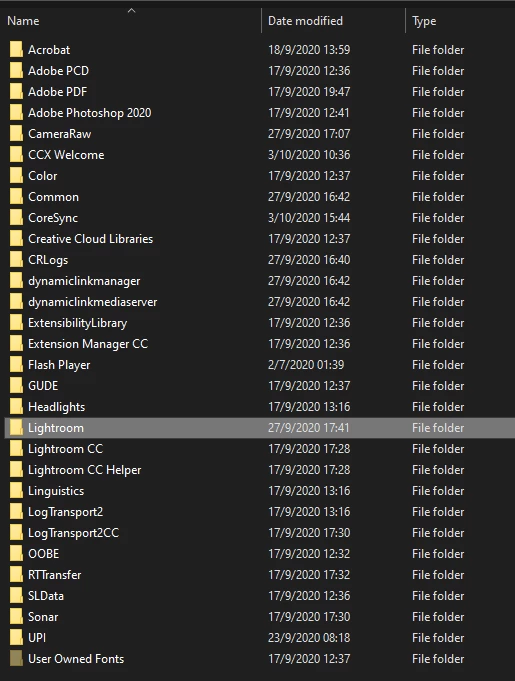
If I select "Show All other Lightroom Preset" go to: "C:\Users\XXXXX\AppData\Roaming\Adobe" selecting Lightroom Directory:
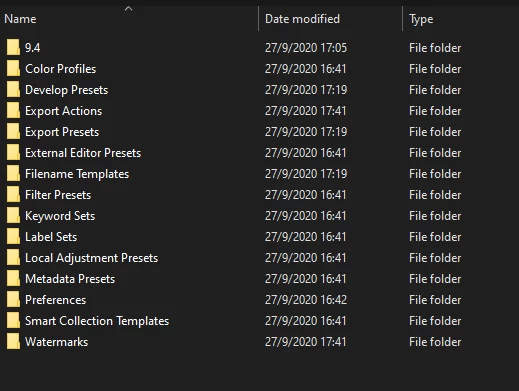
but inside are more directories for installation but I'm not sure if is for Classic:
This topic has been closed for replies.
Correct answer johnrellis

"How is possible to create a "categories" or something to catalog diferent preset and not are all under User Presets?"


LR calls folders of presets "groups". To move a preset into a group, right-click it and do Move. Then you can select an existing group or New Group to make a new one. Once you've created a group, you can drag-and-drop presets into it rather than using the Move command.


[Use the blue reply button under the first post to ensure replies sort properly.]

3 replies

johnrellis
Legend
October 30, 2020

You could consider using my free Fix Presets plugin to reorganize your presets with File Explorer / Finder and then import that reorganization back into LR. But the plugin is a little klutzy to use, and it's probably only worthwhile if you've got many dozens of presets to reorganize.


[Use the blue reply button under the first post to ensure replies sort properly.]

johnrellis
johnrellisCorrect answer
Legend
October 4, 2020

"How is possible to create a "categories" or something to catalog diferent preset and not are all under User Presets?"


LR calls folders of presets "groups". To move a preset into a group, right-click it and do Move. Then you can select an existing group or New Group to make a new one. Once you've created a group, you can drag-and-drop presets into it rather than using the Move command.


[Use the blue reply button under the first post to ensure replies sort properly.]

El RengoAuthor
Participating Frequently
October 6, 2020

Thanks Works fine too!

OEM32246
Participant
October 30, 2020

Worked for me too. But sure is clunky. Worked much better when you could create a "group" and import directly into it. Just saying !!

johnrellis
Legend
October 3, 2020

The easiest and most reliable way to import presets into LR:


1. Edit a photo in Develop (necessary, due to a LR bug).

2. In the Presets panel, click "+" and then Import presets in the upper-right corner.

3. Navigate to the presets you want to import.


This works for both the current format of presets (.xmp) and the old format from previous versions (.lrtemplate).  Note that due to another bug,  the menu command File > Import Develop Profiles And Presets will import .xmp format presets but not the older .lrtemplate format.


[Use the blue reply button under the first post to ensure replies sort properly.]

El RengoAuthor
Participating Frequently
October 4, 2020

Thanks!!! Works fine! A doubt. How is possible to create a "categories" or something to catalog diferent preset and not are all under User Presets?