Jarfr
Participating Frequently
May 24, 2025
Answered

How to remove Lightroom metadata from photos

  • May 24, 2025
  • 2 replies
  • 1580 views

Hi,

I need a way to remove all or specific metadata that Lightroom puts into the photos first time they are read, specific data that tells LR not to read or import those photos again.

I know there are a few metadata handling standalone apps out there, but I don't know if any of them can do this, and preferably all photos in one specific folder.

I can't start from scratch creating a brand new catalog as I have over 30000 photos spanning over 20 years and a very complex folder structure and advanced indexing of keywords.

The problem is that a certain folder of photos, photos taken last year that I put on a temp external disk, won't get imported no matter what I try. They will show up in import, but only as grey icons, not as greyed out photos. Starting the import just gets me to a stalled process that when I stop it after a minute or after an hour just informes me that it couldn't find the photos. I've moved to other location on same disk (of course won't work) and moved them to the computers' disk with same negative results. Other photos on that same external disk WILL be imported just as they should.
I've read on all kinds of forums on this problem but without finding any solution but to start over with new catalog.

My conclusion is that these 2000 photos which won't be imported by LR somehow have some adobe/LR specific metadata in them that stops them from getting imported.

- So, I'd like to know WHAT metadata LR puts into the photos when importing, except all the ones I ask it to input, be it hidden metadata or easily visible?
- What software can I use to access this metadata to remove it, preferably in bulk, from all these photos?

My computer is brand new, installed a few days ago, clean.
Microsoft Surface Pro 11
Windows 11 Pro
LR Classic
Correct answer JohanElzenga

Thank you Johan, you solved the problem 🙂

I just had to try something out before bedtime after reading your text.
The last sentence gave me an idea. 
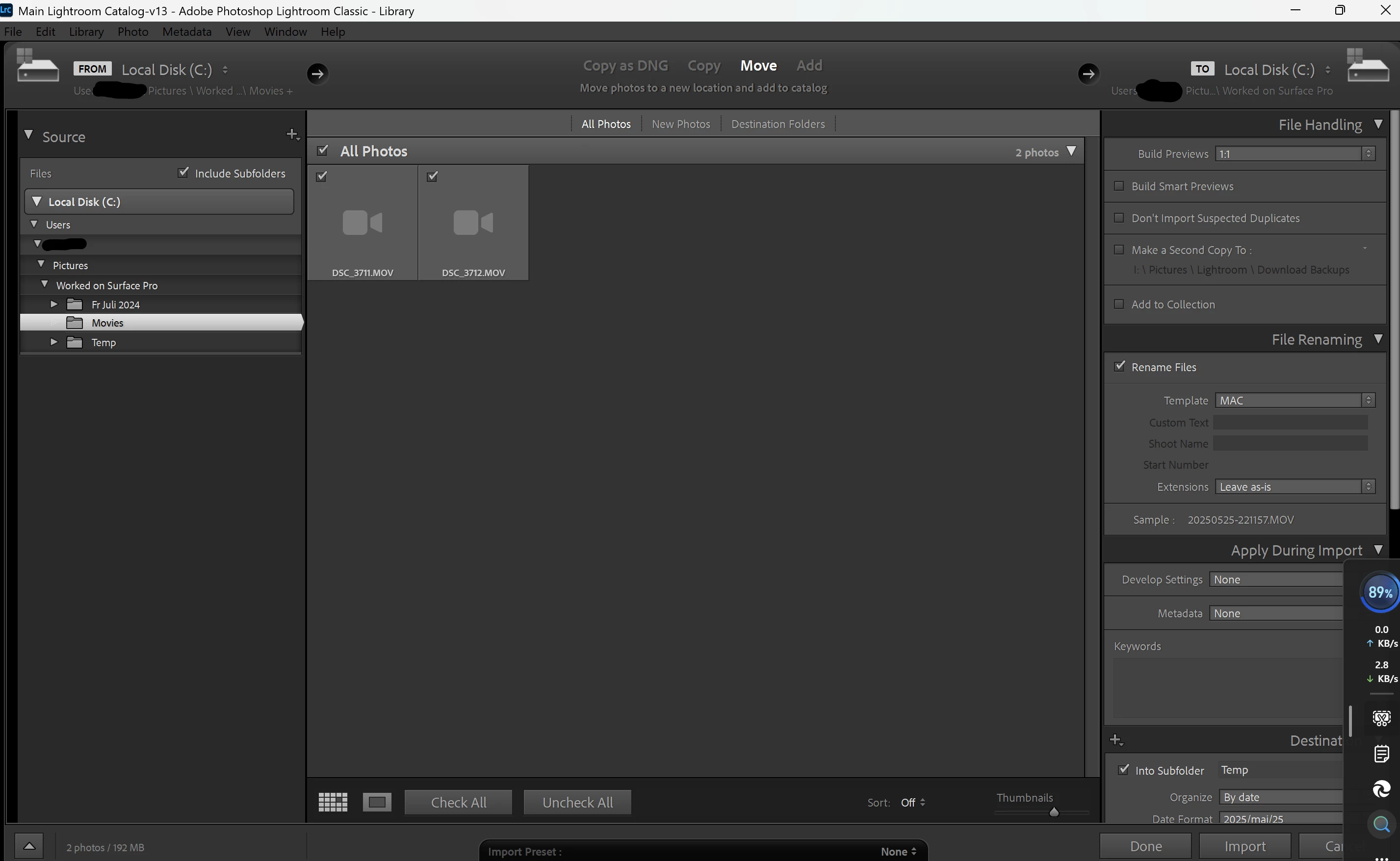
I actually had two videos from that camera in the folder structure of the photos to be imported. So, just to try anything new, not that it should matter since I've imported photos from my camera card before containing videos, but I moved the two videos to a separate folder ouside of the folder structure of photos to be imported and bam, all photos appeared in the import window and they were all imported without any problems.
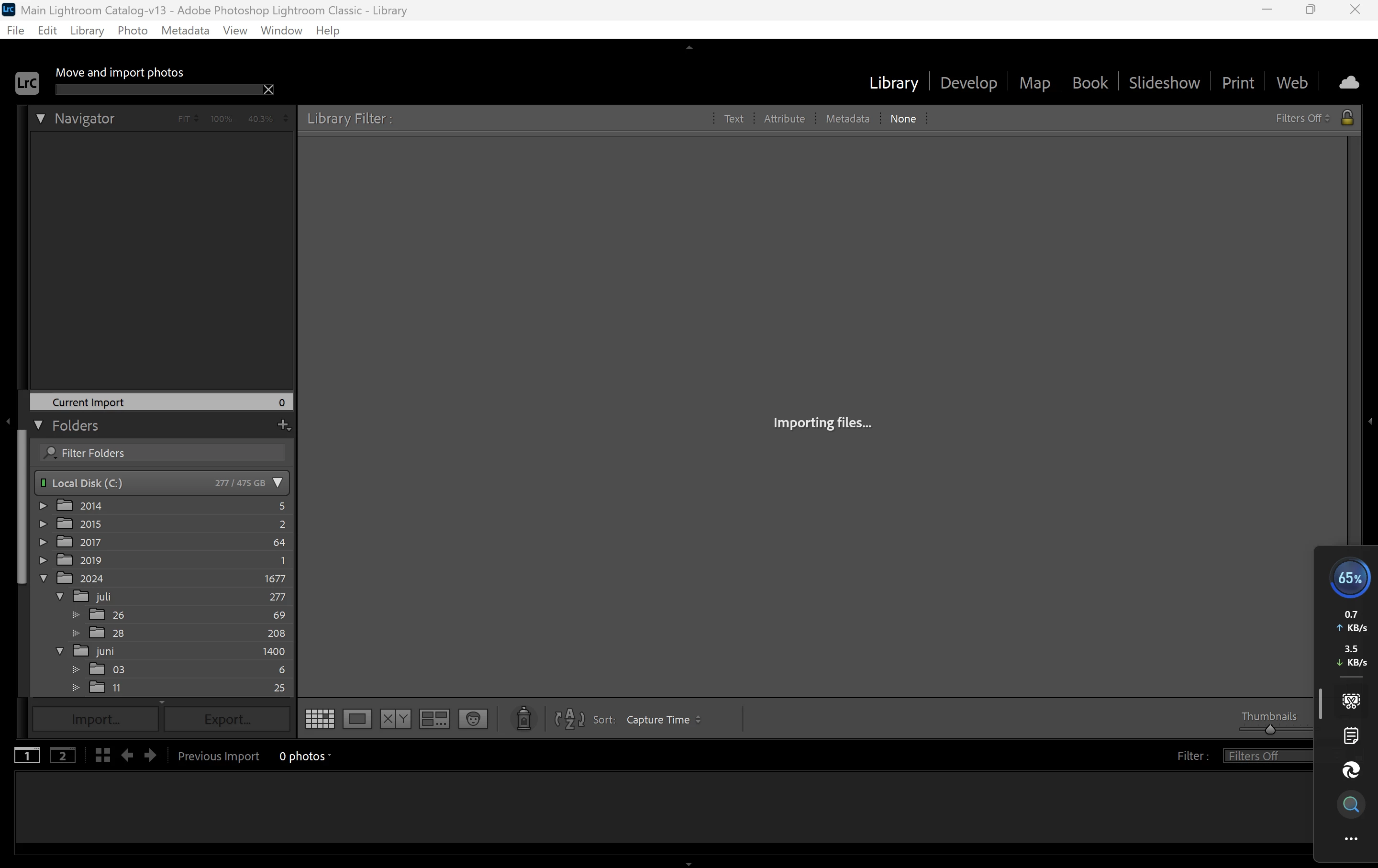
The videos were blocking all of the rest of the files in the folder structure. The videos showed up as first two files to be imported and made all photo icons grey and completely blocked the import process.

Thank you for asking if there were videos among the files being imported 🙂

I would still like to know why the videos are not possible to be imported.

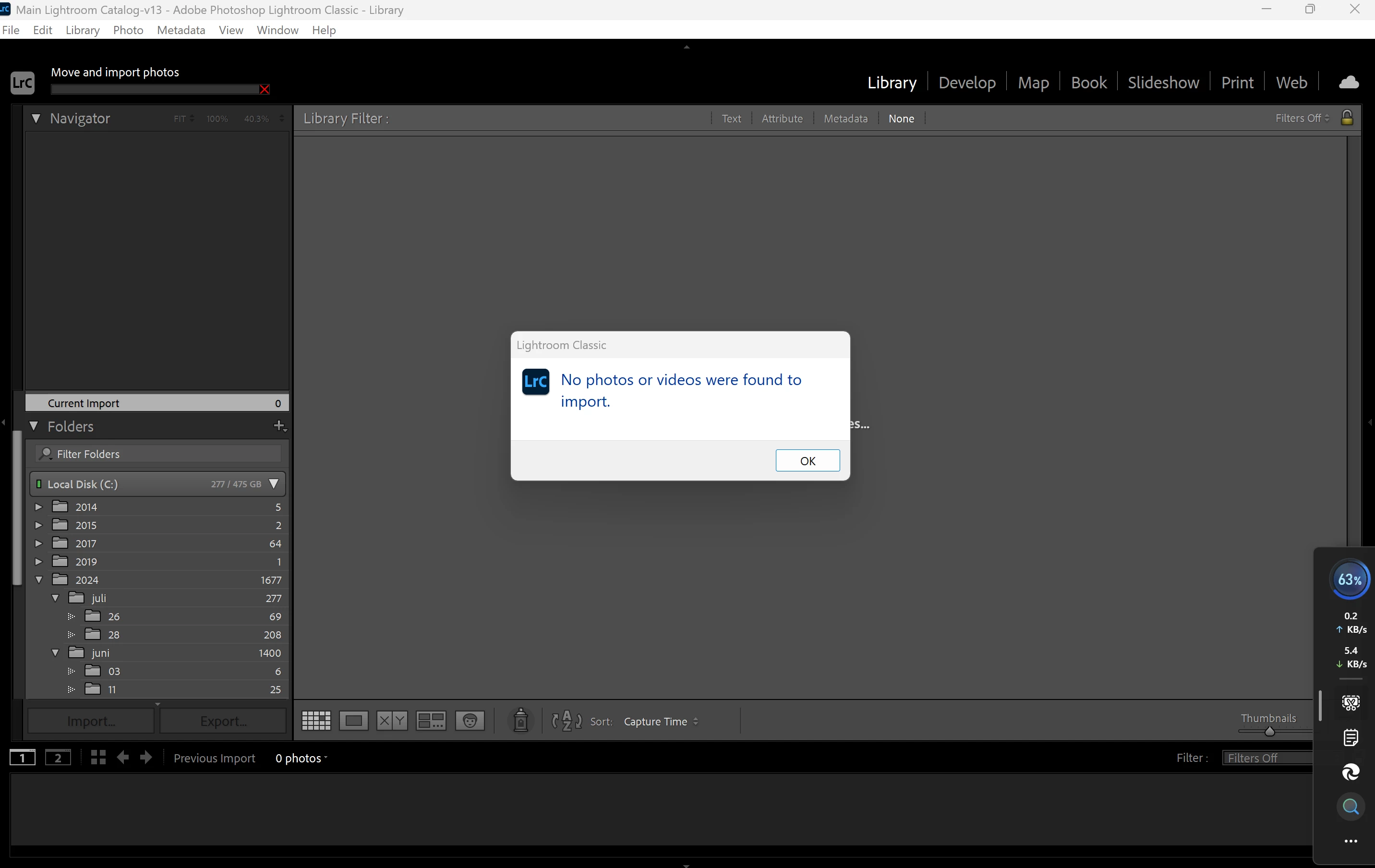
I am attaching screenies of the process of import as it looks with the videos now, and the last screenie with the error message from LR was the same as I got when I from the start tried importing them all at once.


Good to hear. The import problem when there are videos in the source folder as well is a known bug. I wasn't sure if that bug had been fixed already, but if you are using version Lightroom Classic 14.3.1 then apparently not. If you are using an older version, then update Lightroom to see it that fixes this.


2 replies

JohanElzenga
Community Expert
Community Expert
May 24, 2025
quote

I need a way to remove all or specific metadata that Lightroom puts into the photos first time they are read, specific data that tells LR not to read or import those photos again.


By @Jarfr


Lightroom does not normally add anything to the photos themselves, it will only add metadata referring to photos to its catalog. Unless you have 'Automatically write changes to XMP' enabled, that is. In that case metadata are written to both locations, but for raw files the info is still not written into the file itself, but into a separate XMP file. I don't think that Lightroom stores this information in metadata however, because that would prevent importing the photos into in another catalog as well if this info would be in the XMP file. And as XMP files are plain text, it's easy to verify that.


-- Johan W. Elzenga
Jarfr
JarfrAuthor
Participating Frequently
May 24, 2025

I appreciate your answer.
I understand that info about the photos may be input into the catalogs data instead. In any case, photos are somehow tagged somewhere for LR to keep track on which ones it's previously accessed.
My problem remains, where can I remove these ~2000 photos info in LR?
These photos have never been imported to LR as I've always had the same, for 20 years, for all my over 30000 photos, renaming template all these years, the only template used and set as default. None of these photos have ever been renamed, they are still in the in camera naming standard.

Previous poster, dj_paige, has only posted the same answer that is available all over the internet, the one relating to import problems when the photos are greyed out at import, which is a common misstake people make when moving photos and LR noticing that they once were imported.

I need deeper knowledge.
I have seen a few others posting same or similar problem with photos not importing and at import getting only grey icons, not greyed out photos.

Only two things are infinite, the universe and human stupidity.We shall require a substantially new manner of thinking if mankind is to survive.
dj_paige
Legend
May 24, 2025

The only place you can find the info on whether a photo is in an LrC catalog, is by looking in the catalog itself. That info isn't anywhere else. That info is not in metadata. Hence the recommendation to search the catalog, as I suggested.

dj_paige
Legend
May 24, 2025

I need a way to remove all or specific metadata that Lightroom puts into the photos first time they are read


Lightroom Classic adds metadata that YOU tell it to add. So if you have an import metadata preset specified, then the metadata that you put into the preset is added. LrC does not add metadata to the photos by itself.


specific data that tells LR not to read or import those photos again


No such metadata.


The problem is that a certain folder of photos, photos taken last year that I put on a temp external disk, won't get imported no matter what I try.


This is the real problem, it has nothing to do with metadata. The photos have been previously imported, you should not import them again. You need to find the photos in LrC, and then you can do whatever you wish with them. Please

follow all four of these steps in order to find the photos:


1. In the Lightroom Classic Library Module, on the left, under Catalog, click on All Photographs
2. Turn off all filters (Ctrl-L once or twice)
3. Turn off all stacking (Photo->Stacking->Expand All Stacks)
4. Search for at least one of these photos by file name using the Lightroom Classic Filter Bar