

How to remove Lightroom metadata from photos
Hi,
I need a way to remove all or specific metadata that Lightroom puts into the photos first time they are read, specific data that tells LR not to read or import those photos again.
I know there are a few metadata handling standalone apps out there, but I don't know if any of them can do this, and preferably all photos in one specific folder.
I can't start from scratch creating a brand new catalog as I have over 30000 photos spanning over 20 years and a very complex folder structure and advanced indexing of keywords.
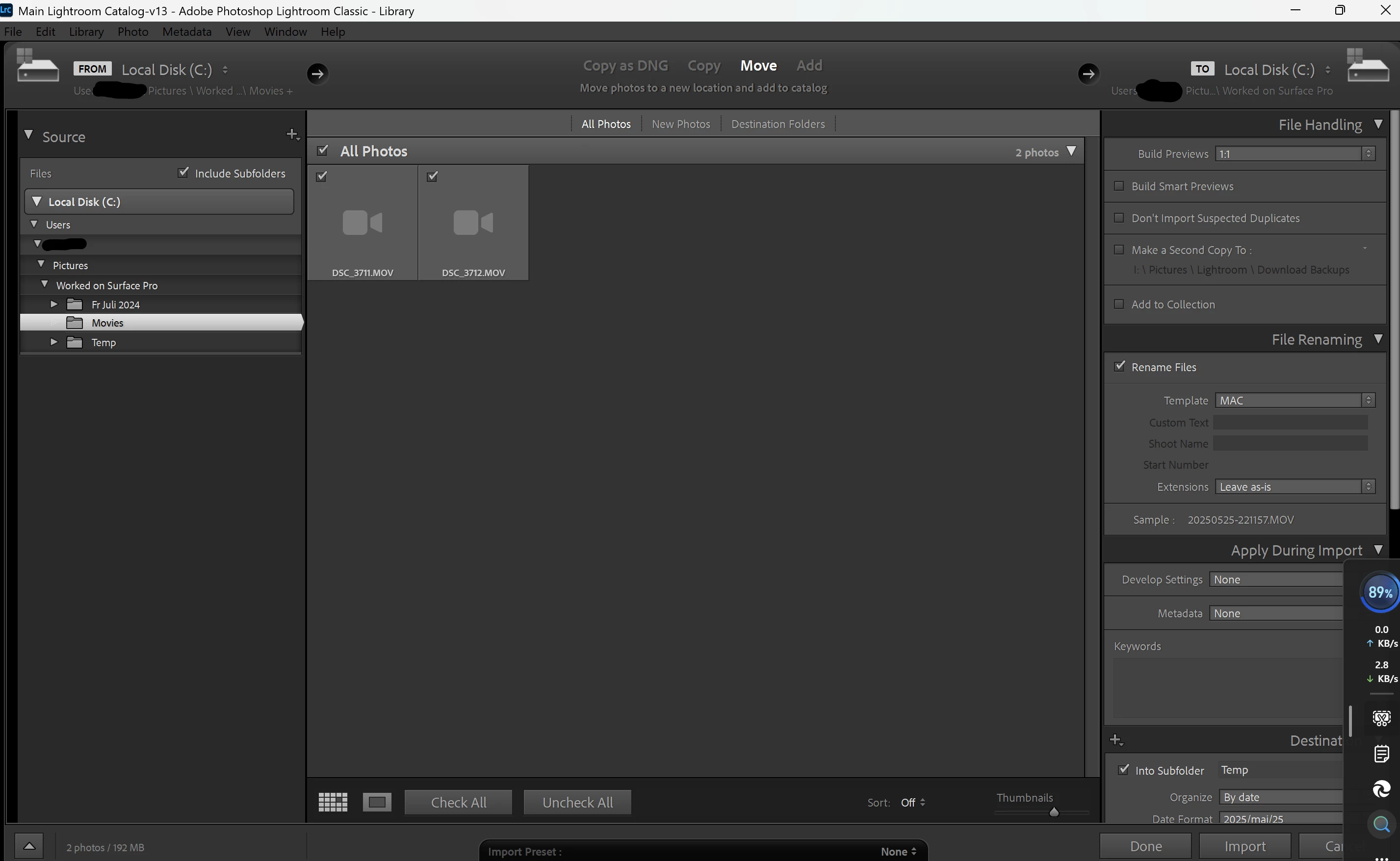
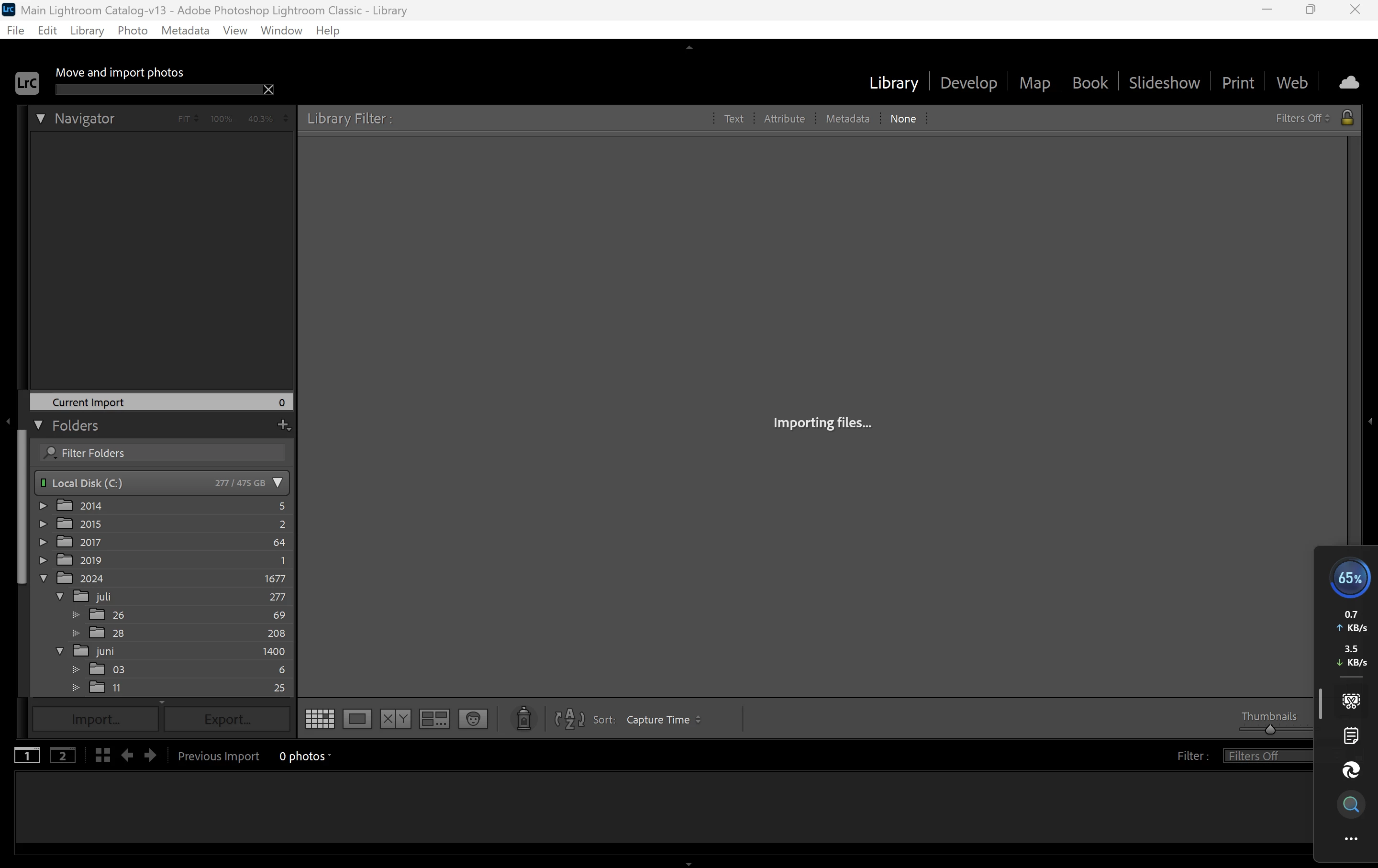
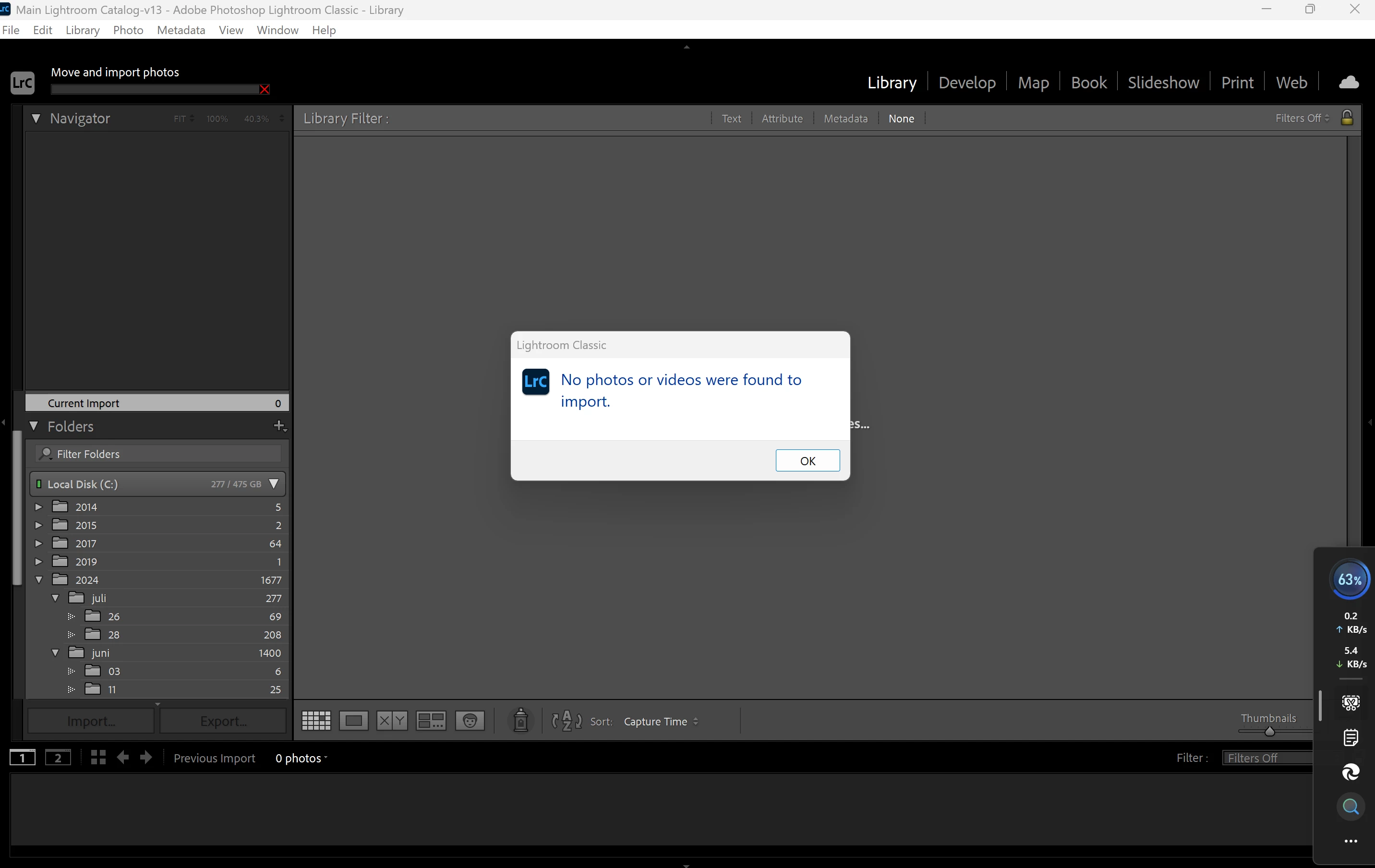
The problem is that a certain folder of photos, photos taken last year that I put on a temp external disk, won't get imported no matter what I try. They will show up in import, but only as grey icons, not as greyed out photos. Starting the import just gets me to a stalled process that when I stop it after a minute or after an hour just informes me that it couldn't find the photos. I've moved to other location on same disk (of course won't work) and moved them to the computers' disk with same negative results. Other photos on that same external disk WILL be imported just as they should.
I've read on all kinds of forums on this problem but without finding any solution but to start over with new catalog.
My conclusion is that these 2000 photos which won't be imported by LR somehow have some adobe/LR specific metadata in them that stops them from getting imported.
- So, I'd like to know WHAT metadata LR puts into the photos when importing, except all the ones I ask it to input, be it hidden metadata or easily visible?
- What software can I use to access this metadata to remove it, preferably in bulk, from all these photos?
My computer is brand new, installed a few days ago, clean.
Microsoft Surface Pro 11
Windows 11 Pro
LR Classic
 AdChoices