Participant
January 7, 2019
Resuelto

How to remove these lines from the photo

  • January 7, 2019
  • 1 respuesta
  • 1982 visualizaciones

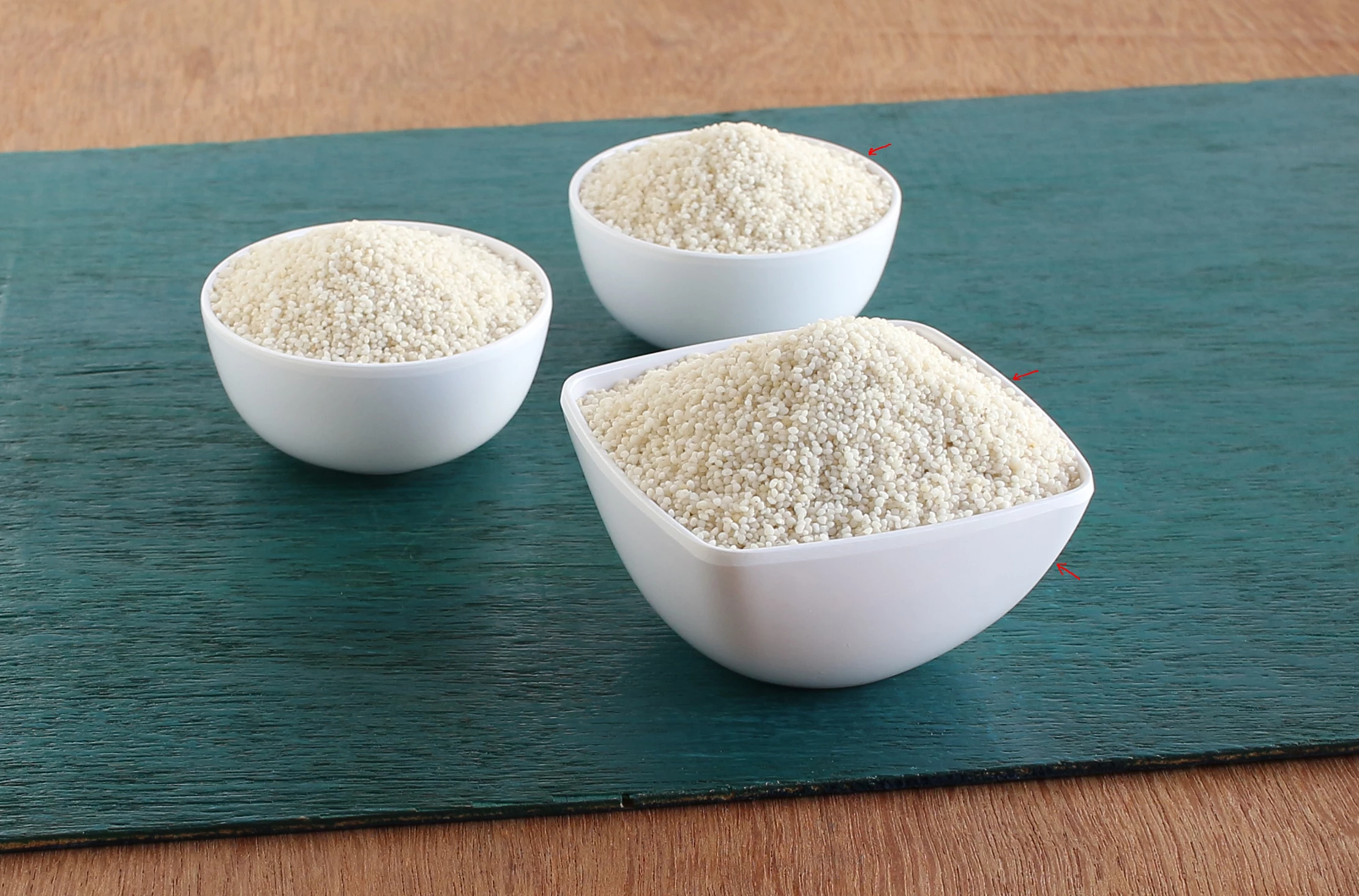
Hi, Please find below a photo taken by me from my Canon Rebel T5i with the Canon EF-S 24mm, f/2.8, STM lens. The lighting is natural day lighting, and the camera setting for lighting is Auto.  The photo was taken in manual mode with f-stop at 6.3 from a distance of about 2 feet from the center of the large bowl. Are the dark gray lines, some of which I have highlighted, at the edges of the bowls aberrations? Please let me know if Lightroom or Photoshop can remove these automatically, without affecting other traits of the photo, as I have to remove such lines in many of the photos. Thanks in advance for your help.

Este tema ha sido cerrado para respuestas.
Mejor respuesta de richardplondon

That looks to me, like over-sharpening. The sharpening algorithm has visually enhanced the definition of the white bowl, by darkening the adjoining pixels. Up to a point this merely makes the photo look more detailed (as a subjective impression), but beyond that it starts to become evident or even distracting, and can be considered a processing fault.

Overuse of Clarity can also lead to some weird edge effects, but that tends to happen at a larger scale and more diffusely.

Whether these things are in fact overdone, or not, is best judged in terms of the final usage of the photo when viewed at the intended viewing distance and scale. Some output methods may demand processing which appears overdone on screen, just in order to compensate for blurring that is inherent in the output method. However many people prefer to address this via additional output sharpening, applied on the fly as part of the output - such that the master image does not itself need to appear "over" sharpened - such that it's not been dedicated for any particular form of output.

If you have shot the original photo in Raw, then changing the settings in the Detail panel can fully control this issue (regardless of the in-camera settings).

If you have shot the original photo in JPG, then depending on the camera settings used, some level of sharpening will be built into the photo irretrievably. The trick then, is to avoid adding excessive further sharpening within LR. I would recommend ensuring in-camera sharpening as well as contrast enhancement and noise reduction are set to low values, when shooting JPG with additional postprocessing in mind, thus leaving yourself more freedom of action in these respects.

As part of that postprocessing, onto Raw or JPG, you will find that a low value for the "Detail" slider shows less tendency to exaggerate sharpening "haloes" - which can be dark as well as light - of this sort.

1 respuesta

Community Expert
January 7, 2019

That looks to me, like over-sharpening. The sharpening algorithm has visually enhanced the definition of the white bowl, by darkening the adjoining pixels. Up to a point this merely makes the photo look more detailed (as a subjective impression), but beyond that it starts to become evident or even distracting, and can be considered a processing fault.

Overuse of Clarity can also lead to some weird edge effects, but that tends to happen at a larger scale and more diffusely.

Whether these things are in fact overdone, or not, is best judged in terms of the final usage of the photo when viewed at the intended viewing distance and scale. Some output methods may demand processing which appears overdone on screen, just in order to compensate for blurring that is inherent in the output method. However many people prefer to address this via additional output sharpening, applied on the fly as part of the output - such that the master image does not itself need to appear "over" sharpened - such that it's not been dedicated for any particular form of output.

If you have shot the original photo in Raw, then changing the settings in the Detail panel can fully control this issue (regardless of the in-camera settings).

If you have shot the original photo in JPG, then depending on the camera settings used, some level of sharpening will be built into the photo irretrievably. The trick then, is to avoid adding excessive further sharpening within LR. I would recommend ensuring in-camera sharpening as well as contrast enhancement and noise reduction are set to low values, when shooting JPG with additional postprocessing in mind, thus leaving yourself more freedom of action in these respects.

As part of that postprocessing, onto Raw or JPG, you will find that a low value for the "Detail" slider shows less tendency to exaggerate sharpening "haloes" - which can be dark as well as light - of this sort.

Participant
January 8, 2019

Thank you very much for your quick and detailed reply. I will set the sharpness to a lower value and take a photo again and see if the issue gets resolved.

Community Expert
January 8, 2019

It is worth checking whether Lightroom is already adding some further sharpening onto what the camera has done. If so, that can be removed for these photos, so you may not have to retake them.

If you prefer to principally use the images just as set in the camera, there is a compromise to be made here and perhaps you can live with current camera settings, or only with a moderate change to those, all things considered.

If on the other hand you now heavily reduce the sharpening within the camera, it can be expected all newly taken images will look rather soft on first importing to LR. This effectively commits you to adding sharpening routinely within LR hereafter.

There are ways to apply this sort of thing as a default, easily, to all the incoming photos - somewhat the same, as if set in the camera. Eg. by a Develop preset which you've defined (or else, one of the ready made ones) which you tell LR to apply automatically during import.

The advantage of the way LR operates, is that this extra sharpening will NOT have been included irretrievably - it can always be adjusted differently for one or many photos, including being turned down to zero, as you later judge best.