

toklas
Inspiring
December 27, 2019
Answered

How to replace raw files with jpegs but keep them in collections?

  • December 27, 2019
  • 6 replies
  • 3706 views

hi!

short question:

when i export to jpeg and delete the raw files afterwards, they disappear from the collections. how can i avoid that?

more context:
there are some jobs i`d like to convert from raw to jpeg, to safe storage space. (please dont advice me to keep the raw files. i`am aware of the benefits and keep them in most cases.)
since many of my pictures are part of several collections, i cant put them back into the collections by hand.
i checked the "add to catalogue" box in the export menue. the jpegs show up in the catalogue, but they are not referenced to the collections the raw files are referenced to.

thanks in advance!
This topic has been closed for replies.
Correct answer Jao vdL

>my question is, if there is a way to do what i want to do: reduce certain image files in size (small dng or jpeg), without loosing the refernces to the collections.


You can't replace raw files by jpegs in place. There is no way to do this in Lightroom. What you can do to save space however is convert those raw files to dng. This will usually save quite a bit of space and you can even convert to lossy dng which will reduce the size to something close to jpeg but with all editing options still intact. Those are way better to keep than jpegs.


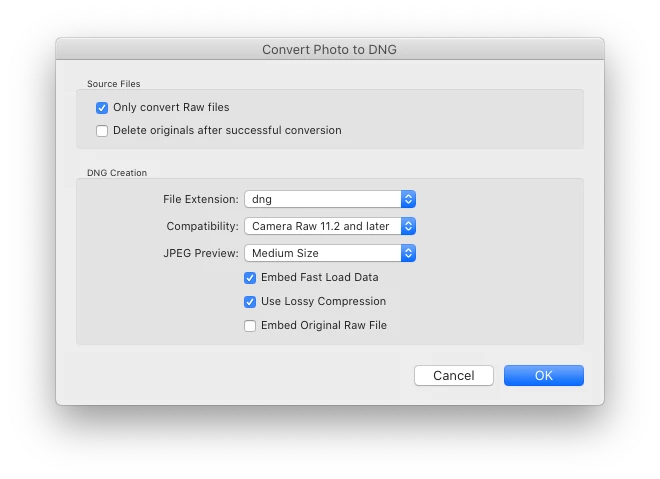
You do this by selecting the images you want to convert and from the library menu select "convert Photos to DNG". You will get a dialog like this:

Normally you would not select "Use Lossy Compression" but you probably want to in this case. You can also select "Delete originals after succesful conversion". If you don't you will have to manually delete them from the folders they are in. Just tested this and this turns losslessly compressed NEF files of around 30 MB each into dngs of around 6-7 MB each but retaining all editing options. Doing this should keep the images in any collections they are in.

6 replies

toklas
toklasAuthor
Inspiring
January 1, 2020

follow up question: in the export menu, i can choose in addition to lossy compression a resize to a smaller image size (for example 3000pixel instead of 6000pixel long side). sadly i cant find this option in the "convert to dng" menu. is there a way to resize maintaining dng in collections? thanks in advance!

Community Expert
January 1, 2020

No, unfortunately you can't resize at the same time. 

toklas
toklasAuthor
Inspiring
December 30, 2019

you can find jaos comprehensive answer further up in the thread!

GoldingD
Legend
December 27, 2019

Ahh different can if worms


 Two related concepts


1 A photos crop proportions, as in 8 by 10 as opposed to 4 by 3. In Lightroom these are proportions not actual dimensions, accomplished in develop.


Now editing the crop will not remove the photo from any collection (except a smart collection based on crop, who knows)


If you want multiple crop versions in a collection, then create virtual copy's and crop them independently and add the to appropriate collections.


2. A photos actual size as in pixels, inches, or megabytes etc. For example 8" by 10" or say long size 1024 pixels . This is only accomplished during an export.


If you want multiple photo's resized to particular dimensions, then export a copy from the original, using appropriate values and renamed slightly as you see fit, then add to appropriate collection


toklas
toklasAuthor
Inspiring
December 27, 2019

thanks but i dont want to crop and i dont want to add by hand to collections 🙂

DdeGannes
Community Expert
Community Expert
December 27, 2019

What you are seeing is happening as designed. When you create a collection the original file remains in the folder where it is located in your HDD, the collection does not contain copies of the original files it just data stored in the catalog file. So you can have the original referenced in multiple collections, however, if you delete the original it will be removed from all the collections.

When you export a jpeg file from your raw files a new file is created so you will now have two original files one a raw and one jpeg. Create your collections from the jpeg files.  See the screen capture, in the Library module the original files are in the Folder section and then there is a Collection section. You should notice that they are displayed differently.


Regards, Denis: iMac 27” mid-2015, macOS 11.7.10 Big Sur; 2TB SSD, 24 GB Ram, GPU 2 GB; LrC 12.5,; Lr 6.5, PS 24.7,; ACR 15.5,; (also Laptop Win 11, ver 24H2, LrC 15.0.1, PS 27.0; ) Camera Oly OM-D E-M1.
toklas
toklasAuthor
Inspiring
December 27, 2019

thanks for your replies.

there is a misunderstanding. i am well aware of what is happening and why.

i have several old event jobs. i dont need high resolution images for some of those jobs. but i still want to keep them. and i want to keep them in collections. i use theses collections for example to give clients very specific portfolio collections. i m fine with jpegs for this scenario.

i have the 2016-08-12 folder with 300 raw files for example. some images are referenced to the collections "portfolio for real estate garden partys" and "ceo group pictures" or whatever. i want to convert those to jpeg. and when someone asks me "have you done real estate group pictures before?" i would like to find them in those collections again.

my question is, if there is a way to do what i want to do: reduce certain image files in size (small dng or jpeg), without loosing the refernces to the collections.

a possible workaround would be: write keywords into the metadata, use smart collections that use the keywords. this way the jpeg would show up in the same smart collection the raw file with the identical keyword used to be.

but i still would prefer to be able to do that with my old (not smart) collections. if there is a way.

thanks for any help!

Jao vdLCommunity ExpertCorrect answer
Community Expert
December 27, 2019

>my question is, if there is a way to do what i want to do: reduce certain image files in size (small dng or jpeg), without loosing the refernces to the collections.


You can't replace raw files by jpegs in place. There is no way to do this in Lightroom. What you can do to save space however is convert those raw files to dng. This will usually save quite a bit of space and you can even convert to lossy dng which will reduce the size to something close to jpeg but with all editing options still intact. Those are way better to keep than jpegs.


You do this by selecting the images you want to convert and from the library menu select "convert Photos to DNG". You will get a dialog like this:

Normally you would not select "Use Lossy Compression" but you probably want to in this case. You can also select "Delete originals after succesful conversion". If you don't you will have to manually delete them from the folders they are in. Just tested this and this turns losslessly compressed NEF files of around 30 MB each into dngs of around 6-7 MB each but retaining all editing options. Doing this should keep the images in any collections they are in.

GoldingD
Legend
December 27, 2019

Ok, re-reading your post I see I clearly do not understand the problem. Above may be of absolutly no use.


Inquirys


1. It is your JPEG exports that are disappearing from collections?

2. What collections?

3. Normal user created collections (not user created smart collections) or smart collections?

4. When did you place the  exported JPEG photos into collections?

5. Do the JPEG exports still exist? Can you edit them??

6. Any error messages?


GoldingD
Legend
December 27, 2019

First up, I will try very hard to ignore the decision to trash the originals.


Moving on, collections


Photos in collections are virtual, Collections do not actually store photos. 


Photos can be members of multiple collections 


Photos can be added automatically to smart collections


Exporting a photo, say exporting a RAW photo you edited, does not add it to a collection. Unless it meats some  criteria for a smart collection.


The photos, both original (until you deleated them) and the exports exist not in the catalog but in one or more folders on one or more hard drives, be they internal or external (photos can also be on a NAS, not the catalog, just photos). 


If you had photos in a collection and they disappeared when you deleted your RAW photos, then those were probably the RAW photos you deleted. Hmm, but why would RAW photos you have no plan to keep be in any user created collection)


Now one major issue one major problem. We're your RAW and exported JPEG stacked together when you deleated the RAW?


And one oh by the way. All Photographs is actually a collection, (an exception to photos not being place in non smart collections, just for the picker members)