
Participating Frequently
October 29, 2023
Question

How to reset a photo

  • October 29, 2023
  • 4 replies
  • 1251 views

How do I reset an image?


Here is what I've tried but I still have white bars on my photos that were not here when imported... (see image below for example)


1. Reset button as seen on the below Develop screen

2. Right click photo in Library -> Develop Settings -> Reset

3. Clearing the history of the photo

4. Changing the saved preset to Default Settings
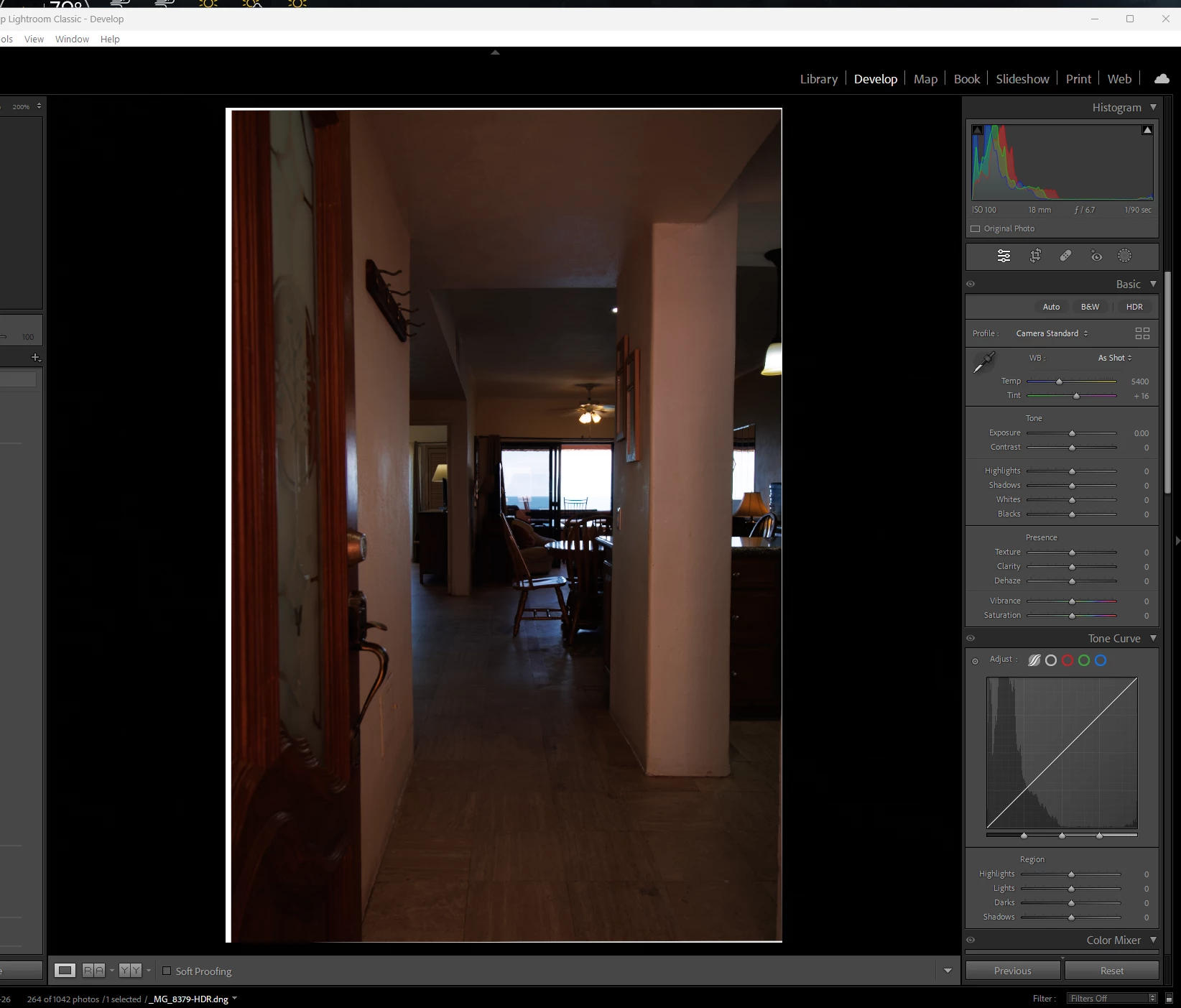


I cannot get this back to defaults, what is going on?


This topic has been closed for replies.

4 replies

Rob_Cullen
Community Expert
Community Expert
October 30, 2023

My guess-  I suspect the image is a created HDR (based on the filename), with images that do not have perfect alignment, and you have not used [Confine Crop]. A simple Crop of the image will remove the white edges.

My example-


Regards. My System: Windows-11, Lightroom-Classic 15.1.1, Photoshop 27.3.1, ACR 18.1.1, Lightroom 9.0, Lr-iOS 10.4.0, Bridge 16.0.2 .
GoldingD
Legend
October 30, 2023

When I want to reset a photo. And this may or may not reset everything, specifically Treatment seems to not rest for me (do I remember that correctly), I do the following:


  • In the History Panel, I select the first history state. (this might be overkill, and just wanting to not see the old history states that I am abandoning)
  • I click on the Reset button over on the right
  • I select the Preset /Classic-General/ Zeroed (just for overkill I suspect)


Just went and tested, I did the following


  • Went a bit crazy with exposure
  • Tweaked the Sharpness
  • Applied some crazy transformations
  • Did my method for reset
  • And yep, all back to basics EXCEPT for the Treatment


The Treatment may not be changing as I probably imported with a specific camera matching profile.


Ah, a point. resetting may take it back to as imported, Any mods during Import might stick. And perhaps any RAW defaults.


GoldingD
Legend
October 30, 2023

Adding to the above.

It would be good to see the history panel in the sceenshot


And, how was the DNG obtained? In camera? Conversion?


Participating Frequently
October 31, 2023

Here is an image that was imported and looked fine. I have modified and it currently looks like this.


Clicking the Reset button makes it look like this with the white lines.


Where as when it was imported there was no white lines..

Participating Frequently
October 31, 2023

Okay something odd just happened. If I toggle "Constrain Crop" on for just a second andturn right back off the issue is fixed!!! Wow so is this a bug or what?

ManiacJoe
Inspiring
October 29, 2023

At a quick glance, it looks like some rotation/straightening has been applied. Check to see if any of those settings might be applied in your import profile or in the original file from the camera.

Anything of interest on the left side of the screen (cropped out from here)?

Raw or JPG file?

Which camera?

Which version of Lightroom?


Participating Frequently
October 30, 2023

I can confirm that no settings are enabled. I have since cleared the history as mentioned previously so I do not have that to share unfortunately. 


Is it safe to say that the reset button doesn't actually reset everything? All the sliders are zeroed out and nothing is showing as enabled yet still the white space.. What more can I do other than re-importing the photos?


I'm shooting 3 brackets, then using Lightroom HDR to combine them and get the DNG. This wasn't an issue directly after import but I was messing with upright transformations after creating said HDR and that seems to be what caused this as you have mentioned@ManiacJoe .

Just thought that the reset button would ya know help out in some kind of way so I don't need to re-import 1000 photos... 


Here are the specs requested.


.CR3 from a Canon 250D aka .RAW File then combined to DNG with Lightroom HDR merge


Lightroom Classic version: 13.0.1 [ 202310121438-d2af310c ]
License: Creative Cloud
Language setting: en
Operating system: Windows 11
Version: 11.0.22621
Application architecture: x64
System architecture: x64
Logical processor count: 56
Processor speed: 2.5GHz
SqLite Version: 3.36.0
CPU Utilisation: 1.0%
Built-in memory: 65432.9 MB
Dedicated GPU memory used by Lightroom: 3004.6MB / 8038.0MB (37%)
Real memory available to Lightroom: 65432.9 MB
Real memory used by Lightroom: 5784.7 MB (8.8%)
Virtual memory used by Lightroom: 9951.2 MB
GDI objects count: 866
USER objects count: 2883
Process handles count: 3459
Memory cache size: 1746.7MB
Internal Camera Raw version: 16.0 [ 1677 ]
Maximum thread count used by Camera Raw: 5
Camera Raw SIMD optimization: SSE2,AVX,AVX2
Camera Raw virtual memory: 2709MB / 32716MB (8%)
Camera Raw real memory: 2255MB / 65432MB (3%)
System DPI setting: 106 DPI
Desktop composition enabled: Yes
Standard Preview Size: 3840 pixels
Displays: 1) 3840x2160
Input types: Multitouch: No, Integrated touch: No, Integrated pen: No, External touch: No, External pen: No, Keyboard: No
 
Graphics Processor Info: 
DirectX: NVIDIA GeForce RTX 3060 Ti (31.0.15.3758)
Init State: GPU for Export supported by default
User Preference: GPU for Export enabled
 
Application folder: C:\Program Files\Adobe\Adobe Lightroom Classic
Library Path: F:\_Lightroom Catalog\Lightroom Catalog-v13.lrcat
Settings Folder: C:\Users\Raab\AppData\Roaming\Adobe\Lightroom
 
Installed Plugins: 
1) AdobeStock
2) Flickr
3) Nikon Tether Plugin
 
Config.lua flags: None
 
Adapter #1: Vendor : 10de
Device : 2486
Subsystem : 147a10de
Revision : a1
Video Memory : 8038