Known Participant
January 23, 2020
Answered

How to restore "import" version after clearing history panel

  • January 23, 2020
  • 4 replies
  • 3195 views

In Lightroom Classic CC, I cleared my history panel for an image which also cleared the import version at the bottom. I proceeded to make edits and those work, but I no longer have an original import version at the bottom to click on to compare. In fact the original import version seems to have altogether disappeared! If I use the backslash shortcut it goes to the first edit at the bottom but not the original. Is there a way to restore the original imort to the bottom line of the History panel while retaining the rest of the subsequent changes? Does my original import still exist? Also can I restore the import version and retain my edits?


Thanks,

This topic has been closed for replies.
Correct answer Conrad_C

Grant_Fergeson wrote: “I cleared my history panel for an image which also cleared the import version at the bottom…Is there a way to restore the original imort to the bottom line of the History panel while retaining the rest of the subsequent changes? Does my original import still exist? Also can I restore the import version and retain my edits?”


First of all, the first Import step really means: An initial History step based on the raw file plus the default Develop settings, which could be the Lightroom Classic defaults, or your own defaults if you changed them, or the defaults set to the Import preset that was selected when you imported it (if you did that). So the original raw data is always there in the file, you never lose that unless you delete the file itself.


If you haven’t changed any Lightroom Classic defaults for the Develop module, then getting back the first step is easy. You can just click the Reset button at the bottom right corner of the right panel. You’ll see a new History step that says Reset Settings, and that will equal the Import settings. And if you click Reset without clearing History, then you get that new Reset Settings step in addition to the existing history, so you get to roll back without losing any previous steps!


Or, another way is to right-click the Import step in History, and choose Clear History Above This Step. They just added this recently, and it means you don’t have to erase the entire history.
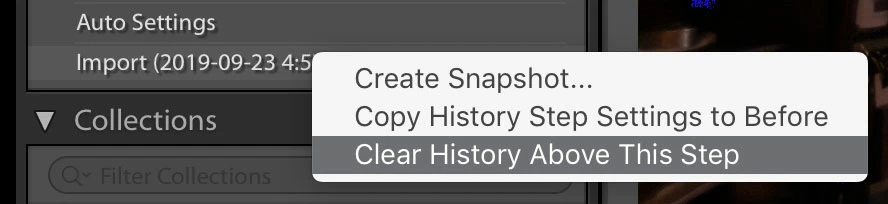


Also, on the same menu, notice the command Copy History Step Settings to Before. That lets you set any History step as the “Before” view for Before and After. So if you re-create the Import step, you can use this command to set it as the Before state.


Again, you never lost anything except edit steps, since the initial Import state is based on defaults of one kind or another that you can usually re-apply.

4 replies

Bob Somrak
Legend
January 27, 2020

To get back to the ORININAL RAW file settings you just have to hold the SHIFT key down and "Reset" will change to "Reset (Adobe).  This will reset your file to Adobes default.  


If you changed any any of Adobes Defaults you just have to hit "Reset"


After doing either of the above just apply the Develop Preset you apply on import and you should be back to where you started after import. 

M4 Pro Mac Mini. 48GB
Conrad_C
Community Expert
Conrad_CCommunity ExpertCorrect answer
Community Expert
January 24, 2020

Grant_Fergeson wrote: “I cleared my history panel for an image which also cleared the import version at the bottom…Is there a way to restore the original imort to the bottom line of the History panel while retaining the rest of the subsequent changes? Does my original import still exist? Also can I restore the import version and retain my edits?”


First of all, the first Import step really means: An initial History step based on the raw file plus the default Develop settings, which could be the Lightroom Classic defaults, or your own defaults if you changed them, or the defaults set to the Import preset that was selected when you imported it (if you did that). So the original raw data is always there in the file, you never lose that unless you delete the file itself.


If you haven’t changed any Lightroom Classic defaults for the Develop module, then getting back the first step is easy. You can just click the Reset button at the bottom right corner of the right panel. You’ll see a new History step that says Reset Settings, and that will equal the Import settings. And if you click Reset without clearing History, then you get that new Reset Settings step in addition to the existing history, so you get to roll back without losing any previous steps!


Or, another way is to right-click the Import step in History, and choose Clear History Above This Step. They just added this recently, and it means you don’t have to erase the entire history.


Also, on the same menu, notice the command Copy History Step Settings to Before. That lets you set any History step as the “Before” view for Before and After. So if you re-create the Import step, you can use this command to set it as the Before state.


Again, you never lost anything except edit steps, since the initial Import state is based on defaults of one kind or another that you can usually re-apply.

Known Participant
January 24, 2020
Thank you I will try this! Thanks to everyone that replied, I really appreciate it!

Grant

Grant Fergeson
grantfergeson@gmail.com
8326134009
JP Hess
Inspiring
January 24, 2020

I am really curious to know how you ended up without the ability to go back on the original image to see the unedited beginning version. Lightroom doesn't make any changes to the original image unless you are consciously writing changes to XMP which is an option in preferences. And if you're not doing that then the original image is left untouched, in its original pristine state when it was first imported. I hope you will be able to import the image again a second time because usually Lightroom does not allow that to happen, at least not in the same catalog.

Known Participant
January 27, 2020
Hi I am sorry i didn't get back to you already. How I did it was to click
on the X at the top of the history bar and all of the edits including the
original image at the lowest history bar disappeared. I then started
editing again and now the lowermost bar is the first edit and not the
original image. I'm sure the original is still in the same place but i
cant go back to it as there is no place to access it that I can find. The
thumbnail image has all the edits applied so I could not figure out how to
just get back to the original image. I cannot understand why Adobe would
allow the base image in the history to disappear since it is really not one
of the editing steps. Thanks and fi you want to discuss further I would
welcome any input.
*Grant*

Grant Fergeson
grantfergeson@gmail.com
8326134009
JP Hess
Inspiring
January 23, 2020

If what you are trying to do is simply create a version of the original for comparison, you could create a virtual copy and reset the virtual copy. That would reset that copy back to the original settings when the image was first imported, and you could compare the virtual copy with the edited copy. When you no longer needed the comparison then the virtual copy could be deleted.

Known Participant
January 23, 2020
Thank you, that should work. Still I guess if I want my original image back but not as a virtual copy I need to reimport it. It’s just hard to believe with the non destructive editing tools it’s possible to lose your original import just by deleting your history!

Grant

Grant Fergeson
grantfergeson@gmail.com
8326134009
kentdesign
Community Expert
Community Expert
January 24, 2020

You have not lost your original image at all, just the original link to the original photo file. So yes, reimport it and you will be at ground zero for that file. 

And if you wnat to consolidate the two with the history as you have now edited it, I believe, you can select the editied file first in the develop module,  then Command +CLick (on Mac) on the re-imported file , and select Sync on the bottom of the right hand panel. I beleive that would apply your edits to the original file. 

Note I have not tried this specifically, however nothing would be lost if you tried this. Just make sure the "most selected photo" or the first one you select, is in fact the one with the subsequent edits.