June 2, 2020
Answered

I am new to Lightroom | Help, lightroom imports into wrong date folder, metadata is correct...

  • June 2, 2020
  • 3 replies
  • 2245 views

Hi, I am new to lightroom Classic. This seems like a very powerful tool though I have dificulty making it work.
Whenever I import, most photos are correctly placed in the right date folders, But some photos are imported and placed in the incorrect folder.

As you can see in the screenshots attached, the "capture date" is correct but the photo is placed on the "Modified" date instead.

Even if I try to "Edit Capture Time, it appears with the correct date.

I have deleted and reimported multiple times with the same results.


How can I import these photos into the "capture time" folder and not the "modified" time folder?


Of course I would like an automatic solution since hundreds of photos are imported wrong.

Thank you all for your time.

D

This topic has been closed for replies.
Correct answer Just Shoot Me

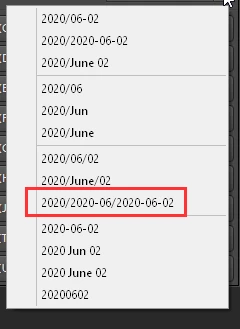
In your first screen shot, of the import windows Destination section, You have asked LR to Organize: "By Date", and then use the date format of 2020/2020-6... (Folder Year/Subfolder Year-Month/second Subfolder Year-Month-Date).
But yoiu are not showing the actual Drive and or Top Level Folder LR is supposed to be placing the images in like this. 
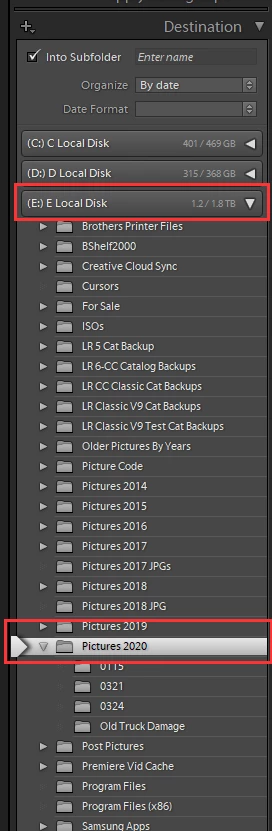
Don't be confused by No Entry in my "Into Subfolder" and "Date Format" sections as I use a special, Modified, Preset that creates subfolders using the Month and day date (Numbers) like 0602 for June Second.


Sometimes LR will use either the File On Disk Creation Date or the Modified date if there is NO valid Capture date (read that as Date Time Original, Date Time Digitized) in the EXIF Metadata of the image file. This can happen with Scans of prints, negatives and slides and some other Digital images taken with very old digital cameras or older cell phones.
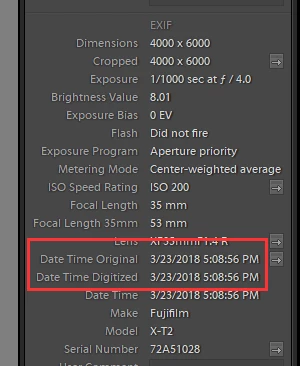


In your second screen shot you show the Folders section of the Library module but not the whole part showing whatever drive and top level folder they are in and only a Small Section of the Metadata section.


Please show us the Whole area.


Also if you are going to do all your origanizing Manually and then only import certain images that you manually copy to some other folder then maybe LR Classic isn't the program you should be using. The purpose of LR is to import ALL of your images and use LR's Library module to add keywords, place images into collections to do your origanizing.


You might want to look at using Bridge, ACR (Which is the same as the LR's Develop module) and PS for further edits.


LR NEVER Changes your original images. All Edits done in LR are just Overlayed over the top of the original image. The only way to actually Include, Burn In, the edits you do in LR to an image is to Export it to a New, Different, File.

So copying your original RAW to some folder then Making copies of them to import into LR is a waste of time, except to make Direct Copies as a Backup of your images.


you should also view some of the very good online Tutorials on how LR Classic works and how to properly work with LR Classic.

 

3 replies

June 3, 2020

Thank you and gary_sc.

You both were right. The issue appeared because of the duplication process I did before importing to Lightroom. Oddly, I did that to all my RAW files and only about 10% had this problem.

I placed them manually in the correct folder. All new imports are working as intended.
Thank you both for aleting me know how Lightroom (does not) manipulate files.

D

Just Shoot Me
Legend
June 3, 2020

Another point is if you are going to Manually place images into a folder structure that you want them in then when you Import them into LR use the ADD option at the top to Leave them where they are, in the folders you placed them in, and just ADD them to the LR Catalog.


The LR Catalog is just a DATABASE file. No images are IN the Catalog. Only a Reference, A Record, of that image is placed in the catalog as to on what drive and what folder your images are in and what edits you have made to them.

Just Shoot Me
Just Shoot MeCorrect answer
Legend
June 3, 2020

In your first screen shot, of the import windows Destination section, You have asked LR to Organize: "By Date", and then use the date format of 2020/2020-6... (Folder Year/Subfolder Year-Month/second Subfolder Year-Month-Date).

But yoiu are not showing the actual Drive and or Top Level Folder LR is supposed to be placing the images in like this. 

Don't be confused by No Entry in my "Into Subfolder" and "Date Format" sections as I use a special, Modified, Preset that creates subfolders using the Month and day date (Numbers) like 0602 for June Second.


Sometimes LR will use either the File On Disk Creation Date or the Modified date if there is NO valid Capture date (read that as Date Time Original, Date Time Digitized) in the EXIF Metadata of the image file. This can happen with Scans of prints, negatives and slides and some other Digital images taken with very old digital cameras or older cell phones.


In your second screen shot you show the Folders section of the Library module but not the whole part showing whatever drive and top level folder they are in and only a Small Section of the Metadata section.


Please show us the Whole area.


Also if you are going to do all your origanizing Manually and then only import certain images that you manually copy to some other folder then maybe LR Classic isn't the program you should be using. The purpose of LR is to import ALL of your images and use LR's Library module to add keywords, place images into collections to do your origanizing.


You might want to look at using Bridge, ACR (Which is the same as the LR's Develop module) and PS for further edits.


LR NEVER Changes your original images. All Edits done in LR are just Overlayed over the top of the original image. The only way to actually Include, Burn In, the edits you do in LR to an image is to Export it to a New, Different, File.

So copying your original RAW to some folder then Making copies of them to import into LR is a waste of time, except to make Direct Copies as a Backup of your images.


you should also view some of the very good online Tutorials on how LR Classic works and how to properly work with LR Classic.


Just Shoot Me
Legend
June 2, 2020

LR Classic imports to whatever folder you the user has selected and peramiters you the user has also selected.


There is NO Set in stone path that LR uses to place images into folder on your hard drive.

June 2, 2020

I am not sure what you mean.
I have selected a specific folder to import into and asked to "Organize by Date". (see picture below)

Ligtroom, then creates folders and places pictures ordered by date. Most of the pictures I import are placed in the correct folder by date (according to their "Capture Time" date).

Only some pictures are placed in a folder (created by lightroom) which is the wrong date: see picture below

The picture above shows on the left, the folders Lightroom created to Organize by date. The picture selected shows the capture date" 2018-04-18.

The folder where the picture was placed by lightroom is:

2020-05-26.


I hope this explanation makes the issue clearer.

Thank you.

D

gary_sc
Community Expert
Community Expert
June 2, 2020

Hi dmtzcain,


The thing I noticed in your screenshot above is that the modified date is before the creation date. (?!?)


What is the sequence of events that you performed to get you to this point? It might have something to do with the placement of your images.


Thanks,