
Inspiring
November 17, 2021
Answered

ICC Color-Profiles not shown

  • November 17, 2021
  • 4 replies
  • 1778 views

Hello, I am using LR Classic, version 11.01 under MacOS 12.0.1. I have the problem that the icc profiles installed under ~/Library/ColorSync/Profiles/ cannot be displayed / selected. Even installing the profiles in the system folder / Adobe application folder does not change anything. (The display profiles are displayed correctly)
This topic has been closed for replies.
Correct answer Conrad_C

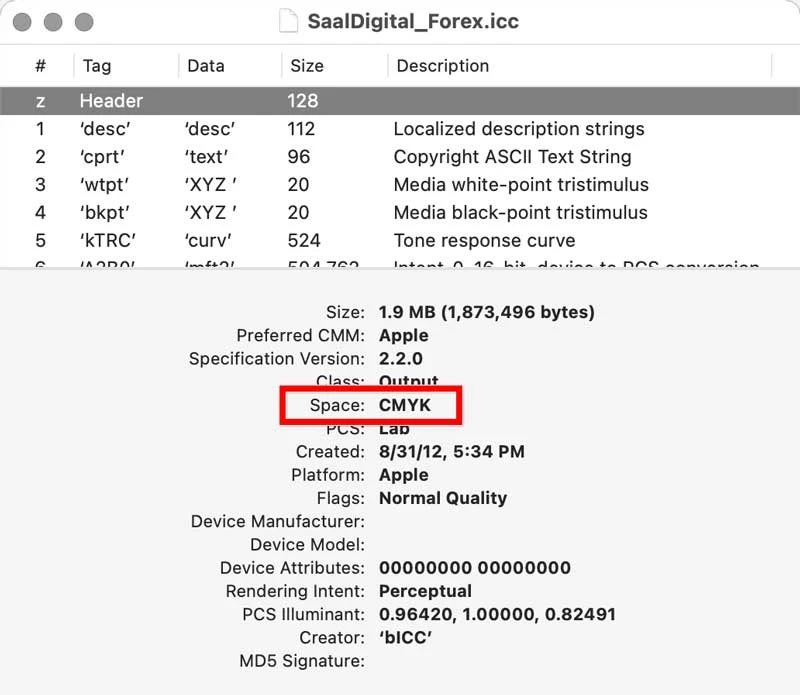
Thanks for posting a link. Upon inspection in Apple ColorSync Utility, the profile is definitely CMYK, so it isn’t available in Lightroom Classic, as expected. In Photoshop, this profile is listed in all the places where CMYK profiles are made available.


4 replies

Inspiring
November 22, 2021

Hi @9264381, thank you for your feedback.


@ Rikk: No, that is not the solution. This brings up the same file dialogue as in the development module; and the window is just empty.


@ thedigitaldog: the ColorSync tool does not find any errors when checking the profiles.


The profiles I want to use are freely available, here is the link to an example profile:

https://www.saal-digital.de/fileadmin/downloads/softproof/SaalDigital_Hartschaumplatte.zip


Kind Regards

Conrad_C
Community Expert
Conrad_CCommunity ExpertCorrect answer
Community Expert
November 22, 2021

Thanks for posting a link. Upon inspection in Apple ColorSync Utility, the profile is definitely CMYK, so it isn’t available in Lightroom Classic, as expected. In Photoshop, this profile is listed in all the places where CMYK profiles are made available.


Inspiring
November 22, 2021

Conrad, thank you for your feedback.


Sorry for the confusion I caused.


So that I can assess this directly myself for the future: how / where can I display the profile information shown?

TheDigitalDog
Inspiring
November 21, 2021

You might try running Profile First Aid found in the ColorSync utility. It is possible those profiles do not meet spec and at the very least, the utility will pop an error. Also, can you upload one (zipped) to something like Dropbox so others can load and inspect? 

Author “Color Management for Photographers" & "Photoshop CC Color Management/pluralsight"
Rikk Flohr_Photography
Community Manager
November 21, 2021

Lightroom Classic requires you to select Profiles which will be shown in the Print module


  1. Print Job panel
  2. Color Managment section
  3. Profile: Choose "Other"
  4. Check the profiles you want to appear in Lightroom 
Rikk Flohr: Adobe Photography Org
Per Berntsen
Community Expert
Community Expert
November 20, 2021

Are these profiles CMYK profiles by any chance?

Lightroom does not support CMYK.

Inspiring
November 21, 2021

Peer, thank you for your answer.


No, I don't think the profiles are in CMYK. These are from a large photo service provider (Saal; saal-digital.de) and are also displayed correctly under the Windows version of LR.