
Participant
November 4, 2016
Answered

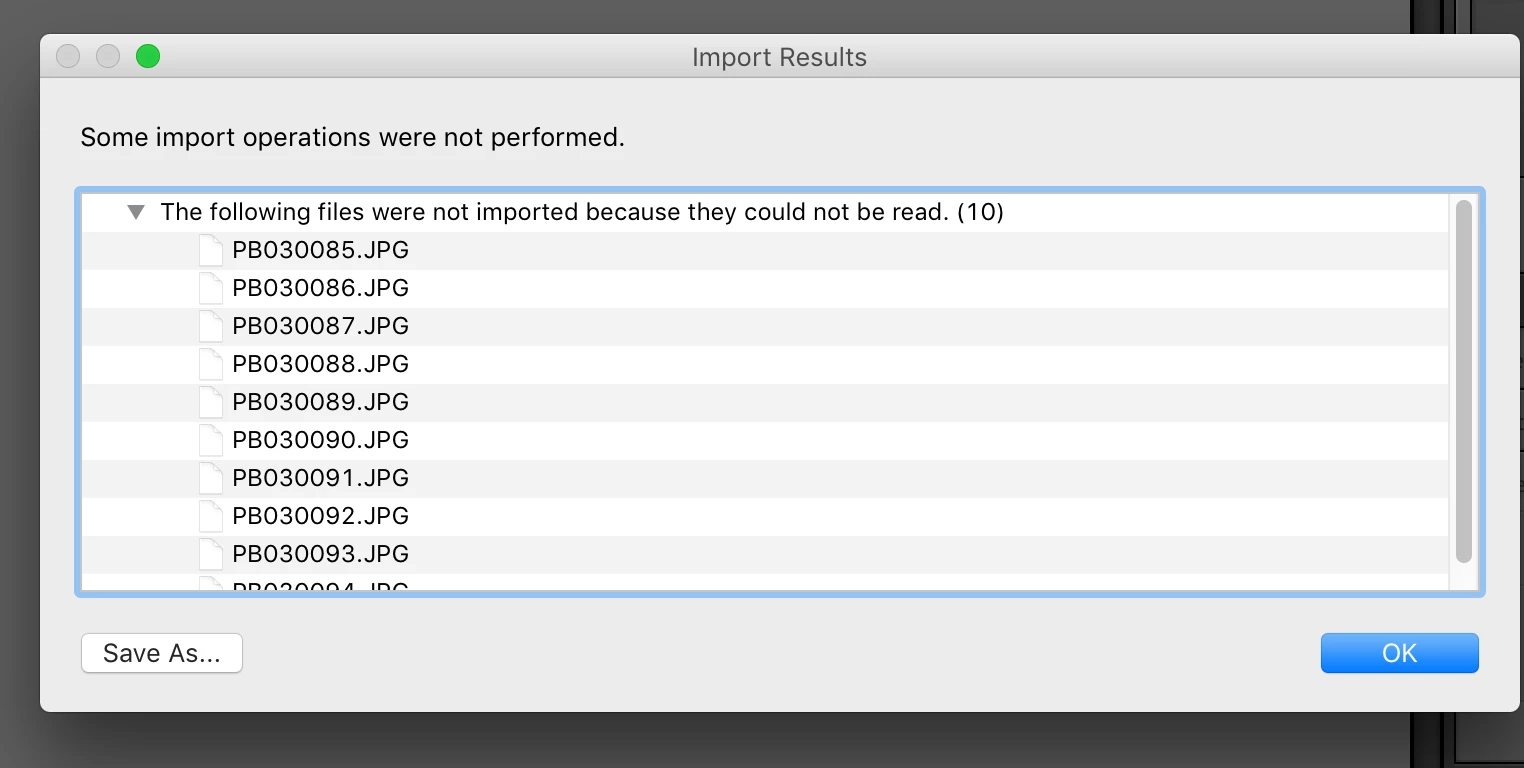
Import Error - Files Could Not Be Read

  • November 4, 2016
  • 5 replies
  • 7606 views

I read a ton of threads with this same issue, and tried all the suggestions but it's still not working.

When I try to upload I get the error "files were not imported because they could not be read."

So far I've tried:

  • Checking read/write privileges
  • Keeping import dialog 'destination' section open
  • Resetting preferences file

It's LR 6.1.

Any suggestions? Thank you!!
This topic has been closed for replies.
Correct answer dj_paige

alysonj wrote:

I read a ton of threads with this same issue, and tried all the suggestions but it's still not working.

When I try to upload I get the error "files were not imported because they could not be read."

So far I've tried:

  • Checking read/write privileges
  • Keeping import dialog 'destination' section open
  • Resetting preferences file

It's LR 6.1.

Any suggestions? Thank you!!
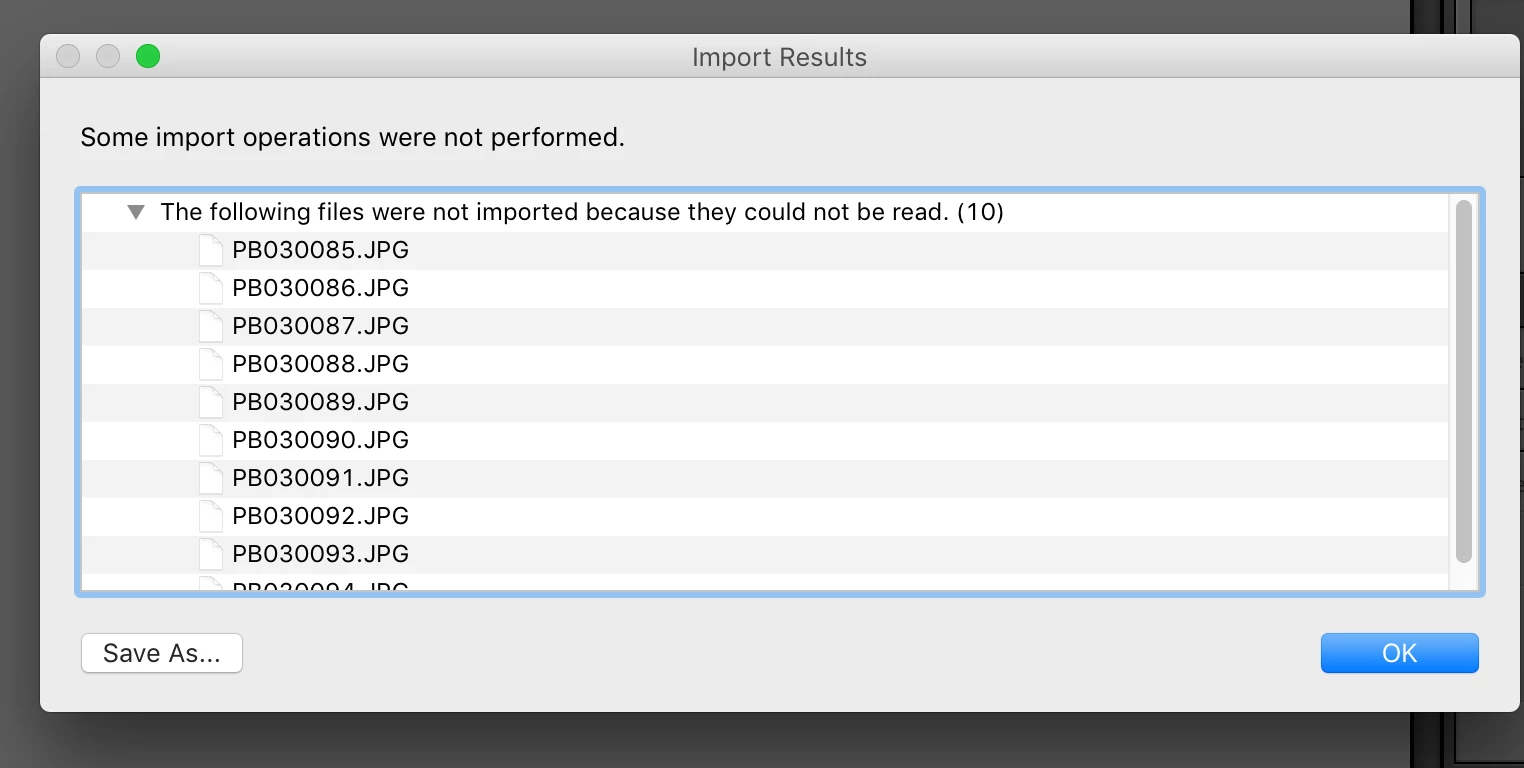
This error message means you do not have WRITE permission to the Destination folder. You need to find the Destination folder (it is in the Lightroom Import dialog box on the right hand side under Destination), and then check the permission on that EXACT folder, make sure it has WRITE permission.

You say you have checked the permissions, then obviously you have checked the permissions on the wrong folder.

5 replies

Participant
September 7, 2020

I had the same error-message, but when I put the files to be  imported on another harddisk there was no problem. So It can also be caused by a faulthy hard disk.

catheriner54907083
Participant
November 8, 2017

I'm having this same problem with a new version of LR, but using the same external drive as destination. Where exactly do I go to check permissions?

Peru Bob
Community Expert
Community Expert
November 8, 2017

Have a look here:

check permissions

Participant
December 5, 2016

I don't know where to ask this Q.  When importing, it balks at forward slashes in file name.  In the import error window it shows that the / was replaced with a colon (:) but it still won't import.  It ONLY works if I go to the orig file and change the name.  BUT, BIG PROBLEM:  All my photos are used in Indesign and when a finished project is packaged, all files are linked.  If I change the file name, all links will be broken.  I'm talking about several 1000s of photos.

How do I import files without changing the name and wrecking my InDesign work?

Thanks,

Norm

dj_paige
Legend
December 6, 2016

Well normp49520190 , you have created a thread with this question, that's the right place for it. You shouldn't put it here in a totally unrelated thread. Everyone put their answers in Norm's other thread.

dj_paige
dj_paigeCorrect answer
Legend
November 4, 2016

alysonj wrote:

I read a ton of threads with this same issue, and tried all the suggestions but it's still not working.

When I try to upload I get the error "files were not imported because they could not be read."

So far I've tried:

  • Checking read/write privileges
  • Keeping import dialog 'destination' section open
  • Resetting preferences file

It's LR 6.1.

Any suggestions? Thank you!!

This error message means you do not have WRITE permission to the Destination folder. You need to find the Destination folder (it is in the Lightroom Import dialog box on the right hand side under Destination), and then check the permission on that EXACT folder, make sure it has WRITE permission.

You say you have checked the permissions, then obviously you have checked the permissions on the wrong folder.

AlysonJAuthor
Participant
November 6, 2016

I had read & write on all the folders for my account.. but there was another "level" that it needed to be granted to. Thanks!

F. McLion
Community Expert
Community Expert
November 4, 2016

First, update to 6.7: Install Photoshop Lightroom

Please let us know the target location of your import. Do you copy or add in LR import?

What do you mean with Keeping import dialog 'destination' section open ?

--- Got your issue resolved? Please label the response as 'Correct Answer' to help your fellow community members find a solution to similar problems. ---