
philj87825570
Inspiring
June 14, 2018
Answered

Importing camera profiles into lightroom profile browser

  • June 14, 2018
  • 1 reply
  • 23206 views

Hi guys

I've recently began taking infrared photos

The problem I have is that when I try to import my DNG file and camera profile into lightroom it doesn't appear in the browser.

in fact there are no camera profiles in the profile browser at all only the Adobe profiles.

I assume I have saved the profiles to the wrong location but it seems wherever I put the profiles they do not show up in lightroom.

ANY IDEAS would be great. thanks.
This topic has been closed for replies.
Correct answer philj87825570

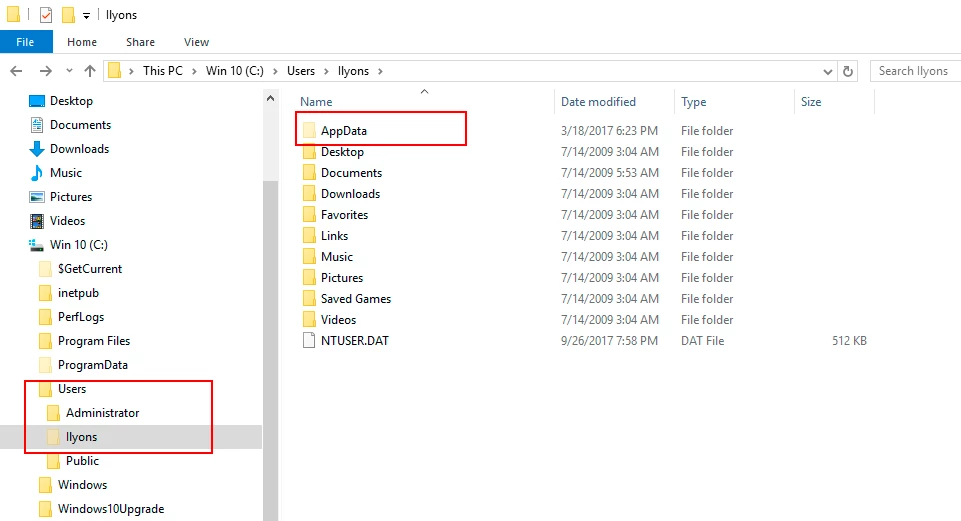
See below screenshot of where to find AppData. Your system may show 'Default' in lieu of a User Name


Thankyou. Finally. I had to go into the control panel and unhide all hidden files and they all appeared.

Thanks again for your patience.

Cheers

1 reply

Ian Lyons
Community Expert
Community Expert
June 14, 2018

Best you place them in folder manually. The correct folder for your profiles is:

Mac: Macintosh HD / Users / [your username] / Library / Application Support / Adobe / CameraRaw / CameraProfiles /

Windows: C: \ Users \ [your username] \ AppData \ Roaming \ Adobe \ CameraRaw \ CameraProfiles \

Edit: added screenshot showing location of custom camera profiles

philj87825570
Inspiring
June 14, 2018

Thanks. I have done all that but the profile tab does not appear in lightroom browser. That is the problem I have.

ssprengel
Inspiring
June 15, 2018

Yes it is. This is my process.

I load a raw photo into lightroom lower the WB temp to its minimum then export the photo to DNG. I use Adobe DNG profile editor to lower the WB temp again then export the Canon EOS 200D into the lightroom camera profiles as a DNG camera profile .dcp.

I restart lightroom and there are still no camera profiles available.

I'm obviously doing something wrong but I don't know what.


Please post a screenshot of the user profile area in Explorer/Finder, detailed by Ian, above, showing your dcp file (not dcpr) in the correct location.