
Participating Frequently
January 11, 2024
Frage

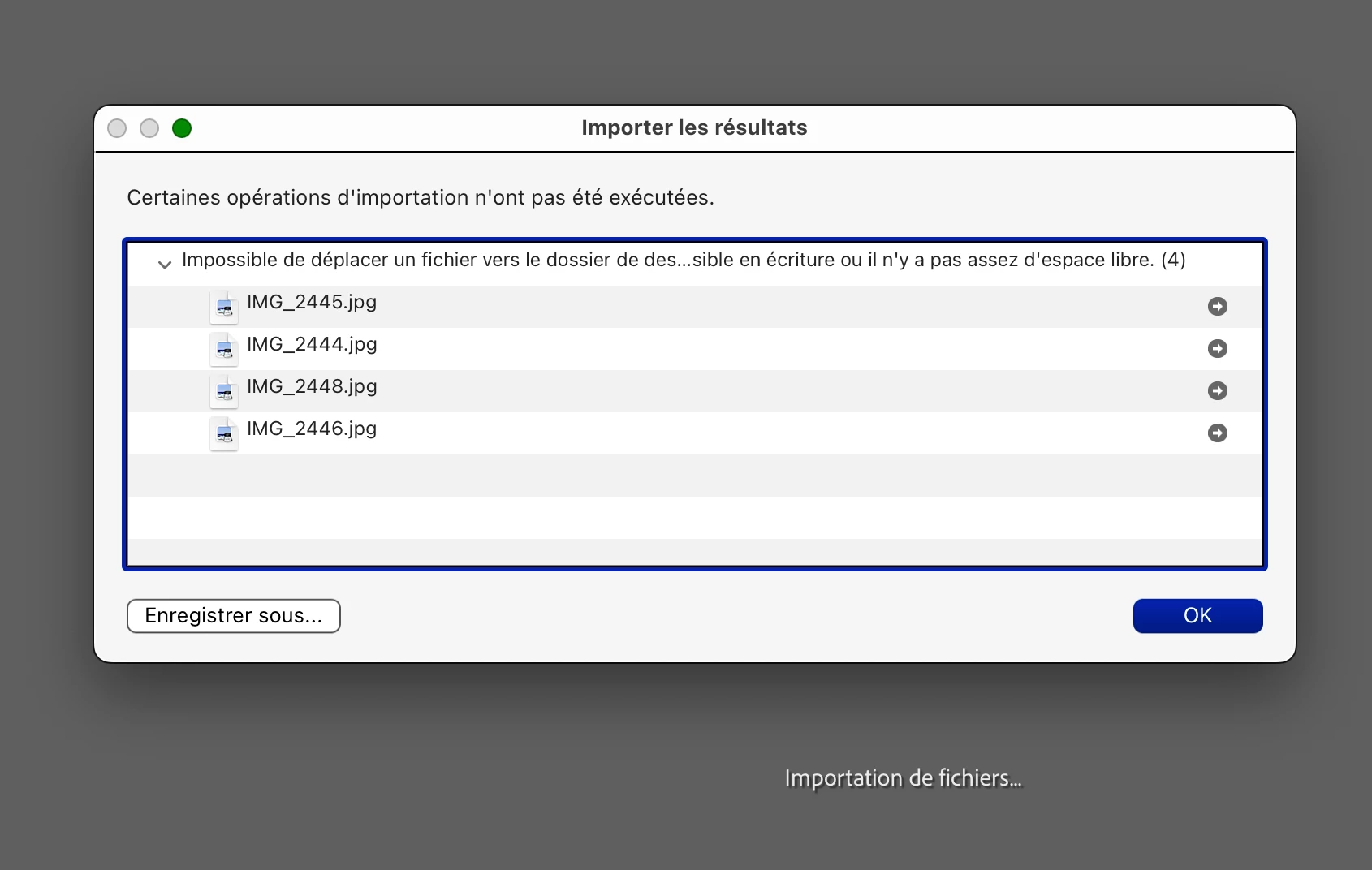
Impossible to move a file to the destination folder because there is not enough available space

  • January 11, 2024
  • 3 Antworten
  • 2886 Ansichten

Hello, looking for some help. I have been transferring my old jpeg pictures from my iMac Picture folder into Lightroom. I was able to transfer a lot of them and then suddenly I received an error code telling me its 'impossible to move a file to the destination folder because there is not enough available space'.  I am on iMac with latest version of OS.  Find below the french dialog box with the error code. I have translated it for this purpose. I have 500g still available on my disk so don't think this is the issue. Would really appreciate understanding how I can fix this. Thank you.
 

3 Antworten

GoldingD
Legend
January 12, 2024

So, you are moving photos from one folder in your hard drive to another? And you are attempting to accomplish that as part of an Import in LrC? But that is failing.


Have you attempted to use Finder, not LrC, to Move the Photos, and then in LrC, Import them via Add?


And, as to your actual issue and possible solution (but you may have already accomplished this) see:


Participating Frequently
January 13, 2024

Good morning, yes that is what I'm trying to do and it worked perfectly well for several hundred photos. Then I suddenly got the text box with the error code. Your suggestion to use Finder means the pictures would be in Finder and in LrC which is what I don't want. I only want the pictures to reside in one place on the drive. Adding makes two copies of the same picture.  I have not read your links but will go now. Thank you so much in trying to help me with this error code. 

Community Expert
January 14, 2024

Folks,  I really appreciate all the help but I think the focus has shifted to the use of Add vs Move which I have been using for years without any issues. My problem is the error code which suddenly appeared during one of these 'moves'. I have translated verbatum the text of this error and it is the title of my request : Impossible to move a file to the destination folder because there is not enough available space.


So my question is does anyone have any idea what this error code is and which space is unavailable because I have plenty of disk space. Could it be the preview cache? I am just returning from 3 weeks abroad and I did load 5,000 pictures in Decembre. Could I have saturated the preview cache and this is what the problem is? My preview parameter is set to erase the cache after 30 days. The cache is currently sitting at 72g. Is there anywhere I can see what is the capacity of the preview cache or is this driven by the application without any option to increase its size? 


Thank you very much for all the help. Again the problem is not whether to use Move or Add. Its the error code I'm trying to solve. 


This error message is truncated in your screenshot. A lack of space in the destination is just one common reason for difficulty with moving files. Other possibilities exist too.


One that occurs to me: where you are moving the images from. On both MacOS and Windows, a certain user's "Pictures" - also "Documents", "Desktop", others - have special behaviour. Access being limited to a particular computer user; in some ways hiding or virtualising their actual disk locations; participating in cloud syncing.


So I am wondering if e.g. iCloud continuous backup might be interfering with LrC's ability to move files out of there. Regardless of the requested destination for the move. That difficulty would not arise with a Copy import. Nor would it likely arise, if these files were transferred somewhere else first, using Finder.


IMO to limit future problems I would avoid LrC managing images that live inside "Pictures". Of course it is perfectly fine to still export to "Pictures" and to have those exported JPGs synced to cloud, and so on. Just so long as the Catalog is not explicitly managing those.


To illustrate this: (I am on Windows) - recently due to turning on "sync user files to cloud" - OneDrive secretly changed the real physical location of the user "Pictures" etc on disk. Windows did track that change, so accessing my user "Pictures" as a named entity still worked exactly the same. But the Lr Catalog did not track that change, hence the real physical location that it fomerly had for "Pictures" was invalidated. So it's better IMO for all of LrC's imported files to live in standard folders only, where they are not going to get caught up in any such clever shenanigans.

GoldingD
Legend
January 12, 2024


. I'm using the 'Move' import method as I want to move the photos from the 'Pictures' folder to my Lightroom


This Move, it is from a hard drive folder to another? And not from a SD card?


following applies to Move from an  SD card (or similar)


Not a solution to your issue, but a caution point to make.  Adobe probably should have never ever included Move. Move can be a dangerous method of transferring files from a SD card or other memory card. If something happens during the Move, you could loose both the originals on the SD card and the hopefully moved files on the hard drive. I would never Move unless I had a backup copy on a hard drive of those photos. I would never remove the photos on the SD card, until at least two copy's exist on hard drives, the working photos, and the backup photos. SD cards and other memory cards are not a safe media to trust, they can fail, they can fail long before a proper hard drive fails. That is part of why Adobe does not allow ADD when a SD or other memory card is used (new CFexpreess cards are an odd beast as OS treats them like a hard drive  hence LrC does not know they are not)


Participating Frequently
January 13, 2024

Good morning, I only use 'Move' if I want to move a picture from a hard drive folder, such as from Pictures,  to my Lightroom catalog. If you use 'Add' the photos will stay in the Picture folder and they will also be in the Lightroom database. Which is what I don't want. I want the photo to reside only in one place.


When I want to transfer photos from an SD card to my Lightroom I use 'Copy'. Once I have loaded my photos to Lightroom, I usually do a back-up and only when this is done do I erase my SD card. So no worries on that front. 

Sean McCormack
Community Expert
Community Expert
January 13, 2024

Just to highlight that at no point are your images 'in' your Lightroom Catalog. They're merely referenced by the catalog at their location on disk. Using ADD does not duplicate the photo. It references it at the current location. Move puts them in the new location and then references them. 

Sean McCormack. Author of 'Essential Development 3'. Magazine Writer. Former Official Fuji X-Photographer.
GoldingD
Legend
January 11, 2024

Do you have more than one hard drive?


If so:


  • What hard drive is your LrC catalog on?
  • What import method in the LrC import screen are you using, Copy, Copy as DNG, or Add?
  • If Copy, or Copy as DNG, what hard drive have you selected as destination?


Participating Frequently
January 12, 2024

Good morning, I am currently only using my iMAC 2TB SSD drive. I do not use an external, except for back-ups. So the LrC catalog is on my iMAC SSD drive. I'm using the 'Move' import method as I want to move the photos from the 'Pictures' folder to my Lightroom.  Interestingly the selected destination seems to be 'images'. I don't have an option for the Lightroom catalog. I am including pictures hoping this will help. I'm working in French but I can translate what you need. Thank you very much for your help.