
Participant
July 6, 2018
Answered

Invert Tone Curve

  • July 6, 2018
  • 2 replies
  • 4088 views

We just upgraded to Windows 10 and Lightroom Classic 2018 version and I've lost my presets. I am having a very hard time inverting the tone curve (turning negatives into positives). The ends of the linear curve will not budge from their respective corners. Any tips?
    This topic has been closed for replies.
    Correct answer johnrellis

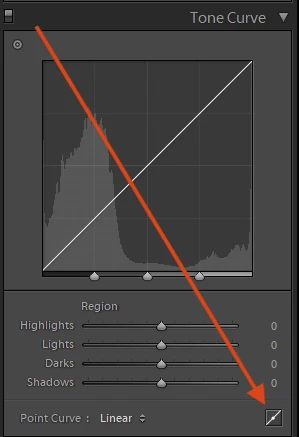
    If you see the sliders in the Tone Curve panel, then click on the button in the lower-right corner to switch to "edit point curve" mode:

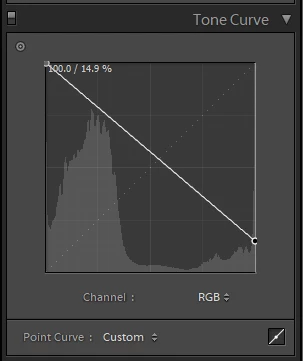
    It should then look like this:

    and you can then grab the ends of the curve and drag them up and down.

    2 replies

    johnrellis
    johnrellisCorrect answer
    Legend
    July 6, 2018

    If you see the sliders in the Tone Curve panel, then click on the button in the lower-right corner to switch to "edit point curve" mode:

    It should then look like this:

    and you can then grab the ends of the curve and drag them up and down.

    Participant
    July 6, 2018

    Thank you so much for the quick reply! It did the trick!

    Todd Shaner
    Legend
    July 6, 2018

    You need to select the Point Curve. Makes sure you have the latest LR 7.4 update installed using the Creative Cloud app.

    Participant
    July 6, 2018

    Perfect. Thanks, Todd!

    Rob_Cullen
    Community Expert
    Community Expert
    July 6, 2018

    And a hint-

    When you have the tone curve inverted-immediately make a Develop Preset, then it will always be just one click on the preset needed.

    Also it is now possible to make an 'Inverted' PROFILE in ACR to do a curve invert, but it does not change the problem that many of the sliders still work in reverse in Lightroom.

    Regards. My System: Windows-11, Lightroom-Classic 15.1.1, Photoshop 27.3.1, ACR 18.1.1, Lightroom 9.0, Lr-iOS 10.4.0, Bridge 16.0.2 .