Halicarnassus
Participating Frequently
December 5, 2018
Answered

Issue with DNG files

  • December 5, 2018
  • 5 replies
  • 3031 views

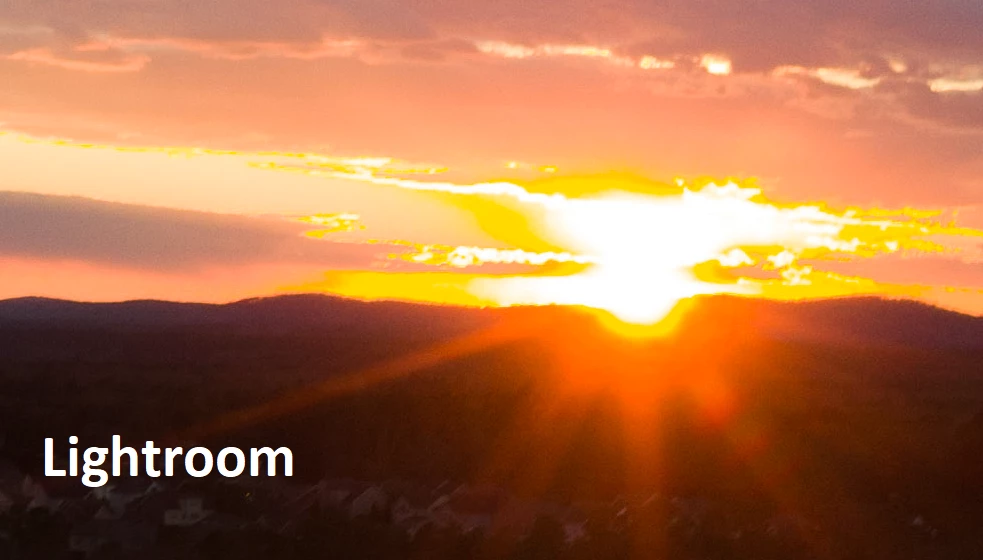
I am observing a strange and rather ugly color falloff/abrupt shift around the bright objects when I open DNGs in Lightroom Classic 8.0 from DJI Mavic 2 Pro drone camera. It looks almost looks like LR fails to interpret the dynamic range and display a proper gradient. I also tried exporting it to JPEG with different exposure setting but no use.

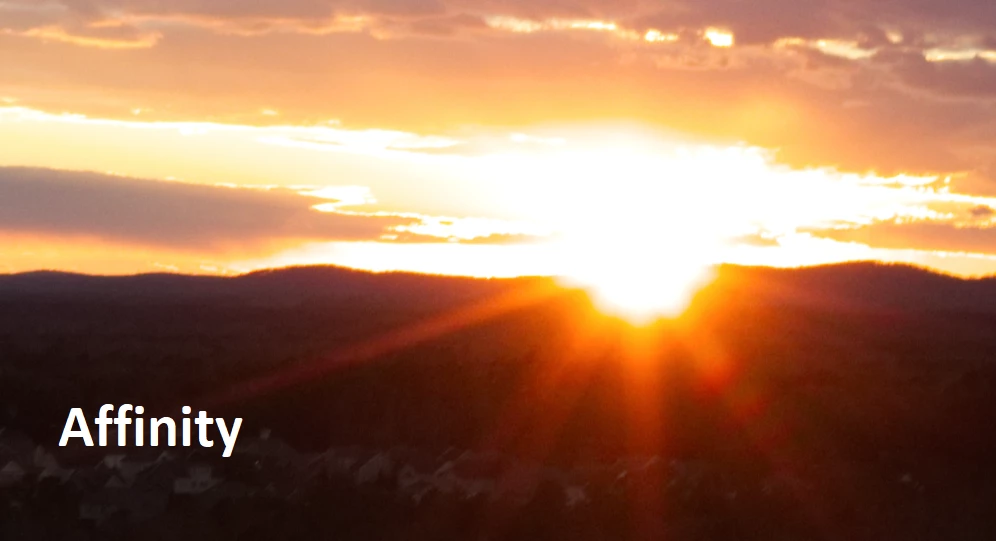
I don't have any other device that create DNG so I can't cross check whether it's DJI DNGs only. However, if I open the same file using other editors, this does not happen. Below pictures, at 100% views and untouched, illustrate exactly what I mean. Any explanation or advice?
This topic has been closed for replies.
Correct answer Todd Shaner

Halicarnassus  wrote

If I understand the technology correctly, DNG files are supposed to have information embedded in that tells what it is and how the image data needs to be interpreted.

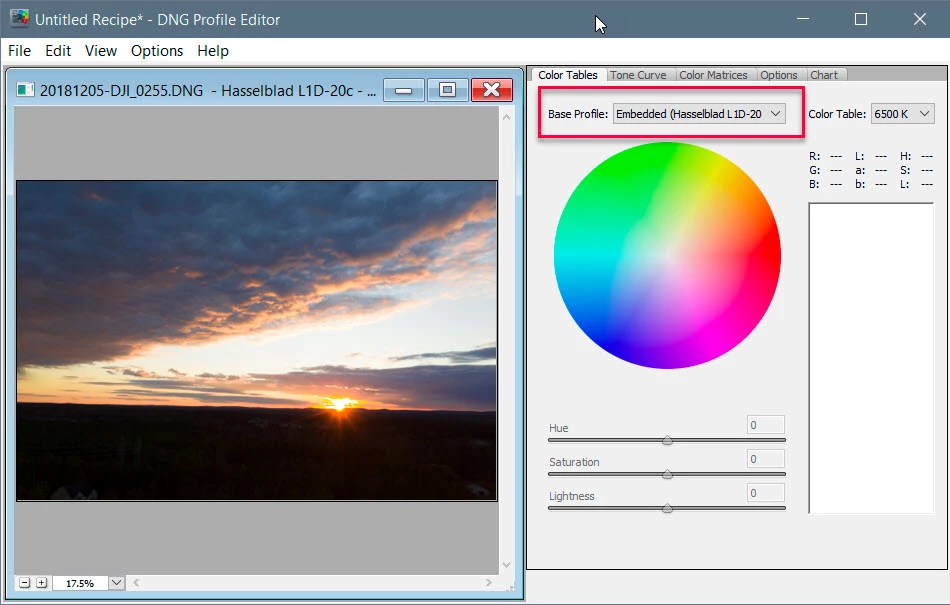
Yes, and your DNG file has a camera "Embedded Profile' that ACR and LR use (visible in DNG Profile Editor).

Halicarnassus  wrote

I am happy to be convinced otherwise, but I lean towards Adobe being the party who needs to take a look at this at engineering level.

Adobe hasn't provided camera profiles for any DJI Mavic camera model to date. You can add this request at the Photoshop Family forum and/or use the DNG Profile Editor or a ColorChecker Passport to create your own "custom" camera profiles.

Photoshop Family Customer Community

DNG Profile Editor (September 2012)

The DNG Profile Editor is a free software utility for creating or editing camera profiles.

Read more (PDF, 3.93 MB)
Download:  Mac, Win

5 replies

GoldingD
Legend
December 7, 2018

Does this camera also save to a native RAW format (not DNG), perhaps a .3FR format?

Exploring on the web, if I google L1D-20 I get (among others) a Hasselblad  page with samples, one RAW with that extension opens fine in LR CC Classic v8

Ok, strike all of that, wrong model of camera.

Same page ( Sample Images Gallery  ) has some samples, and yep, they are DNG.

Ok, downloaded one of the samples, brought it up in LR, same issue with profiles.

Halicarnassus
Participating Frequently
December 7, 2018

It's RAW or JPEG I am afraid. It's a camera Hasselblad specifically made for DJI Mavic 2 Pro drone.

Todd Shaner
Legend
December 8, 2018

The DNG file is a raw file with an embedded camera profile and not an RGB JPEG or TIFF in a DNG wrapper! It should also show as an 'Embedded' profile in the 'Profile' dropdown menu, but it doesn't for some reason with this DNG file most likely due to the issue discussed a the below post. However, the embedded camera profile is being used.

Lightroom/Camera Raw: Leica DNG Embedded Camera Profile Issue | Photoshop Family Customer Community

GoldingD
Legend
December 7, 2018

Ok, so I have gotten of my rear end and downloaded your file.

Now, I do not know if this is a LR vs your camera issue. But I see no profiles other than Color and Monochrome, No Adobe Standard etc, no camera specific. I do see that when I go to adjust WB that the full set of possibilities exist. Its like part of LR thinks a form of TIFF, part thinks a form of RAW, odd

Can you accomplish this. Hoping you still have the absolute original still in your SD card (SD, CF, whatever), To a directory on your computer that is not included in your catalog, In other words, well away from LR, PS, ACR. Copy the file again. and upload it.

I suspect something has gone on with the DNG,  Maybe I do not understand how Adobe products treat a native DNG file.

Hmm, I do see in my copy, that LR does have an Adobe Standard profile for your (no, thats wrong, it does not) camera, but no Camera Specific ones. At any rate, why can I not select Adobe Standard??

Above edited

Halicarnassus
Participating Frequently
December 7, 2018

I think you're onto something with respect to the lack profile options observation. I see the same thing on my PC. When I open the DNG in question, I only have Color and Monochrome as the Profile options. If I open a DNG from my iPhone X, I see Adobe Color,  Landscape, Portrait, etc, as well as a "Camera Default".

If I understand the technology correctly, DNG files are supposed to have information embedded in that tells what it is and how the image data needs to be interpreted. So, if you screw up that bit of information when creating the DNG file, then the interpreters, i.e. LR/ACR, will show you a screwed up image.

However, other editors like Luminar, Affinity and Exposure4 somehow understand/interpret camera's DNG info differently than LR/ACR does, which results in a better view of the colors and gradients.

So, either Adobe is at fault here, by being unable to recognize/correctly interpret what DJI Mavic 2 Pro's Hasselblad camera is providing in the DNG file, or DJI's camera is at fault by being unable to provide the proper info in the DNG file (yet 3 other editors do not display the issue, because they ignore/auto-correct the bits that Adobe doesn't?)

I am happy to be convinced otherwise, but I lean towards Adobe being the party who needs to take a look at this at engineering level.

Todd Shaner
Todd ShanerCorrect answer
Legend
December 7, 2018

Halicarnassus  wrote

If I understand the technology correctly, DNG files are supposed to have information embedded in that tells what it is and how the image data needs to be interpreted.

Yes, and your DNG file has a camera "Embedded Profile' that ACR and LR use (visible in DNG Profile Editor).

Halicarnassus  wrote

I am happy to be convinced otherwise, but I lean towards Adobe being the party who needs to take a look at this at engineering level.

Adobe hasn't provided camera profiles for any DJI Mavic camera model to date. You can add this request at the Photoshop Family forum and/or use the DNG Profile Editor or a ColorChecker Passport to create your own "custom" camera profiles.

Photoshop Family Customer Community

DNG Profile Editor (September 2012)

The DNG Profile Editor is a free software utility for creating or editing camera profiles.

Read more (PDF, 3.93 MB)
Download:  Mac, Win

DdeGannes
Community Expert
Community Expert
December 7, 2018

Would you care to share the original file so other users can have a go, or at least do a screen capture of the right side of the develop module so we can see what adjustments have been applied. OK I just noticed you have shared the file. I will have a go.

Regards, Denis: iMac 27” mid-2015, macOS 11.7.10 Big Sur; 2TB SSD, 24 GB Ram, GPU 2 GB; LrC 12.5,; Lr 6.5, PS 24.7,; ACR 15.5,; (also Laptop Win 11, ver 24H2, LrC 15.0.1, PS 27.0; ) Camera Oly OM-D E-M1.
GoldingD
Legend
December 7, 2018

I see that your rig can save as DNG.

So, when you imported t=your RAW data, was that a DNG file?

If, so, when you imported that DNG file, did you:"Copy as DNG"? or Copy? or Move? or ADD?

If you selected "Copy as DNG" will this foul up your image? (Haselblads DNG vs Adobe implementation of convert to DNG in LR, DNG converter, and ACR)

Halicarnassus
Participating Frequently
December 7, 2018

I am not following most of what you're asking. I copied the DNG off the SD card onto the my drive then I used the import function in LR to get it into the catalog. The import does move the file from one location to another on the same drive. The file has been in DNG format all along, since its creation. Here's the actual file, if anyone wants to take a look or play with it: https://1drv.ms/u/s!Av-wafpn6kHsg5A1GHikZkCaOxPoGw

GoldingD
Legend
December 7, 2018

When you imported in LR, what option did you select

Copy as DNG

Copy

Move

Add

proper answer would be Add

Sahil.Chawla
Adobe Employee
Adobe Employee
December 6, 2018

Hi there,

As the image in Lightroom looks more saturated, could you please check if there are any presets applied to the image in Lightroom?

Also, could you please let us know the operating system you're working on?

You may try color calibrating the screen and see if it helps.

Regards,
Sahil

Halicarnassus
Participating Frequently
December 7, 2018

Thank you.. I'll check the profile LR might be applying on import. Screen calibration wouldn't help because other editors (Affinity and Exposure4) can display the picture properly. I am on Win10.