
Participant
June 23, 2023
Answered

Issue with Lightroom Colours

  • June 23, 2023
  • 3 replies
  • 435 views

I'm hoping someone can help me. 

I have presets i use on lightroom. When i apply the preset to one image it works fine and i make adjustments. But when i try to selt multiple images and sync the preset settings (along with changes i have made) from the first photo to multiple others, the colours go all strange and get a grainy dusty weird finish over the top of the entire image. 

It started yesterday and got worse today on a different gallery. 


I have tried to reset my lightroom preferences, and then get the local presets back - but the process is still not working. 


Please any ideas of what is going wrong? It seems like an issue with syncing the preset, but the prest works fine on one photo at a time - so confusing. 
    This topic has been closed for replies.
    Correct answer johnrellis

    [This post contains formatting and embedded images that don't appear in email. View the post in your Web browser.]


    Sounds like you're tripping over this recent bug with presets that apply Tone Curve:

    https://community.adobe.com/t5/lightroom-classic-bugs/p-copy-paste-and-sync-features-causing-photo-to-haze-gray-out-after-updating-lrc/idi-p/13862317


    Try this as a workaround:


    1. In Develop, select a photo and do Reset.


    2. In the Preset panel, apply the preset.


    3. In the Preset panel, right-click the preset and do Update With Current Settings.


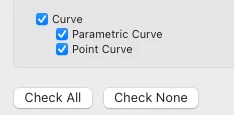
    4. Make sure all three curve boxes are checked:


    3 replies

    johnrellis
    johnrellisCorrect answer
    Legend
    June 24, 2023

    [This post contains formatting and embedded images that don't appear in email. View the post in your Web browser.]


    Sounds like you're tripping over this recent bug with presets that apply Tone Curve:

    https://community.adobe.com/t5/lightroom-classic-bugs/p-copy-paste-and-sync-features-causing-photo-to-haze-gray-out-after-updating-lrc/idi-p/13862317


    Try this as a workaround:


    1. In Develop, select a photo and do Reset.


    2. In the Preset panel, apply the preset.


    3. In the Preset panel, right-click the preset and do Update With Current Settings.


    4. Make sure all three curve boxes are checked:


    Participant
    June 25, 2023

    Amazing! Thankyou SO much! Can i also ask if you know why (once preset is applied) the black sections of the image are showing up in sort of a dark highlight? And how i might stop this from happening? I have attached a close up screen shot of what i mean....

    Per Berntsen
    Community Expert
    Community Expert
    June 25, 2023

    Difficult to say without knowing what kind of edits you have done to the image.

    Please post screenshots of the Histogram, Basic panel and Tone curve panels in Develop for this image.

    Or even better, if you don't mind sharing the image, export a DNG, and attach it here. The DNG will contain all the edits, so we can see exactly what you have done with the image.

    If attaching doesn't work, you can use Dropbox, or some other file sharing service.


    Rikk Flohr_Photography
    Community Manager
    June 23, 2023

    Please go to Help>System Info… and provide us the exact installed version number of your software. 


    Rikk Flohr: Adobe Photography Org
    Participant
    June 23, 2023

    Hi Rikk,


    Thankyou for your response.

    Lightroom Classic version: 12.4 [ 202306052221-b70c0975 ]

    It says in creative cloud all my updates are up to date also if that helps. 


    Rikk Flohr_Photography
    Community Manager
    June 24, 2023

    you've posted in the wrong forum - moving to Lightroom Classic

    Rikk Flohr: Adobe Photography Org
    kglad
    Community Expert
    Community Expert
    June 23, 2023

    in the future, to find the best place to post your message, use the list here, https://community.adobe.com/


    p.s. i don't think the adobe website, and forums in particular, are easy to navigate, so don't spend a lot of time searching that forum list. do your best and we'll move the post if it helps you get responses.


    <moved from using the community>