
Participating Frequently
October 15, 2021
Answered

Issues when Lightroom handles a print's color profile

  • October 15, 2021
  • 3 replies
  • 1922 views

I use a Canon Pixma PRO-200.

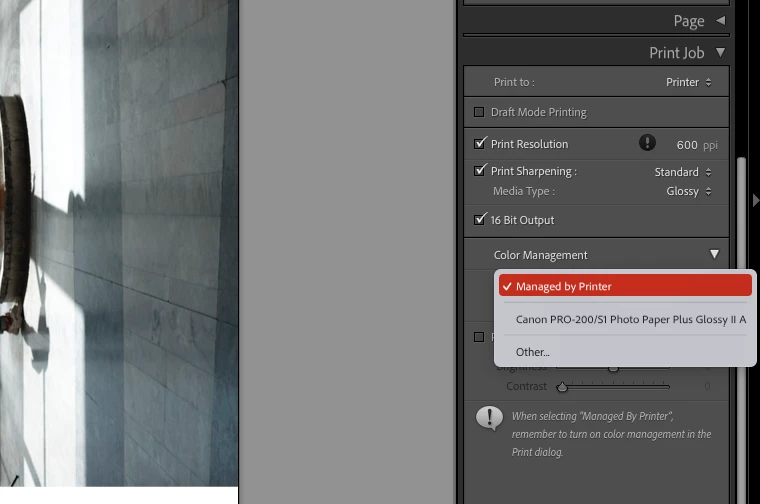
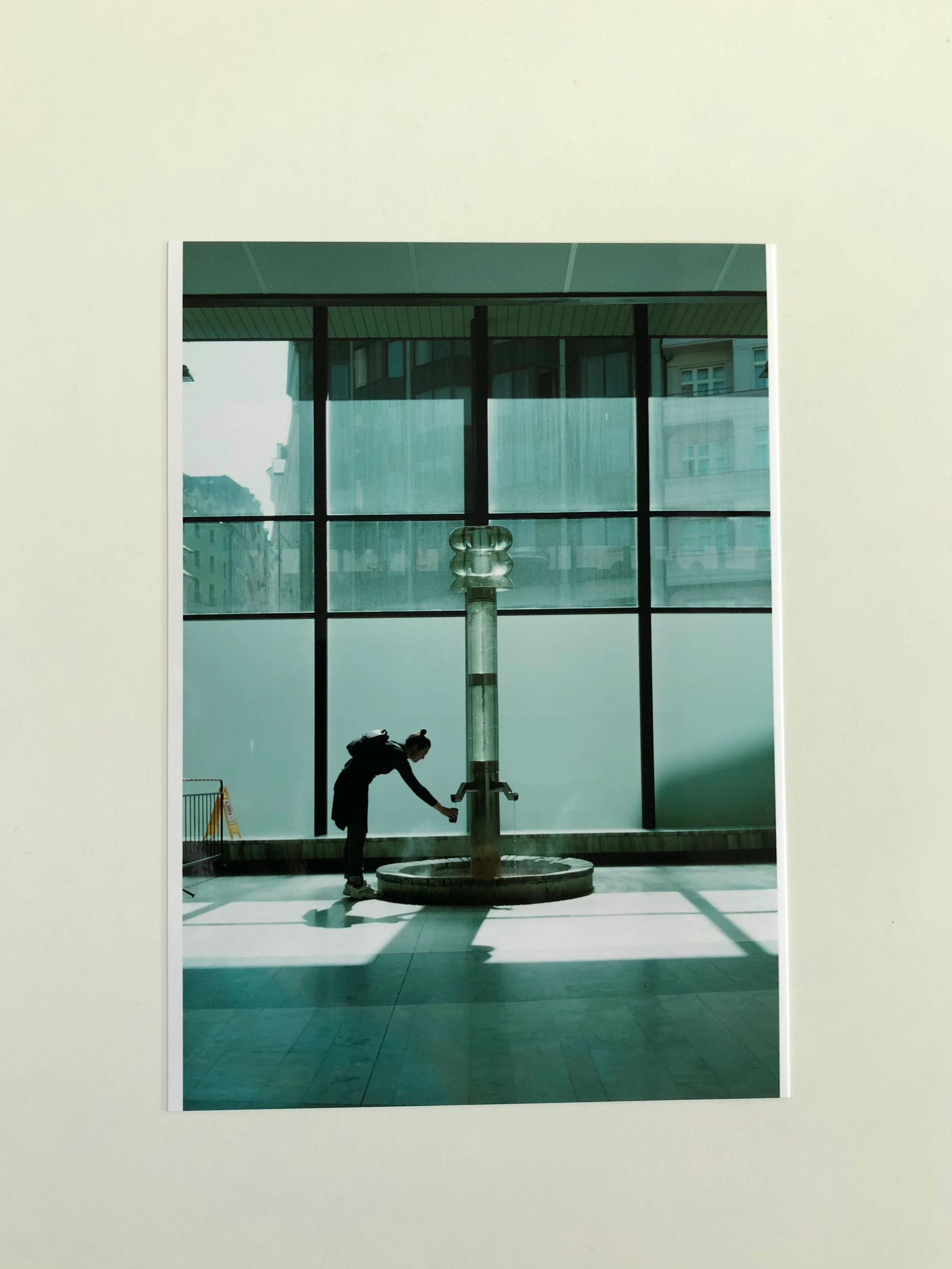
When I let the printer handle the color of a print (Or I print outside of lightroom), the colors of the photo look almost identical to my monitor ones (Generally I use my MacBook Pro screen).  When I tell Lightroom to handle the color management, specifying the right paper/printer profile, the images come out with a green cast, specially in the shadows, just as if the white balance tint was shifted to the green side.


Why is this happening?  I would like to have more control over how my prints look like, but right now I have to drift a lot on my screen to have what I want printed if I dont want to concede color management to the printer.


This topic has been closed for replies.
Correct answer TheDigitalDog

How could you know this?  I just printed your test file and the same photo from my original post and they look very similar to what I see.


I have also updated the drivers, as i read that MacOS updates may affect them...


Cannot wait until tomorrow morning to check them with the right light!


@Pan Pejsek wrote:

How could you know this?  


How can I know what? 

NEVER let the Mac OS update a print driver. 

3 replies

TheDigitalDog
Inspiring
October 16, 2021

First off, you need to consider any print template you've made and use as a cause: Start from scratch, configure everything in both the Print Driver and LR correctly, save it as a new template and test. 

Always test color management issues and test output using good color reference images designed for that task. The color reference images RGB values are such they are set for output and are editing and display agnostic. Test the output this way and examine for the same color issues so we know it's not your image specific issues causing the problems:

http://www.gballard.net/photoshop/pdi_download/
http://www.normankoren.com/makingfineprints1A.html#TestPrint
http://www.digitaldog.net/files/2014PrinterTestFileFlat.tif.zip


There is nothing bad per se about Manged by Printer but it isn't ideal. You can forget about soft proofing, picking a rendering intent, and depending on the OS and such, everything might get funneled into sRGB prior to print that isn't ideal. 

Author “Color Management for Photographers" & "Photoshop CC Color Management/pluralsight"
Participating Frequently
October 16, 2021

This looks promising, as soon as I can I will give these prints a go.


I'm not sure what is to configure in the printer's drivers, as there is nothing related to this in them, or (most likely) I cannot find those settings.


Participating Frequently
October 16, 2021

Well I can tell you one major problem after seeing that last screen capture (Print). The radio button should NOT be on Canon Color Matching but ColorSync if you use a paper profile and Application Manages Color. 


How could you know this?  I just printed your test file and the same photo from my original post and they look very similar to what I see.


I have also updated the drivers, as i read that MacOS updates may affect them...


Cannot wait until tomorrow morning to check them with the right light!

GoldingD
Legend
October 16, 2021

Managed by Printer bad

Rikk Flohr_Photography
Community Manager
October 16, 2021

A green cast is symptomatic of an non-color-managed output pipeline. 


In the screenshot you've posted, you should be selecting the Canon Profile below Managed by Printer. Currently your screenshot shows that you are chosing Managed by Printer. 

Rikk Flohr: Adobe Photography Org
Inspiring
October 16, 2021

Also, once you've selected the Print Profile as @Rikk Flohr: Photography mentioned, go into Printer Setup to make sure it has setup everything correctly including colour management turned off. I sometimes find there is a delay between when you select the profile and the settings appear in the Printer Setup.