OK. After further experimenting, the issue needs further clarification. When I do not have any query in the "Filter Keywords", it works as you are seeing it. The arrows don't change. However, if I have a query there, the issue manifests. The first "Screenshot attachment shows the before screen. Keyword, "Test Name" is not nested and James Lewis Burnham (next to bottom line) is collapsed. I then nest "Test Name" under "David O McKay". Screenshot Attachment 2 shows that James Lewis Burnham has uncollapsed as has also all those under him. Notice that the middle name of the bottem name includes the query word "McK". Note also that James Lewis Burnham and David O McKay are both at the top level under the category keyword, "People". Or a second test see attachments "Test Janice pre" and "Test Janice post." In the pre, Janice Elkins is collapsed. In the post, she is uncollapsed. This while nesting "Test Name" under a non-related keyword. FYI, When I did the query "Test Janice", Janice Elkins came up uncollpsed even though it was collapsed before the query. Janice Elkins also uncollapes if I add a new keyword nested under "Janice Thomas."
When nesting, it is usually helpful to query for both the name to nest under, and the name to nest, so I can see them closer together on the screen. These categories allows me to collaps large groups of keywords to reduce the navigation distances. I have similar categories for Dates and Places. These 3 categories make up the vast majority of the keywords in the list and most of the keywords within each category are further nested.
[This post contains formatting and embedded images that don't appear in email. View the post in your Web browser.]
You're observing obscure but designed behavior.
Any time you change the Filter Keywords box or you add, move, or delete a keyword, LR re-evaluates the filtering and displays the results.
There's a hidden option controlling how the results are displayed. In the Filter Keywords box, click on the magnifying glass, and you'll see the option Show All Keywords Inside Matches:
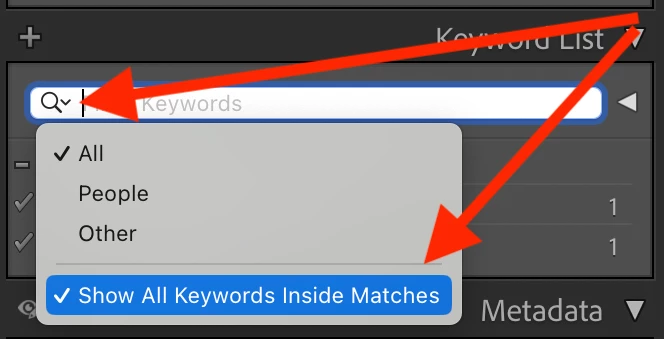
When that is enabled (the default) and you filter keywords, then LR will display the matching keywords, all ancestors of the matching keywords, and all descendents of the matching keywords. When it is disabled, LR will display the matching keywords and their ancestors but not their descendants.
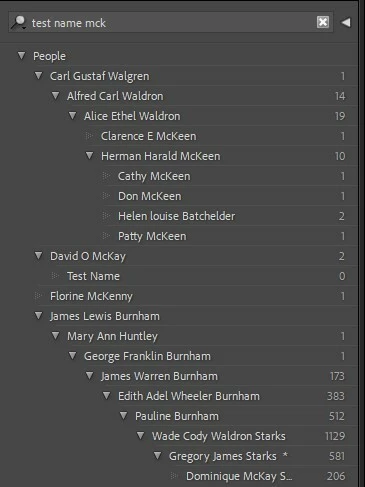
In your first example, you filtered by "test name mck" and then collapsed "James Lewis Burnham":
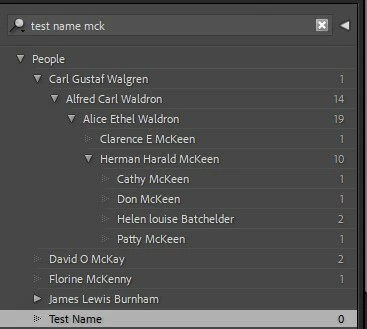
Then you moved "Test Name" under "David O McKay". LR re-evaluates the filter results and displays them, which includes "Dominique McKay S" beneath James Lewis Burnham. So it displays "Dominique McKay S" and all its ancestors, expanding "James Lewis Burnham":
In your second example, you filtered by "test janice" and then collapsed "Janice Lynn Elkins":
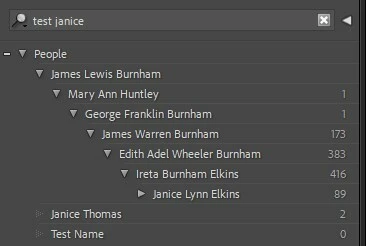
Then you moved "Test Name" under "Janice Thomas". LR re-evaluated the filter results and re-displayed them:
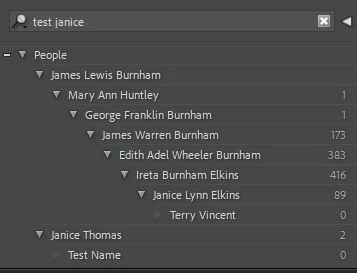
Since "Janice Lynn Elkins" was one of the matching keywords and the option Show All Keywords Inside Matches is enabled, LR displays the descendants of "Janice Lynn Elkins" as well.
I can see why you would prefer LR not to re-filter and re-display after each add, delete, or move of a keyword. I'm not sure what other implications that might have for the behavior of filtering, i.e. if there are gotchas that affected other use cases.
You could file a feature request here:
https://community.adobe.com/t5/lightroom-classic-ideas/how-do-i-write-a-feature-request/idi-p/12386378
But I'd be surprised if Adobe decided to change the current behavior. Since the introduction of the Lightroom cloud ecosystem, they've put little effort into improving modules other than Develop.



 AdChoices