Inspiring
October 19, 2017
Answered

Latest Lightroom Desktop CC Ghosting in Library Module?

  • October 19, 2017
  • 4 replies
  • 1341 views

I am now getting ghosting of prior photos instead of the gray background in the Library Module after the latest upgrade to Desktop CC.  Is anyone else having this issue (Photo attached)
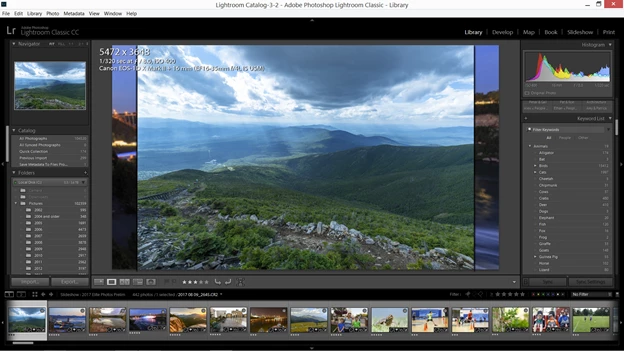
This topic has been closed for replies.
Correct answer Fishweasel

This problem has been resolved by a workaround provided by Adobe. 

I followed these instructions:

Could you please try the following and report back if it solves the issue.

==

Try this workaround to see if it works for you. If not, delete the config.lua file afterwards.

  1. Choose Edit > Preferences.
  2. In the Preferences dialog, go the Presets tab.
  3. In the Presets tab, click the Show Lightroom Presets Folder button. The root preset folder opens in the File Explorer.
  4. In the File Explorer, navigate into the Lightroom folder.
  5. Go to the link https://adobe.ly/2hUHGYa and download the config.lua file. Copy the downloaded config.lua file into the Lightroom folder mentioned in the previous step.
  6. Relaunch Lightroom Classic CC.

The System Info dialog (Help > System Info) should display the config.lua flags entry as shown below:

Config.lua-Flags:

AgView.disableDirect2D = true

==

Thanks,

Sunil

4 replies

FishweaselAuthorCorrect answer
Inspiring
October 21, 2017

This problem has been resolved by a workaround provided by Adobe. 

I followed these instructions:

Could you please try the following and report back if it solves the issue.

==

Try this workaround to see if it works for you. If not, delete the config.lua file afterwards.

  1. Choose Edit > Preferences.
  2. In the Preferences dialog, go the Presets tab.
  3. In the Presets tab, click the Show Lightroom Presets Folder button. The root preset folder opens in the File Explorer.
  4. In the File Explorer, navigate into the Lightroom folder.
  5. Go to the link https://adobe.ly/2hUHGYa and download the config.lua file. Copy the downloaded config.lua file into the Lightroom folder mentioned in the previous step.
  6. Relaunch Lightroom Classic CC.

The System Info dialog (Help > System Info) should display the config.lua flags entry as shown below:

Config.lua-Flags:

AgView.disableDirect2D = true

==

Thanks,

Sunil

Sean McCormack
Community Expert
Community Expert
October 20, 2017

You can report this as a bug here: https://feedback.photoshop.com/photoshop_family/categories/photoshop_family_photoshop_lightroom

Be sure to include the OS, and Graphics Card details.

Sean McCormack. Author of 'Essential Development 3'. Magazine Writer. Former Official Fuji X-Photographer.
Inspiring
October 21, 2017

I reported it as a problem on the link you provided.  I'm anxious for a solution here. 

Sean McCormack
Community Expert
Community Expert
October 20, 2017

alcenom47500132 The disclosure triangle to the right of '21 photos' should be open to see photos. It's currently closed. Click on it to open.

Sean McCormack. Author of 'Essential Development 3'. Magazine Writer. Former Official Fuji X-Photographer.
Sean McCormack
Community Expert
Community Expert
October 19, 2017

I suspect this is a GPU bug. Turn off GPU in Performance in  Lightroom Preferences to test it.

Sean McCormack. Author of 'Essential Development 3'. Magazine Writer. Former Official Fuji X-Photographer.
Bob Somrak
Legend
October 19, 2017

This seems to be the same issue but turning GPU off didn't work

display problem in library/grid view

M4 Pro Mac Mini. 48GB
