
Legend
May 4, 2024
Answered

Launching plugins with AutoHotKeys V2 in Windows

  • May 4, 2024
  • 1 reply
  • 1002 views

Does anyone know how to use AutoHotKeys Version 2 to launch a plugin from its menu title rather than a menu position?


Here is a the Topaz Photo AI plugin in Lightroom Classic:
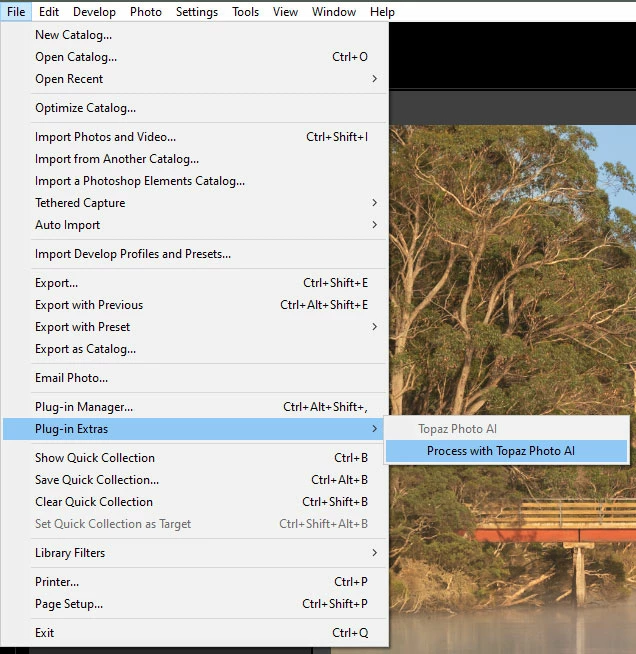
 

The menu path is File > Plug-in Extras > Process with Topaz Photo AI


In the AutoHotKey script, I have


!PgUp::
{
MenuSelect "A", , "File", "Plug-in Extras", "Process with Topaz Photo AI"
}


This should assign the Alt+PgUp key to open Topaz Photo AI, but it doesn't work.
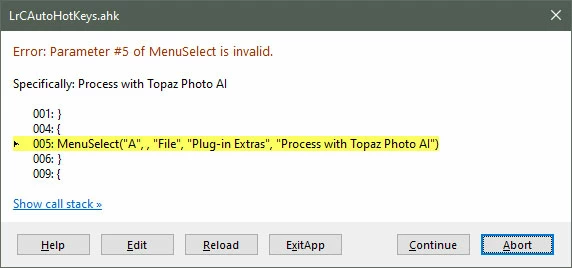


If I change the AutoHotKey script to


!PgUp::
{
MenuSelect "A", , "File", "Plug-in Extras", "2&"
}


then it works. The "2&" specifies the second item in the flyout submenu, but using it like this is going to fail when other plugins are installed.


Any ideas?

This topic has been closed for replies.
Correct answer johnrellis

I'm far from expert in Autohotkey,  but here's an example from the AHK scripts I distribute with my plugins:


/*********************************************************************

Back to Previous Source/Filter/Selection - ALT+B

*********************************************************************/

!b:: {
    SetTitleMatchMode 2 ; Substring match
    MenuSelect "Lightroom",, "File", "Plug-in Extras", " Back to Previous 
    Source/Filter/Selection"
    Return
    }


I don't know if the SetTitleMatchMode 2 is still required -- it could be a legacy from the previous version used with AHK 1.  Also, note that all menu items in File > Plug-in Extras and Library > Plug-in Extras are prefixed with three spaces (LR's hack for causing them to appear indentend).

1 reply

johnrellis
johnrellisCorrect answer
Legend
May 4, 2024

I'm far from expert in Autohotkey,  but here's an example from the AHK scripts I distribute with my plugins:


/*********************************************************************

Back to Previous Source/Filter/Selection - ALT+B

*********************************************************************/

!b:: {
    SetTitleMatchMode 2 ; Substring match
    MenuSelect "Lightroom",, "File", "Plug-in Extras", " Back to Previous 
    Source/Filter/Selection"
    Return
    }


I don't know if the SetTitleMatchMode 2 is still required -- it could be a legacy from the previous version used with AHK 1.  Also, note that all menu items in File > Plug-in Extras and Library > Plug-in Extras are prefixed with three spaces (LR's hack for causing them to appear indentend).

drtonybAuthor
Legend
May 4, 2024

Thanks for the helpful info John.


I had tried one leading space, then two, didn't get to trying three. Changed to three spaces and the script works now.


I checked the V2 doco on SetTitleMatchMode and it's default mode is 2. I don't need it in my case since I'm using "A" for Active Window and start my script with


#HotIf WinActive("ahk_class AgWinMainFrame")


which, according to the doco, will restrict the hot keys to Lightroom Classic only.


I think your script will match both Lightroom (Desktop) and Lightroom Classic, so you might want change "Lightroom" to "Lightroom Classic" and add the #HotIf directive to target the hot keys to LrC only.


Edit: #HotIf is new the AHK V2