



Learn how to quickly multi-batch export in Lightroom 9.0!
Prepare to streamline your export workflow with the introduction of multi-batch export in Lightroom Classic 9.0!
Have you ever found yourself having to export an image from Lightroom Classic more than once because you need a file for print, web, and/or social media? Check out how to multi-batch export with Lightroom 9.0 in four quick, easy steps!
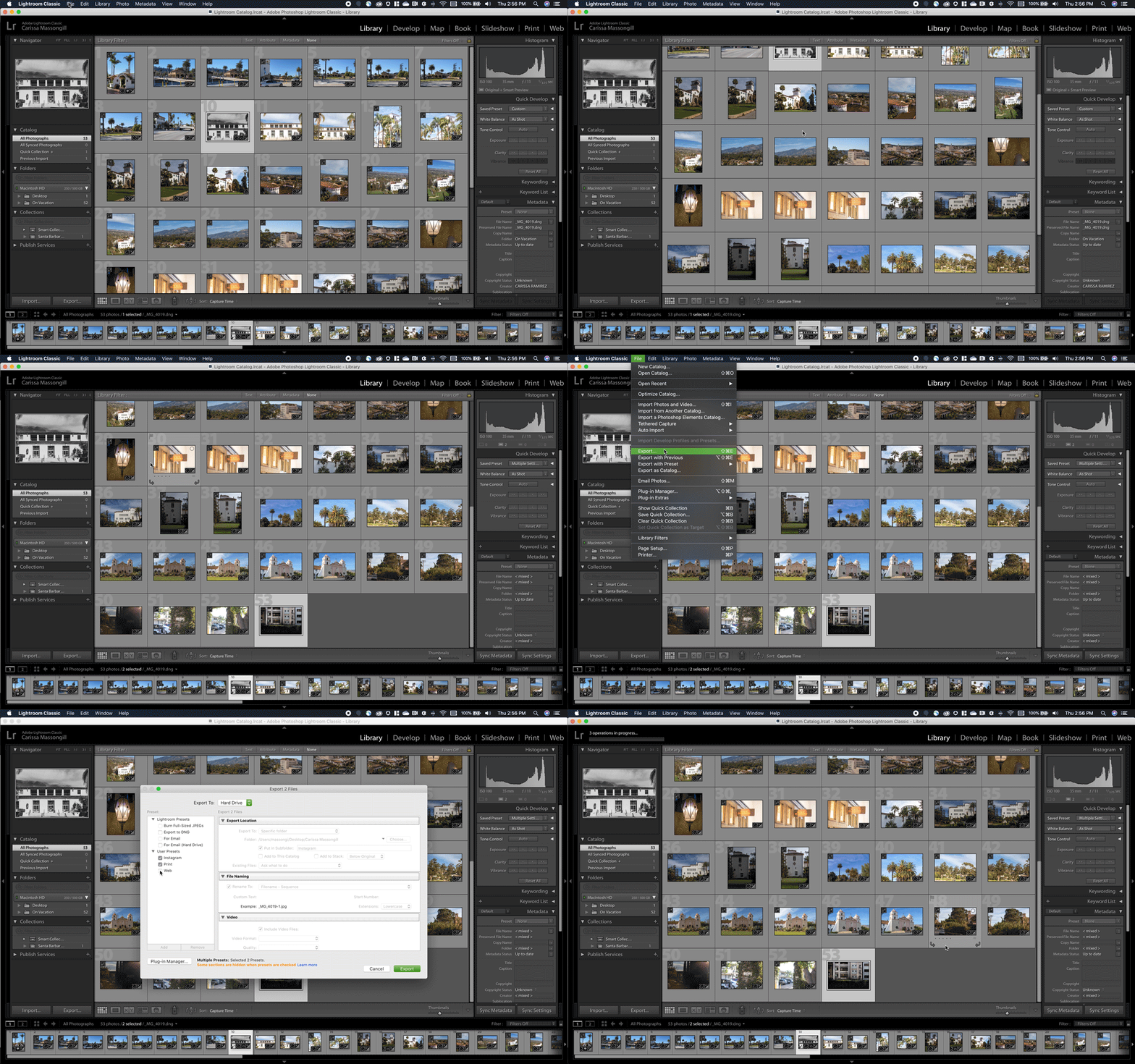
Here's what you'll need:
- Lightroom Classic 9.0
- Files you would like to export
- Export presets
Don't have any export presets to choose from yet? No worries!
Click here to learn how to create your own export presets.
➊ Select photos from the Grid view to export.
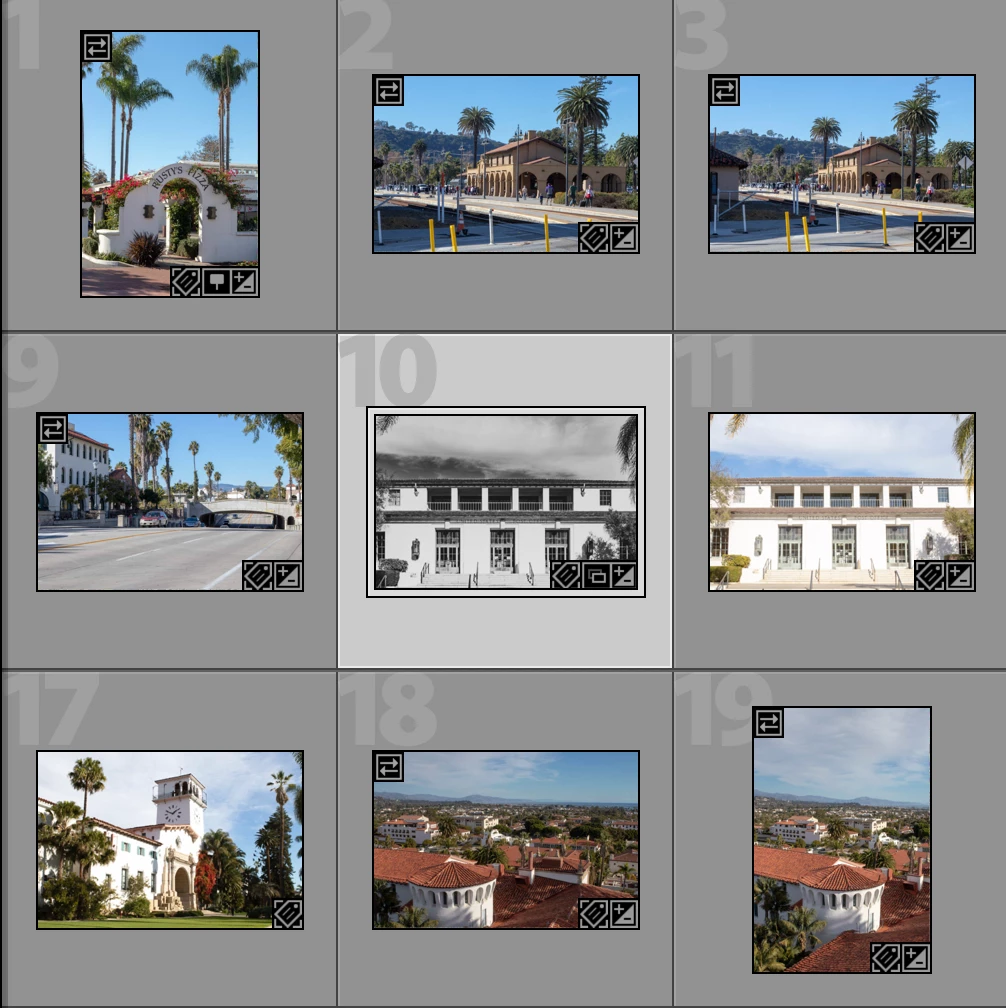
Check out this helpful article Select photos in the Grid View and the Film Strip
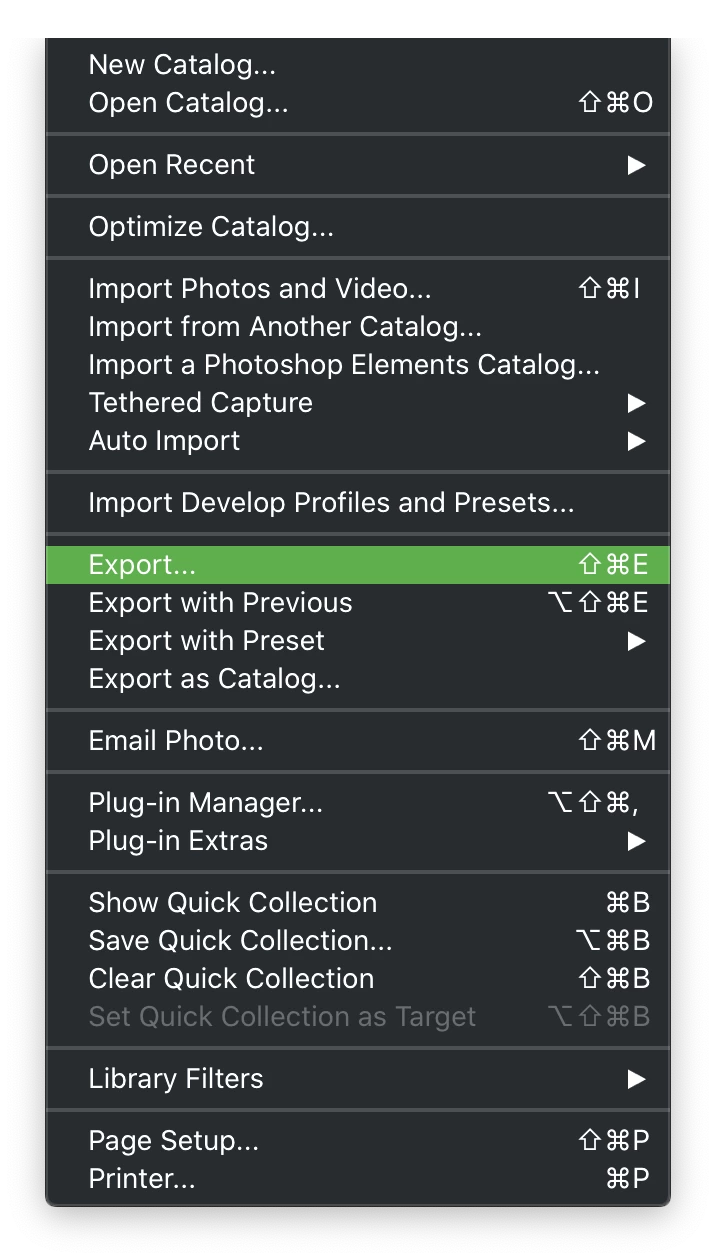
➋ Go to > File > Export
- Mac Command + Shift + E
- PC Ctrl + Shift + E
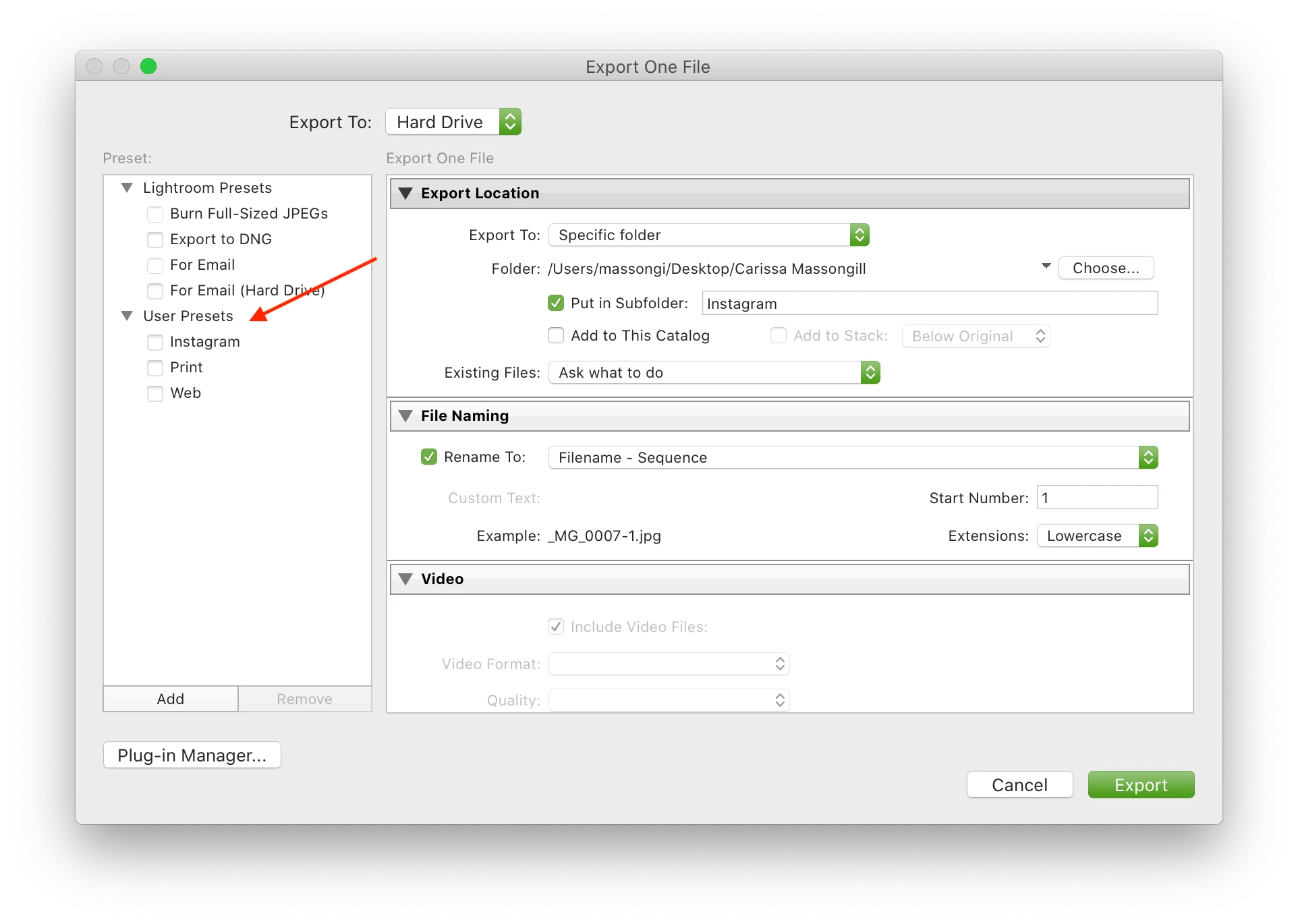
➌ Select your export presets.
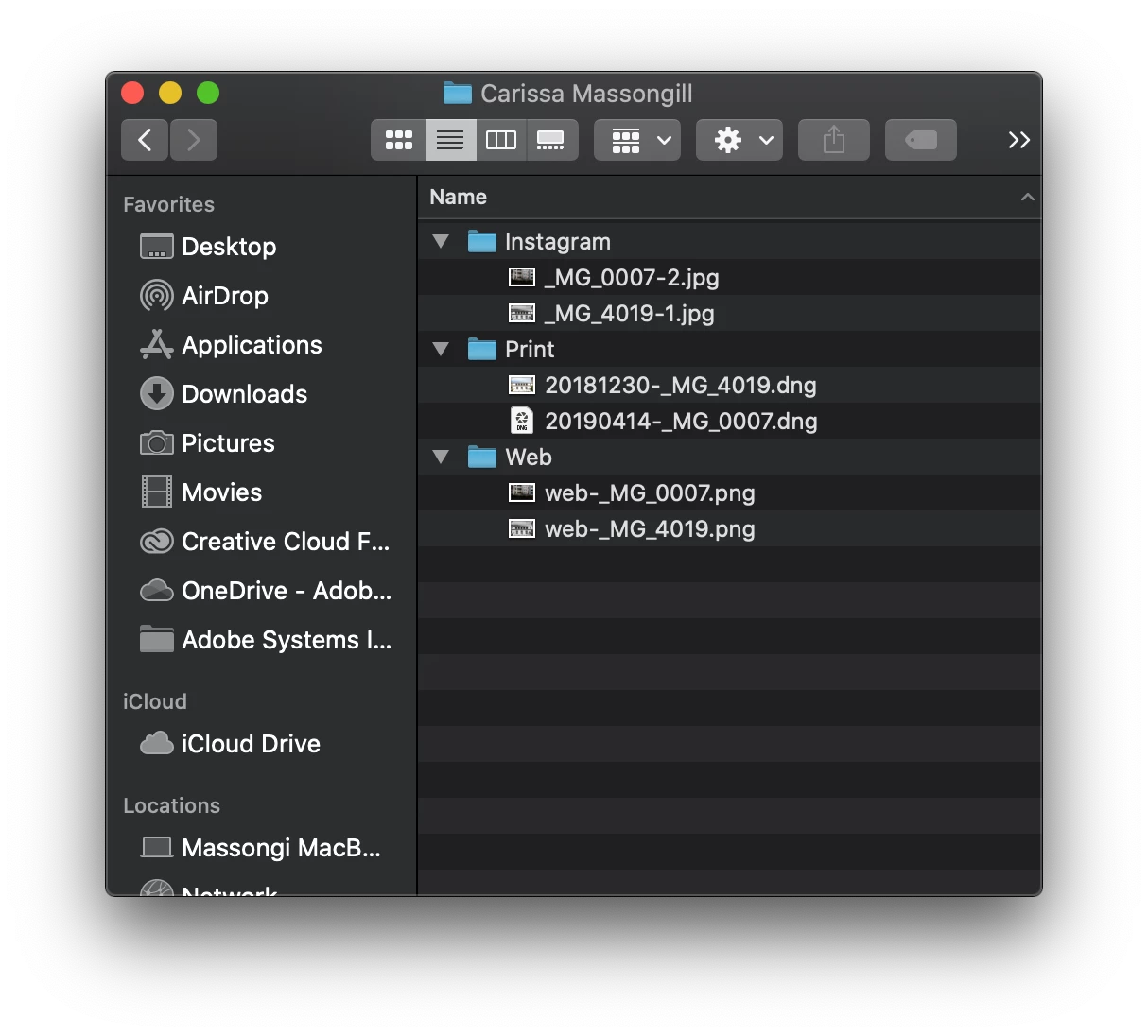
➍ Once Lightroom Classic is done, you'll be able to review your files in the folders you saved them too!
Happy Exporting!
Let us know what you think in the comments below. 🙂
 AdChoices