
Adrian Andrunachi
Inspiring
May 17, 2020
Answered

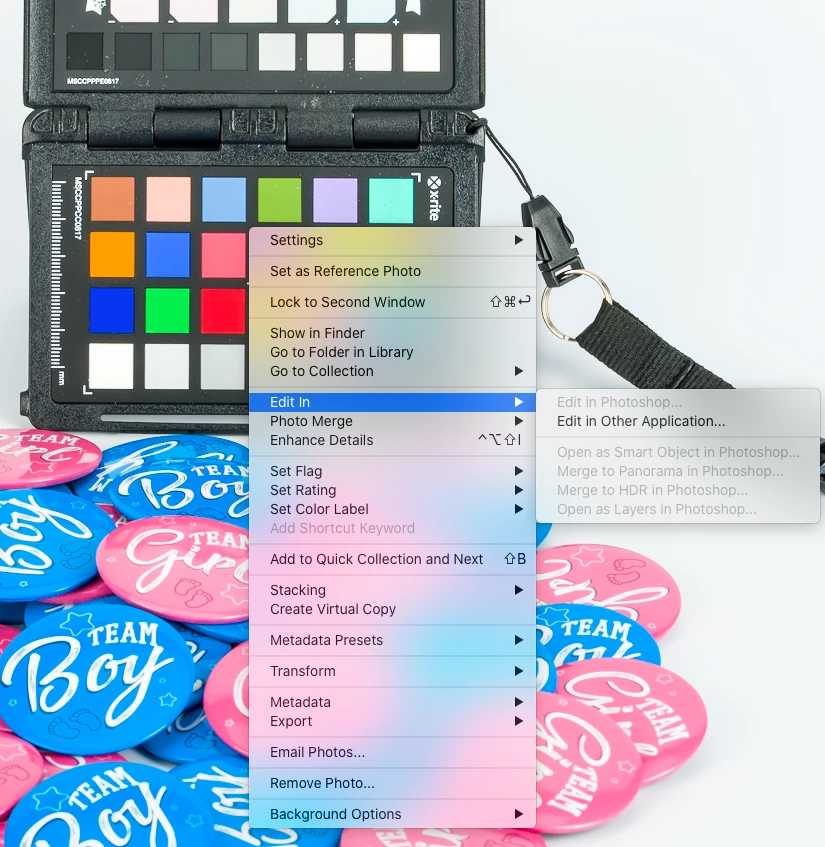
Lightroom (9.2.1) Edit in Photoshop (21.1.2) grayed out on macOS Catalina (10.15.4)

  • May 17, 2020
  • 7 replies
  • 2947 views

I have the latest apps on my 2018 13' Macbook Pro w/TB and just realized edit in Photoshop is grayed out as per enclosed picture.

I've been searching on the Internet for a solution before writing here, obviously nothing I found worked.

Just to point out what I did so far with no success:

- rebuild several times com.adobe.Photoshop.plist & com.adobe.LightroomClassicCC7.plist

- delete all apps and reinstall it from Creative Cloud app

- delete all apps with CC Cleaner Tool and reinstall them

- reinstall previous versions: LR 9.0, PS 21.0 which previously worked

- delete everything related to Adobe in /Library/Application Support, /Library/Caches and /Library/Preferences and reinstall everything from an older TM backup

- install PS 20.0.9 which some time ago was used in parallel with  PS 21 when the latest had bugs

- checked file permission

- reinstall OS over the existing one, not a fresh install though

- sign out and sign in again

- deactivate Home Screen in PS

- create new catalog

- create new Mac user

- hope I did not miss something


It only works to set PS21.1.2 as an external editor (edit in other application) but obviously I'll miss the other options like open as layers.

I'd say I have tried pretty much everything I could find online, but nothing worked. I'm out of options and I'd need this option to optimize my workflow. 


I would highly appreciate any suggestion. 


Thanks in advance!


Adrian
 

This topic has been closed for replies.
Correct answer Adrian Andrunachi

Hi again, David!


Problem solved. I have completely wiped my drive and installed a fresh OS. It took some time, but finally LR and PS are working together, so Edit in PS 2020 shows up now. 

Thanks for all your recommendations. I took it the hard way after all and it pays off.

Cheers!

Adrian

7 replies

GoldingD
Legend
May 17, 2020

Do you perhaps have more than one flavor of Photoshop installed? Perhaps Photoshop Elements or Photoshop Express, (I am forrgetting the names) Had one of these before, caused issues like you are having, removed it, that fixed my issue z(after a proper PS reinstall ) then put it back in.


oh, and not speaking of a CC app, that might not show up in CC cleaner (depending on options selected)


Adrian Andrunachi
Adrian AndrunachiAuthorCorrect answer
Inspiring
May 18, 2020

Hi again, David!


Problem solved. I have completely wiped my drive and installed a fresh OS. It took some time, but finally LR and PS are working together, so Edit in PS 2020 shows up now. 

Thanks for all your recommendations. I took it the hard way after all and it pays off.

Cheers!

Adrian

GoldingD
Legend
May 17, 2020

Not 100% sure if in your original posting, you stated reseting the Lightroom preference file or not. If you did my bad. Following is a SOP I keep on file as to share with other members


_________________________________________________


Sounds like a candidate for resetting the preference file. Resetting the preference file is Adobe speak for deleating the preference file and then letting Lightroom Classic to recreate it.


The preference file can get corrupted, resulting in odd behavior. Some people have a knee jerk reaction in thinking they need to uninstall then reinstall Lightroom Classic, maybe that could be called for, but it would be better to first reset the preference file.


Be aware that resetting the preference file will result in Lightroom Classic creating a new catalog instead if opening your previously opened catalog (normally) so make sure you know where your catalog is. 


Be aware the resetting the preference file will revert some settings in Preferences to defaults. So be aware of what you have changed, so that you can put those back the way you want them.


some links:


https://lightroomers.com/replacing-the-lightroom-preference-file/745/


https://www.youtube.com/watch?v=bARt-hoCc2Q


https://helpx.adobe.com/lightroom-classic/help/setting-preferences-lightroom.html


https://helpx.adobe.com/lightroom-classic/kb/recover-catalog-images-resetting-lightroom.html


Adrian Andrunachi
Inspiring
May 17, 2020

I did it for both LR and PS. I'm trying now to reset permissions of my home folder. I've found something odd when granting permissions to files and folders privacy and I need to see it that helps. Let you know.

Adrian Andrunachi
Inspiring
May 17, 2020

No change. Permissions were all right.

GoldingD
Legend
May 17, 2020

Just in case the followiung is an issue.


CATALINA APP SECURITY

see:https://nektony.com/duplicate-finder-free/folders-permission


Outside of LRC or PS, bring up on your MACOS, System Preferences, select Privacy snd Security, select the Privacy tab. Scroll down to Files and Folders. For Lightroom Classic and for Photoshop, make sure all boxes are checked. If you store photos or catalogs in the MACOS System folder, Photos, scroll back up to Photos, include Lightroom Classic (and PS??), some people find they need to give Lightroom Classic full disk access to all folders as well (I do not, and I do not have these issues)

Adrian Andrunachi
Inspiring
May 17, 2020

Files and Folders permissions all checked. Photos where not, so I just did it, but nothing happens.

GoldingD
Legend
May 17, 2020

And as you are wanting to work with layers while in PS, then return to LRC, some issues arise,


see:


https://lightroomkillertips.com/lightroom-handles-layered-photoshop-files/


Adrian Andrunachi
Inspiring
May 17, 2020

I'm aware of what you've sent me. My problem is that I cannot take a picture over to PS from LR. I'm kind of missing the start here.

GoldingD
Legend
May 17, 2020

In Lightroom Classic, bring up Preferences, select the External Editing tab, at the top, the Photoshop specific portion, what is shown? Screenshot please


see:


https://helpx.adobe.com/lightroom-classic/help/open-lightroom-photos-external-applications.html 


Adrian Andrunachi
Inspiring
May 17, 2020

Here you are


GoldingD
Legend
May 17, 2020

So, it states Photoshop, not Photoshop 2020. Indicates a problem, unless you have a fairly old copy of Photoshop.


And you have uninstalled PS, then reinstalled PS?


Andi if that did not work, then those other tips in that link??


GoldingD
Legend
May 17, 2020

So, if you have Photoshop (21.1.2) then the Edit In should look like:

Being as yours shows just Photoshop (and grayed out, dimmed, etc) , not Photoshop 2020, indicates a failed install as far as Lightroom Classic's knowledge of it. Typical fix is to uninstall/reinstall Photoshop.


Also, see:


https://helpx.adobe.com/lightroom-classic/kb/edit-photoshop-command-missing-photoshop.html


As you can see from my info (Signature) below, I have that version.


Adrian Andrunachi
Inspiring
May 17, 2020

Hi David,


Thanks for your reply and suggestion. As a matter of fact I have already tried several times the solution given by Adobe. However, it just hasn't worked for me.


From what I see, you're not quite all right either, I mean LR doesn't seem to recognize PS as the "genuine" editor (don't know how to call it otherwise) but as external editor along with the others. Still, open as layers in PS and some others are grayed out too. At this point I can replicate that as well as you can see from the enclosed, but I also need to be able to open pictures as layers in PS. 

I've tried to open a raw file in Camera Raw through PS and saved it as PSD (enclosed screenshot). Still, imported afterwards in LR, it's not getting linked to PS like PS doesn't exist whatsoever.

GoldingD
Legend
May 17, 2020

Anything that is not Lightroom Classic is an External Editor.


see:


https://helpx.adobe.com/lightroom-classic/help/open-lightroom-photos-external-applications.html 


screenshot example:

mind you, yours is probably set for PSD. (user preference)


Just Shoot Me
Legend
May 17, 2020

Since there is no 2020 after Photoshop then LR has no idea PS is even installed.


I suggest you uninstall PS and then Reinstall from the CC DTA.

Adrian Andrunachi
Inspiring
May 17, 2020

Not sure that I follow you. It looks like latest PS 21.1.2 is called Photoshop 2020. 

Please let me know what do you mean by CC DTA. I mean apart from CC app I didn't find any other way to install PS.

Thanks


Just Shoot Me
Legend
May 17, 2020

CC DTA = Creative Cloud DeskTop App