Participant
June 30, 2018
Answered

Lightroom Adjustment Brushes ALWAYS ORANGE

  • June 30, 2018
  • 2 replies
  • 699 views

I cannot figure out why this is happening! No matter what brush I use, it just turns the photo orange. What am I missing?
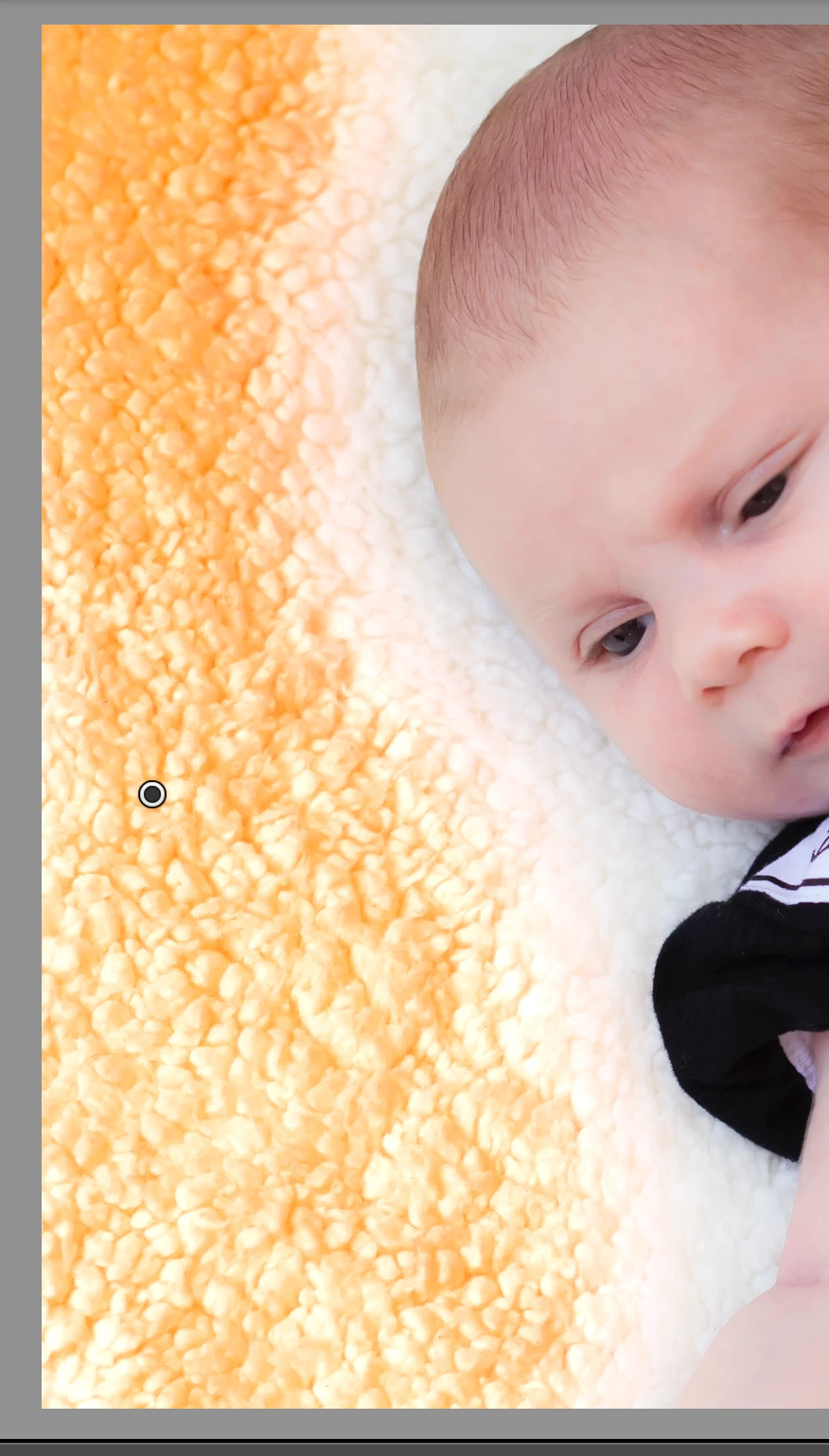

    This topic has been closed for replies.
    Correct answer Rob_Cullen

    Simple questions first-

    Have you tried resetting ALL Brush sliders to default-  Double-click on "Effect"

    And set the Brush color to nothing- Double-click on "Color"

    Overlays are- Red, Green, White, Black (change with [Shift+O]  -  So not an overlay!

    2 replies

    Crissy79
    Participating Frequently
    September 20, 2019

    I am not understanding these instructions. All of a sudden all of my brushes started brushing orange too. And I have no idea what I did! They were working fine and then just, BAM, not working anymore.


    So, I've double clicked on Effect (I run on Mac), and I'm assuming you mean the color at the bottom of this module, and have the box have an x on it, meaning no colour. 


    I double click on the word colour, and nothing happens. I click on the box with the x and the colour box comes up. I don't know what to do from here. 


    I'm even willing to delete all of my presets and re install them, but I can't even find instructions on how to do that 😞 

    Crissy79
    Participating Frequently
    September 20, 2019
    I'm trying to delete my post but it won't let me. Problem solved. I'm just an idiot, lol
    Rob_Cullen
    Community Expert
    Rob_CullenCommunity ExpertCorrect answer
    Community Expert
    June 30, 2018

    Simple questions first-

    Have you tried resetting ALL Brush sliders to default-  Double-click on "Effect"

    And set the Brush color to nothing- Double-click on "Color"

    Overlays are- Red, Green, White, Black (change with [Shift+O]  -  So not an overlay!

    Regards. My System: Windows-11, Lightroom-Classic 15.1.1, Photoshop 27.3.1, ACR 18.1.1, Lightroom 9.0, Lr-iOS 10.4.0, Bridge 16.0.2 .
    Community Expert
    June 30, 2018

    Yes, resetting the Brush settings should sort this out. But this must be done in the right sequence.

    It is necessary to select the Brush tool and then immediately update the starting default settings - without having clicked on the image.

    When you do subsequently click on the image, and thereafter, these changed settings will be the ones initially seen.

    Once you've clicked in the image to place a new "pin" (or once you've clicked to activate an existing "pin") you can only then adjust the specifics of that particular instance.