

bartonlew
Legend
September 3, 2021
Answered

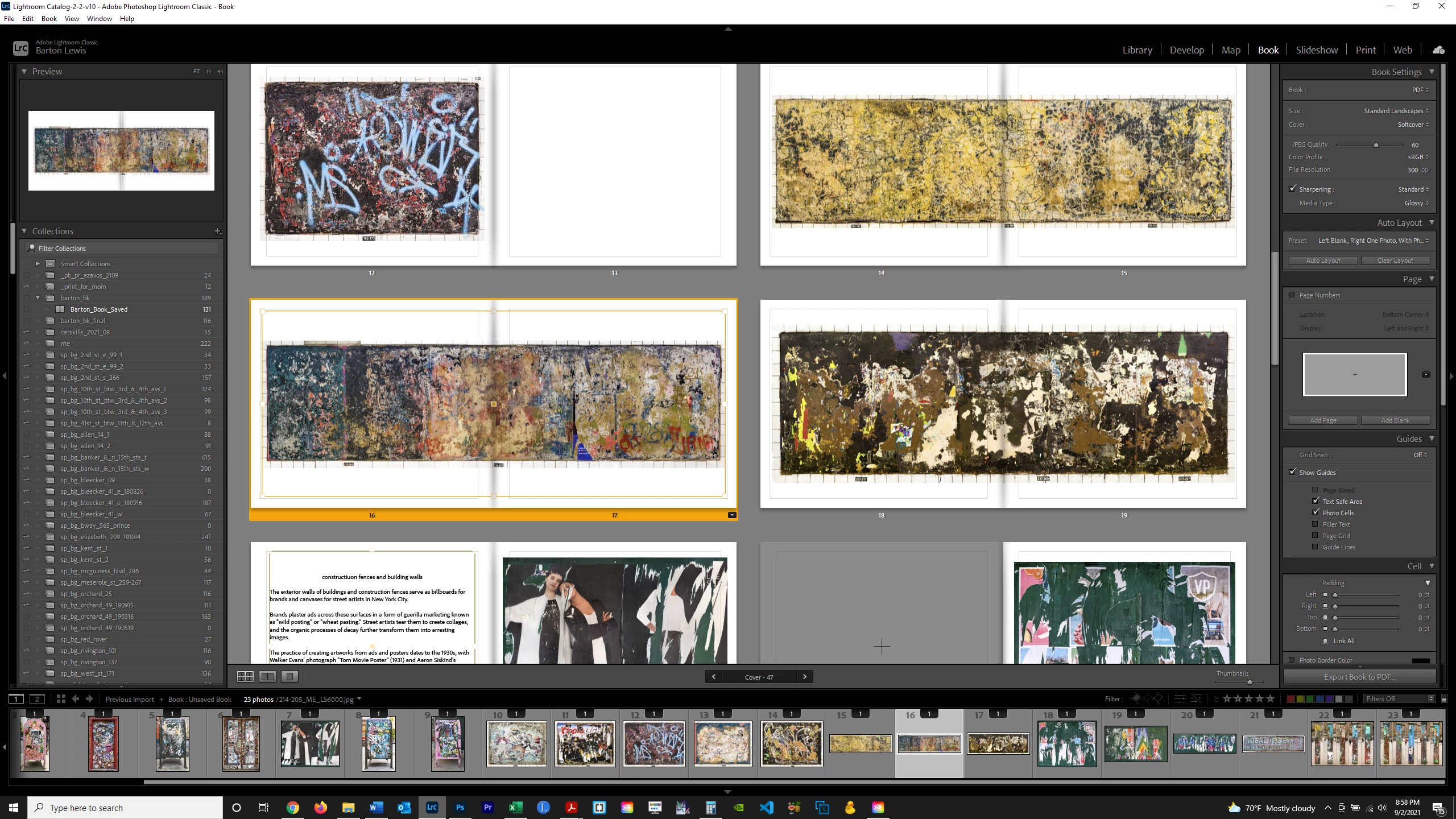
Lightroom Book Module PDF 2-page spread view appearing as 1-page
  • September 3, 2021
  • 2 replies
  • 2113 views

I am trying to create a pdf from within the Lightroom Book Module which shows as a 2-page spread when viewed online. Maybe this is not really a Lightroom question but since Adobe also owns Adobe Acrobat DC maybe it is.  I can't get the program to show me a 2-page spread selecting View>Page Display>Two Page View no matter what I do.  Adobe thinks that a 2-page spread is a single page I guess.  The left side of the 2-page spread always shows up on the right side (odd page) instead of the left side no matter what I do.  I want to upload a PDF to my website and share the screen so that people are seeing a single image spread across 2 pages.  How can I achieve this?  Thanks.
This topic has been closed for replies.
Correct answer Rob_Cullen

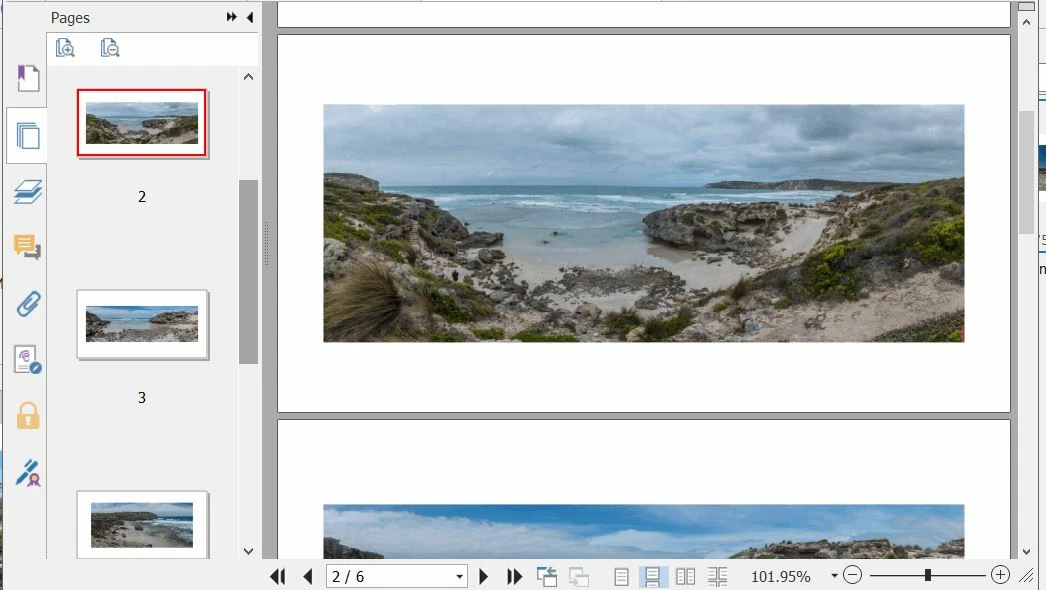
TBMK the book module cannot export PDFs with the Double Page Spreads intact.

My answer would be to -

1) Make a Duplicate Copy of you Book from the 'Saved Book Collection' in the Collection Panel. (To protect your design!)

2) Convert the Copied book [Book Settings : Book] to JPG

3) Click on [Export Book to JPEG...]

4) Use the JPGs to create the PDF.


You will need an App to combine the JPGs in a PDF (anyone have suggestions for the 'best' ? Adobe InDesign!)

For this screen-clip I simply "Printed" the selected JPGs to (Freeware) Foxit Reader PDF Printer.


2 replies

Community Expert
September 4, 2021

When your application (Lightroom in this case) has made page by page PDF output, if you have got a PDF 'printer' installed you can reformat into 2-page spreads (or 4 per page, whatever) using the "Multiple per page" printing option out of Acrobat Reader. Reducing 2 portrait pages to sit side by side on a landscape page of the same size, or (say) of double size to retain the original scale.


It takes a bit of experiment with the options (orientation etc) but there's a thumbnail output preview to go by. I like the (free version available) "PDF24" to do this output but there are many others similar. Otherwise if you have full Acrobat this includes a good toolset for doing this sort of thing, besides installing a PDF printer emulator of its own. IMO to import the PDF content wholesale into an out and out vector editor environment such as Affinity Publisher, will just be too laborious.


One issue will be page order since conventionally we want to see the document's pages 2, 4 etc on the left and pages 3, 5 etc on the right. This may mean insterting a blank page in the PDF document before page 1, so that page 1 then behaves as a page 2, and so on to the end. PDF24 (like most other similar software) includes tools to do this, as well as for re-ordering and removing pages in a PDF and resaving that. There is control over the PPI and the compression of re-printed output.


Obviously reprinting PDF direct to PDF without ever rasterising to an image, you'll lose no crispness of the text however much zoomed in. Bitmap quality and resolution of photo content will depend on the re-printing options chosen.

Rob_Cullen
Community Expert
Rob_CullenCommunity ExpertCorrect answer
Community Expert
September 4, 2021

TBMK the book module cannot export PDFs with the Double Page Spreads intact.

My answer would be to -

1) Make a Duplicate Copy of you Book from the 'Saved Book Collection' in the Collection Panel. (To protect your design!)

2) Convert the Copied book [Book Settings : Book] to JPG

3) Click on [Export Book to JPEG...]

4) Use the JPGs to create the PDF.


You will need an App to combine the JPGs in a PDF (anyone have suggestions for the 'best' ? Adobe InDesign!)

For this screen-clip I simply "Printed" the selected JPGs to (Freeware) Foxit Reader PDF Printer.


Regards. My System: Windows-11, Lightroom-Classic 15.1.1, Photoshop 27.3.1, ACR 18.1.1, Lightroom 9.0, Lr-iOS 10.4.0, Bridge 16.0.2 .
bartonlew
bartonlewAuthor
Legend
September 4, 2021

Thank you.  It's good to know that what I suspected is the case and I am going to assume this works.  I have taken a shortcut and simply created an html slideshow which achieves what I need.  

Regards.