Exit
  • Global community
    • Language:
      • Deutsch
      • English
      • Español
      • Français
      • Português
  • 日本語コミュニティ
  • 한국 커뮤니티
0

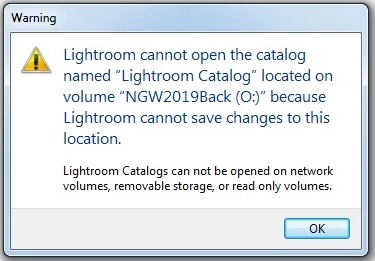
Lightroom cannot open catalog because Lightroom cannot save changes to this location

New Here ,
Jun 10, 2019 Jun 10, 2019

I am getting this message.

Lightoom error message.jpg

I am running Lightroom 6 and Windows 7. I have two external hard-drives. One is used to back up the other and I keep my Lightroom Catalog on the first external hard-drive with a back up going to the second.


I got this message after no problems backing upto my original external hard drive for several months. Then all of a sudden this cropped up.

So I made sure to back up everything (my catalog) to another external hard drive and I was then able to open Lightroom 6. I assumed I had an issue with the first external hard drive.


As a result, I carried on using the second hard drive as labelled above. Again, for about a month I have had no issue. Today I closed out of Lightroom and then went back to it later and got this message. Same as what happened on the first external.

The only solution I have come up with so far is to reformat my external hard drive. As you can imagine, this takes quite a while. Some 8 to 10 hours. I do not understand what is happening or why?

I read something about checking permissions and I checked and everything seemed good. I am the only person using the computer and there is no reason why I shut down Lightroom and then it fails to open again with this message. It is bewildering. I would appreciate knowing what to try next time it happens as I'm sure it will. I am now having to reformat yet again.

4.3K
Translate
Report
Community guidelines
Be kind and respectful, give credit to the original source of content, and search for duplicates before posting. Learn more
community guidelines
Jun 11, 2019 Jun 11, 2019

Hi LeginW10,

Sorry that you're getting an error message "Lightroom cannot open catalog because Lightroom cannot save changes to this location" while Lightroom was backing up the catalog.

I'd recommend that you restore restore Lightroom Classic app preferences to default and let us know if the issue still persists? Please refer this article for step by step instructions:

How to set Lightroom Classic preferences

Thanks,

Akash

Translate
Report
Community guidelines
Be kind and respectful, give credit to the original source of content, and search for duplicates before posting. Learn more
community guidelines
New Here ,
Jun 11, 2019 Jun 11, 2019

Thanks Akash... I have done so and will let you know.

Translate
Report
Community guidelines
Be kind and respectful, give credit to the original source of content, and search for duplicates before posting. Learn more
community guidelines
LEGEND ,
Jun 11, 2019 Jun 11, 2019

I read something about checking permissions and I checked and everything seemed good.

Show us a screen capture of the permissions on the EXACT FOLDER where the catalog file is located. The error message seems to indicate it is on the O: drive but not in any folder, is that correct it is not in any folder?

Also, you can try, as an experiment, copying the catalog file to someplace that does have write permission, such as the default Pictures folder, and see if it opens properly from there.

Translate
Report
Community guidelines
Be kind and respectful, give credit to the original source of content, and search for duplicates before posting. Learn more
community guidelines
New Here ,
Jun 11, 2019 Jun 11, 2019

I can't do that as I've now re-formatted my external hard drive.
What I don't understand is why this happens?

I can be quite happily working on my catalog and then close Lightroom. Why does this happen when I go to re-open it? What is happening to cause it to do this? That's what I need to understand because it is going to happen again and I need to know why.

I have a system to get back up and running because I can simply reformat my drives but I'd rather not. I'd rather treat the symptom not the cause.

Translate
Report
Community guidelines
Be kind and respectful, give credit to the original source of content, and search for duplicates before posting. Learn more
community guidelines
LEGEND ,
Jun 11, 2019 Jun 11, 2019

Please show us a screen capture of the permissions on the exact folder where the catalog is located.

Translate
Report
Community guidelines
Be kind and respectful, give credit to the original source of content, and search for duplicates before posting. Learn more
community guidelines
New Here ,
Jun 11, 2019 Jun 11, 2019

As I have said, I reformatted and everything is now working correctly. I want to understand why this happens when I close out and then go back in.

Translate
Report
Community guidelines
Be kind and respectful, give credit to the original source of content, and search for duplicates before posting. Learn more
community guidelines
LEGEND ,
Jun 11, 2019 Jun 11, 2019

Sadly, I think re-formatting destroys possible evidence, so I have no further comment.

Translate
Report
Community guidelines
Be kind and respectful, give credit to the original source of content, and search for duplicates before posting. Learn more
community guidelines
New Here ,
Jun 11, 2019 Jun 11, 2019

Again, I want to know why this happens?

Are you suggesting the permissions change when I close out and go back in? If so, how can that happen?

Translate
Report
Community guidelines
Be kind and respectful, give credit to the original source of content, and search for duplicates before posting. Learn more
community guidelines
LEGEND ,
Jun 11, 2019 Jun 11, 2019

Its a possibility. It is an unfortunate truth that people sometimes report permissions changing for unknown reasons, suspected to be operating system updates, but its not possible to be definite, or even to be sure that permissions are the cause.

Translate
Report
Community guidelines
Be kind and respectful, give credit to the original source of content, and search for duplicates before posting. Learn more
community guidelines
New Here ,
Jun 11, 2019 Jun 11, 2019

Thanks for that. All I can do is wait until it happens again but I can't afford to wait too long to solve the issue as I have work to do. The way I do things now works, it's a pain but at least I can be functional.

I'll do screenshots of folders next time it happens... and it will!

Translate
Report
Community guidelines
Be kind and respectful, give credit to the original source of content, and search for duplicates before posting. Learn more
community guidelines
LEGEND ,
Jun 11, 2019 Jun 11, 2019

Is the catalog file on an external drive? If it is sometimes the OS loses contact with it which will cause that error. The OS might of put that drive to sleep.

Translate
Report
Community guidelines
Be kind and respectful, give credit to the original source of content, and search for duplicates before posting. Learn more
community guidelines
New Here ,
Jun 11, 2019 Jun 11, 2019

I had a few mins so thought I'd take a look at the permissions now I have reformatted. As "Admin" I have full permissions.

1.jpg

But then when I look at the "user" permissions, they appear different. Should I change this to "allow"?

2.jpg

Translate
Report
Community guidelines
Be kind and respectful, give credit to the original source of content, and search for duplicates before posting. Learn more
community guidelines
LEGEND ,
Jun 11, 2019 Jun 11, 2019

That is the permissions for the LR EXE. Not the drive it is on or the folder it is in.

If you don't have permissions to the drive/folder then you can't access it even though you have permissions to the EXE file.

Also Add Your UserName to the list and give that Full Control.

Translate
Report
Community guidelines
Be kind and respectful, give credit to the original source of content, and search for duplicates before posting. Learn more
community guidelines
LEGEND ,
Jun 11, 2019 Jun 11, 2019

https://forums.adobe.com/people/Just+Shoot+Me  wrote

That is the permissions for the LR EXE. Not the drive it is on or the folder it is in.

For the benefit of LeginW10, I would re-phrase this to: "That is the permissions for the LR EXE. YOu need to look at the permissions of the FOLDER where the catalog is stored."

Adding: the permissions to the DRIVE where the catalog is stored are irrelevant.

Translate
Report
Community guidelines
Be kind and respectful, give credit to the original source of content, and search for duplicates before posting. Learn more
community guidelines
New Here ,
Jun 11, 2019 Jun 11, 2019

PS. The catalog is located in a Lightroom folder on my external.

Translate
Report
Community guidelines
Be kind and respectful, give credit to the original source of content, and search for duplicates before posting. Learn more
community guidelines
New Here ,
Sep 26, 2019 Sep 26, 2019
So, been a few months and I've been OK. However, I went away on vacation for two weeks and turned off my computer. I just returned and turned it back on. Went to open Lightroom and got the same error message. Upon exploring the files I see the same lrcat.lock file and you just cannot delete it. The only thing to be done is to back up the catalog and then reformat the portable hard drive. So, I thought I'll buy a separate protable hard drive and just keep it for Lightroom. New portable hard drive arrives, I install the catalog and then open lightroom. I Import some files and work on them. I then close lightroom and restart my computer. I try to open Lightroom and I get the error message and the lock file is present. It cannot be deleted.
Translate
Report
Community guidelines
Be kind and respectful, give credit to the original source of content, and search for duplicates before posting. Learn more
community guidelines
New Here ,
Feb 20, 2020 Feb 20, 2020
LATEST

I have tried for 100 hours.  Here is my idea of what causes the cannot save to this location:  The external drive, eg on USB, goes to sleep or stops and then this OS sets the read only attribute on the folder where .lcat is reciding.
My solution that works:

a) drag the folder of the .lcat to a hard drive and start it from there.  it works and it will find your data on your external drive as before.  I call my data folder on the external drive " Photos controlled by CAT " jut to know that these are originals and not edited by Lightroom.  You can continue with all operations as usual import export keywords etc all on the external drive you cannot access.
b) More advnced: Create and image file that could turn into a Virtual Drive on one of the internal drives.
Then copy the .lcat folder into the virtual drive.  Open from the virtueal drive and follow as under a).
The virtual drive can be opened by password, and encrypted and of any size. (search mount file in virtual drive).
That means having 2 virtual drives one for the .lcat and one for the Data itself.
For backup purposes the folder with .lcat can be copied to the drive with your data. Normally it will work there
for a while, but then when you get the cannot write to this drive, then you move it into another drive as described.

Translate
Report
Community guidelines
Be kind and respectful, give credit to the original source of content, and search for duplicates before posting. Learn more
community guidelines