
Averil2
Known Participant
September 27, 2019
Question

Lightroom Classic and Skylum Aurora 2019

  • September 27, 2019
  • 10 replies
  • 2270 views

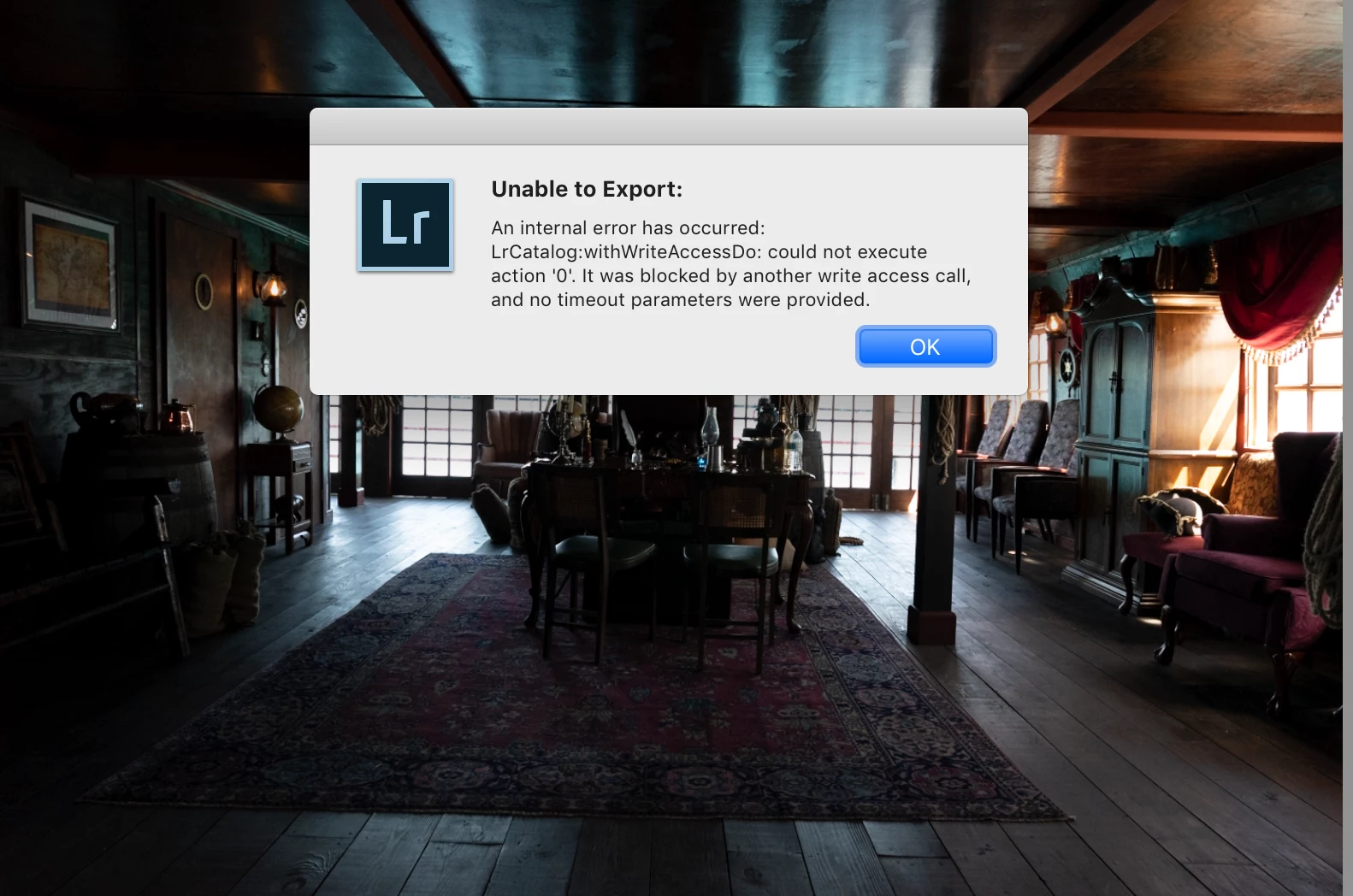
I can go to Aurora 2019 from Lightroom but when I do all my final touches to the image and click apply I get this message. I have been in contact with Skylum and they said all my settings are correct and it might be something on Lightroom side of things. Has anyone had this happen or do you know how I can fix things so I can have Lightroom accept items from Aurora?
    This topic has been closed for replies.

    10 replies

    johnrellis
    Legend
    October 5, 2019

    Also, I'll be glad to discuss the technical details with the Aurora developers -- they can private message me via this forum.

    Todd Shaner
    Legend
    October 5, 2019
    John, I've notified Skyklum of the issue with a link to your post here. Hopefully, they will PM you for further details on a fix.
    johnrellis
    Legend
    October 5, 2019

    johnrellis
    Legend
    October 5, 2019

    The error message in your screenshot says: "An internal error has occurred: LrCatalog:withWriteAccessDo: could not execute action '0'. It was blocked by another write access call, and no timeout parameters were provided."


    This indicates that the Aurora plugin was trying to modify the LR catalog at the same time as another plugin, or while already modifying the catalog itself.  This can often happen, depending on the other plugins running, so plugins should always provide "timeout parameters" that tell LR to keep retrying the catalog modification for up to, say, 15 seconds (hoping the other plugin will complete its modification in that time).


    So it's definitely a bug that the Aurora plugin doesn't supply timeout parameters.


    It's not clear from this thread if you've tried this already: Go to File > Plug-in Manager.  Select each plugin listed in turn (except for the Aurora plugin), scroll to the Status panel, and then click Disable.  Then restart LR.  This will ensure that no other plugin is running and trying to modify the catalog at the same time as Aurora.   If you still get the error message, then the Aurora plugin is trying to do two concurrent modifications to the LR catalog (not allowed).


    Averil2
    Averil2Author
    Known Participant
    October 6, 2019
    Thank you for this. It is the best explanation yet for this.
    Cmp=Macbook Pro Apple M2 Max Sequoia 15.2 Lightroom Classic 14.1.1
    Averil2
    Averil2Author
    Known Participant
    October 2, 2019

    I want to give an update on this and how it was fixed. One of the engineers of the Lightroom program called me and we went through the necessary testing. He then asked me to create a new catalogue and import a photo into it and then try to export it to Aurora and then back again. It worked good. Conclusion: It was a corrupt Lightroom Catalogue. So I created a new catalogue name of my choosing. I then Exported the corrupt catalogue as a catalogue. Then I imported that catalogue into the newly formed catalogue. It now works. Hope that helps. Thank you to David and DDeGannes for your time and input

    Cmp=Macbook Pro Apple M2 Max Sequoia 15.2 Lightroom Classic 14.1.1
    DdeGannes
    Community Expert
    Community Expert
    October 3, 2019
    Great to hear that your problem has been resolved.
    Regards, Denis: iMac 27” mid-2015, macOS 11.7.10 Big Sur; 2TB SSD, 24 GB Ram, GPU 2 GB; LrC 12.5,; Lr 6.5, PS 24.7,; ACR 15.5,; (also Laptop Win 11, ver 24H2, LrC 15.0.1, PS 27.0; ) Camera Oly OM-D E-M1.
    GoldingD
    Legend
    September 28, 2019

    Possible diagnostic scenario


    In Lightroom Classic, check the location for the photos you want to accomplish the HDR merge upon.Just to make sure you remember the location.


    Close Lightroom Classic.


    Launch Skylum Aurora HDR


     Select your images


    Accomplish the HDR merge and save the new image. Make sure the new photo is being saved to the same folder as the originals.


    Close Aurora, open Lightroom, Import or Sync (folder) to ADD the new photo


    Point is watch out for error messages.


    If nothing went wrong, repeat, but do not close Lightroom, let it run while working with Aurora.


    If nothing went wrong, dirty word, time spent, nothing learned.


    Averil2
    Averil2Author
    Known Participant
    October 1, 2019
    So basically you are saying to use Aurora outside Lightroom and then import it to lightroom after the photo is processed. This does work but with so many photos to work on the time it takes to do this is extraordinary. Thanks for your input
    Cmp=Macbook Pro Apple M2 Max Sequoia 15.2 Lightroom Classic 14.1.1
    GoldingD
    Legend
    October 1, 2019
    No, I am describing a diagnostic test to go thru and see where if at all an error shows up
    GoldingD
    Legend
    September 28, 2019

    By the way, how are you implementing bringing up Aurora from Lightroom Classic?


    As described in this link?

    https://skylum.com/aurorahdr/tutorials/2019/installing-aurora-hdr-2019-as-a-plugin


    Averil2
    Averil2Author
    Known Participant
    October 1, 2019
    Yes this is how I am doing it. It is how I have always done it and worked but it seems with every Lightroom update less and less items are usable and it is still extremely slow
    Cmp=Macbook Pro Apple M2 Max Sequoia 15.2 Lightroom Classic 14.1.1
    DdeGannes
    Community Expert
    Community Expert
    October 1, 2019

    Do you check for updates from the plugin author? i.e. Skylum?


    Regards, Denis: iMac 27” mid-2015, macOS 11.7.10 Big Sur; 2TB SSD, 24 GB Ram, GPU 2 GB; LrC 12.5,; Lr 6.5, PS 24.7,; ACR 15.5,; (also Laptop Win 11, ver 24H2, LrC 15.0.1, PS 27.0; ) Camera Oly OM-D E-M1.
    DdeGannes
    Community Expert
    Community Expert
    September 28, 2019

    This is a user to user forum so the responses you receive will normally be from users like yourself. I do not have access to Aurora Plugin for Lightroom Classic, so I cannot test or offer any advice.

    Maybe if you post details of the version of Lightroom Classic you are using and also relevant info about your operating system then, if there is another user with similar applications they can offer some advice. The ball is in Aurora's court to offer advice on getting their Plugin to function on your Operating system and Adobe's application.

    If you create a signature like the one in my post which you can set to show automatically with each post would be helpful.


    Regards, Denis: iMac 27” mid-2015, macOS 11.7.10 Big Sur; 2TB SSD, 24 GB Ram, GPU 2 GB; LrC 12.5,; Lr 6.5, PS 24.7,; ACR 15.5,; (also Laptop Win 11, ver 24H2, LrC 15.0.1, PS 27.0; ) Camera Oly OM-D E-M1.
    Averil2
    Averil2Author
    Known Participant
    October 1, 2019
    How do you do the signature?
    Cmp=Macbook Pro Apple M2 Max Sequoia 15.2 Lightroom Classic 14.1.1
    GoldingD
    Legend
    October 1, 2019

    Signature.


    In this forum, Up top right, click on your avatar that shows up their.  Select the option My Settings


    In the screen that then appears, stay on the Personal tab, select Personal Information.


    In the signature box, place your information.


    Note, placing your information in that blasted little box can be frustrating. You can make that easier by creating your information, in say notepad (windows) or whatever text editor MAC uses, and paste that into the signature box


    The signature appears to support only two lines of text. And to create a return in that text use the html code <br>


    for example


    Regards, David; CMP: WIN WS 16GB OS 10; mid 2015 MBPr 15” 16GB OS 10.14.6; 4K EXT DSPY<br>APP: LRC 8.4.1, PS 20.0.6; CAM: Canon 5D Mk III, Fuji X-T3; Just another Adobe customer


    GoldingD
    Legend
    September 27, 2019

    3 of 3

    1. Remove the Aurora 2019 plug-in. Close lightroom. Launch Aurora. Using the appropriate option, The Skylum software has this. Install the Lightroom Classic plug-in.


    2. Close Aurora. Relaunch Lightroom. Test.


    If all the above fails, call Skylum

    Averil2
    Averil2Author
    Known Participant
    September 27, 2019
    I did all of the above and called Skylum. we checked and double checked on their end and all is fine. So this is why I am so stumped.
    Cmp=Macbook Pro Apple M2 Max Sequoia 15.2 Lightroom Classic 14.1.1
    GoldingD
    Legend
    September 27, 2019

    2 of 3


    1. While in the Plug-in Manager make sure only one Aurora plug-in exists. Older one? Remove.

    GoldingD
    Legend
    September 27, 2019

    1 of 3

    1. In Lightroom bring up the Plug-in Manager. Inspect each plug-in for any error messages. Specifically the one for Aurora 2019.


    2. Remove any misbehaving plug-in, then re-install if needed.