
Navin Chandra
Participating Frequently
April 28, 2018
Question

Lightroom Classic CC Sync Folder Shows a Large Number of files

  • April 28, 2018
  • 6 replies
  • 1138 views

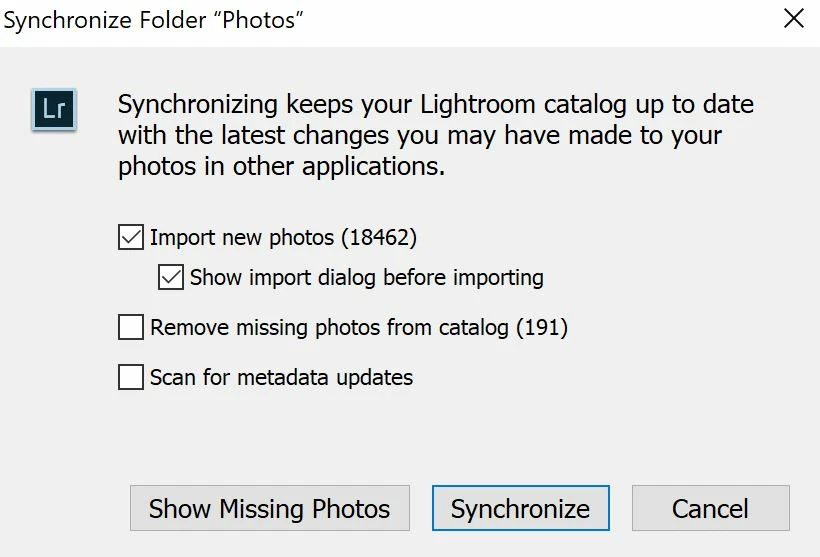
I was taking a look at the sync folder in Lightroom Classic CC. After loading the files, it shows up that I have 18,000+ photos that have not been synced. When I check the 'show import dialogue box' to see which photos these are, Lightroom loads every file in my catalogue which is close to 100,000 photos. Any idea why this is happening?? Please refer to the images. Note that in the second image, I have not expanded the drop down menu which shows all the photos that need to be imported. Appreciate your help. Thank you.

    This topic has been closed for replies.

    6 replies

    cmgap
    Community Expert
    Community Expert
    April 28, 2018

    Hi Navin,

    Do you currently use synced collections? If you sync a parent Collection folder with child folders the hierarchy will remain intact, you will be working with smart previews and your original folder structure will be unchanged.

    Navin Chandra
    Participating Frequently
    April 28, 2018

    Thank you for that cmgap​. I do not currently use synced collections for organising my photos. I will however consider this as a possible use. Thank you.

    Navin Chandra
    Participating Frequently
    April 28, 2018

    Regarding the possibility have having imported the same photo twice, I checked my folders and there are two photos with the same file name. However, I checked the extensions and one is a TIF (import from PS) and the other is a JPG.

    Could it be that LR is not recognising the different file types?

    When I Import photos, I do import to LR while copying the photos to a pre-determined folder. Most of the time, I create the folder prior to import and actually right+click and "import to this folder". There after I rarely (can't deny completely) move files around. Any edits in PS are usually saved back as a TIF files within the same folder.

    dj_paige
    Legend
    April 28, 2018

    https://forums.adobe.com/people/Navin+Chandra  wrote

    Regarding the possibility have having imported the same photo twice, I checked my folders and there are two photos with the same file name. However, I checked the extensions and one is a TIF (import from PS) and the other is a JPG.

    This is not the problem.

    You have imported the JPG photo twice. You need to search in Lightroom, by following ALL four of these steps (not one or two or three of these steps, but ALL FOUR).

    1.   In the Lightroom Library Module, on the left, under Catalog, click on All Photographs

    2.   Turn off all filters (Ctrl-L once or twice)

    3.   Turn off all stacking (Photo->Stacking->Expand All Stacks)

    4.   Search for at least one of these photos by file name using the Lightroom Filter Bar

    dj_paige
    Legend
    April 29, 2018

    Here's the one that shows the missing photo.

    And here's the one that shows the photos that are in my folder


    I believe that the collection where it says "Photos Missing ... " is not dynamic, it does not update when photos are no longer missing; and so it represents an old state of affairs, not the current state of affairs. So in my opinion, with regards to this photo, there is nothing to worry about.

    Navin Chandra
    Participating Frequently
    April 28, 2018

    I was just looking at tidying up my catalogue so I attempted this with the parent folder assuming it would be able to check all the errors at one go.

    Having said that, even when I try to go a sub-folder and sync it, I am still getting a few files that are being flagged as 'missing'. When i check my catalogue, the file (under the exact same name) is in my catalogue as well. Thank you

    dj_paige
    Legend
    April 28, 2018

    Synchronizing folders does not do what you think it does. It will not fix files that Lightroom thinks are missing. So let's stop going down that path.

    It appears that you have imported the photo twice, that is why one place in Lightroom the photo appears to be missing, while in another place, the photo is shown without the missing photo indication. Again synchronizing folders will not fix this. If you can confirm this is the case, it can be fixed (but not by synchronizing folders).

    Ideally, good file/photo handling techniques prevent the need for synchronizing a folder in most instances. The workflow I use (which may or may not work for you, but is strongly recommended) never needs synchronization, because my photos come out of the camera, are imported into Lightroom and copied to a folder, and I NEVER move them again*, hence no need for synchronization. Even when photos are sent to another application (like Photoshop CC), the original photos are not moved, and the copy created for the other application also never moves.

    Navin Chandra
    Participating Frequently
    April 28, 2018

    Apologies for that.

    Yes all my photos are in a single folder and yes I did try to sync that single parent folder which contained many child folders.

    dj_paige
    Legend
    April 28, 2018

    This is what happens if you try to synchronize a parent folder with many child folders.

    In addition, there may be better approaches than synchronizing the parent folder. But it depends on why you are doing this. Why are you doing this?

    Navin Chandra
    Participating Frequently
    April 28, 2018

    Yes I did

    dj_paige
    Legend
    April 28, 2018

    I asked you two question, you say "Yes", but I don't know which question you are saying yes to.

    dj_paige
    Legend
    April 28, 2018

    Are all of your photos in a single folder?

    Did you choose to synchronize a parent folder, with many child folders??