Participating Frequently
March 17, 2023
Answered

Lightroom Classic do not update edits to jpg photo file

  • March 17, 2023
  • 2 replies
  • 1855 views

Hi!

Using latest LRC 12.2.1 (Windows).

I scanned slides and edited JPGs using PS mainly healing brush changes. 

I saved photos to jpg-file and changes made in PS was saved to the file.. After this I imported to photos to LRC. I made basic adjustment in LRC. Everything worked fine.

When I exported jpg:s all changes was visible in the photo.

But the jpg photo file in Windows folder did not include adjustments done in LRC. LRC did not save made changes.

The thumbnail was unchanged, the photo in win Photos app, IrfanView and ViewNX-i showed the photo without LRC adjustments. If opened the photo (from folder) using LRC, PS, Bridge also LRC adjustment was shown. The jpg-file is writable.

I'm confused about this beghaviour. Earlier the basic jpg photo has has got the also. 

Or do I have some setting preventing these changes? Or have I undestood something totally wrong?

BR

Penalaak
This topic has been closed for replies.
Correct answer Per Berntsen

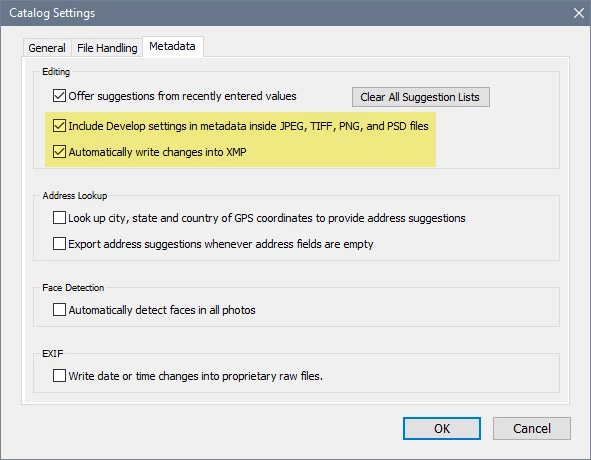
If you have the two highlighted options in the screenshot below checked (Edit > Catalog settings), LrC will, in addition to saving settings to the catalog, write develop settings to sidecar xmp files for proprietary raw files (like NEF), and to the header of the files for other formats, like DNG (which is a raw format created by Adobe), Jpg, Tiff, PNG and PSD.


To save tiff files with your old scanner, take a look at Vuescan, which works with most scanners.


2 replies

Per Berntsen
Community Expert
Community Expert
March 17, 2023

The edits are in the catalog, so the Photos app and other image viewers will display the original, unedited image.

You can, optionally, write the edits as XMP metadata to the files in LrC, which you seem to have done. Bridge and Photoshop understand XMP, and should display the edits.


The jpg format is not intended for editing. It uses lossy (destructive) compression to reduce the file size, and is far from ideal for scanning.

Every time you edit and save a jpg, the quality is reduced, especially direct pixel editing, like in Photoshop.

Editing in LrC is not so bad, since the edits are applied to a new file when you export.

If you're concerned about image quality, scan 16-bit tiffs, a much better choice than jpg.

PenalaakAuthor
Participating Frequently
March 17, 2023

Hi!

Thanks. 

These photos are in JPG-format and edits can not be stored to XMP side cars. Are XMP-data inside the file itself? 

I know that saving JPG-file always in save process destroys photo quality. But in PS editing you can do edits in same session and save many edits in one save process. I use PS healing brush to remove dust because always some dust is after scannig, because I don't have laboratory environment.

I use scanning only in my old slide / paper photo digitalization prosess and I'm glad I don't have huge amount of those to scan. My old scanner supports only jpg and I don't want to by new scanner any more. 98 % of photos I take in raw format (nef) and edits are stored to side car. Only cellular iPhone photos I take to jpg:s.

BR

Penalaak  

Per Berntsen
Community Expert
Per BerntsenCommunity ExpertCorrect answer
Community Expert
March 17, 2023

If you have the two highlighted options in the screenshot below checked (Edit > Catalog settings), LrC will, in addition to saving settings to the catalog, write develop settings to sidecar xmp files for proprietary raw files (like NEF), and to the header of the files for other formats, like DNG (which is a raw format created by Adobe), Jpg, Tiff, PNG and PSD.


To save tiff files with your old scanner, take a look at Vuescan, which works with most scanners.


dj_paige
Legend
March 17, 2023

When I exported jpg:s all changes was visible in the photo.

But the jpg photo file in Windows folder did not include adjustments done in LRC. LRC did not save made changes.


LrC does not change the image portion of your original file. Simply not a feature of LrC. If you want to see the changes outside of LrC, you MUST view the exported file.