

Answered
Lightroom Classic: Library Filter using Location Metadata does not reflect removed location metadata
When adding/changing location metadata on images, the Library Filter location columns are updated to reflect this change. However, when removing location metadata (sublocation, city, possibly others) from an image with GPS coordinates, the Library Filter location columns continue to show the previous value. Removing this metadata from images without GPS coordinates results in the Library Filter correctly updating to "Unknown Location".
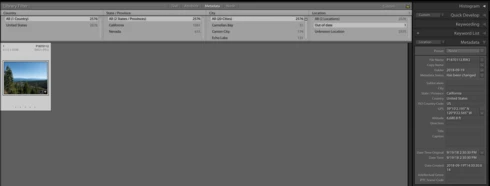
In the screenshot below, I had set this image to have a sublocation of "Out of date". I then erased the sublocation in the metadata pane. As you can see, The Library Filter is filtering to only show images with a location of "Out of date", yet that field is empty in the selected image.
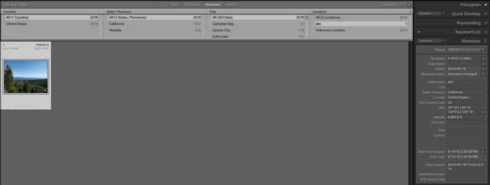
If I then change the sublocation to a non-empty value, the Library Filter correctly updates itself.
This is happening on Lightroom Classic 7.5.
It appears to me that the problem is that Lightroom is not correctly updating the AgHarvestedIptcMetadata table when clearing the location data. Below is a SQL dump of this table when adding/clearing sublocation on two new images (one with GPS data, one without). This dump and the above screenshots are from different tests.
Initial state:
After setting sublocation to "abc" in Lightroom:
After clearing sublocation in Lightroom:
Notice how the image without GPS coordinates was reset to the initial state, yet the one with GPS coordinates retained the sublocation data (958442 is the ID given to the location).
If I manually null out the sublocation on this entry in the DB, Lightroom immediately shows the expected "Unknown Location" in Library Filter:
Obviously, I don't want to be manually editing my catalog. But I would like to be able to clear out location data after incorrectly setting it, and still have Library Filter work correctly.
In the screenshot below, I had set this image to have a sublocation of "Out of date". I then erased the sublocation in the metadata pane. As you can see, The Library Filter is filtering to only show images with a location of "Out of date", yet that field is empty in the selected image.
If I then change the sublocation to a non-empty value, the Library Filter correctly updates itself.
This is happening on Lightroom Classic 7.5.
It appears to me that the problem is that Lightroom is not correctly updating the AgHarvestedIptcMetadata table when clearing the location data. Below is a SQL dump of this table when adding/clearing sublocation on two new images (one with GPS data, one without). This dump and the above screenshots are from different tests.
Initial state:
sqlite> select * from AgHarvestedIptcMetadata where image in (570455,570463);
572347|570455|||||||unset|-1.0||
572457|570463|||||||gps|-1.0||
After setting sublocation to "abc" in Lightroom:
sqlite> select * from AgHarvestedIptcMetadata where image in (570455,570463);
572347|570455|||||||unset|-1.0|958442|
572457|570463|||||||gps|-1.0|958442|
After clearing sublocation in Lightroom:
sqlite> select * from AgHarvestedIptcMetadata where image in (570455,570463);
572347|570455|||||||unset|-1.0||
572457|570463|||||||gps|-1.0|958442|
Notice how the image without GPS coordinates was reset to the initial state, yet the one with GPS coordinates retained the sublocation data (958442 is the ID given to the location).
If I manually null out the sublocation on this entry in the DB, Lightroom immediately shows the expected "Unknown Location" in Library Filter:
sqlite> update AgHarvestedIptcMetadata set locationRef=null where image in (570463);
sqlite> select * from AgHarvestedIptcMetadata where image in (570455,570463);
572347|570455|||||||unset|-1.0||
572457|570463|||||||gps|-1.0||
Obviously, I don't want to be manually editing my catalog. But I would like to be able to clear out location data after incorrectly setting it, and still have Library Filter work correctly.
 AdChoices