
Participant
May 19, 2023
Question

Lightroom Classic not launching

  • May 19, 2023
  • 3 replies
  • 616 views

Hi, I use Lightroom Classic on a Windows 11 PC, and am in need of help!

Lightroom was on latest version and until today went fine. When I went to launch today - nothing happened. I looked on line and followed various suggested fixes. 

I have - shutdown and restarted the pc a number of times.

Uninstalled LR (kept my preferences) and reinstalled - didn't work.

Uninstalled (kept my preferences) and installed an earlier LR version - didnt work.

Uninstalled and removed preferences and reinstalled the latest version of LR.

This finally seemed to work and LR launched. However there was no catalogue of photos linked. 

So in the LR Library I went to File/open catalogue and selected the catelogue. A dialogue box popped up telling me my catalogue would be upgraded in order to access the laterst changes in the newer version of LR Classic. 
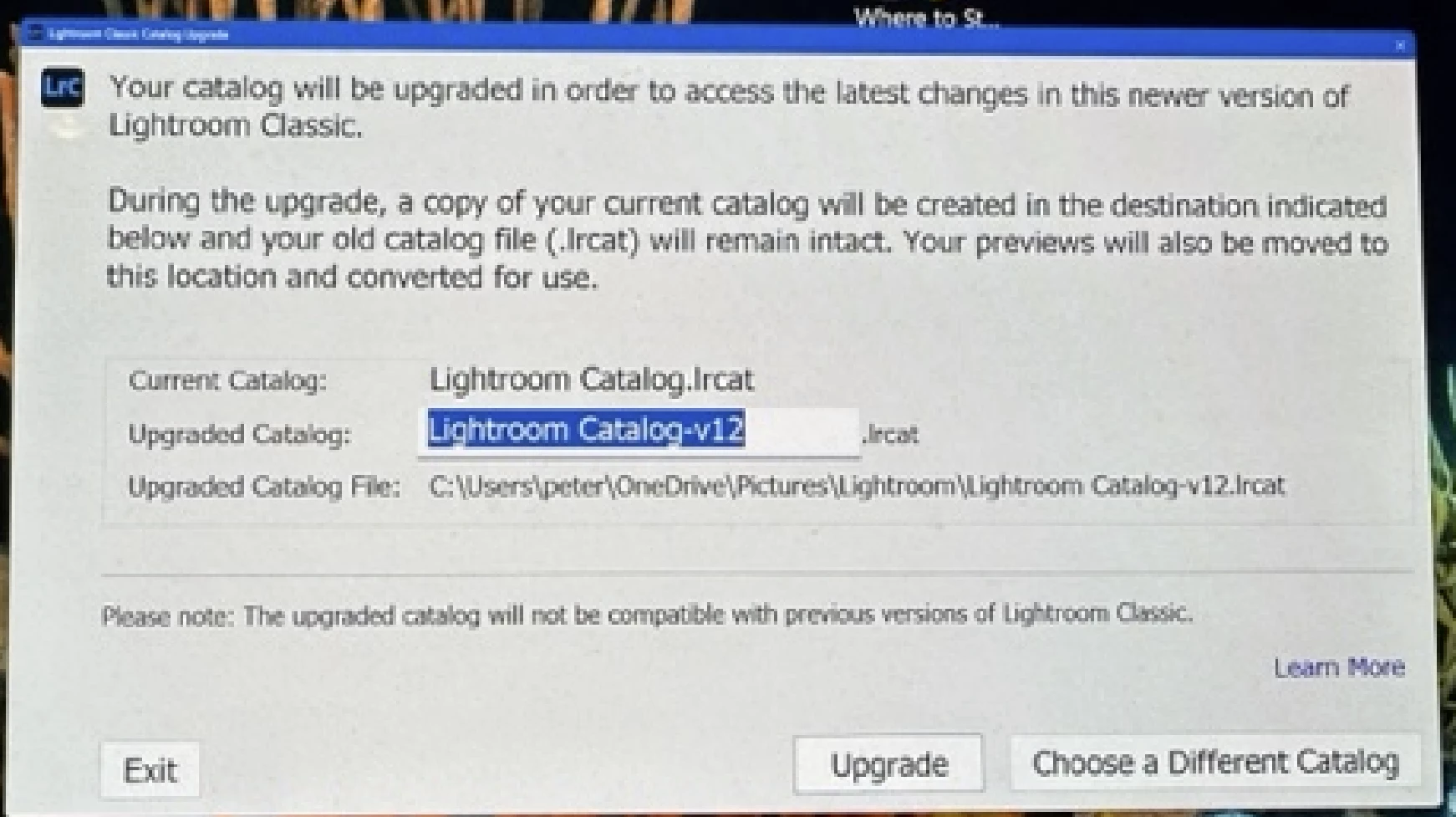
 

I was expecting that LR would open with my Catalogue but instead LR is not open at all. So I went to File Explorer, found the catalogue and tried to open.  The message below appeared but after 30 mins nothing is opening. 

 

I have no idea what to do now. LR does not seem to launch and if it does probably wont be connected to  my photo catelogue. 


Can someone who understands this please let me know what to do.


many thanks Pete

This topic has been closed for replies.

3 replies

AxelMatt
Community Expert
Community Expert
May 21, 2023

As far as I see in your system info you don't have installed the recent version of the graphic device driver.

Please download the recent Studio version of the driver, install it and check.

NVIDIA Studio Driver | 531.61 | Windows 10 64-bit, Windows 11 | NVIDIA


My System: Intel i7-8700K - 64GB RAM - NVidia Geforce RTX 3060 - Windows 11 Pro 25H2 -- LR-Classic 15 - Photoshop 27 - Nik Collection 8 - PureRAW 6 - Topaz Photo AI
SeadragonAuthor
Participant
May 22, 2023
Hi Axel Matt and all,

Unfortunately installing the driver did not resolve the issue. LrC is still not able to open at he previous catalogue. What other posssible options can we try?

I’m getting desperate and very worried! Thanks for the help.

Much appreciated

Seadragon
AxelMatt
Community Expert
Community Expert
May 22, 2023

Do you have a recent backup of your catalog? If yes, restore the catalog and try to open.

If no, create a new catalog and try to import some pictures and work on it.

If it work you can import your contant of the old catalog into the new one.

Merging Catalogs - Stage 3 - Using Import from Another Catalog to Merge | The Lightroom Queen


Another try should be a complette clean reinstallation by following the steps below:


If you're unable to install the cc desktop app at this stage, use an administrator account (solution 4 here,  https://helpx.adobe.com/creative-cloud/kb/creative-cloud-missing-damaged.html)


My last idea is to create a new user account (as an Administraor or an user with Admin rights) in Windows and install the CC apps under this account.

https://helpx.adobe.com/x-productkb/global/create-local-administrator-account-windows.html


My System: Intel i7-8700K - 64GB RAM - NVidia Geforce RTX 3060 - Windows 11 Pro 25H2 -- LR-Classic 15 - Photoshop 27 - Nik Collection 8 - PureRAW 6 - Topaz Photo AI
AxelMatt
Community Expert
Community Expert
May 19, 2023

Another tr is to open Lightroom with an new catalog.

Press the CTRL key on launching Lightroom. On showing dialog window for chossing the catalog klick on "Create new catalog..."


My System: Intel i7-8700K - 64GB RAM - NVidia Geforce RTX 3060 - Windows 11 Pro 25H2 -- LR-Classic 15 - Photoshop 27 - Nik Collection 8 - PureRAW 6 - Topaz Photo AI
AxelMatt
Community Expert
Community Expert
May 19, 2023

Try the following steps:

  • Close LrC if open (if the UI isn't visible shut down LR via Taskmanager)
  • Locate the file named "metrics.json"
    File Locations: 
    Mac: /Users/<username>/Library/Caches/Adobe/Lightroom/metrics.json
    Win: C:\Users\<username>\AppData\Local\Adobe\Lightroom\Caches\metrics.json 
  • Remove or rename the file

Check if Lightroom starts normally.


If this doesn't help you should try to switch off the GPU support from the Lightroom preferences and check if that helps to fix the issue.

Go to Lightroom > Preferences > Performance tab > Uncheck "Use Graphics Processor" > Restart Lightroom.

https://helpx.adobe.com/lightroom-classic/kb/troubleshoot-gpu.html


If Lightroom doesn't start correctly the please see "Solution 2" in the document behind the link below.

Troubleshoot GPU issues | Lightroom Classic (adobe.com)


Another step is to try to reset the Lightroom preferences.

https://www.lightroomqueen.com/how-do-i-reset-lightrooms-preferences/

It's recommended to backup your preferences before you reset the preferences to the default settings:

https://helpx.adobe.com/lightroom-classic/kb/preference-file-and-other-file-locations.html


If this doesn't help we need more informations about your environment.

Please provide also a copy of your 'System Info'. This can be get from the LrC Help > System Info menu item.

There's a copy button in the System Info dialog. Press this button and paste the info into your next forum post.


My System: Intel i7-8700K - 64GB RAM - NVidia Geforce RTX 3060 - Windows 11 Pro 25H2 -- LR-Classic 15 - Photoshop 27 - Nik Collection 8 - PureRAW 6 - Topaz Photo AI
SeadragonAuthor
Participant
May 21, 2023

Hi there,

I followed the tips in you email, but am still stuck.

1. The 'metric.json' did not exist even after all hidden files were revealed
2. I followed Solution 2 to manually switch off GPU support.

I was then able to launch LrC on my PC. There was no catalogue that opened
with LrC. I was as a test able to import/copy photos into LrC and the
Import and Develop functions seemed to work normally.

I then attempted to Open a (previous) Catalogue and the same problem
exists. ie. a message that it is opening on screen but nothing happening. I
tried this with the most recent (v12) and a previous version (v10) of the
catalogue with the same result. The message when I tried to open v10 was
that it was trying to open v12 which seems odd.

So basically I am stuck with LrC but not able to access existing catalogues
of photos. I did notice that each time I launch LrC or attempt to open a
catalogue new preferences file is created (Lightroom Classic CC 7
Preferences.agprefs). Not sure if this is relevant.

Below are my system details

Grateful for your help so far and further assistance

Peter

*Symptom info (copied from LrC/Help*

Lightroom Classic version: 12.3 [ 202304101834-a085245c ]
License: Creative Cloud
Language setting: en
Operating system: Windows 10 - Business Edition
Version: 10.0.22621
Application architecture: x64
System architecture: x64
Logical processor count: 16
Processor speed: 2.2GHz
SqLite Version: 3.36.0
CPU Utilisation: 0.0%
Built-in memory: 32637.7 MB
Dedicated GPU memory used by Lightroom: 2433.7MB / 8044.0MB (30%)
Real memory available to Lightroom: 32637.7 MB
Real memory used by Lightroom: 1461.0 MB (4.4%)
Virtual memory used by Lightroom: 4270.4 MB
GDI objects count: 663
USER objects count: 2103
Process handles count: 2009
Memory cache size: 0.0MB
Internal Camera Raw version: 15.3 [ 1451 ]
Maximum thread count used by Camera Raw: 5
Camera Raw SIMD optimization: SSE2,AVX,AVX2
Camera Raw virtual memory: 278MB / 16318MB (1%)
Camera Raw real memory: 425MB / 32637MB (1%)
System DPI setting: 96 DPI (high DPI mode)
Desktop composition enabled: Yes
Standard Preview Size: 3840 pixels
Displays: 1) 3840x2160, 2) 1920x1080
Input types: Multitouch: No, Integrated touch: No, Integrated pen: No,
External touch: No, External pen: No, Keyboard: No

Graphics Processor Info:
DirectX: NVIDIA GeForce RTX 3070 Laptop GPU (30.0.15.1165)
Init State: GPU for Export supported by default
User Preference: Auto

Application folder: C:\Program Files\Adobe\Adobe Lightroom Classic
Library Path: C:\Users\peter\OneDrive\Pictures\Lightroom\Lightroom
Catalog-v12.lrcat
Settings Folder: C:\Users\peter\AppData\Roaming\Adobe\Lightroom

Installed Plugins:
1) AdobeStock
2) Flickr
3) Nikon Tether Plugin

Config.lua flags: None

Adapter #1: Vendor : 10de
Device : 249d
Subsystem : 75c91458
Revision : a1
Video Memory : 8044
Adapter #2: Vendor : 8086
Device : 9bc4
Subsystem : 75c91458
Revision : 5
Video Memory : 80
Adapter #3: Vendor : 1414
Device : 8c
Subsystem : 0
Revision : 0
Video Memory : 0
AudioDeviceIOBlockSize: 1024
AudioDeviceName:
$$$/dvaaudiodevice/SystemDefaultAndEffectiveDeviceName=System Default -
Speakers (Realtek(R) Audio)#{comment}DVAAU-4201250: Open the audio hardware
preferences page.
AudioDeviceNumberOfChannels: 2
AudioDeviceSampleRate: 48000
Build: LR5x19
Direct2DEnabled: false
GL_ACCUM_ALPHA_BITS: 16
GL_ACCUM_BLUE_BITS: 16
GL_ACCUM_GREEN_BITS: 16
GL_ACCUM_RED_BITS: 16
GL_ALPHA_BITS: 0
GL_BLUE_BITS: 8
GL_DEPTH_BITS: 24
GL_GREEN_BITS: 8
GL_MAX_3D_TEXTURE_SIZE: 16384
GL_MAX_TEXTURE_SIZE: 32768
GL_MAX_TEXTURE_UNITS: 4
GL_MAX_VIEWPORT_DIMS: 32768,32768
GL_RED_BITS: 8
GL_RENDERER: NVIDIA GeForce RTX 3070 Laptop GPU/PCIe/SSE2
GL_SHADING_LANGUAGE_VERSION: 4.60 NVIDIA
GL_STENCIL_BITS: 8
GL_VENDOR: NVIDIA Corporation
GL_VERSION: 4.6.0 NVIDIA 511.65
GPUDeviceEnabled: false
OGLEnabled: true

[.... cut by moderator]