
Participant
April 6, 2023
Question

Lightroom Classic taking up 383kb hard drive space!

  • April 6, 2023
  • 2 replies
  • 698 views

I'm new to using Lightroom Classic. I imported ~43,000 photos to LC thinking that it would link to the images on my hard drive and not hold the file size within Lightroom. I realize this is a lot of photos but I see many tutorials that surpass that amount. 

Things I've tried:

- Reduce preview hold time

- Clear all cashe

- Limit preview data

- Delete old catalogs

- Verified I have the most recent version
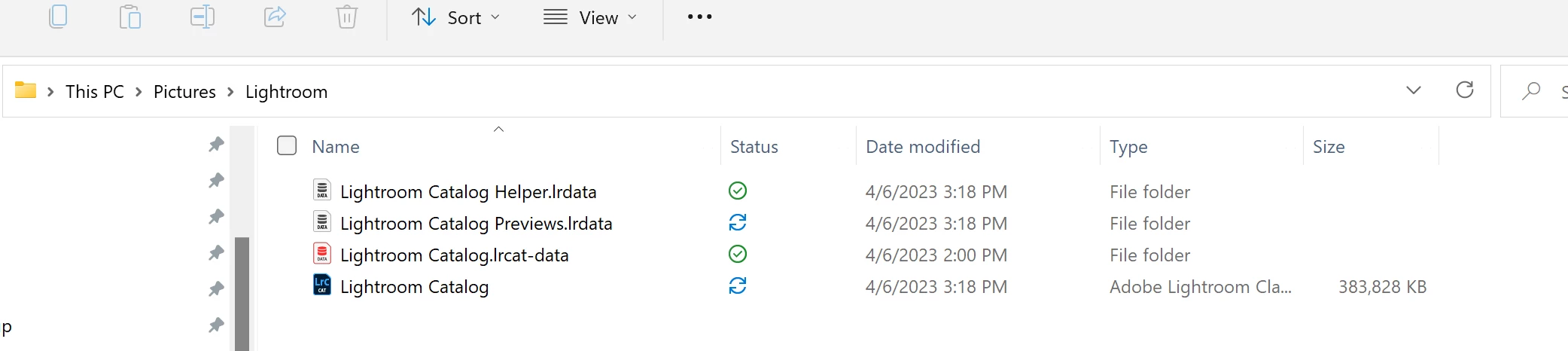
Any ideas here?

TIA

- Cher

This topic has been closed for replies.

2 replies

KR Seals
Community Expert
Community Expert
April 6, 2023

That's actually a very small file. Not even 1 megabyte. What is your concern about the size?

Perhaps the size of the Lightroom folder is what caught your attention. The subfolder "xxx Previews.lrdata" is likely to be far bigger than the .lrcat file because it contains the preview of your ~43,000 images. For example, my .lrcat file is 2.14 GB and the Previews folder is 162 GB for ~190,000 photos. I keep the "Lightroom" folder on a separate 500 GB SSD so space is never an issue.

Ken Seals - Nikon Z 9, Z 8, 14mm-800mm. Computer Win 11 Pro, I7-14700K, 64GB, RTX3070TI. Travel machine: 2021 MacBook Pro M1 MAX 64GB. All Adobe apps.
Participant
April 6, 2023

Is it typical that Lightroom Classic program is that large? My understanding is that it was a bridge to the original image on my hard drive, not really storing data.


KR Seals
Community Expert
Community Expert
April 6, 2023

Yes, Lightroom Classic is a multifunction application. It works unlike anyother program you might be used to. Information about the photos, adjustments you make to the photos and many other things is kept in the .lrcat file. The original photos are kept somewhere else on your local drive storage. 

I repeat, your catalog file is not at all large. What are you concerned about regarding the file size? Are you running out of space on the hard drive or SSD in your computer?  Please answer this so we can be of help to you.

Ken Seals - Nikon Z 9, Z 8, 14mm-800mm. Computer Win 11 Pro, I7-14700K, 64GB, RTX3070TI. Travel machine: 2021 MacBook Pro M1 MAX 64GB. All Adobe apps.
Community Expert
April 6, 2023

The Catalog file does not include the photos but it does hold a lot of information about those photos. All their Develop edits and the prior history of those; any additional virtual copies; all their Library metadata including their membership in Collections and the like. Also, the Catalog contains a small thumbnail image for each image seen. That helps you manage it visually, even if its source original was offline and even if no other previews yet exist alongside the Catalog for it.


On previews: the retention setting is just for 1:1 previews; there are also lesser sized (Library) previews which may be made as well as any Smart Previews (for Develop) which are a separate matter. 


All this (meta)data does take up some space on disk. My own Catalog file is a little bigger than yours, and mine tracks nothing like so many imports. Is the Catalog's size causing you a problem? If that is one of disk space, the Catalog does not need to remain in the default installed location. It can be moved to another drive volume which has more spare capacity. That needs to be a locally accessed drive and not a network server, nor cloud backed storage. Performance requirements prefer a fast kind of drive (perhaps solid state) and if externally connected, by a fast form of interface. 


If moved, the accompanying folders should be moved together with it (as a group).


Then the Catalog can be re-opened in its new place. It will continue to reference the same imported images, all living at the same storage addresses as before - that aspect is completely unaffected by changing the location of the Catalog itself. In other words: the images can all just stay wherever they currently are. 

Participant
April 6, 2023

Storage is the issues, yes.


When I "import" files to Lightroom Classic, I understood that it acted as a sort of bridge search-engine to the image on my hard drive, not requiring that much data to live inside Lightroom. 

Community Expert
April 7, 2023

To clear up any slight misconceptions, what you see inside Lightroom Classic is NOT the image files that are on your hard drive. You are exploring a curated and selective library of dynamically processed and virtually organised images. Each derives from some imported file, but only indirectly: for example the partticular folders those happen to be organised into on disk, can be simply disregarded inside the Catalog if you want. And then whatever multiple concurrent ways of arranging and choosing images however you want, can all happen virtually.


Some image files present on disk, folder by folder or file by file, may be consciously not imported - the library is selective and purposeful. Conversely, there may be multiple differently processed versions all referring back to a single imported file. 


All this processing is displayed live and on the fly. It can be nondestructively altered freely, singly or in the batch. The necessary consequence of this fluidity is that the only way to see all of this, is inside the Catalog environment.


That is, until you export copies externally which include that processing and selection as it currently stands, for separate viewing in the form of standard files.


The Catalog is in effect like the old-style librarian's office whicb houses all the various file indexes, paperwork records etc relating to all the actual library books which are in the shelf stacks or else currently on loan. The office is there to facilitate various librarian-type activities (which can't be done just by wandering around the shelves and seeing what's there). This office does not contain the library books - but even so what it does contain, can amount to a considerable weight of paper.