

ClassyCallieee
Participant
July 28, 2020
Question

Lightroom Classic will not Sync to Mobile - shows sync in process with no progress

  • July 28, 2020
  • 2 replies
  • 859 views

Hello (sorry in advance for the novel),


I'm experiencing an issue where Lightroom Classic will not Sync to my Mobile app.


I was able to successfully upgrade my LR Classic desktop application, upload new photos from an external hard drive that is still connected and catalouged appropritaly, and edit my recently uploaded photos. As always, I selected and dragged/droped my recent uploads with edits into my sync'd mobile photo's and they show as added on my Lightroom Classic desktop application but not on my mobile application.


The Lightroom Classic application shows sync in process with no progress. My mobile application shows that everything is sync'd and up to date, but does not show my recent uploads.


HOWEVER - I can add new photos to my mobile application (and edit them) and see them on my Lightroom Classic desktop application, edits and all. It appears that my mobile application is able to talk to my desktop application, but NOT visaversa. Pictures below of what I'm seeing on each device.
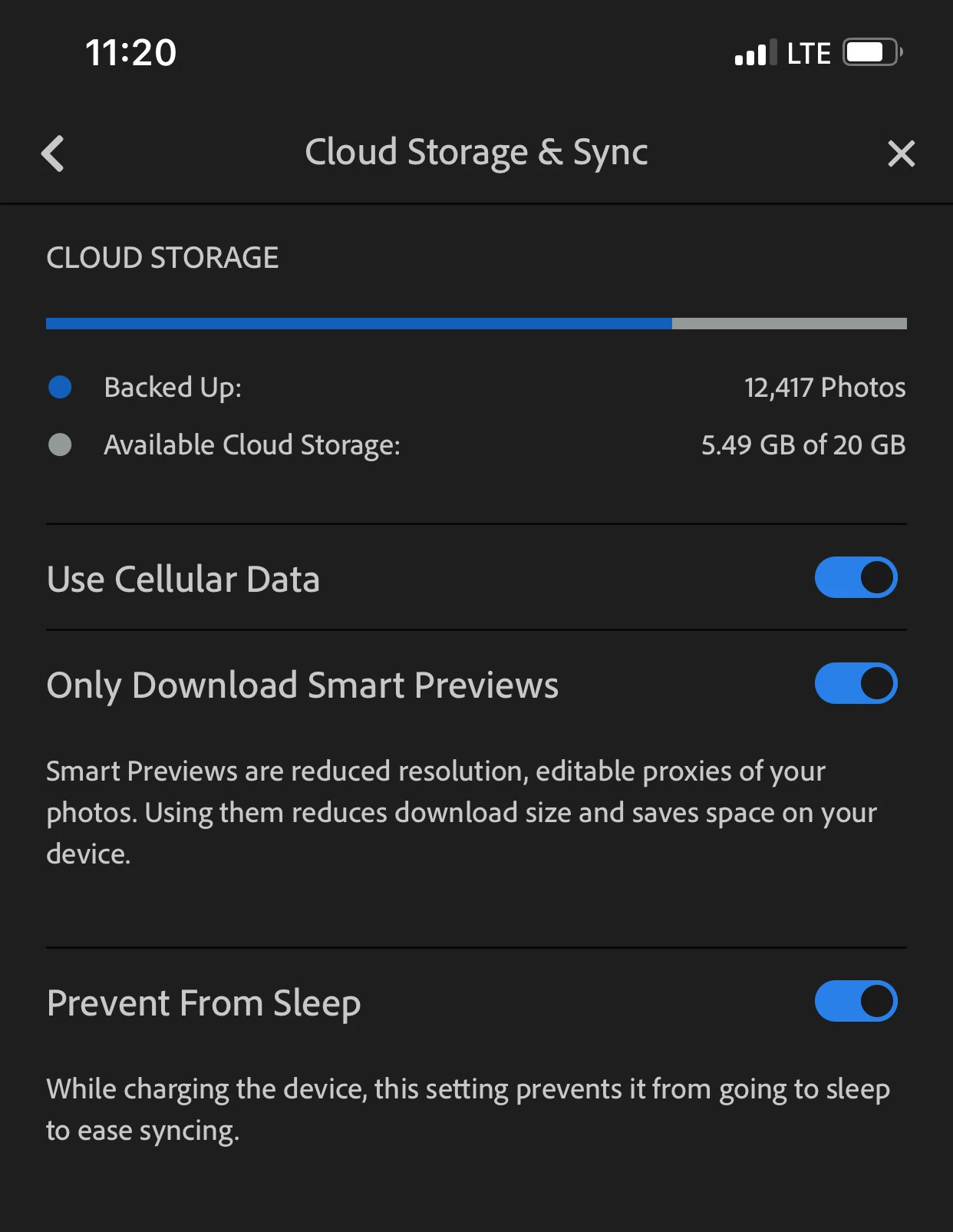
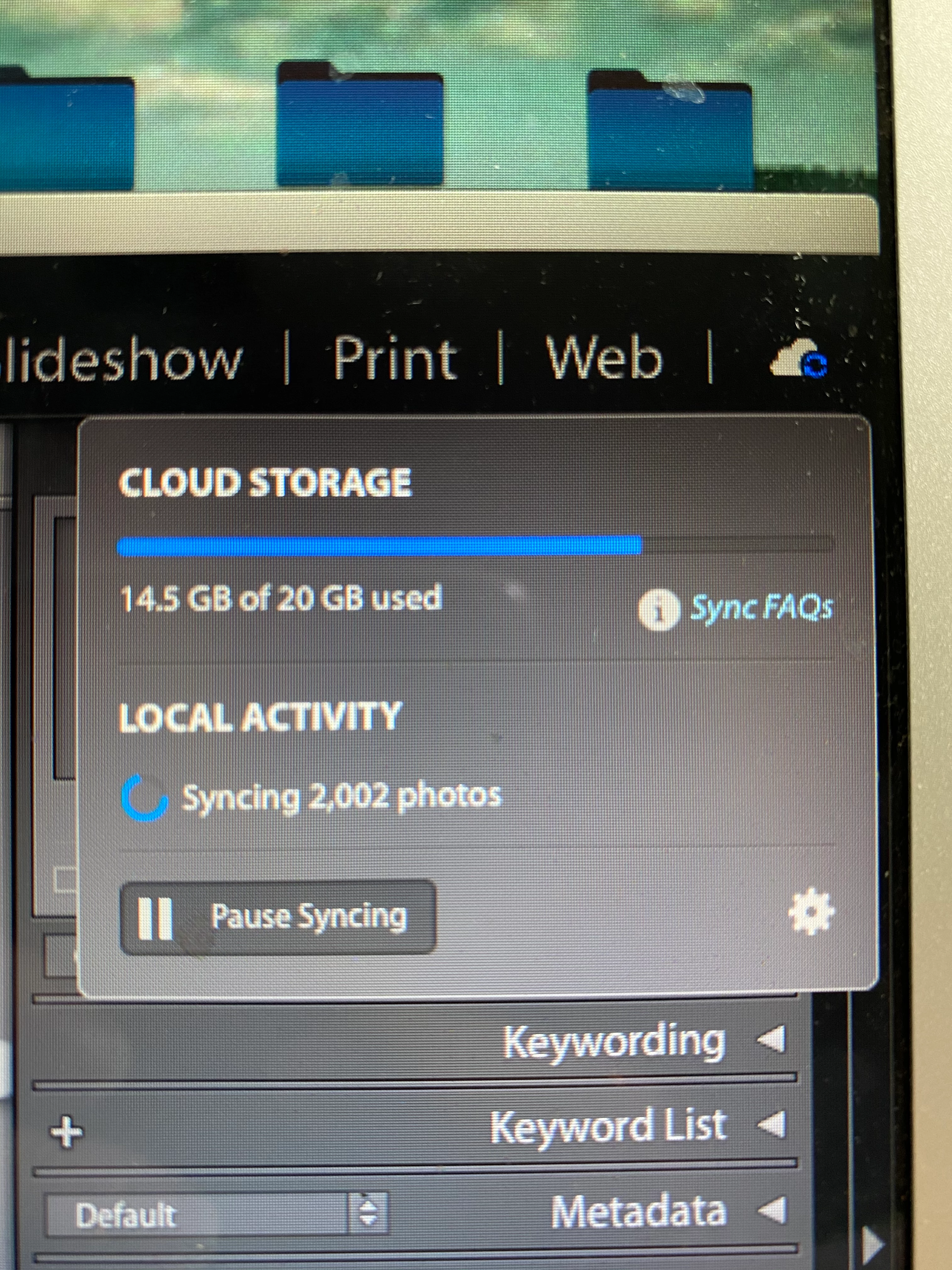


I've attempted multiple ways to resolve this since yesterday afternoon but have had no luck - hoping someone here can help as my edit job is for a new client! 


Details...

- Running Mac iOS Catalina 10.15.5

- Running Lightroom Classic 9.3

- Running Latest iOS Lightroom Mobile Application


Steps Taken to Resolve my contiual sync with no progress issue...

- Updated Lightroom 

- Verified latest mobile application

- Paused and resumed syncing on Lightroom Classic

- Log-out / Log-in to Lightroom Classic, Adobe Cloud Creative, and LR mobile application

- Restarted my mac

- Reset preferences

- Removed all photos with sync errors


Any other suggestions/help is welcome!


Thank you!!!


{Moved from Lightroom Cloud to Lightroom Classic Forum by Moderator}


This topic has been closed for replies.

2 replies

Just Shoot Me
Legend
July 29, 2020

As Theresa says Add them to a Collection and Sync that collection.

Dragging them to the Folder that Holds the Downloads of images you have added to the Lr system from your Phone or Pad will not Sync those images up to the cloud system or to your Mobile Device, AFAIK.

All you have done is Moved them from the original folder they where stored in to that Mobile Download folder.


The only way to Sync images UP to the Web and mobile device Lr system it to add them to a Collection in LrC and Sync that collection. You then get Smart Previews of those images on the Web interface and on your Mobile devices.

ClassyCallieee
Participant
August 3, 2020

Hey there - thanks for responding. I posted an update to the comment above!

Theresa J
Community Expert
Community Expert
July 29, 2020

The best way to sync photos from Lightroom Classic to Lightroom is to put them in Collaction and sync the collection. It doesn't sound like you followed this procedure. Also screen captures from Classic would be more helpful, because that is where you are having the problem. 

ClassyCallieee
Participant
August 3, 2020

So, the funny thing is that I've always imported my photos, edited them, and dragged them to sync'd mobile folders for smart preview access on my mobile device. I'm not doing anything different than I have for the past 3+ years but maybe something's changed, or I wasn't doing it 'correctly' before.


So here's a better description of my process and maybe you could point out what I should be doing if I'm doing anything wrong. Thank you!!


1. Import from hard drive with backed up cataloug

2. Select Imports and add them to Collections > From Lr Mobile > Indidividual Folder "name xyz"

3. Edit on either mobile or desktop applications


done 🙂 


Updated Issue Description


I've been atempting my own methods of getting my sync to work and still haven't been able to come up with anything that has helped, except now Lightroom Classic and Lightroom mbole BOTH show that all of my photo's have successfully sync'd, but they still aren't present on the mobile application. However, I am still able to add photos to my mobile device and see them on my lightroom classic desktop application. 


Updated screenshots below...


1.) Lightroom Classic Desktop application shows that there are 947 photo's in my sync'd mobile folder (Collections > From Lr Mobile > inidividual folder "Summer 2020"


2.) Lirghtroom Mobile (folder "summer 2020") shows this same folder as... 805 pictures


3.) Both Lightroom Classic Application and Lightroom Mobile show that my photo's have been sync'd now.


New BUT Related Issue Description 


I also tried to create a new Lightroom Mobile folder under collections in my Lightroom Classic desktop application and it didn't show up on Lightroom mobile either... 


1. Created new mobile location in Lightroom Classic desktop application, under collections > From Lr mobile > individual folder 'collection test' (and added 3 random photos).


2.) Signed out and back into Lightroom Mobile, the new folder still does not appear in my Mobile Library


Still looking for help!


Sincerely, 


Callie

Theresa J
Community Expert
Community Expert
August 5, 2020

I'm not sure why your method worked in the past becasue it is incorrect. The collections inside of the from LR Mobile collection set are where you find albums created on your phone. This is the location of the images starting from Lightroom and syncing down to your computer. I would not use these albums for images going the other direction from Classic to Lightroom. 
The correct method is to create a new collection in Classic for images you want to sync to Lightroom. Put this in a separate location so you can keep track of where the original came from. 
Go to Lightroom.adobe.com to see exactly what images have synced. This will help you troubleshoot the problem.