Participating Frequently
May 17, 2024
Question

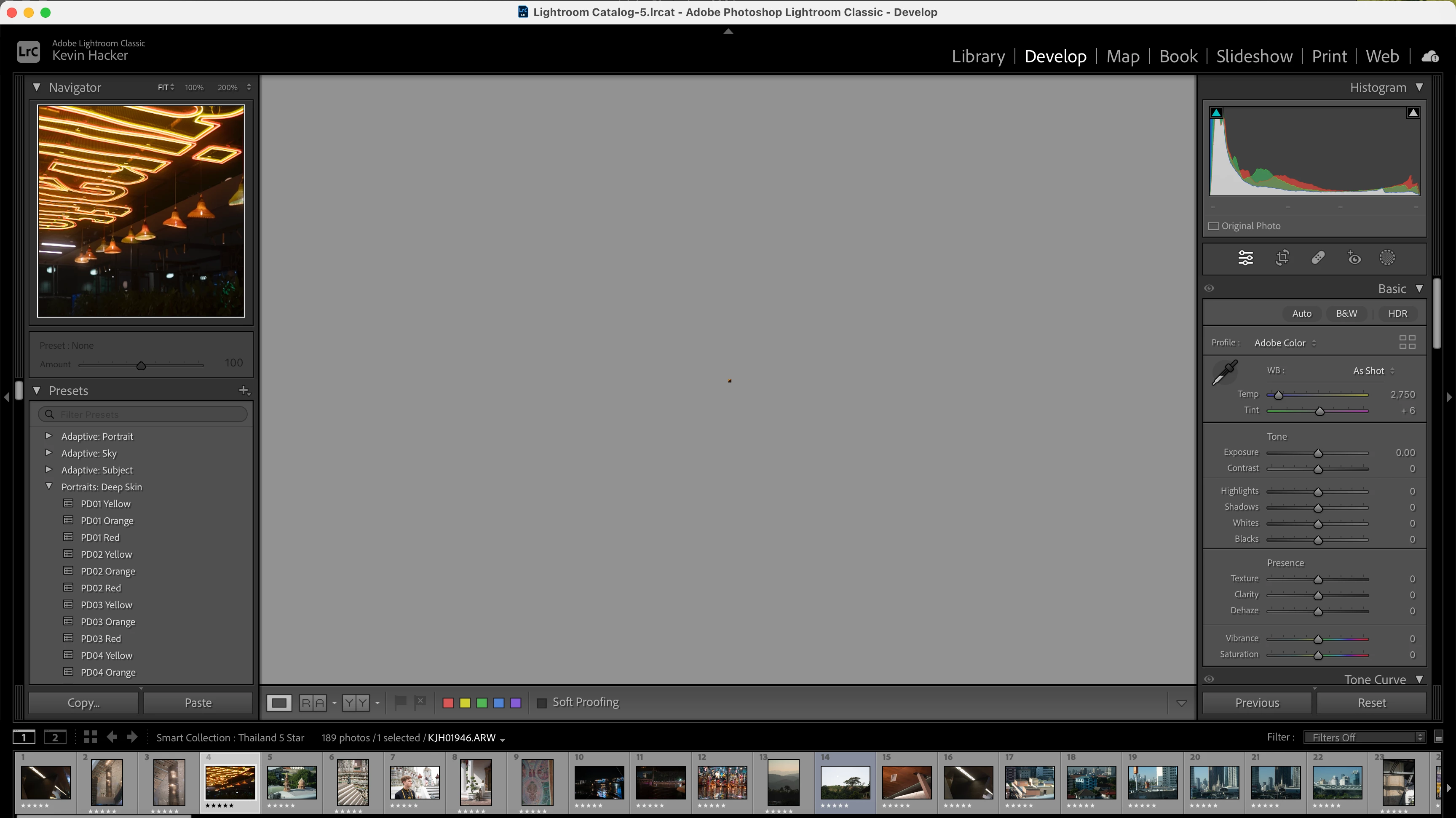
Lightroom is zoomed out in develop view

  • May 17, 2024
  • 3 replies
  • 979 views

An image in Lightroom is extremely zoomed out in the Develop module, in one specific catalogue. I want it to fill the full screen. It does show a full image when I enter crop mode, but it won't do it in the default develop mode. I have tried the following:

  • Clicking to zoom
  • Using the zoom loupe
  • Resetting the image settings in the edit panel
 

This topic has been closed for replies.

3 replies

GoldingD
Legend
May 18, 2024

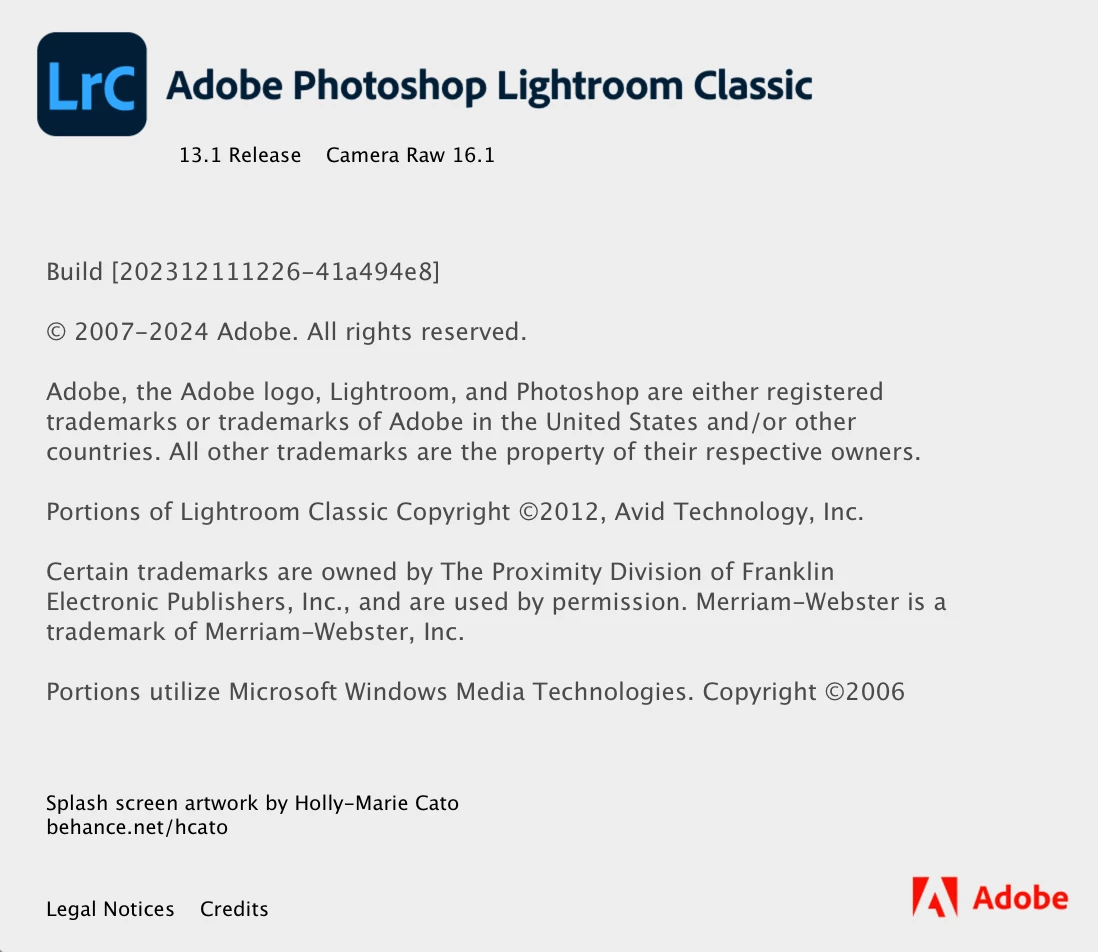
In LrC, click on Help, click on system Info. What is shown on on the first three lines?


example:


Lightroom Classic version: 13.2 [ 202402141005-bf1aeb84 ]
License: Creative Cloud
Language setting: en

Participating Frequently
May 18, 2024

@GoldingD 
Lightroom Classic version: 13.2 [ 202402141005-bf1aeb84 ]
License: Creative Cloud
Language setting: en-US

Community Expert
May 18, 2024

One quick thing you might try, to see if it sorts out the Catalog's entry for this particular image:


Make a Virtual Copy - (FYI: this new copy will get a duplicate copy of all your latest editing, but will lack History of the prior steps carried out to achieve that; also lacking some Collection memberships, Print or Book Collection membership etc that the starting image may have) -  and see if that previews correctly in Develop.


Assuming it does, you can switch that Virtual Copy in, as the new Master version against this imported file - the previous Master automatically becomes a Virtual Copy so nothing is actually deleted from the Catalog by trying this.


I would recommend, if not already doing so, ensuring an integrity check of your Catalog is going to happen at next opportunity as part of Catalog backup. Below settings are my own; I have LrC prompt for backup every time I close the application forcing me to opt-out (as I judge required) rather than having to remember to opt-in. Assuming you are making some periodic Catalog backups, that may let you recover in case there is some sort of wider Catalog corruption.


In my experience a regular optimise and integrity check will normally maintain its good health, though. 

Participating Frequently
May 18, 2024

Hi y'all,


Thank you @richardplondon and @johnrellis  for your quick replies. Unfortunately the issue still persists after updating lightroom, resetting preferences, and creating a virtual copy. To further clarify, this issue seems to only be happening with every photo on this one catalogue. Other catalogues don't have this issue which is wierd (but welcome haha)

Community Expert
May 18, 2024

If this had been Library, that might have been just a matter of deleting the previews and forcing their re-generation but happening in Develop is more critical IMO. If this is a Catalog specific issue, and integrity check has not worked, and the image files themselves are OK (you can check those by making a new temporary Catalog and test-importing some there) - then I see two possible next steps:


Start going back through this catalog's backups until you get to a properly working version;


make a new empty 'known good' Catalog, then use Import from Another Catalog to merge in copies of contents of this 'bad' Catalog - all its imported images with edits and history, collections, metadata etc - into that.

johnrellis
Legend
May 18, 2024

1. The latest version of LR is 13.2 -- do Help > Updates to install it.


2. If that doesn't help, try resetting LR's preferences:
https://www.lightroomqueen.com/articles-page/how-do-i-reset-lightrooms-preferences/


LR sometimes soils its preferences file, and resetting it can fix all sorts of wonky behavior. That article explains how to restore the old preferences if resetting doesn't help.