Inspiring
January 9, 2024
Question

Lightroom not working properly/slow/multiple screens pop up

  • January 9, 2024
  • 2 replies
  • 166 views

I have a computer with 32m of memory and a internal 1TB SSD and several external hard drives.

When I turn on lightroom, it looks like normal but when I got to the develop module, I get a screen that looks like this:
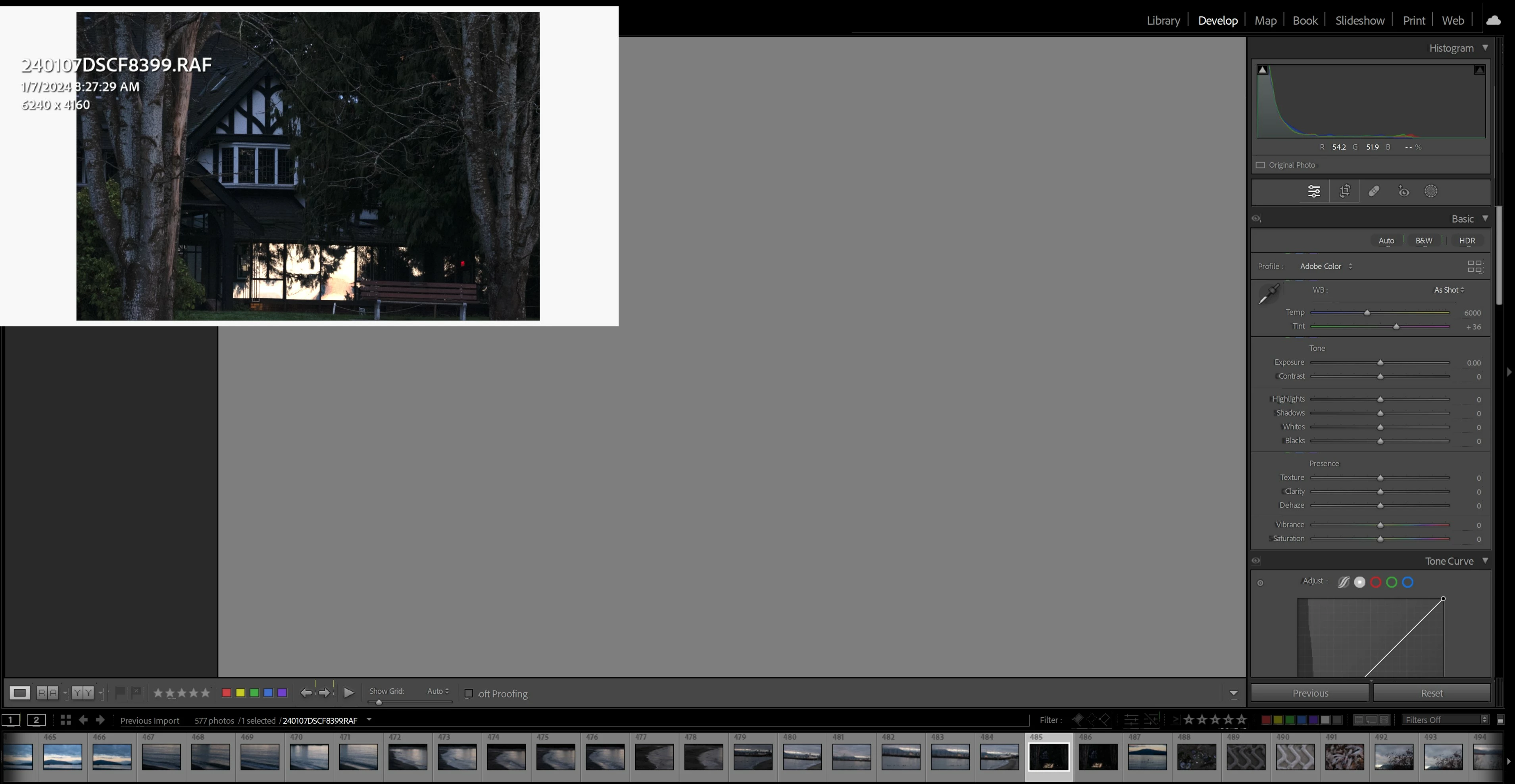


Please notice the bleeding on the right column.  IE in front of "Highlights".

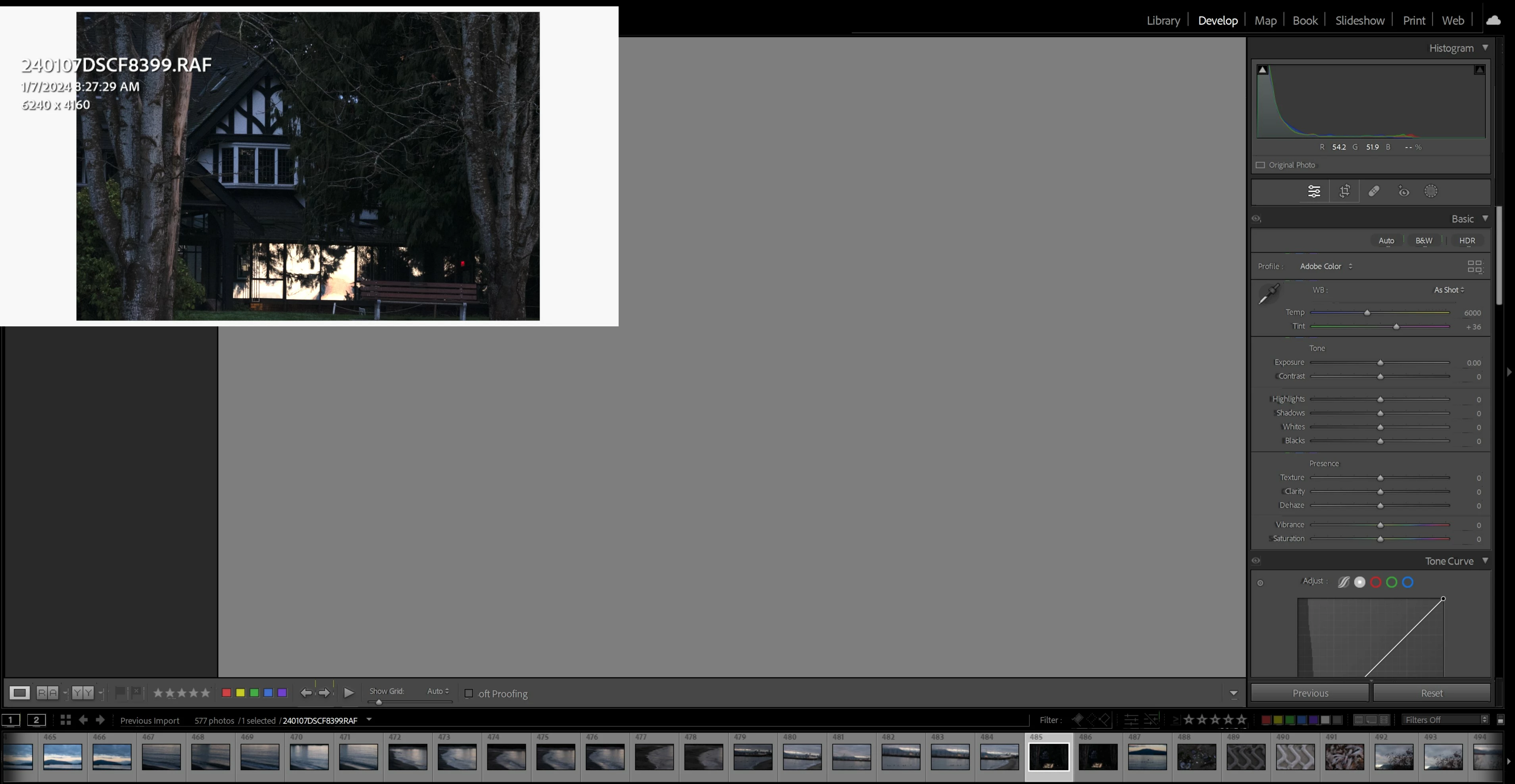
I tried to remove a spot from another photo, and it did not pay attention to where I was place the cirlce it change another area by itself.
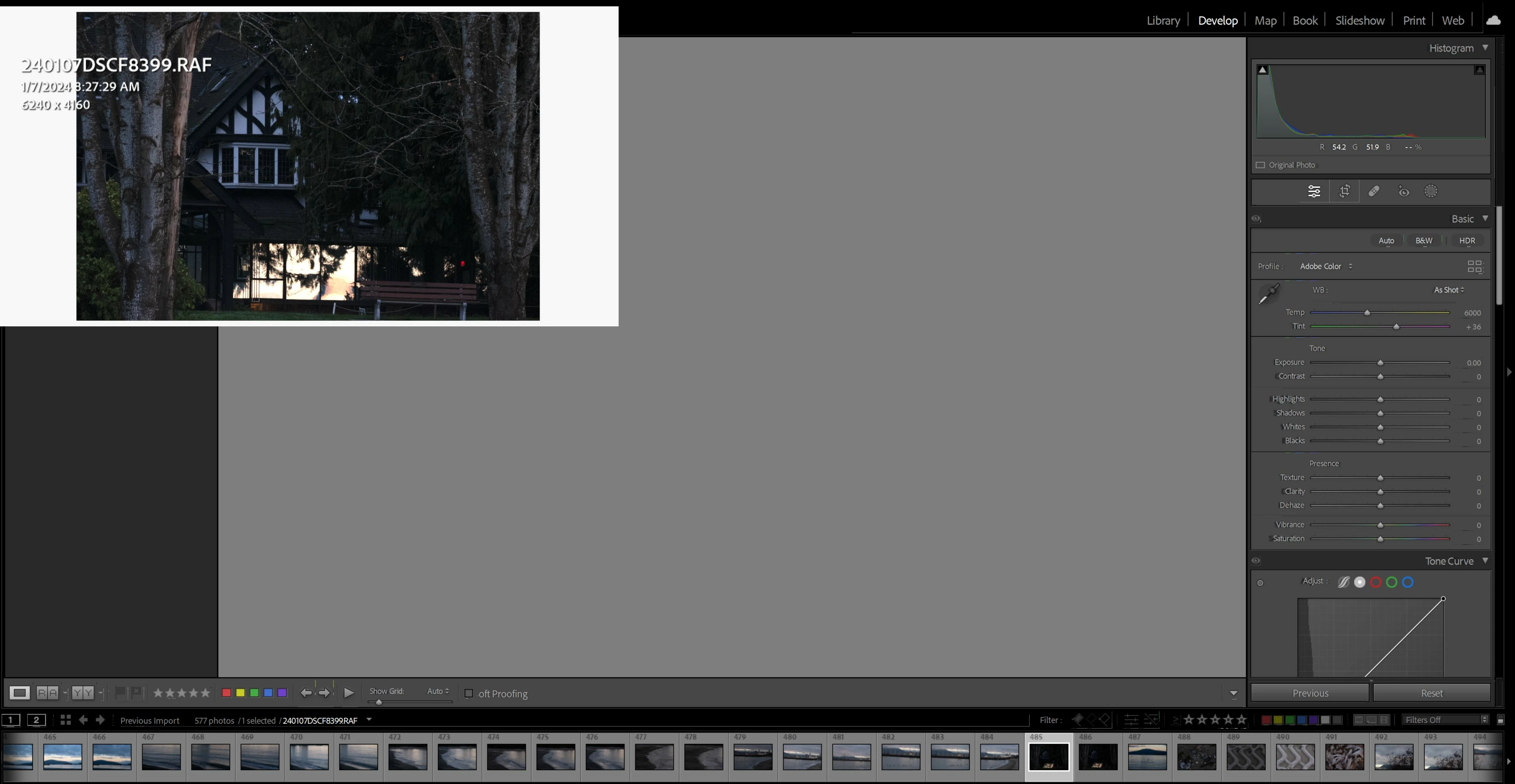
Notice how the picture itself is pixelating.

  

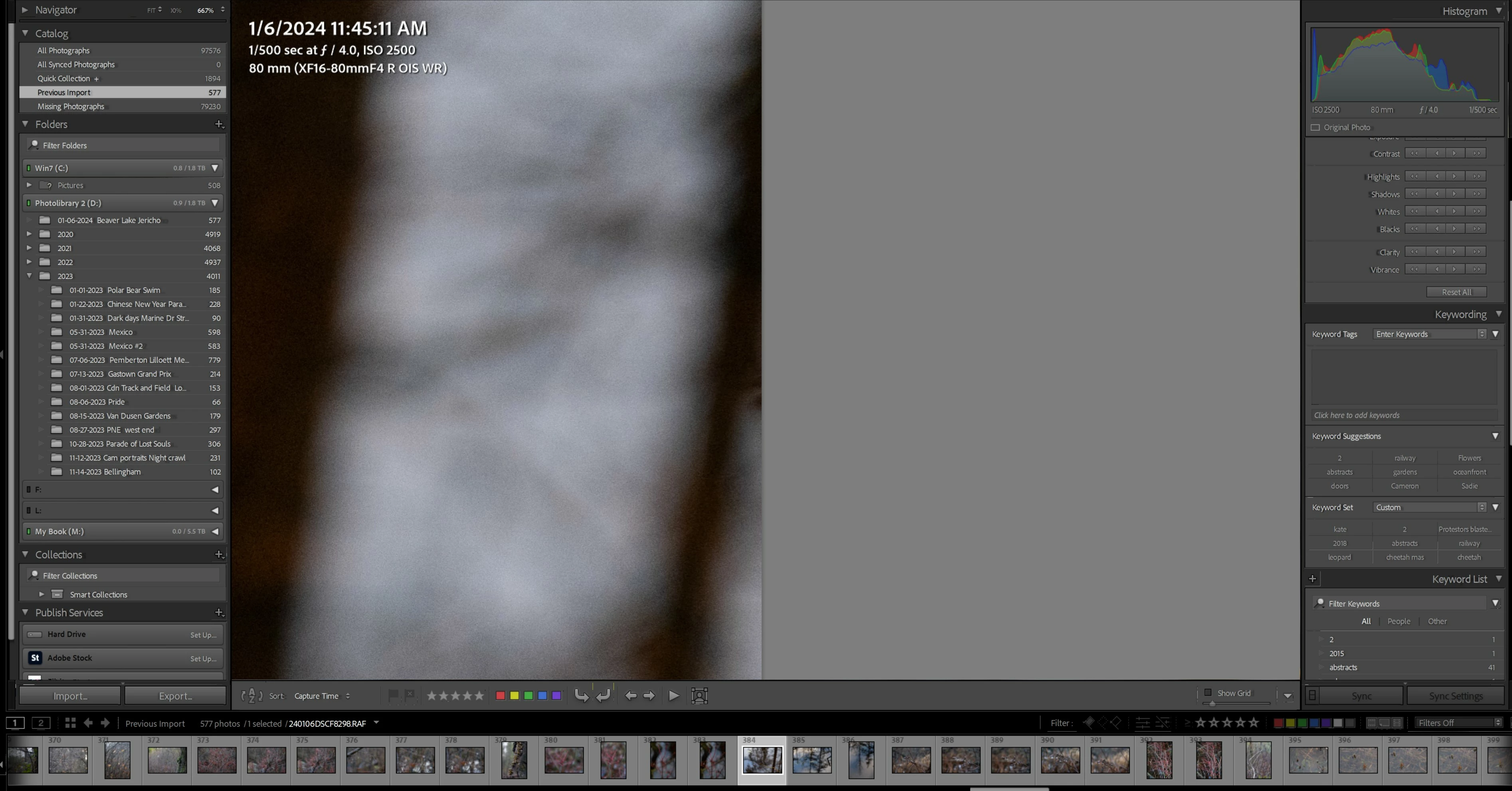
The longer the software is open the weirder things get.   Here the software changed  the display of a photo fit to over 600%
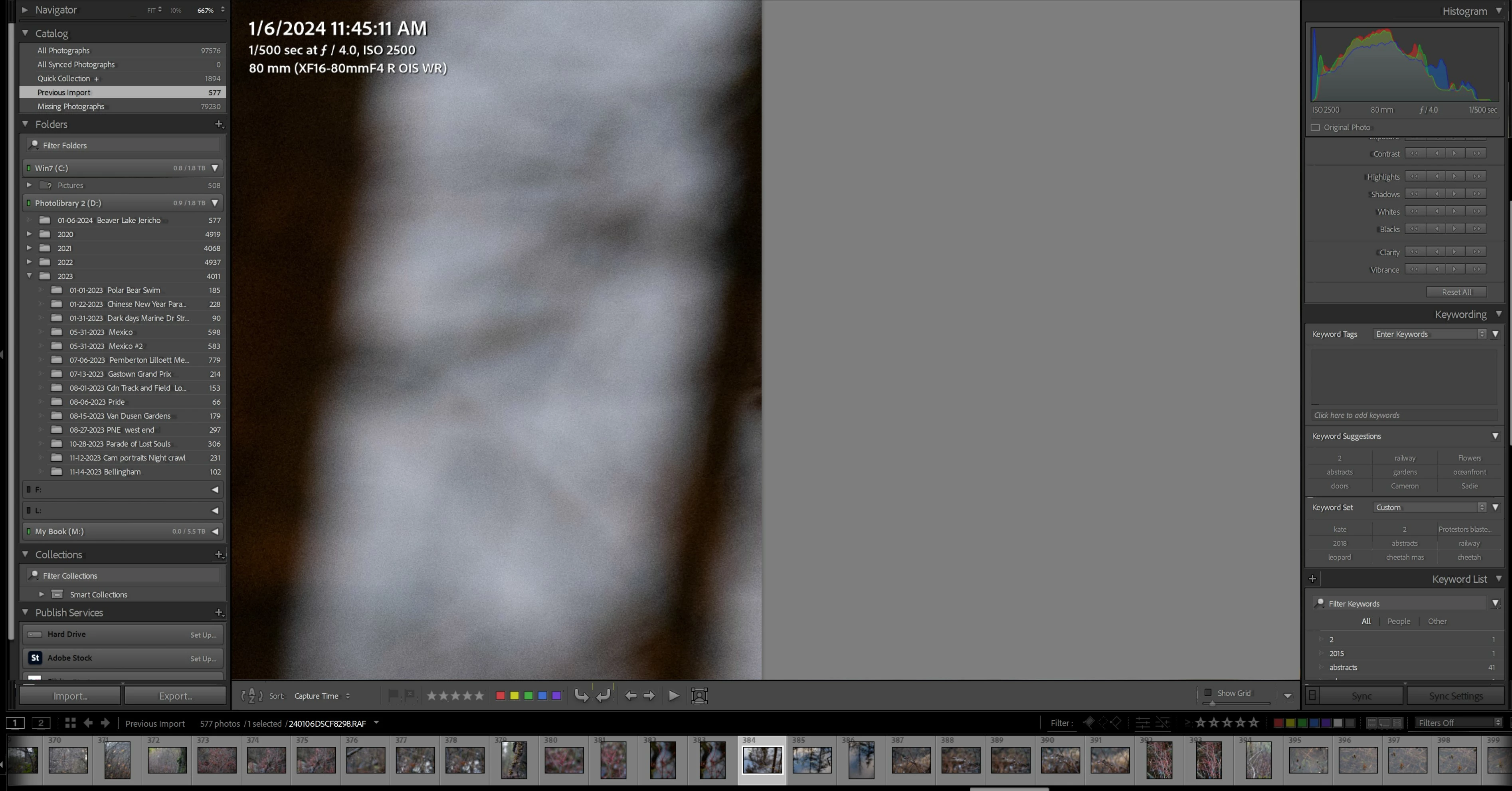


I have tried optimizing the program and this did not resolve anything.

Here is the Performance tab.
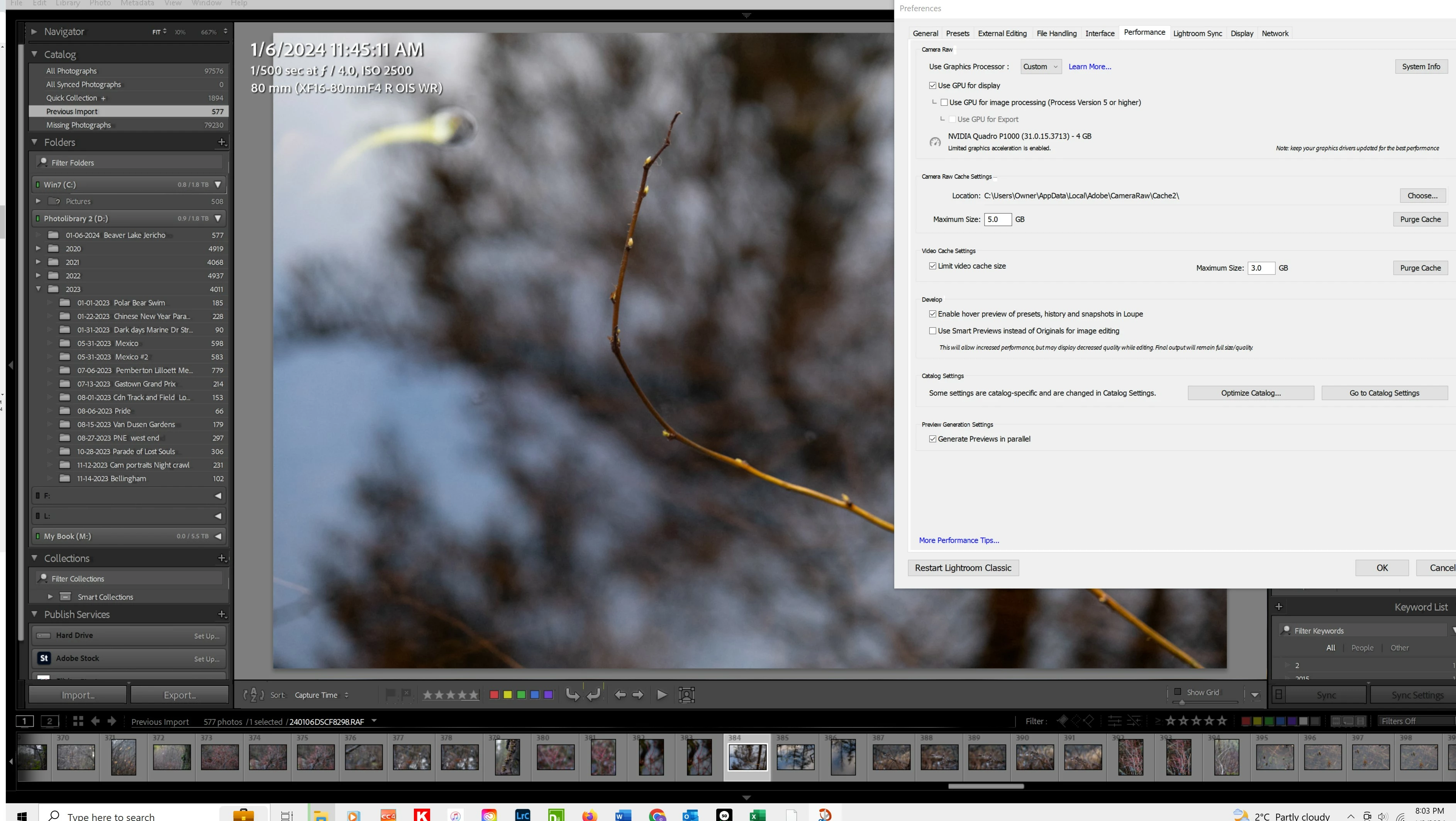
Lastly, here is my system

Do you need any information to help me resolve this issue?

This topic has been closed for replies.

2 replies

GoldingD
Legend
January 9, 2024

From one of you screenshots:


1. That hard drive, Named WIN7. Based on your GPU Driver version, I doubt that your OS is actually Windows 7. That the C drive name of WIN7 is some left over bit of info?


1. That Folder in that WIN7 drive, with the ? mark. Did you move that folder outside of LrC? Can you fix that? A messy Folders Panel indicates or can indicate a messy database..


2. As mentioned, the default Camera RAW limit of 5 GB is way too small, up to at least 20 GB. This will affect Develop Module performance.


3. The location of your Camera RAW file, on the C drive along with the default location for the Windows Paging file, and Temp folder. Not the best. Recommend placing that on a different hard drive. Note that LrC can take advantage of hard drive speed for the  paging file as well as the catalog (not so much for photos)


4. That NVIDIA GPU driver, v 537.13.. If you had Windows 7, that would not (I think) be an available driver. Assuming you have at least Windows 10 64bit, then it is not the latest. Not sure if you have a Production or a New Feature Branch driver. Not a Quadro user, so I am not knowledgeable on the difference. Assuming Production, and Windows 10, latest is v537.99 released last month. v537.99 vs v537.13 is probably not much of a difference, so I have no clue if updating well help. Oh, and WIN 10 vs 11, same driver it turns out.


4. Hmm, limited Graphics acceleration, not sure if anything can be changed to improve that. Perhaps another member has that GPU and can reply. This has nothing to do with the problem(s) at hand.


/note/ The Quadro series is not common, so many member may provide a bit of an erroneous bit of info revolving around the GeForce series. It happens. Been there done that.


That oddity in the sliders, perhaps related to Fonts? I have not noticed this one before. In your OS, for Display, and for fonts, any non default scaling selected? (large scale would be the area to avoid) Odd treatment of Fonts? Some strange setting in ? Point being to rule out OS settings.Accessibility


Well a zoom of 600% is going a wee bit far, and the image can look like %$#^$ that tight in. But, when evaluating images, do so in the Develop Module, not the Library  module that your screenshot appears to indicate.


 Yes, that system info is lacking a lot of info, More on that below (a request). But looking at those hard drives. I am wondering what drive the catalog is on. If drive M, disaster. At any rate a request as follows:


Please post your System Information as Lightroom Classic (LrC) reports it. In LrC click on Help, then System Info, then Copy. Paste that information into a reply. Please present all information from first line down to and including Plug-in Info. Info after Plug-in info can be cut out as that is just so much dead space to us non-Techs and it takes up vast amounts of scroll space making the reply less readable and less likely that others will bother with your post.


Community Expert
January 9, 2024

Unfortunately you don't wrote anything about your system specs. So it's difficult to say more. But...

On the first look I see that you Camera Raw Cache setting is on the default setting. Please increase this value to at least 20GB.

More infos about performance you'll find here: Optimize Lightroom performance (adobe.com)


Is your system up-to-date? Do you have installed all recent updates and patches for the operating system and the device drivers, especially the graphic driver. If you have a NVidia graphic card installed, make sure that you are using the recent Studio version of the driver, not the Game Ready version.

Please provide a copy of your 'System Info'. This can be get from the LrC Help > System Info menu item. There's a copy button in the System Info dialog. Press this button and paste the info into your next forum post.


My System: Intel i7-8700K - 64GB RAM - NVidia Geforce RTX 3060 - Windows 11 Pro 25H2 -- LR-Classic 15 - Photoshop 27 - Nik Collection 9 - PureRAW 6 - Topaz Photo AI