
makitos666
Participating Frequently
July 23, 2018
Question

Lightroom profile browser missing

  • July 23, 2018
  • 6 replies
  • 7955 views

Hello everyone,

I've just installed the lightroom on my desktop PC, and although it's supposed to be the same version as on my laptop (7.4), it does not look like it.

In the new installation I can not find the profile browser.

Below attached images, left the desktop PC and the laptop right.
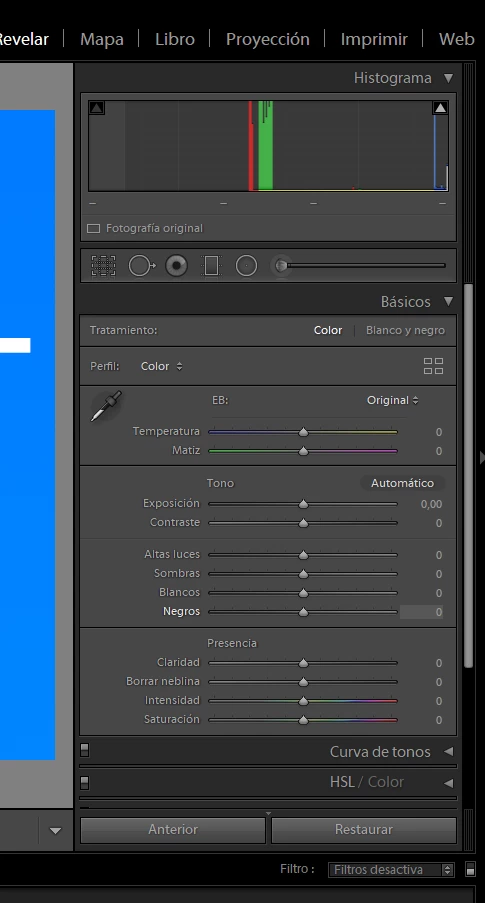
Thanks in advance!

This topic has been closed for replies.

6 replies

GoldingD
Legend
December 13, 2018

Where did the DNG file come from?

what camera?

descender
Inspiring
December 13, 2018

I am experiencing what could possibly be the same issue. Adobe Photoshop Lightroom Classic CC 8.1 Release, camera raw 11.1, build 1200465.

On *some*, not all, of my DNGs, in Develop mode, the 'profile' drop-down gives me only the standard choices: Color, Neutral, Landscape, Standard, Embedded, Monochrome. It is missing the 'browse' line that would normally launch the profile browser with all of its 'artistic' and 'modern' (etc.) profiles. Nor does clicking the little four-rectangles icon at the right end of the 'profile' line in the Basic section of the Develop controls do anything. Clicking it has no effect. Closed and reopened LR Classic, no change in this. [Edit: I gave that another try, and the second time I closed and reopened the program, the issue was gone. For now...]

I also tried joefry99's suggestion, to open the controls customization and disable then re-enable the Basic section which contains the Profile choice; that did not change anything either.

Meanwhile I can open many other DNGs shot in the very same series, same camera, same folder imported from the same SD card, and have the profile browser fully available in the controls.

No idea if this is connected or just correlated or what, but on the images where I cannot reach the profile browser, I also notice that the Auto button in the Tone controls is greyed out and inactive. This originally led me to think that maybe what I was looking at were already-processed files rather than my original DNGs, but I checked again and that is not the case.

johnrellis
Legend
December 13, 2018

Upload one of the problem DNGs to Dropbox or similar and post the sharing link here.  We can see if the issue occurs in other LR installations or is specific to yours.

descender
Inspiring
December 13, 2018

Thank you. I'll see if it happens again -- see my edit (in bold) shortly after making my post above; I discovered that closing and reopening LR fixed it, even though I had tried that before with no luck. If it doesn't happen again it probably won't be worth it to try and share a sample image.

I've had other rather strange happenings in LR lately, such as, the program will get into a condition where the Develop mode refuses to show anything in the image area -- it either shows just background grey, or it shows whatever was showing there before I switched to Develop mode. For example I can be in Develop mode, seeing all the Develop controls, and yet what sits in the image area is still the whole grid of thumbnails from Library mode. Other times, similar but a little different, Develop mode may work properly but when I specifically switch to the Crop tool, that same effect happens, where nothing is shown or updated in the image area as long as the Crop tool is active; if I switch back to the Hand or other tools, I get my display back to normal. Also strange to note, when these problems occur, I also see a continuous 'loading' graphic, you know the little rotating circle chasing its tail, in the lower border, which never finishes. These problems too are typically solved by closing and reopening Lightroom.

Legend
August 27, 2018

A shot in the dark, but easy enough to try: right-click one of the develop panels, turn off basic, then right-click again and turn on.

Participant
August 26, 2018

Hi all,

Having the same issue. Just updated Lightroom, but still don't see the profile browser anywhere!

johnrellis
Legend
August 26, 2018

Please copy/paste the first 10 lines of the menu command Help > System Info here.

JP Hess
Inspiring
July 23, 2018

The profile browser is right there on the screen, right below the histogram. But you have to click on the icon to expose it.

makitos666
Participating Frequently
July 23, 2018

Yes, I know, in the first picture, it is. But look at the second, it does not appear.JimHess

makitos666
Participating Frequently
July 23, 2018

On my computer, reading the messages, there is only one picture. The link to call the profiles is right there.


You cannot view the second image because my link is broken xD

Here is the image:

https://imgur.com/a/Dx9F2lV

dj_paige
Legend
July 23, 2018

Go to Help->System info and report what version of Lightroom is shown there. Do not  copy and paste the entire Help->System Info box into your reply.

makitos666
Participating Frequently
July 23, 2018

The same version appears on both PCs:

Versión de Lightroom Classic: 7.4 [ 1176617 ]

dj_paige
Legend
July 23, 2018

makitos666  wrote

The same version appears on both PCs:

Versión de Lightroom Classic: 7.4 [ 1176617 ]

Okay, that's what I asked for, the version NUMBER. Now go back to Help->System Info and report what is on the next line underneath the version NUMBER.