


micahwinston
Participant
September 16, 2020
Question

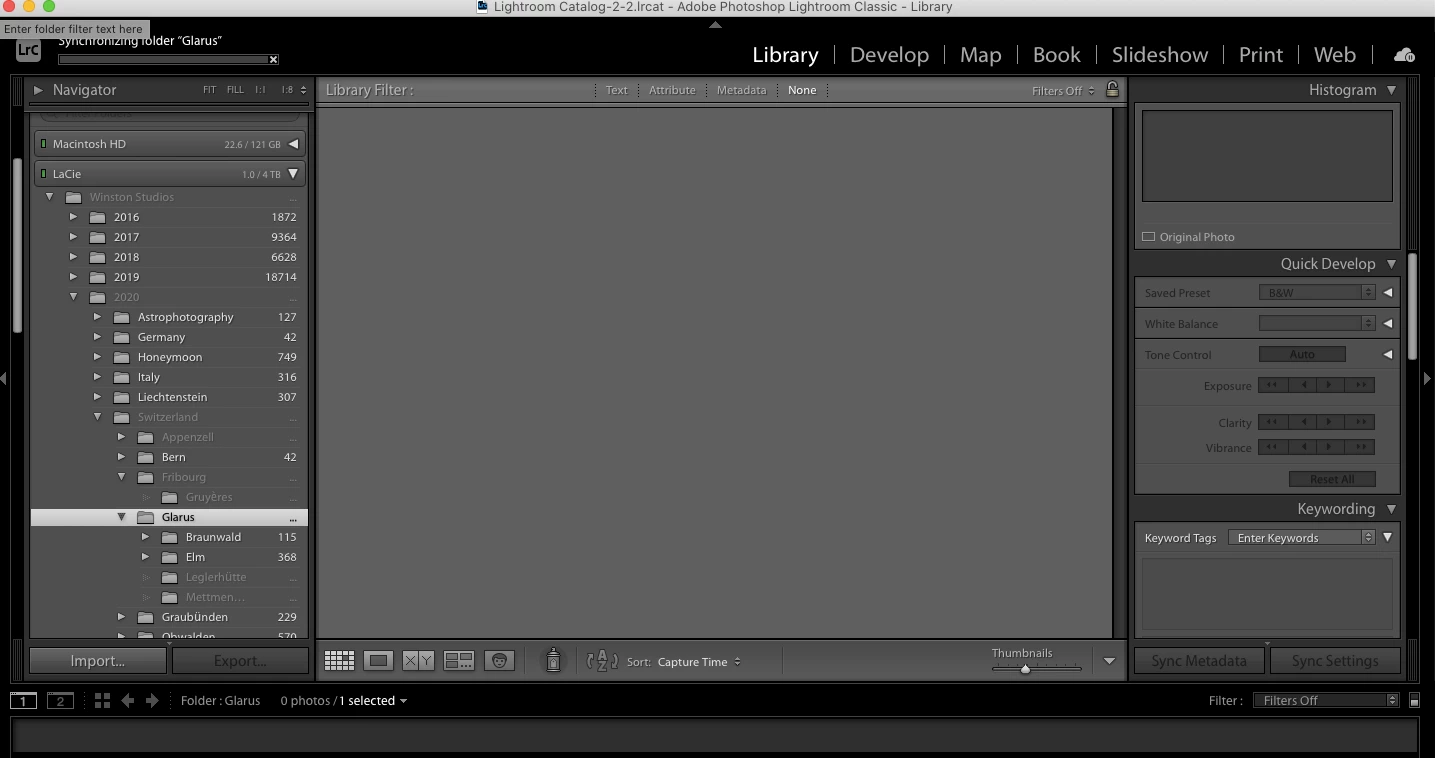
Lightroom removed all my photos from the folders despite numbering how many are in them.

  • September 16, 2020
  • 7 replies
  • 587 views

I accidentally moved my Lightroom Catalog to Google Drive, and now that I returned it to my local disk, Lightroom cannot locate any photos in any of my folders.


All the photos are on my external harddrive as per usual, but Lightroom cannot seem to synchronize them back into Lightroom, (there are no question marks etc. next to any photos, they are simply not there to be found).


When I click "Sychronize Folder", the loading bar stays empty for hours on end with no progress. 


Can someone help and explain what is going on?


Thanks a lot.


This topic has been closed for replies.

7 replies

GoldingD
Legend
September 17, 2020

What OS?


micahwinston
Participant
September 17, 2020

As an example, you'll notice the folder "Bern" has 42 photos in it, (which is true on the hard drive), but when I click it, it says "0 photos"


dj_paige
Legend
September 17, 2020

Click on "All Photographs". Search for one of these photos under "All Photographs" by file name. Once you find it, right-click on it and select "Go to Folder in Library". What folder in the Folder Panel is highlighted? (you may need to scroll up or down in the Folder panel to find the highlighted folder)

Just Shoot Me
Legend
September 16, 2020

So people don't have to download the image you have attached to your post please Edit your post to remove the Attached screen shot and Include it in the body of the text of your post.

You do that by Clicking the "More..." link at the bottom of your post, Selecting "Edit Message" and then use the "Insert Photos" icon in the tool bar at the top of the Post/Reply/Edit dialog box like this.


Thank you.

micahwinston
Participant
September 17, 2020

For some reason, why I click "...More", a thing white bar pops up with nothing to click. 

dj_paige
Legend
September 17, 2020

"For some reason, why I click "...More", a thing white bar pops up with nothing to click."


I am getting this error occasionally too.

dj_paige
Legend
September 16, 2020

Also, you can try restoring a recent backup of the catalog file.

kentdesign
Community Expert
Community Expert
September 16, 2020

Yes DJ-Paige has a great thuoght about trying a recent back up (from before you moved the catalog t0 Google drive.)

Jon-M-Spear
Legend
September 16, 2020

From what I think the OP is saying is that relinking the files isn't the issue.  There are no (!) symbols displayed on the thumbnails. 

dj_paige
Legend
September 16, 2020

"I accidentally moved my Lightroom Catalog to Google Drive, and now that I returned it to my local disk, Lightroom cannot locate any photos in any of my folders."


You moved the Catalog file (not the photos) to Google Drive, and then back to your local disk? Is that correct?


I cannot imagine how this moving of the catalog file can cause folders now to appear empty that did not appear empty before all this happened — unless there are other steps performed in this process that haven't been mentioned (are there?).


Synchronize folder will not do anything. Forget about this in this situation.


Perhaps, maybe, its possible (although I'm still not understanding how the same catalog now has zero items in a folder) that the Update Folder Location command will help here, which is indeed described in the link from DavidG.


But it really seems to me that this catalog with zero items in the folder IS NOT THE SAME CATALOG as the one you think it is. Please search all of your hard disks for files whose name ends with .LRCAT and open each one in Lightroom Classic until you find the catalog you want.

GoldingD
Legend
September 16, 2020
Jon-M-Spear
Legend
September 16, 2020

What happens in Grid View if you right click a thunbnail and select Show in Explorer? (Windows)