Hi,
Thanks for reaching out! We are sorry about the trouble with Lightroom Classic. We are here to help!
As Lightroom catalog does not 'save' the images within itself and acts more like a database, for the integrity and minimizing any chances of corruption or partial damage to the integrity of the catalog, it is advised to be only kept on the internal drive. Storing original images on the external drive is ideal in most cases. However, the catalog is sensitive and needs to be kept safe.
If the catalog is stored on an external drive, please move it to the internal drive or desktop and try launching it from there. Please check here for more help related to Lightroom Classic Catalogs:
https://helpx.adobe.com/lightroom-classic/kb/catalog-faq-lightroom.html
Also, please ensure Lightroom Classic has permissions needed on the Mac by following the steps suggested below:
- Go to the System Preferences for your Mac, then Security and Privacy, then select the Privacy tab.
- Then select Accessibility from the list to the left & check if Lightroom Classic is added to the list with a checkmark in front of it.
- If Lightroom Classic is not a part of the list, please add it by unlocking the window first using the lock at the bottom left, then clicking the + icon & navigating to the Applications folder.
- Also, grant permissions to Lightroom Classic under Full disk access found in the same list as Accessibility. It should look as shown below.
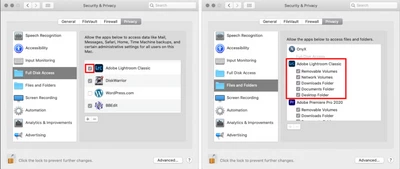
- Once done, restart the Mac & check if it helps.
Afterward, you can create a new test catalog and merge the existing one with the new one to avoid broken or damaged databases. Copy the primary catalog or the catalog in question and place it on your computer's desktop.
- Press the Alt (Win) or OPT (macOS) when launching Lightroom Classic.
- Choose the option to create a new catalog and create a new one on the internal drive.
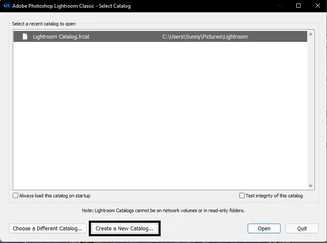
- In the new catalog, head to File > Import from Another Catalog, as shown below.
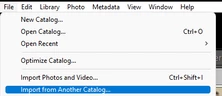
Proceed with merging the corrupted catalog into the newly made, internal storage-based catalog.
For more help via video-based steps, check here. See Merging individual catalogs into a master catalog.
Please let us know if this helps!
Regards,
Sameer K.

 AdChoices